Use Excel Copilot to Build and Check Nested IF Formulas
Turn plain language rules into nested IF formulas with Excel Copilot. Check condition order and results before applying them to your table.
Turn grading rules into a formula
Excel Copilot can translate a set of grading rules into a nested IF formula, saving you from writing each layer by hand. The useful part is the review: the order of the conditions determines which grade a score receives, so check the formula and sample results before relying on it across a worksheet.
A nested IF places one IF function inside another. Each function tests a condition and returns one result when the condition is true, then another result when it is false. Chaining these tests lets a single formula classify a value into several categories.
For example, a marks column could use these thresholds:
- 90 or above: A
- 75 or above: B
- 60 or above: C
- Below 60: D
One formula for those rules is:
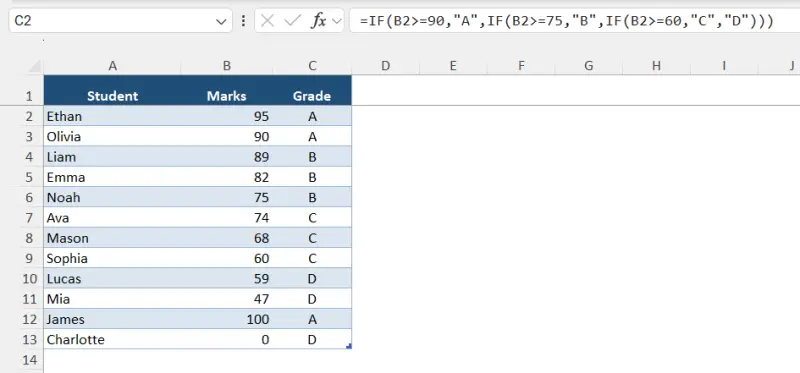
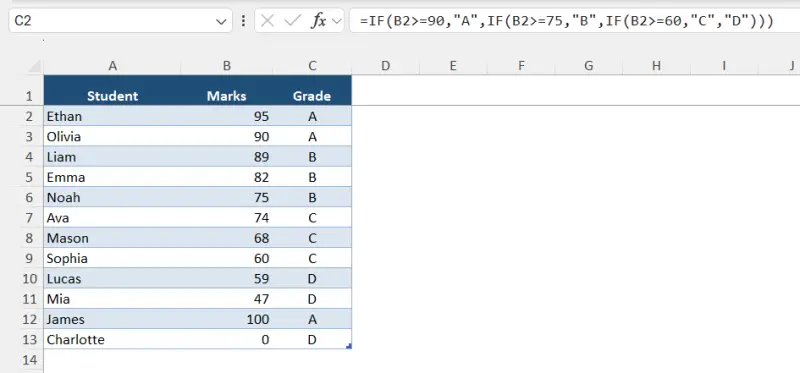
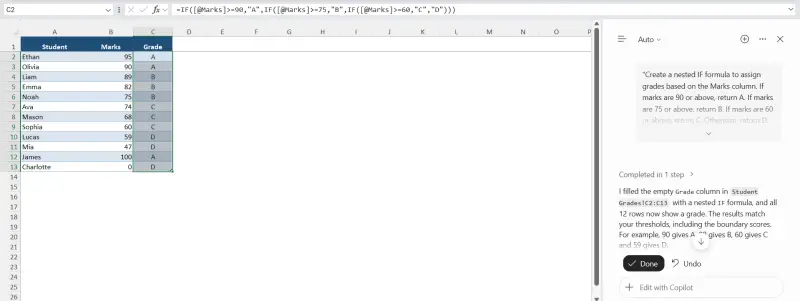
=IF(B2>=90,"A",IF(B2>=75,"B",IF(B2>=60,"C","D")))
Excel checks the conditions from the outside in. A mark of 92 meets the first condition and returns A. A mark of 80 fails the first test but meets the second, so it returns B. The final result, D, applies when none of the earlier tests is true.
Ask Copilot to add the formula to a table
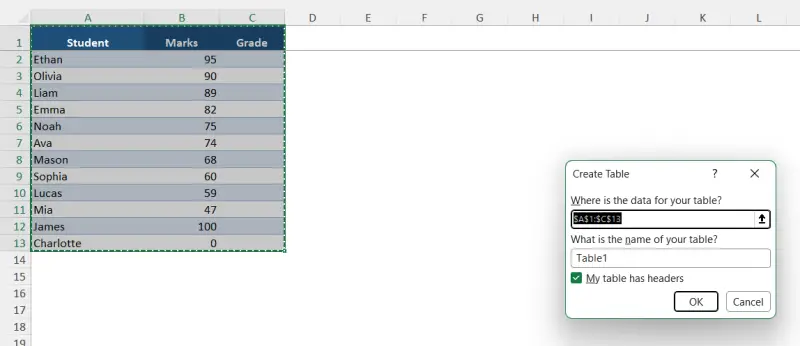
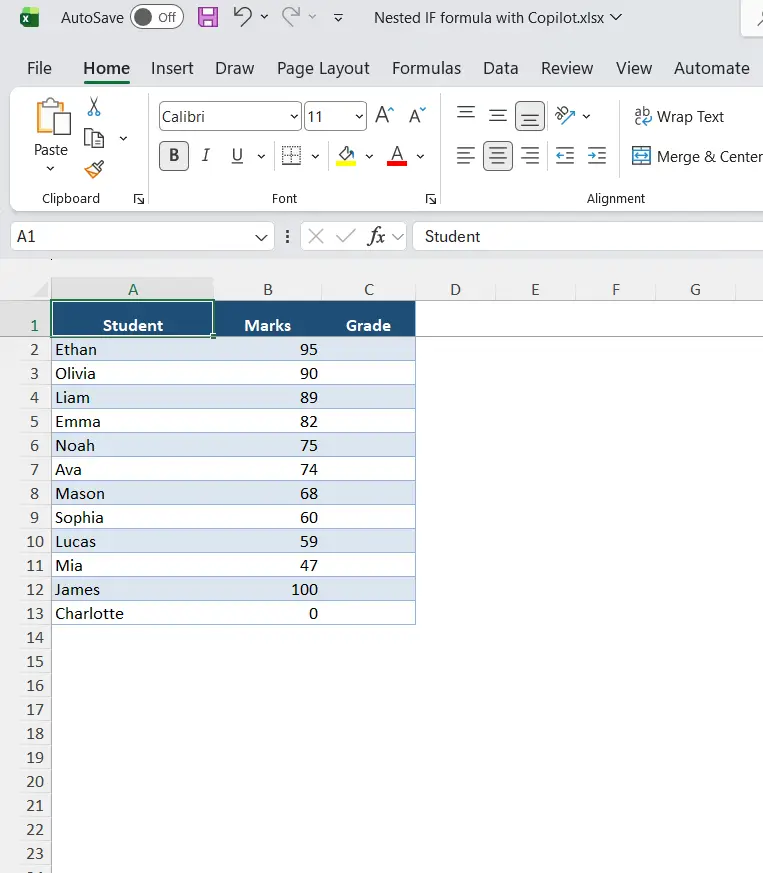
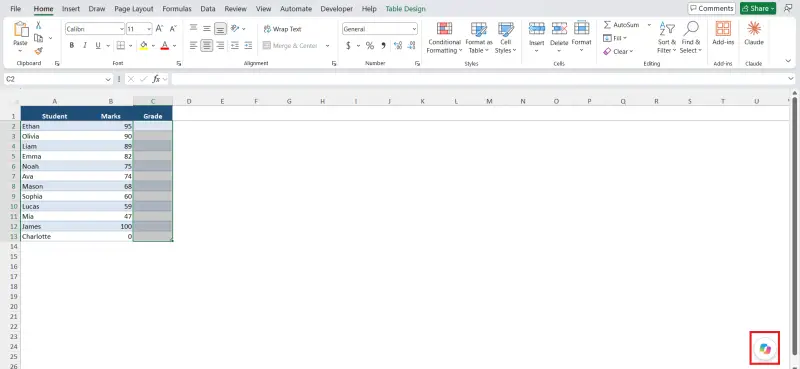
Start with a workbook containing the scores and a clear heading such as Marks. Select the data and press Ctrl + T to convert it into an Excel Table. Table headings give Copilot a direct way to identify the column referenced in your request.
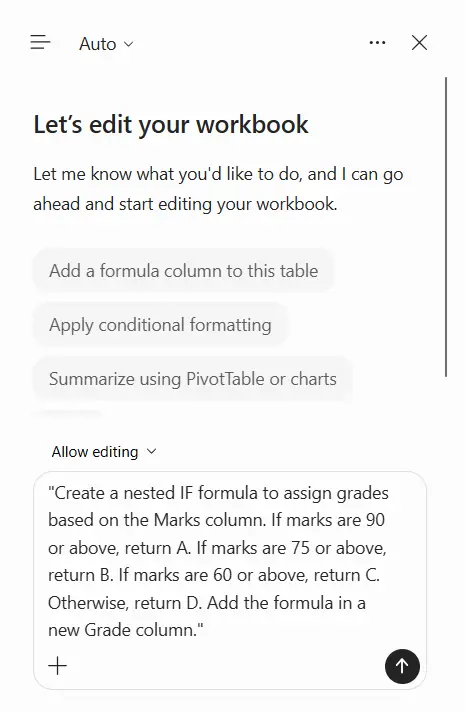
Open Copilot using the button at the lower-right corner of the Excel workbook. In the Copilot pane, describe the thresholds, the returned labels, and where the result should go. For the grading example, the prompt can read:
Create a nested IF formula to assign grades based on the Marks column. If marks are 90 or above, return A. If marks are 75 or above, return B. If marks are 60 or above, return C. Otherwise, return D. Add the formula in a new Grade column.
Copilot analyses the table and suggests a formula. Review that formula in the pane, then select Done to apply it. Check several rows around each boundary: marks of 90, 75 and 60 should receive A, B and C respectively, while a value below 60 should receive D. Boundary checks catch common errors such as using “greater than” where the rule requires “greater than or equal to.”
Use precise rules for other classifications
The same prompt pattern works for categories, bonuses and stock labels. State the column to inspect, the thresholds in their intended order, the output for each condition, and the name of the new result column.
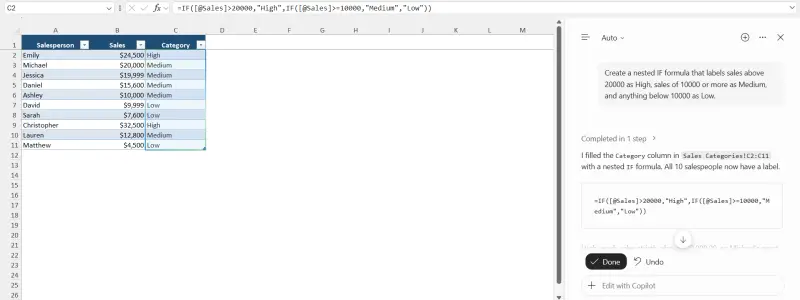
- Sales categories: Return High for sales above 20000, Medium for sales of 10000 or more, and Low for anything below 10000. The distinction between “above 20000” and “20000 or more” affects the result at exactly 20000, so make the wording match the rule you intend.
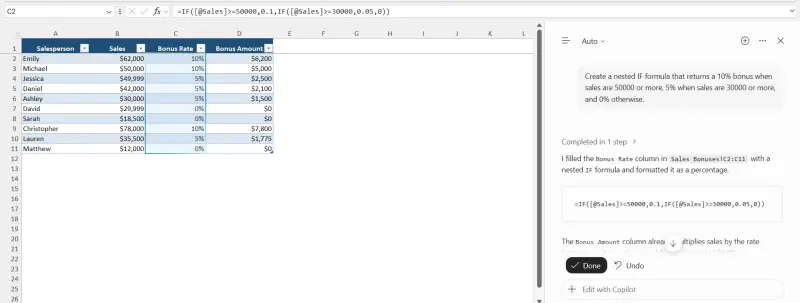
- Bonus rates: Return 10% when sales are 50000 or more, 5% when sales are 30000 or more, and 0% otherwise. Check that the formula returns a numeric percentage if the result will be used in later calculations.
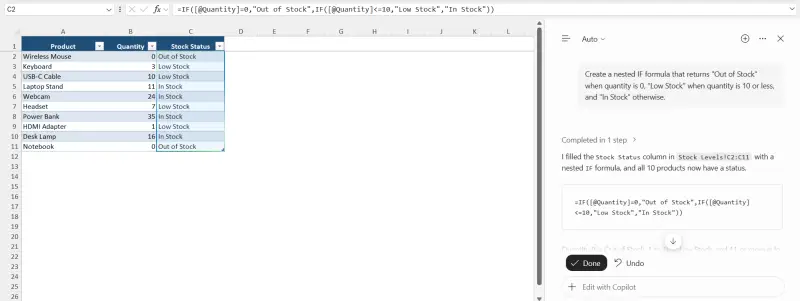
- Stock status: Return “Out of Stock” when quantity is 0, “Low Stock” when quantity is 10 or less, and “In Stock” otherwise. Put the zero check first so that a zero quantity receives the specific label instead of the broader low stock label.
Consider IFS when the rules form a simple sequence
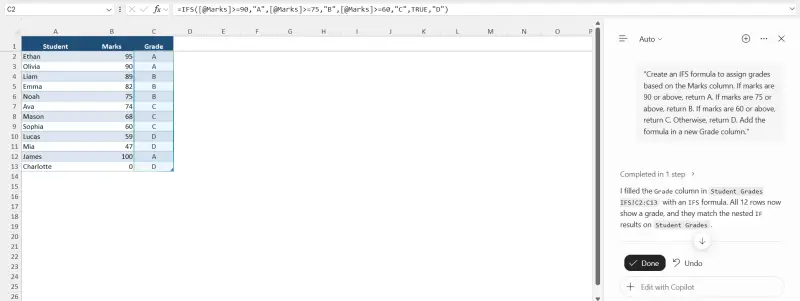
Excel’s IFS function checks multiple conditions and returns the result for the first condition that evaluates to TRUE. It can make a multi-step formula easier to scan because each condition and its result appear in sequence instead of nesting one IF inside another.
For the grading thresholds, an IFS formula is:
=IFS(B2>=90,"A",B2>=75,"B",B2>=60,"C",B2<60,"D")
You can ask Copilot to create an IFS formula by describing the same rules and requesting a new Grade column. As with a nested IF, review the conditions, confirm their order, and test representative values. In this example, the last condition explicitly covers marks below 60.
Excel supports up to 64 levels of nested IF functions in a formula, but long chains can be difficult to inspect and maintain. IFS is one alternative when each test maps cleanly to a result. Copilot can also explain an existing nested IF formula or suggest a modification when the rules change.
Review before filling the table
Copilot’s suggestion depends on the column headings and the instructions you provide. Use distinct, descriptive headings, state whether each boundary is inclusive, and spell out what should happen when no earlier condition is met. Then verify the formula against sample rows, especially values at the thresholds and values just above or below them.
That review is the part that makes the generated formula useful in a working spreadsheet: it confirms that the written rules, the formula’s condition order and the returned labels all match.
For more detail on Excel’s IF function and nested formulas, see Microsoft’s guidance on nested IF formulas.