Create SUMIFS and COUNTIFS Formulas in Excel with Copilot
Turn sales questions into SUMIFS and COUNTIFS formulas with Copilot, then check the table headings, criteria and ranges before using the results.
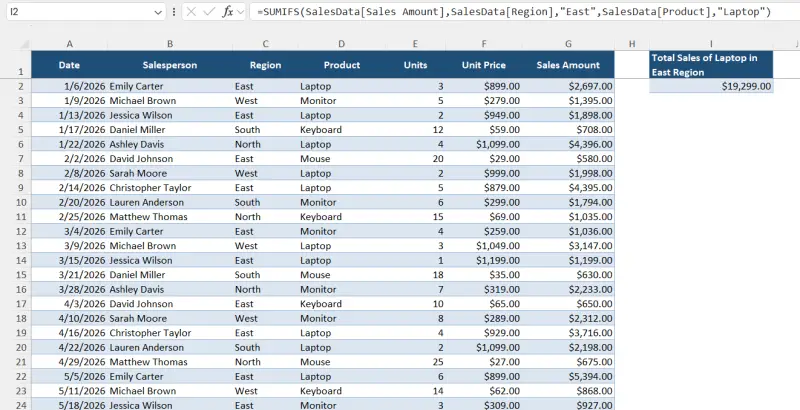
Copilot can turn a plain language request into a SUMIFS or COUNTIFS formula, saving Excel users from building each range and condition by hand. For a sales table, that might mean adding sales for laptops in the East region or counting how many matching records exist. The formula still needs a quick check: Copilot’s result depends on clear headings and on whether it has matched each requested condition to the right column.
What the two formulas calculate
SUMIFS adds values from one range when corresponding rows meet one or more conditions. Its syntax is =SUMIFS(sum_range,criteria_range1,criteria1,criteria_range2,criteria2…). The sum range contains the numbers to add; each criteria range is tested against its paired condition. Further range and condition pairs let you narrow the result.
COUNTIFS counts records whose values meet multiple conditions. Its syntax is =COUNTIFS(range1, criteria1,[range2], [criteria2],…). Each additional range and condition pair adds another requirement for a row to match. For example, a record must satisfy both the region condition and the product condition to be counted.
Calculate sales for a region and product
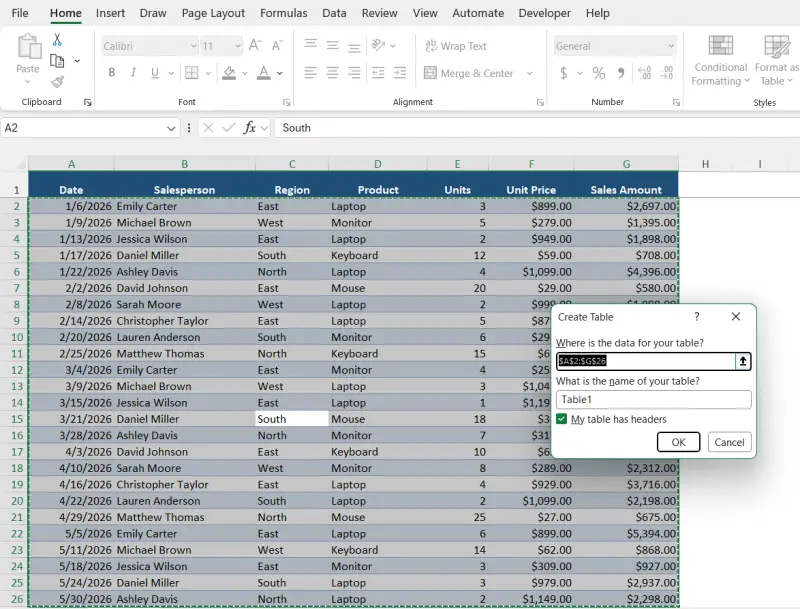
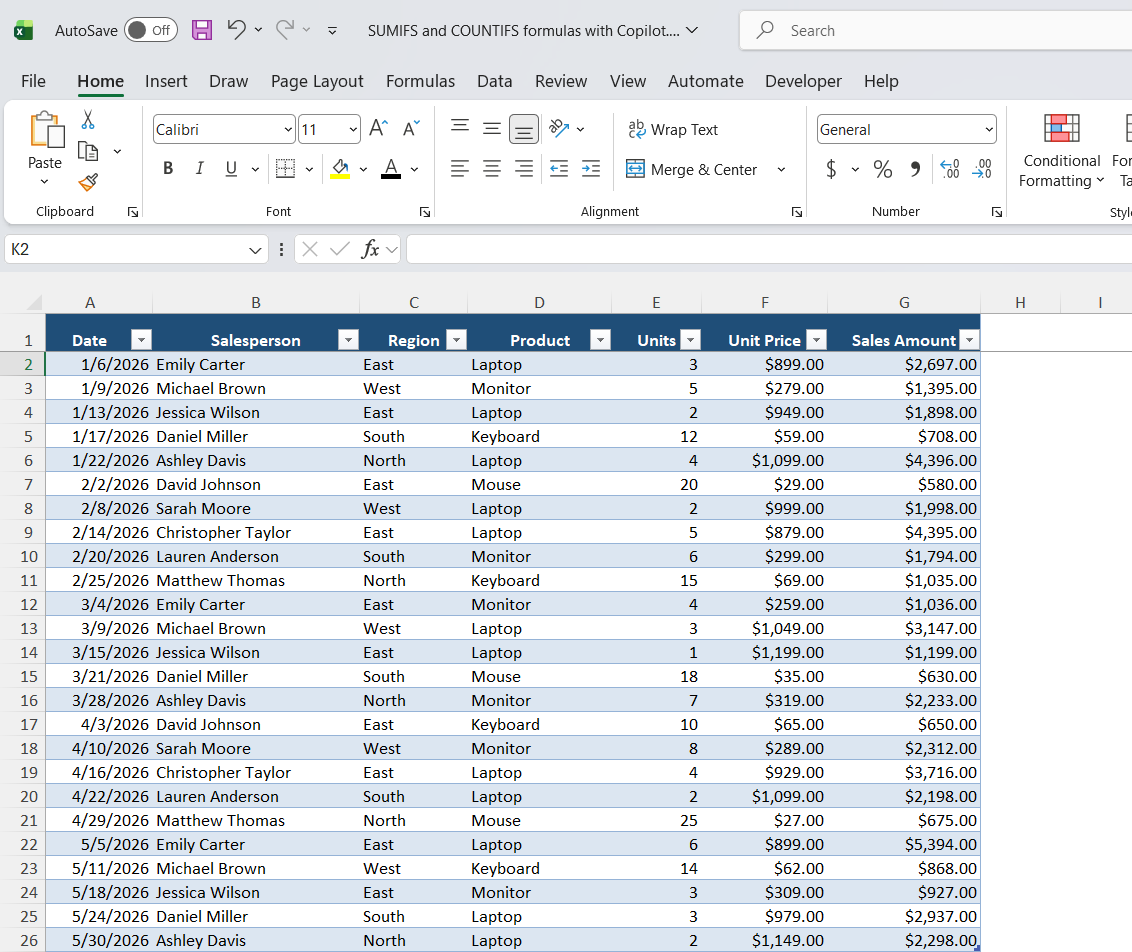
Start with a sales dataset that has recognizable column headings, including Region, Product and Sales Amount. Convert the data into an Excel Table with Ctrl + T. A table gives Copilot named headings and a defined data range to work with, which helps it connect the request to the intended columns.
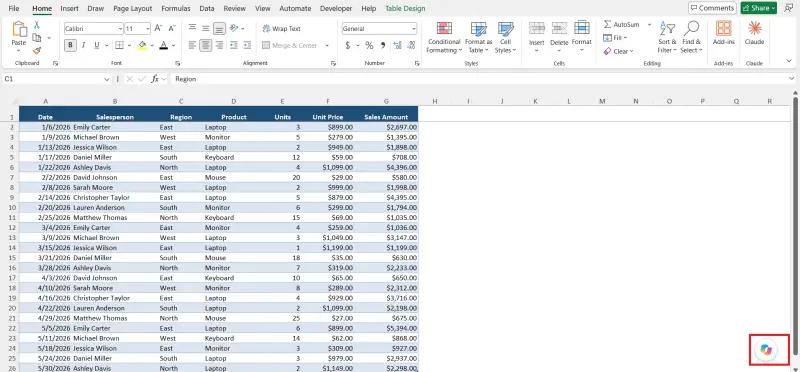
Open Copilot from the Excel workbook and request the total sales for laptops in the East region. A specific prompt helps identify both conditions and the values to add:
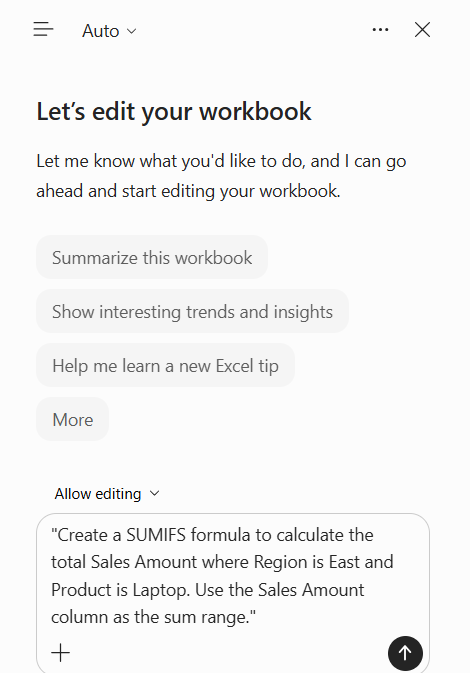
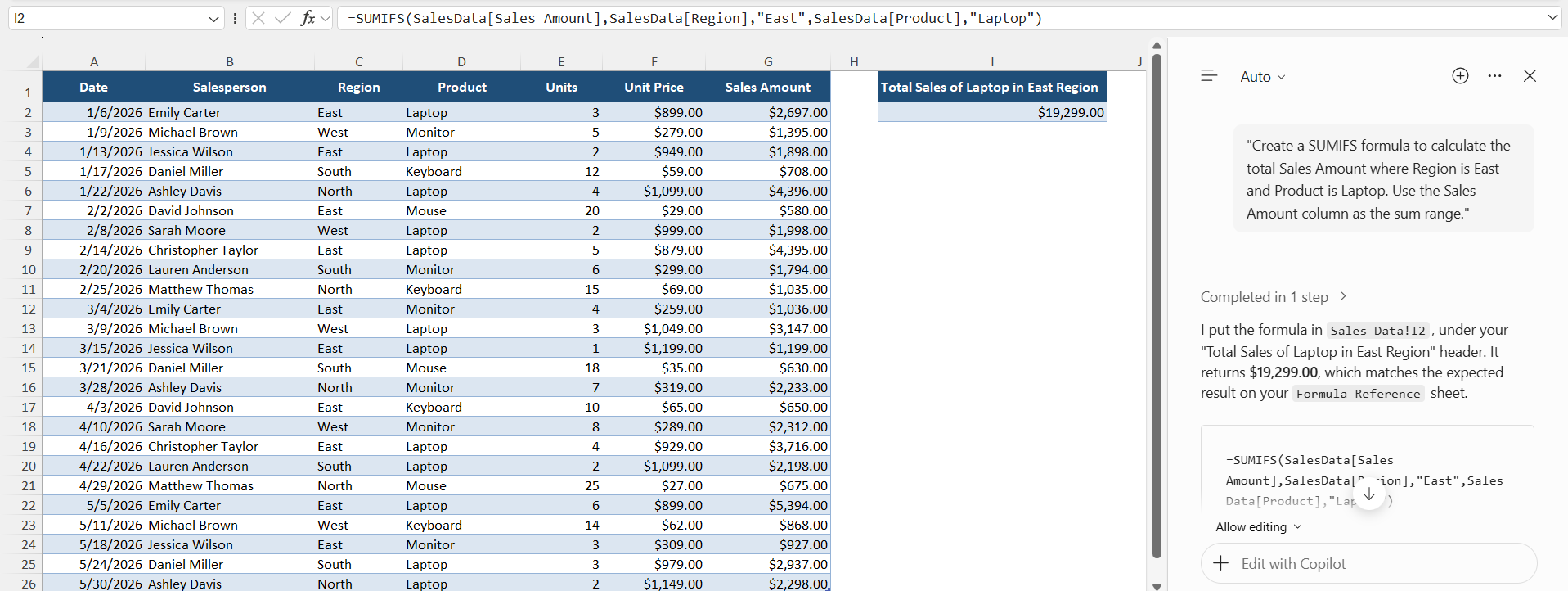
“Create a SUMIFS formula to calculate the total Sales Amount where Region is East and Product is Laptop. Use the Sales Amount column as the sum range.”
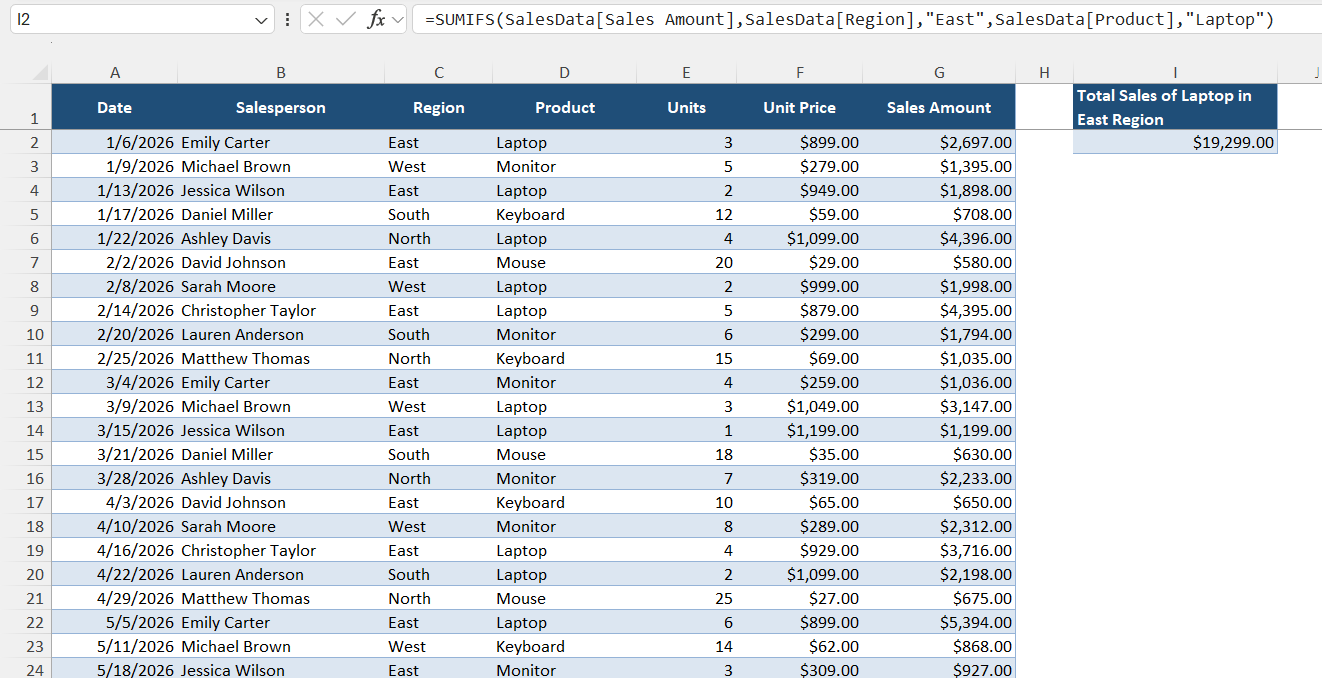
Copilot checks the table headings and suggests a SUMIFS formula using the requested conditions. Inspect the formula before accepting it: confirm that Sales Amount is the sum range, Region is paired with East, and Product is paired with Laptop. If those references are correct, select Done.
Count matching sales records
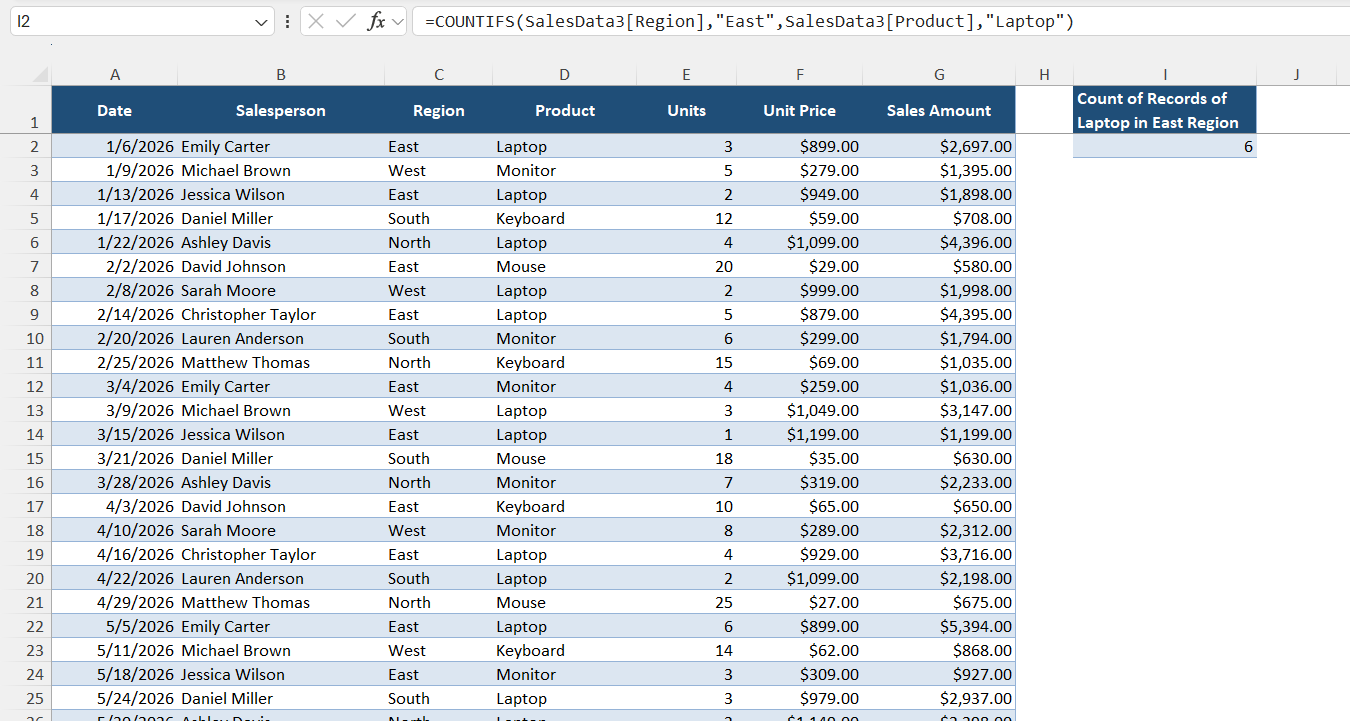
For a count of laptop sales in the East region, use the same table and request a COUNTIFS formula. This time, the goal is to count rows meeting both conditions, rather than add the values in Sales Amount.
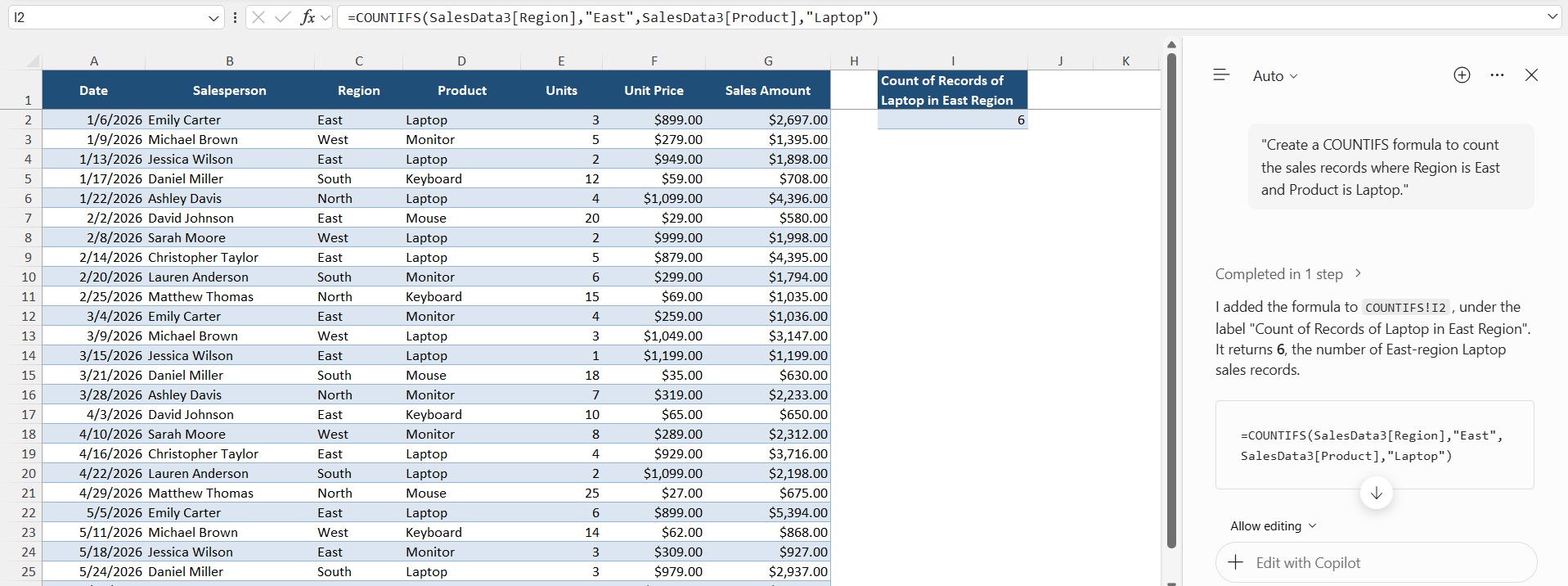
“Create a COUNTIFS formula to count the sales records where Region is East and Product is Laptop.”
Check that the suggested formula uses the Region and Product columns with the intended criteria, then select Done. Microsoft’s COUNTIFS function reference describes the function’s role in counting cells that meet multiple conditions.
Make the prompt and result easier to check
Use column headings that describe their contents clearly, and state each condition in the prompt. When filtering numeric values, express the comparison directly, such as greater than, less than or equal to, and include the value being compared. You can also request additional conditions, such as a salesperson or another product category, when the table includes those fields.
Before relying on the result, review the formula’s ranges and criteria against the table. A formula can look plausible while referring to the wrong heading or applying a condition incorrectly. If you need to adjust the calculation, ask Copilot to change an existing criterion or add another one, then inspect the revised formula as well. The practical check is simple: make sure the formula answers the question you asked, using the rows and values you intended.
Questions administrators and Excel users ask
Can Copilot create both formulas?
Yes. Describe the values to add for SUMIFS or the records to count for COUNTIFS, and specify the conditions the result should meet.
Can SUMIFS use several conditions?
Yes. A prompt can include multiple criteria, such as region, product and salesperson. The formula pairs each criterion with a range to test.
Is an Excel Table required?
The provided workflow converts the dataset into a table with Ctrl + T. Tables and clear headings help Copilot identify the fields and data range for the formula.
Can a generated formula be changed?
Yes. You can ask Copilot to add a condition or revise an existing one. Check the resulting ranges and criteria again before using the calculation.