Orchestrator Triggers Let Long vCenter Tasks Wait Without Holding a Thread
VCF Operations Orchestrator can suspend runs until vCenter tasks finish. Set a timeout, check task status and handle unfinished work.
Long vCenter operations can tie up Orchestrator workflow runs when they wait through repeated polling. A trigger-based long-running workflow lets a run suspend while a task is underway, then resume when vCenter reports that it has ended. That can help when clones, migrations or large snapshots take minutes, especially when many workflows are waiting at once.

The key operational detail is timeout handling: timing out the wait doesn't stop the vCenter task. A workflow needs an exception path that checks whether the task is still running and handles cleanup. This approach was tested with VCF Operations Orchestrator 9.1.1 (build 25643527), embedded in VCF Automation 9.1, using the vCenter plug-in.
What a trigger does
Most ways of starting work in Orchestrator create a new workflow run. A trigger behaves differently: it resumes a run that has already reached a Waiting event and suspended. The run remains the same; the event tells it when to continue.
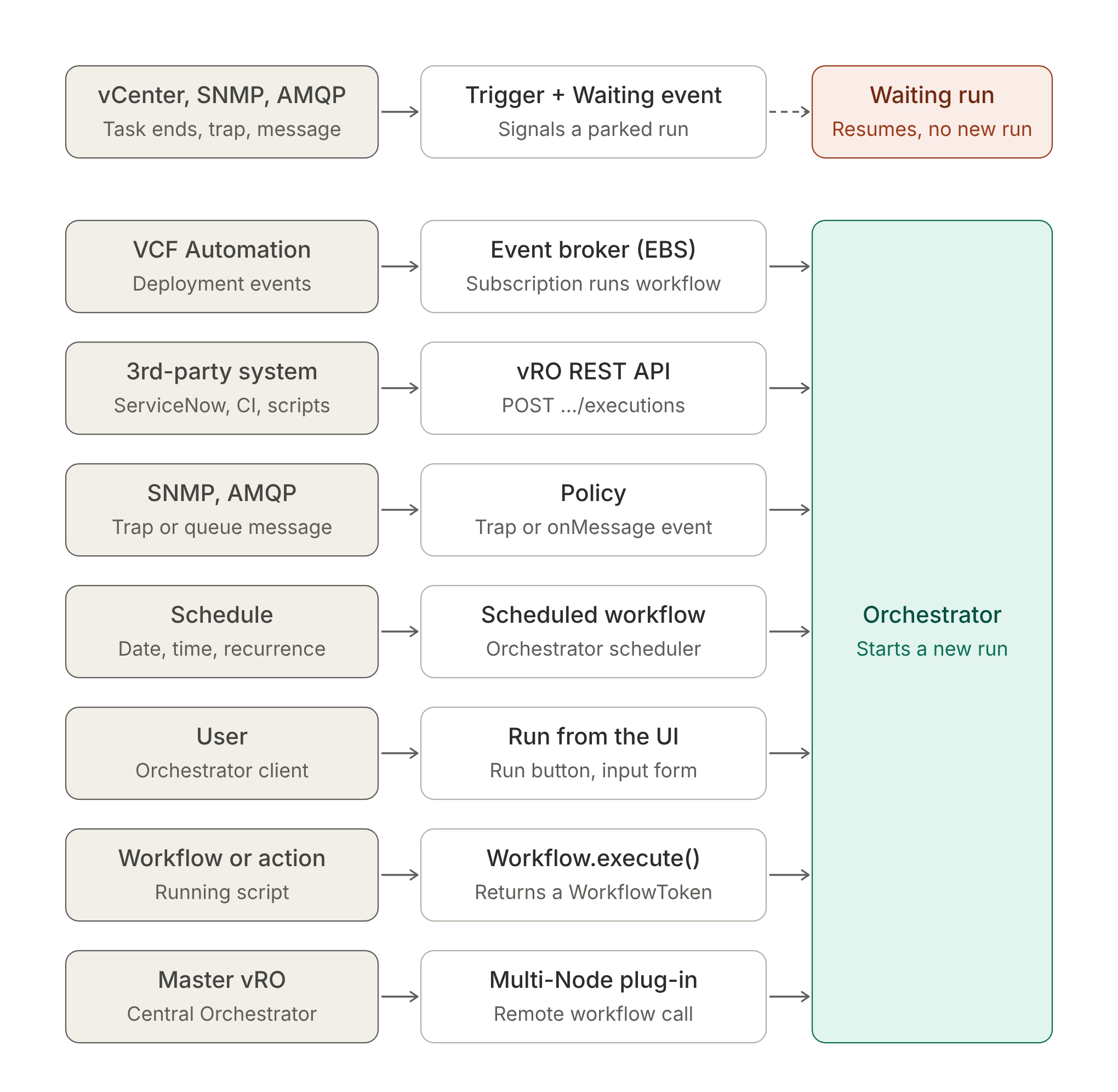
SNMP and AMQP illustrate the distinction. A policy starts a fresh run for each incoming trap or message. A trigger can instead resume a particular run that is waiting for that event. For vCenter operations, the trigger watches the task returned by the operation; the Waiting event suspends the run until that task ends or the configured timeout is reached. The Orchestrator TechDocs guide describes the workflow pattern.
Workflow design and task setup
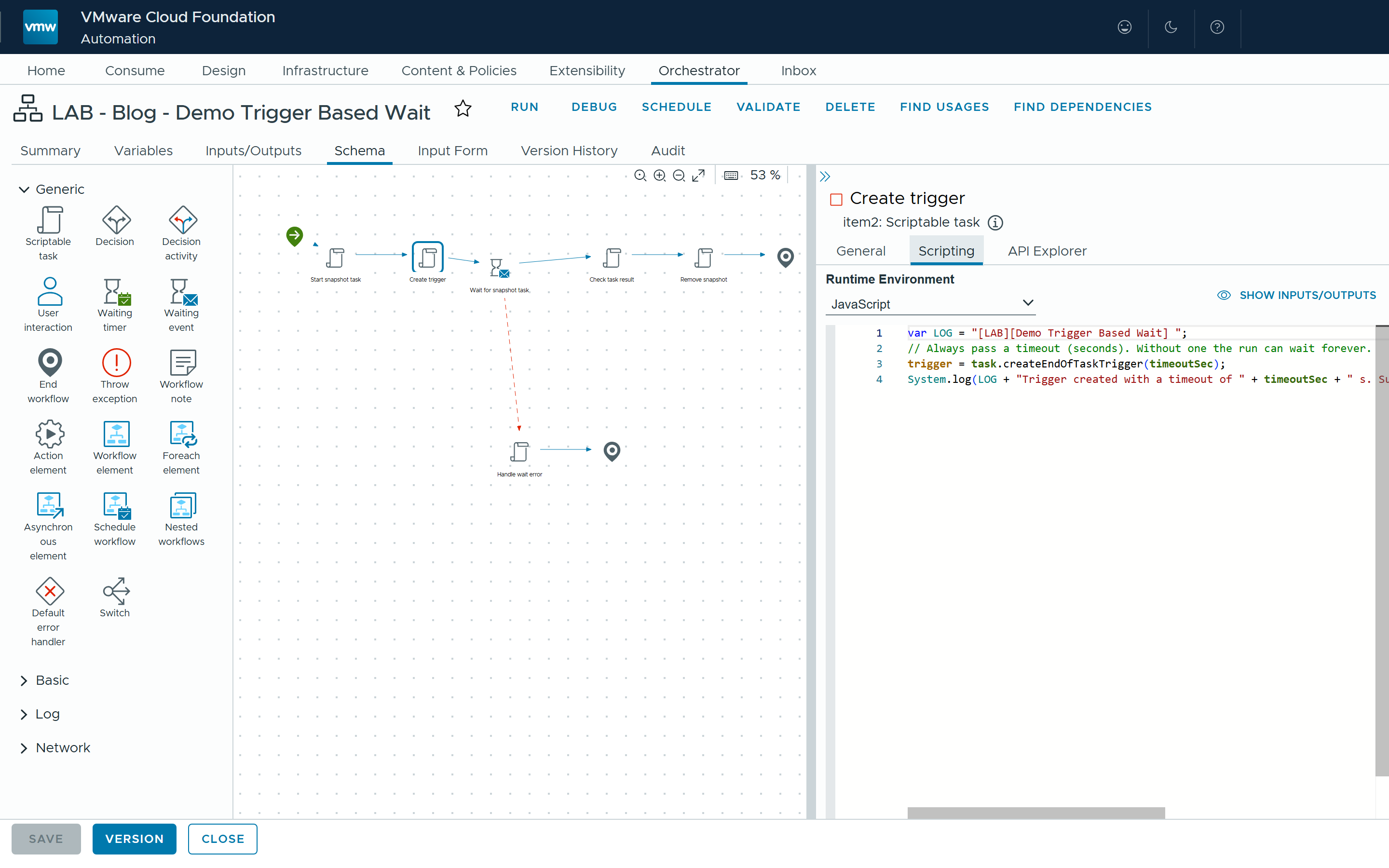
The demonstration creates a VM snapshot with memory, waits for the vCenter task through a trigger, checks the task result and removes the snapshot. The snapshot takes about a minute in this test. Removal deliberately uses the traditional polling method, so both wait patterns appear in one workflow.

Its inputs are vm (VC:VirtualMachine), snapshotName (string), includeMemory (boolean) and timeoutSec (number). It tracks the returned task (VC:Task), the trigger, the start time in startedAtMs and an errorCode string.
The first scriptable task must start an operation that returns a VC:Task. The vCenter plug-in's createSnapshot_Task method does that here:
if (!vm) { throw "vm is required"; }
if (!timeoutSec || timeoutSec <= 0) {
  throw "timeoutSec must be greater than 0";
}
var name = snapshotName ? snapshotName : "trigger-demo";
task = vm.createSnapshot_Task(
  name,
  "Temporary snapshot for the trigger-based wait demo",
  includeMemory === true,
  false
);
startedAtMs = new Date().getTime();
The next scriptable task creates the trigger from that task. It takes task and timeoutSec as inputs, produces a Trigger, and needs to sit immediately before the Waiting event:
trigger = task.createEndOfTaskTrigger(timeoutSec);Always provide a timeout. Without one, the workflow may remain suspended indefinitely if the task never reports completion. In the Waiting event's Inputs section, bind trigger.ref to the trigger variable. Under Exception handling, bind the error to errorCode and connect the error path to a separate scriptable task.
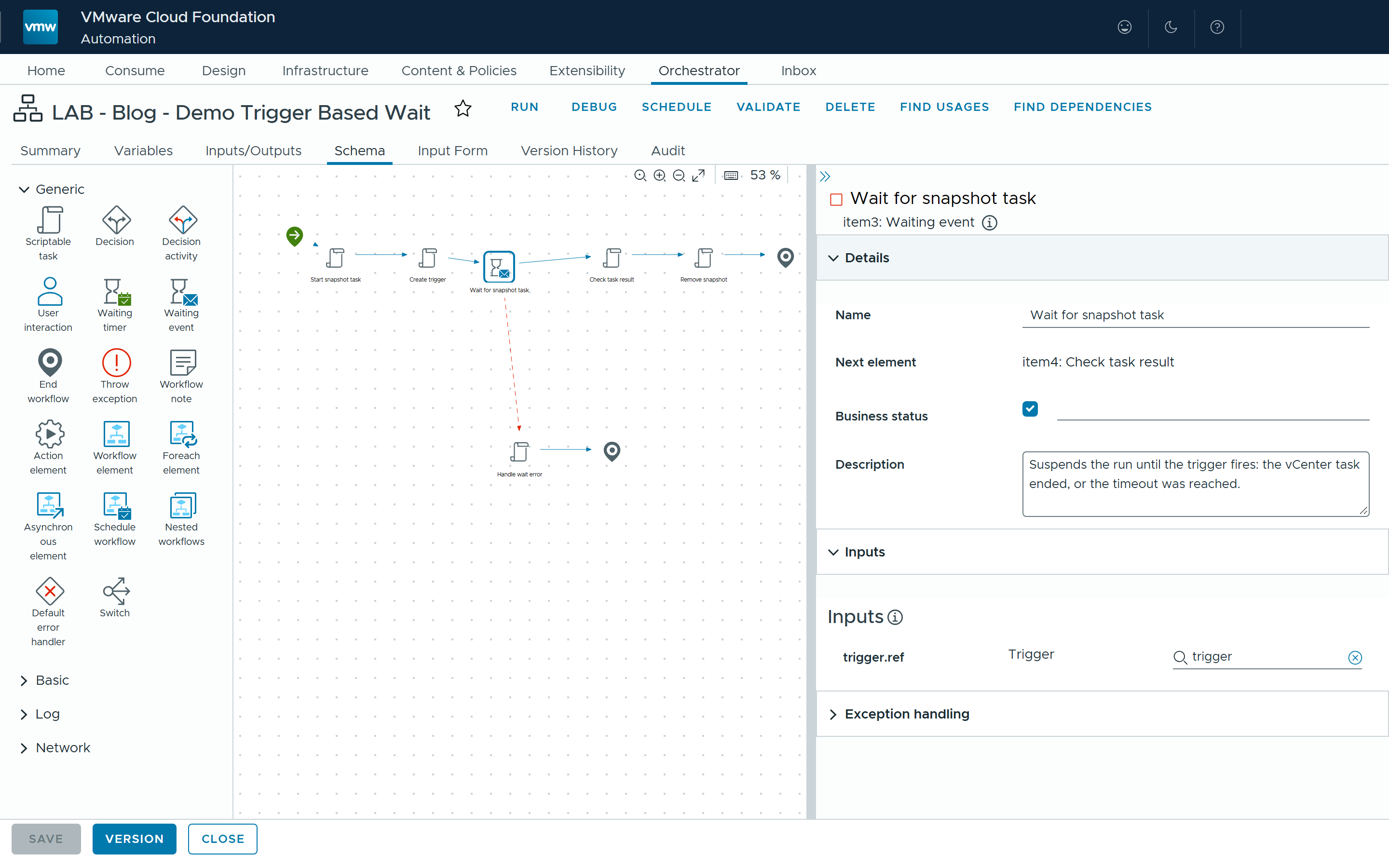
trigger.ref input to the Trigger variable.Check task status after the wait
An end-of-task trigger signals that the task ended; it doesn't indicate success. The script after the Waiting event must inspect task.info.state.value and handle failure or an unexpected state. In the demonstration, an error state raises the vCenter task's localized message when available, while any state other than success or error also fails the workflow.
var info = task.info;
var taskState = info.state.value;
var waitedSec = Math.round(
  (new Date().getTime() - startedAtMs) / 1000
);
System.log("Resumed after " + waitedSec + " s. Task state: " + taskState);

if (taskState == "error") {
  var reason = info.error
    ? info.error.localizedMessage
    : "no error details";
  throw "Snapshot task failed: " + reason;
}
if (taskState != "success") {
  throw "Snapshot task ended in unexpected state: " + taskState;
}
Once the snapshot succeeds, the cleanup step removes it. This step uses vim3WaitTaskEnd, which polls until the removal task ends and keeps the workflow active while it waits. The contrast is useful: for a short operation, polling may be simple; for a long wait, the trigger lets the workflow suspend.
What the test showed
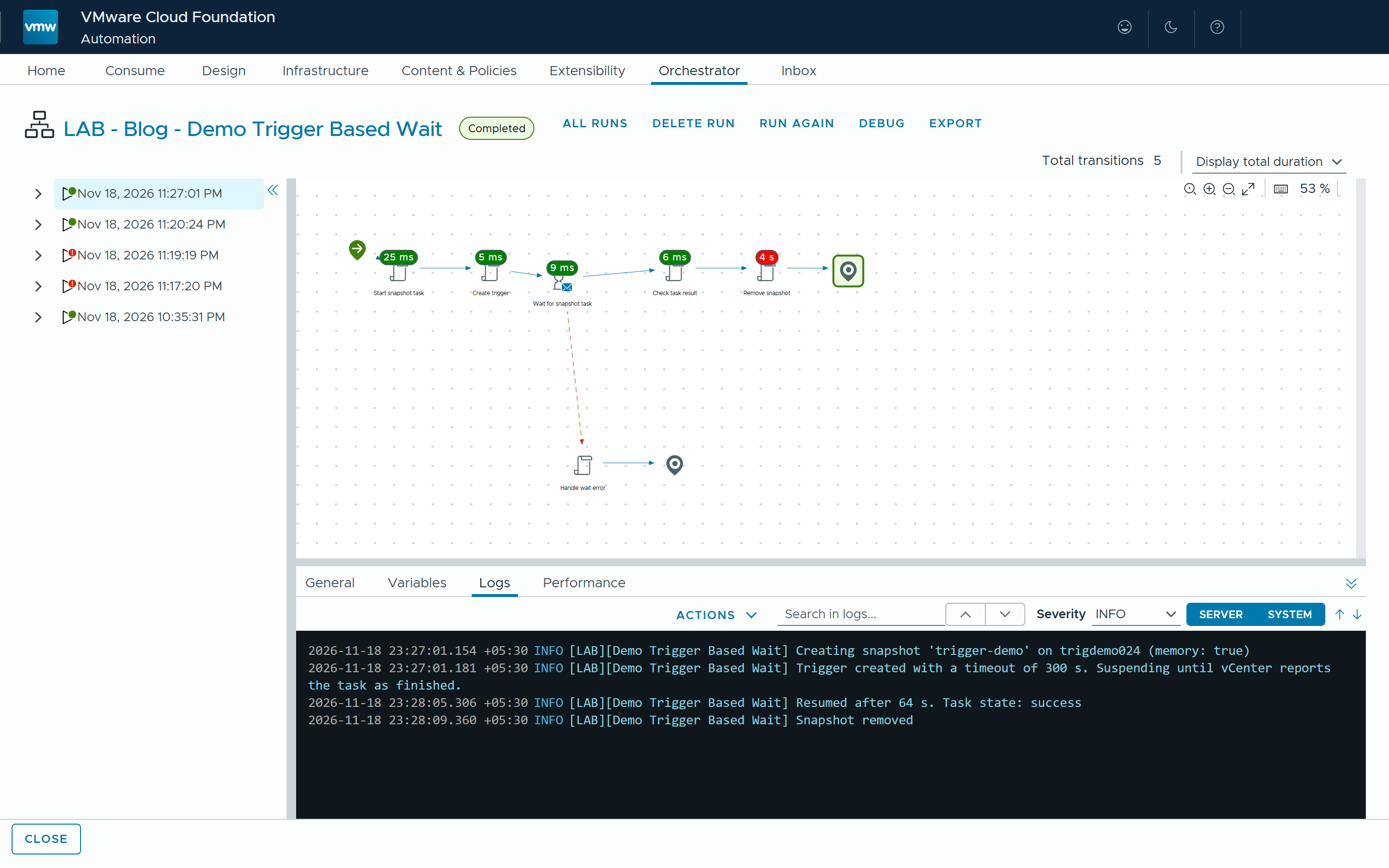
With includeMemory set to true and a 300-second timeout, the run entered Waiting Signal shortly after starting. Just over a minute later, vCenter finished the snapshot and Orchestrator resumed the run. The logged task state was success, and the snapshot was then removed.

The recorded times were 23:27:01.154 for the snapshot start, 23:27:01.181 for trigger creation, and 23:28:05.306 when the run resumed after 64 seconds. At 23:28:09.360, the workflow logged that the snapshot had been removed.
Timeouts need their own cleanup
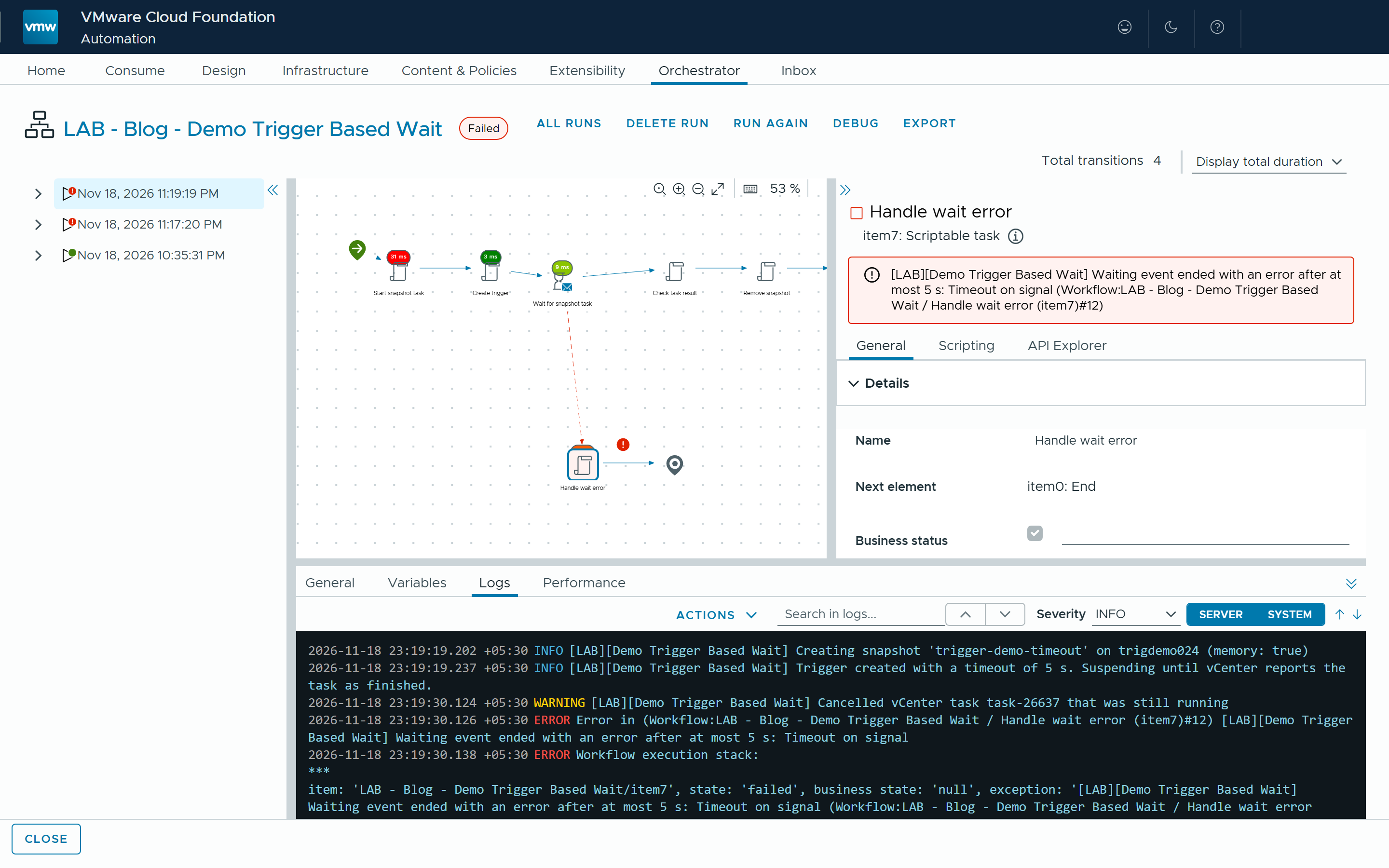
A separate test used a five-second timeout against a snapshot operation that takes about a minute. The Waiting event didn't continue along the normal workflow path: it raised Timeout on signal and followed its exception path. Without a configured error path, the run fails at the Waiting event.
The timeout was also later than its configured value. Two tests failed about 9.5 and 10.9 seconds after trigger creation. The wait appears to be checked on an interval, so a trigger timeout isn't suitable for precise timing. That difference is less significant for waits measured in minutes or hours.
More consequentially, the timeout only ends the wait. It doesn't automatically cancel the vCenter task. In the first test, the workflow failed, but vCenter continued creating the snapshot, leaving it behind without a cleanup step.
The error handler should receive the task as an input, inspect its state and cancel it if it's still running and marked cancelable. The test handler also warns when cancellation isn't available, then raises an error that includes the timeout and Waiting event error:
var info = task ? task.info : null;
if (info && info.state.value == "running") {
  if (info.cancelable) {
    task.cancelTask();
    System.warn("Cancelled vCenter task " + info.key);
  } else {
    System.warn(
      "Task " + info.key +
      " is still running and cannot be cancelled. " +
      "Remove the snapshot by hand when it finishes."
    );
  }
}
throw "Waiting event ended with an error after at most " +
  timeoutSec + " s: " + errorCode;
With a five-second timeout, the test log showed trigger creation at 23:19:19.237 and cancellation of the still-running task at 23:19:30.124. The workflow then failed with Timeout on signal. vCenter showed the snapshot task as cancelled, and the VM had no snapshot left. Since not every task can be cancelled, decide what the handler should do when cancellation isn't possible, such as waiting for completion or raising the task for manual follow-up.
Choose the wait that matches the work
Use polling with vim3WaitTaskEnd when a task finishes in a few seconds and simplicity matters. A trigger with a Waiting event suits operations that take minutes, or situations where many workflow runs could otherwise poll at once. For a scheduled point in time, use a Waiting timer; the timer-based workflow guide covers that pattern.
The practical checklist is short: create the trigger from a returned VC:Task, bind trigger.ref to the Waiting event, configure an exception path, verify the task's final state after resumption, and plan cleanup for timeouts. With those pieces in place, long-running vCenter operations can leave Orchestrator's workflow thread free while they complete.