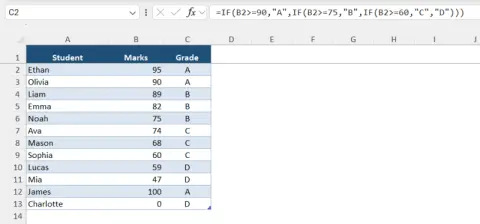
Excel for the Web Copilot Suggests Formulas from Worksheet Data
Type = in a cell to get a Copilot formula suggestion. Review the result, refine the prompt or switch off suggestions in Excel Options.
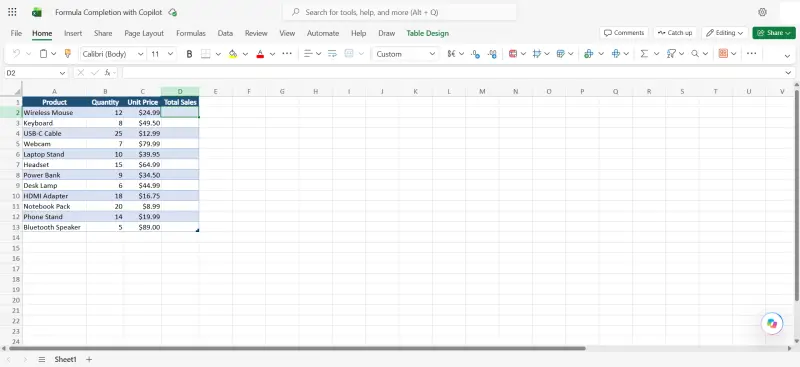
Excel for the web’s Copilot can suggest formulas from worksheet data and column headers, giving teams a starting point when syntax or cell references aren’t top of mind. The suggestions can help with calculations such as percentage change and extracting information from text, but they still need review: sparse or unclear worksheet structure can lead to a formula that doesn’t match the intended calculation.
Get a formula suggestion
Open the workbook in Excel for the web, select the cell where the formula should go, and open Copilot. Type an equal sign (=) in the cell. Copilot then analyzes the worksheet and may offer a formula based on the surrounding data and headers. If the proposed calculation fits the task, accept it to insert the formula.
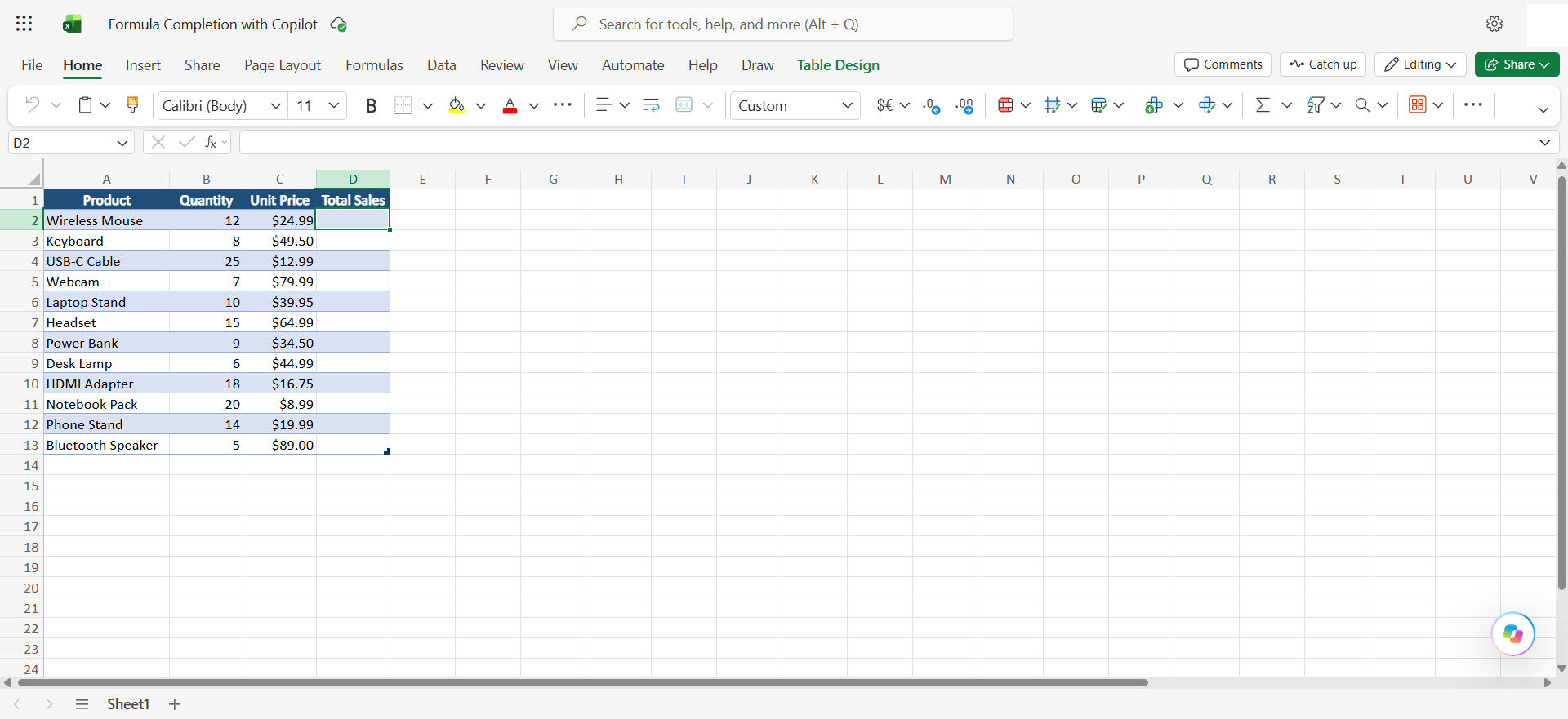
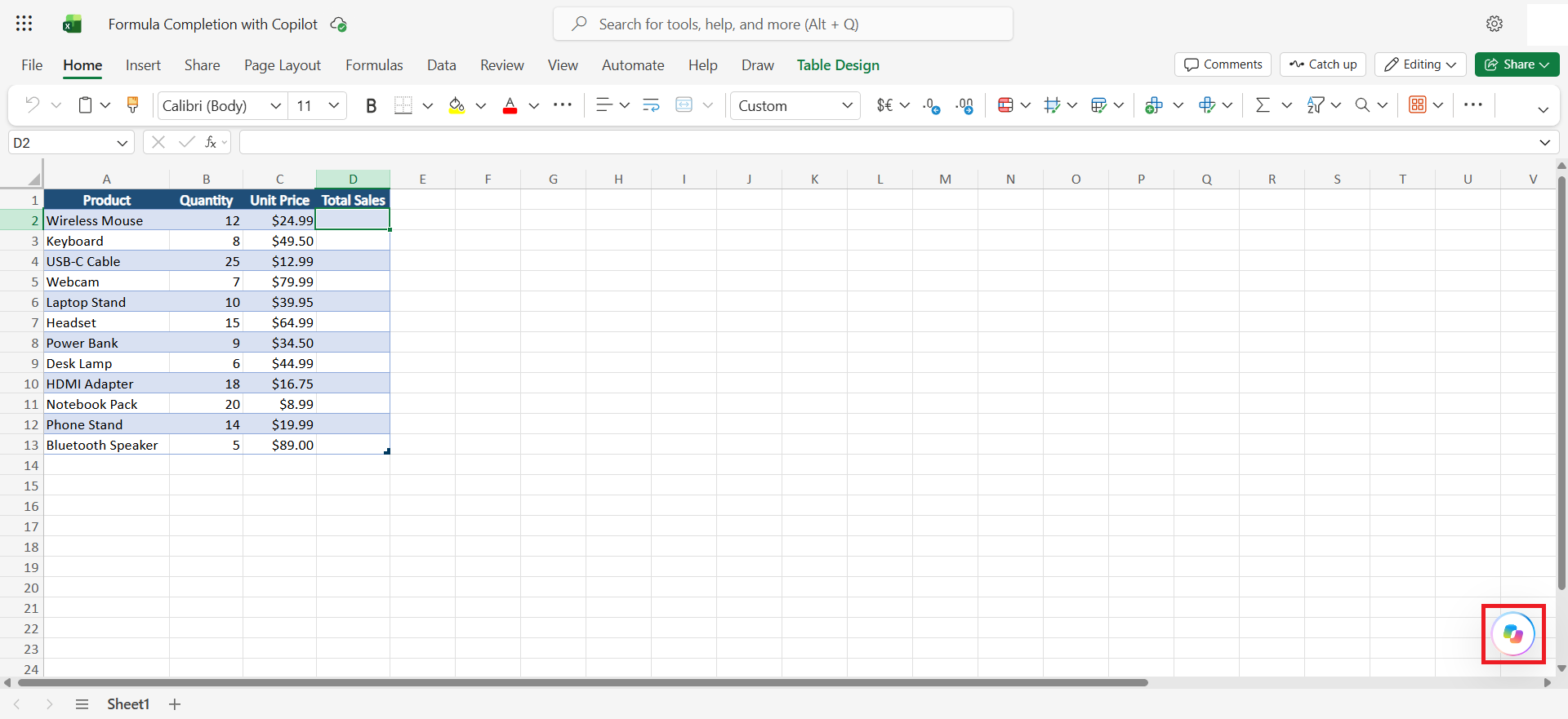
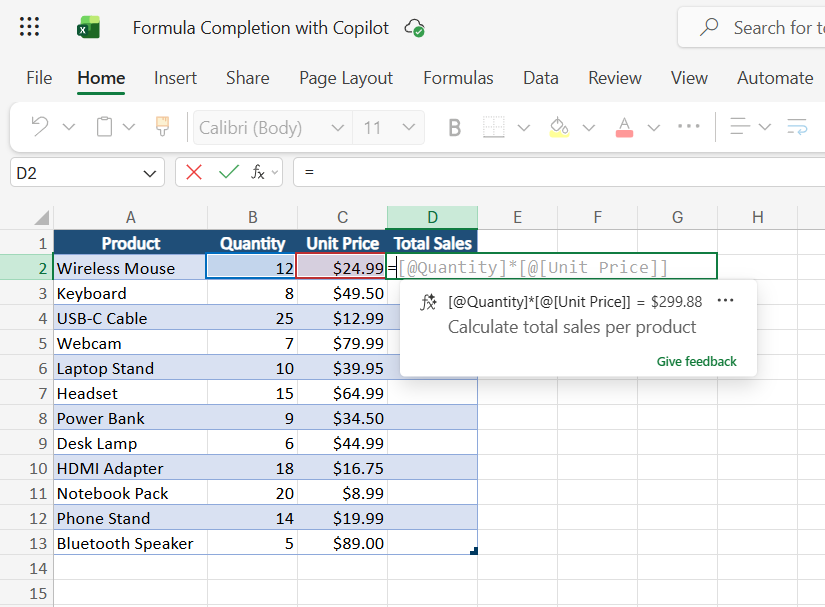
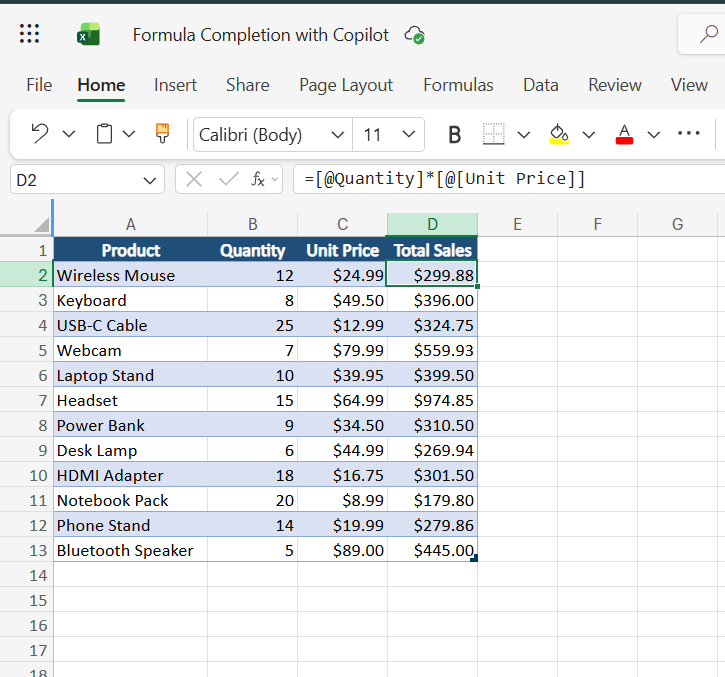
The feature is useful when a task is clear from the table’s layout but the formula syntax is less familiar. Copilot can also suggest the remaining parameters after you begin typing a function name. For more targeted results, add characters or details to narrow the request. Depending on the suggestion, Copilot may show a calculated result preview and a short explanation; inspect both before relying on the output.
Examples: percentage change and text extraction
For a percentage change column comparing values in columns B and C, Copilot may suggest =(C2-B2)/B2. This calculates the difference between the current and prior values, then divides by the prior value. Check that the two columns represent the periods you intend to compare and that the denominator is the correct baseline. If the earlier value is zero or blank, the result may need separate handling; the suggestion alone does not establish how those cases should be treated.
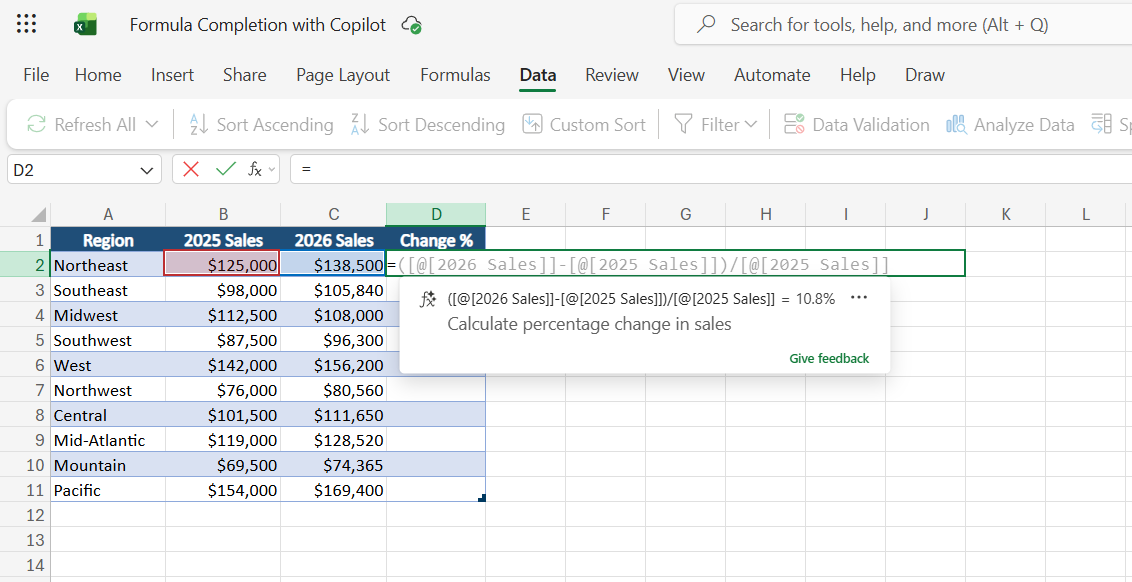
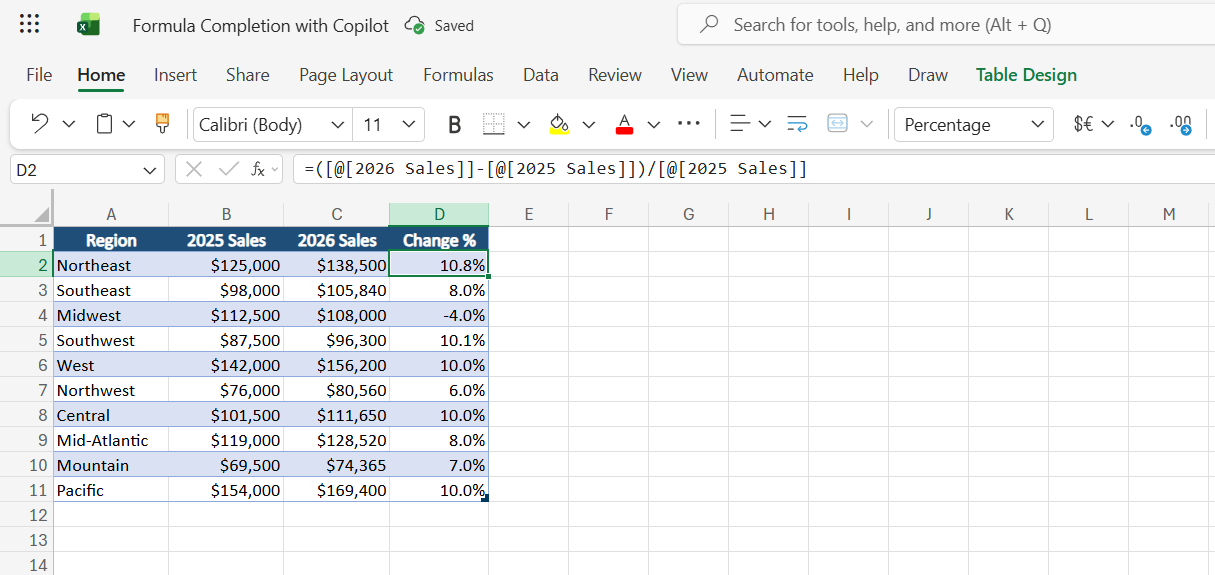
After accepting a suggestion, press Enter to insert the formula. The example describes applying the formula to a range, so check the resulting cells and references across the filled range to confirm the calculation follows the data as expected.
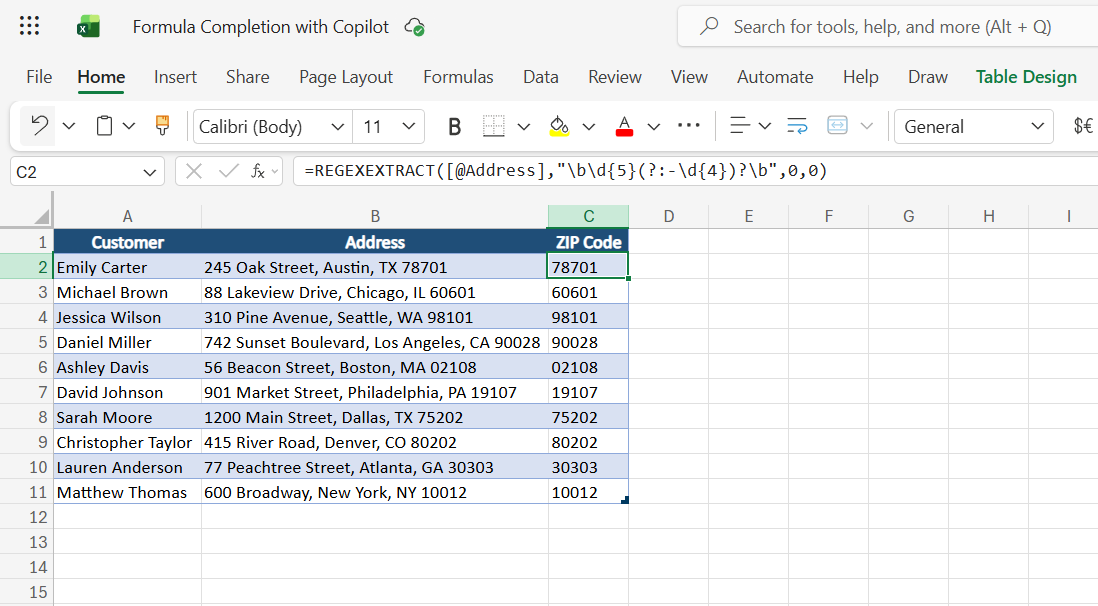
Copilot can also infer a text extraction task from a table. For instance, if customer addresses are in one column and ZIP codes are needed in another, type = in the new column and review the proposed formula. Address formats can vary, so validate the extracted values against a sample of the source rows before using the new column in downstream work.
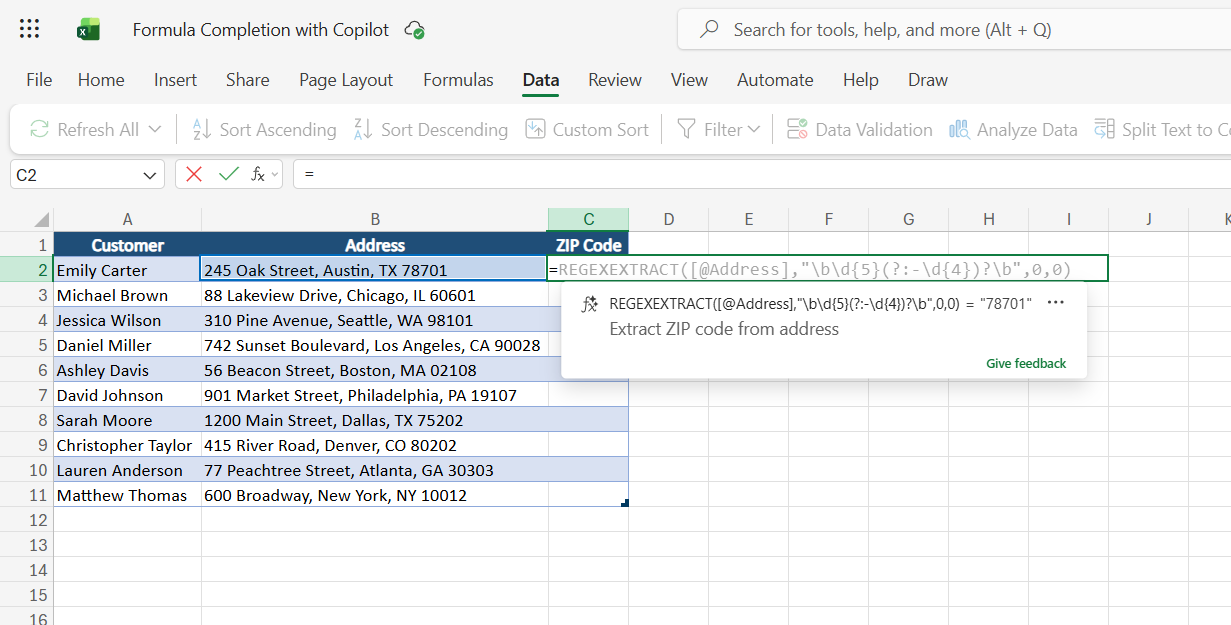
Press Enter to insert an accepted formula into the workbook, then inspect the output where the source text is incomplete or formatted differently from the rest.
Control formula suggestions
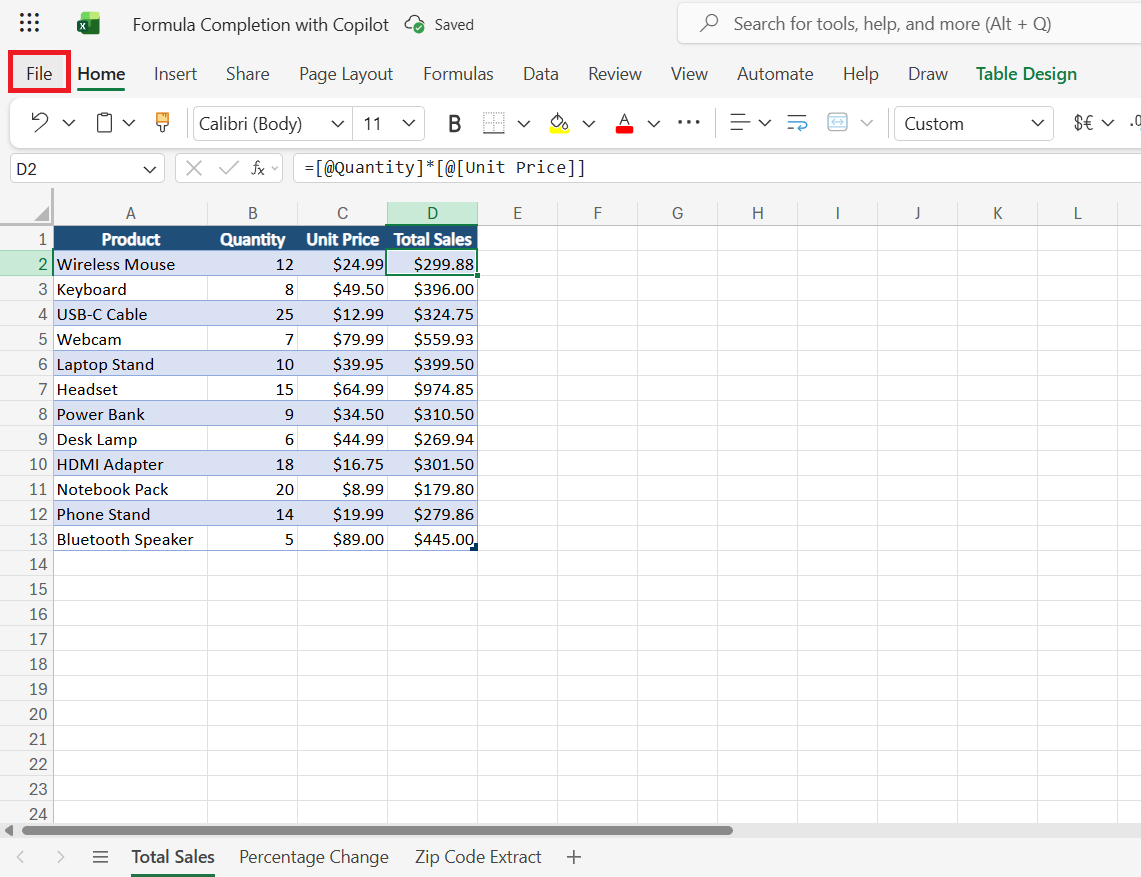
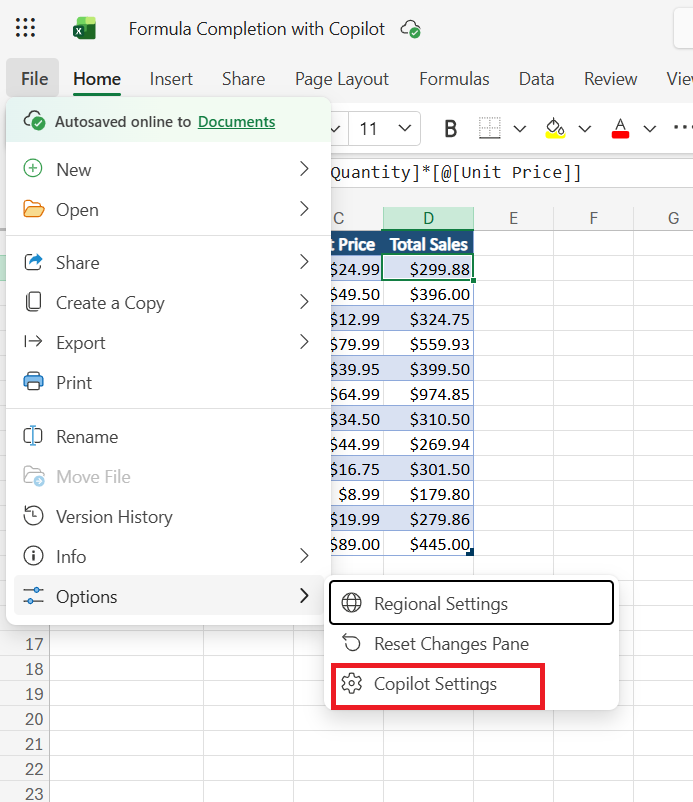
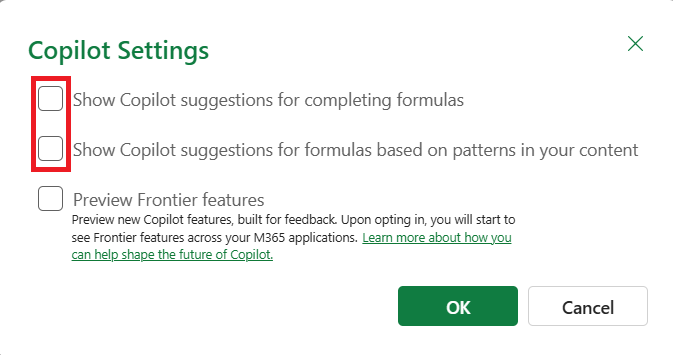
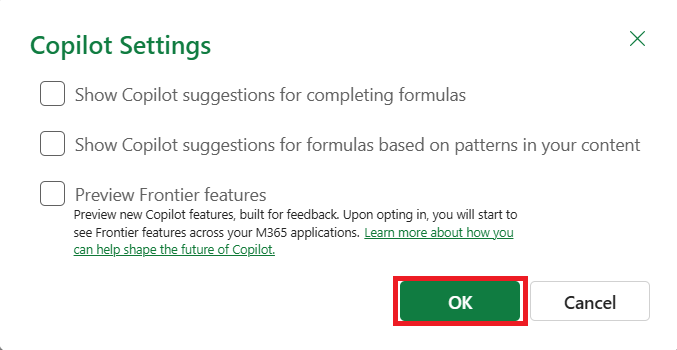
In Excel, open File > Options > Copilot Options. In the dialog, clear the checkboxes for Show Copilot suggestions for completing formulas and Show Copilot suggestions for formulas based on patterns in your content, then select OK to save the change.
What administrators and spreadsheet owners should check
Suggestions depend on the worksheet’s structure and available information. If Copilot lacks enough context, it may offer an unsuitable formula; it can also take a few seconds to respond. Adding details or typing more of the formula can help focus the suggestion, but the output remains something to verify against the intended calculation and representative rows.
Availability can vary with Excel version, subscription and language settings. Teams rolling out the feature should check those conditions in their own environment and confirm that users can access the controls they need. For workbooks used in reporting or operational decisions, retain the usual review of formulas and outputs before sharing or building further calculations on them. Copilot can reduce the effort of recalling syntax, while the workbook owner remains responsible for confirming that references and results fit the data.
Microsoft introduced Excel formula suggestions as a way to propose formulas from worksheet context; further details are available in the Excel formula suggestions announcement. In practice, clear headers, consistent columns and a quick check of the proposed result are the useful safeguards before accepting a formula.