Microsoft Tenant Configuration Management Adds Preview Drift Remediation
TCM can now remediate selected Entra ID, Exchange Online and EOP drift, but the preview requires delegated permissions and user context.
Tenant Configuration Management (TCM) can now act on configuration drift, a significant step beyond its earlier role as a tool for detecting and reporting differences from a desired state. Its preview /remediate method can change supported Entra ID, Exchange Online and Exchange Online Protection settings to match a baseline. The practical limit is permissions: each request runs in a user’s context, and the preview supports delegated permissions only. That makes hands-off, fully automated remediation difficult for now.
Remediation also works on individual resources, not on an entire monitor. Administrators need to review each drift, decide whether the differences should be corrected and confirm that both the initiating user and the TCM service principal have the permissions required for that resource.
Two sets of permissions must line up
For each change, the user who starts remediation must have sufficient permissions to edit the affected resource. The TCM service principal must also have the appropriate delegated permission. When making the request through the API, the application additionally needs the delegated ConfigurationMonitoring.ReadWrite.All scope. For example, changing a Conditional Access policy requires the user to hold a suitable Entra ID role, such as Conditional Access Administrator, and TCM to have Policy.ReadWrite.ConditionalAccess.
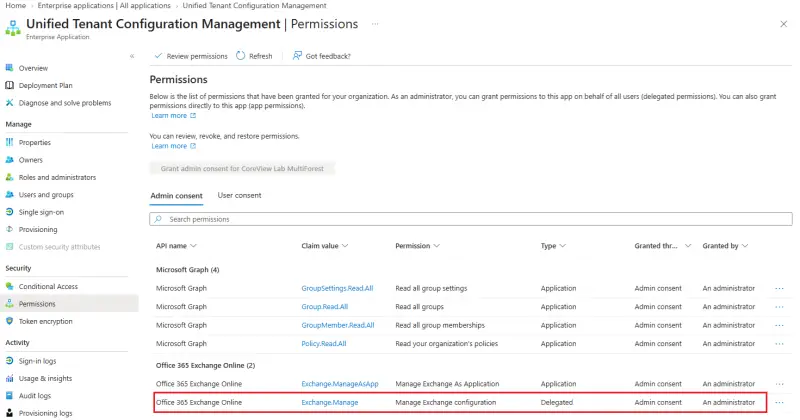
The permissions page for Configuration management in the Entra admin center can assign delegated permissions to TCM’s service principal. Grant the permissions needed for the resources you intend to remediate; the requirements vary by resource. The initiating user also needs a matching, active role assignment. The service principal’s permissions alone don’t establish that the user can make the change.
Exchange Online (ExO) has a separate requirement. TCM uses cmdlets from the Exchange Online PowerShell module for ExO support, and remediation currently relies on delegated access. The service principal therefore needs the Exchange.Manage delegated scope. This permission acts as impersonation: TCM can access the resources and methods available to the current user. It doesn’t require assigning ExO roles to TCM’s service principal, because access follows the user’s permissions. By comparison, the Exchange.ManageAsApp application permission works with roles and permissions assigned to the service principal.
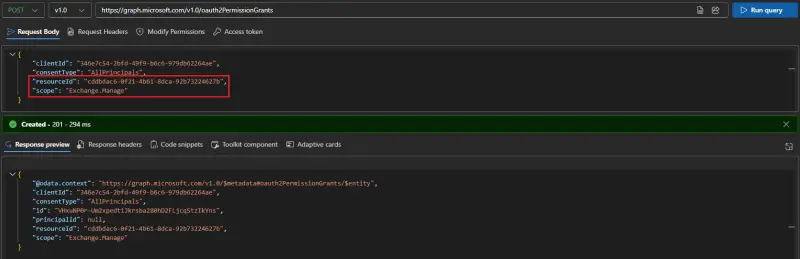
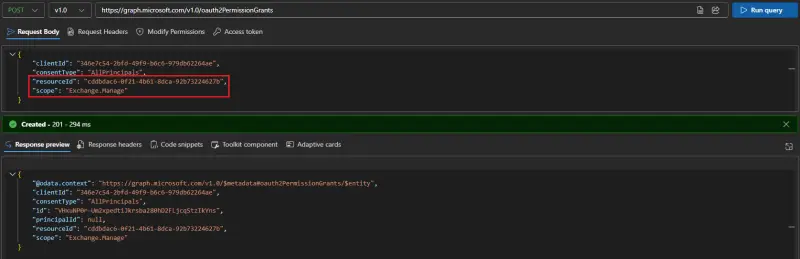
Granting Exchange.Manage through Microsoft Graph
Administrators can grant the ExO delegated scope through the Configuration management permissions page or use Microsoft Graph PowerShell. The commands below resolve the service principal IDs using TCM’s app ID and Exchange Online’s display name:
# Get the ID of TCM's service principal
Get-MgServicePrincipalByAppId -AppId 03b07b79-c5bc-4b5e-9bfa-13acf4a99998 | Select-Object -ExpandProperty Id
# Example ID: 346e7c54-2bfd-49f9-b6c6-979db62264ae

# Get the ID of the Exchange Online service principal
Get-MgServicePrincipal -Filter "displayName eq 'Office 365 Exchange Online'" | Select-Object -ExpandProperty Id
# Example ID: cddbdac6-0f21-4b61-8dca-92b73224627b
With those IDs, create the delegated permission grant:
New-MgOauth2PermissionGrant -ClientId 346e7c54-2bfd-49f9-b6c6-979db62264ae -ResourceId cddbdac6-0f21-4b61-8dca-92b73224627b -Scope "Exchange.Manage" -ConsentType AllPrincipalsUse Get-MgOauth2PermissionGrant to check the grant. Administrators can also find TCM under Enterprise apps in the Entra admin center. If it doesn’t appear in the results, remove the Application type filter; then check Permissions > Admin consent for Exchange.Manage.
The example grants tenant-wide admin consent to the service principal. That doesn’t grant every user the ability to remediate drift: each caller still needs sufficient access in TCM and the affected workload. Per-user consent may suit some deployments, and assignment requirements on the service principal can limit who can use it.
The permissions page shows permissions and roles assigned to the TCM service principal. Its Application permissions tab indicates what TCM can cover for drift detection; the Delegate permissions tab shows the delegated permissions relevant to remediation; and the Entra roles tab lists roles assigned to the service principal. Those entries show only the service principal’s side of the access check. The page doesn’t show whether the initiating user has the required active role and workload permissions, so verify those separately before requesting a change.
Review drift before sending a request
Remediation starts with an active monitor and its associated baseline. TCM compares the current configuration with that baseline and reports differences as drift. A monitor can cover several resources, so it may produce several drift records. Each remediation request targets one resource’s drift record rather than applying a change to every resource covered by the monitor.
First list the drift records, or filter them by monitor ID. Review each record’s driftedProperties and decide which differences should be reset to the baseline. Check permissions at this stage as well: TCM doesn’t pre-check them when a remediation request is submitted. If access is missing, you may discover that only after processing begins.
# List all drift records
GET https://graph.microsoft.com/beta/admin/configurationManagement/configurationDrifts

# Filter drift records by monitor
GET https://graph.microsoft.com/beta/admin/configurationManagement/configurationDrifts?$filter=monitorId eq 'xxxxxxxx-xxxx-xxxx-xxxx-xxxxxxxxxxxx'

# Remediate one selected drift
POST https://graph.microsoft.com/beta/admin/configurationManagement/configurationDrifts/xxxxxxxx-xxxx-xxxx-xxxx-xxxxxxxxxxxx/remediate
The preview currently supports these resource types:
- Entra ID Conditional Access policies (
conditionalaccesspolicy) - Entra ID cross-tenant access policies (
crosstenantaccesspolicy) - Entra ID authorization policies (
authorizationpolicy) - Exchange Online mailbox plans (
mailboxplan) - Exchange Online CAS mailbox plans (
casmailboxplan) - Exchange Online OWA mailbox policies (
owamailboxpolicy) - Exchange Online organization configuration (
organizationconfig) - Exchange Online remote domains (
remotedomain) - EOP content filter policies (
hostedcontentfilterpolicy) - EOP malware filter policies (
malwarefilterpolicy) - EOP anti-phishing policies (
antiphishpolicy) - EOP safe links policies (
safelinkspolicy) - EOP safe attachment policies (
safeattachmentpolicy)
The supported resources documentation lists the current scope. Microsoft may expand that list as the feature develops. The preview is rolling out to the worldwide multi-tenant Microsoft 365 instance; other clouds are expected to follow later.
Check the operation result and audit trail
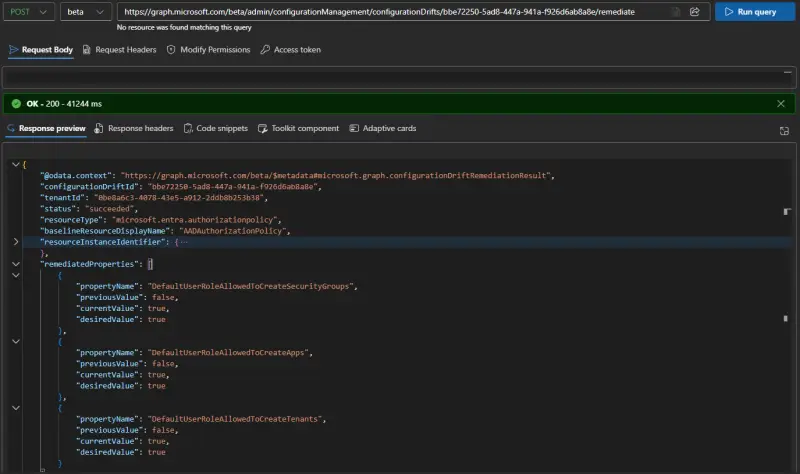
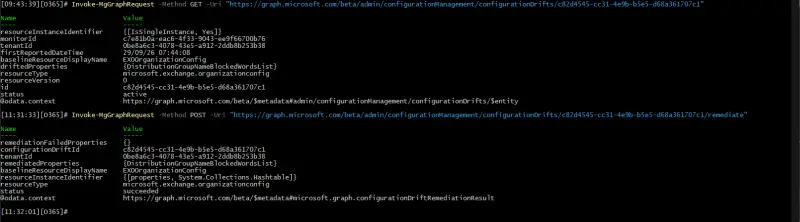
A 200 OK response means the remediation operation ran successfully, but it doesn’t guarantee that every property was changed. Check the response’s status. A succeeded result includes remediatedProperties, with previous, current and desired values. If changes to properties fail, the status is failed and remediationFailedProperties identifies the affected entries.
Missing permissions can produce a 500 Internal Server Error. A 409 Conflict can occur when a request has already been submitted for the same drift ID. A 403 Forbidden may indicate that the tenant hasn’t been enabled for the preview.
After a drift is remediated, its status changes to fixed. To confirm the result, inspect the resource’s properties or run the parent monitor’s /validate method for an immediate check. Remediation doesn’t automatically rerun the monitor, so its normal six-hour cadence remains in effect.
The operation is synchronous and can take time to complete. TCM uses the on-behalf-of flow to exchange the current user’s access token at runtime; it doesn’t cache that token. The user’s permissions and roles at execution time determine whether the request can proceed. The Microsoft Graph PowerShell SDK doesn’t currently provide a dedicated remediation cmdlet, so administrators can submit the request with Invoke-MgGraphRequest:
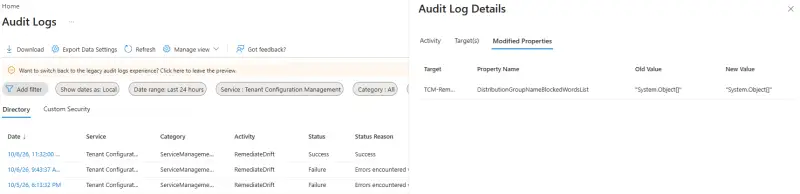
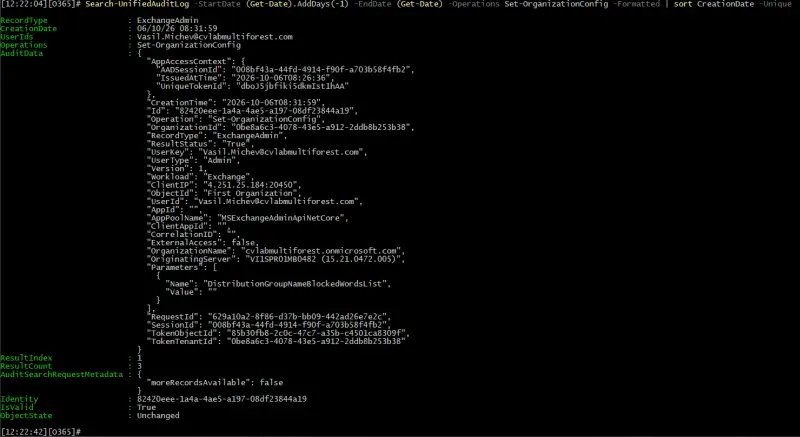
Invoke-MgGraphRequest -Method POST -Uri "https://graph.microsoft.com/beta/admin/configurationManagement/configurationDrifts/xxxxxxxx-xxxx-xxxx-xxxx-xxxxxxxxxxxx/remediate"For audit review, check both Entra ID audit records and the affected workload’s logs, which are generally available through the Unified Audit log. The Entra ID RemediateDrift event includes changed properties and old and new values, but testing has shown that its details can differ from the workload record. For ExO, the corresponding Unified Audit log event can represent updated values more clearly. The records can also show different client IP addresses: the remediation request originates on the user’s device, while TCM performs the resource change from within Microsoft’s datacenter network. Both records identify the user on whose behalf the request ran.
For administrators, the operational takeaway is to treat each drift as a separate change: review its properties, confirm the user’s active access and TCM’s delegated grants, then check the returned status and workload audit record. Automated remediation and broader resource support depend on further development of the preview.


