Copilot in Excel for Web and Desktop: Features, Licensing and File Access
Copilot offers similar AI tools in Excel for the web and desktop. Choose based on file access, collaboration needs, macros and add-ins.
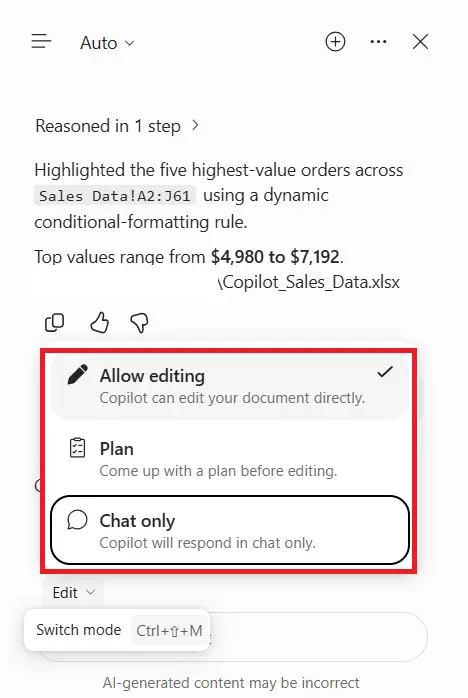
Copilot’s core Excel features are available in both the browser and installed applications. The practical choice comes down to the workbook and the way your team works: Excel for the web makes shared files easy to reach, while desktop Excel supports local files, VBA macros and desktop add-ins.
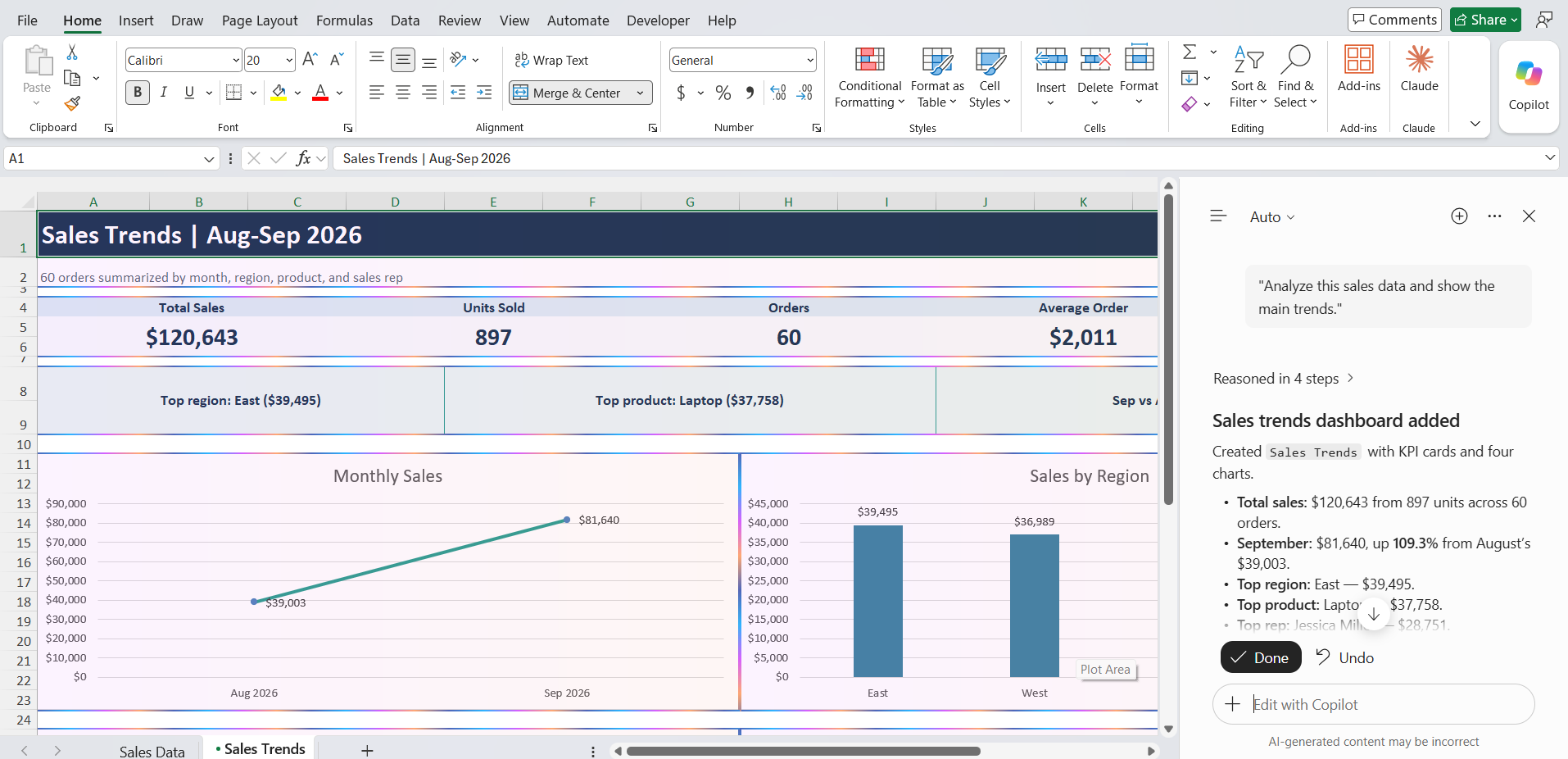
Both versions support Edit, Chat and Plan modes. Copilot can help generate formulas, analyze data, create charts and PivotTables, apply conditional formatting, and make workbook changes. If those are the tasks at hand, the interface alone may not determine which version to use. File location and compatibility matter more.
What Copilot does in Excel
Copilot is an AI assistant built into Excel. You describe a task in plain language, and it can help carry it out or answer questions about the data. Edit mode is for making workbook changes; Chat mode lets you ask questions; Plan mode helps organize more involved tasks.
The available modes and the listed spreadsheet operations are shared between Excel for the web and Excel Desktop. That means a team can use either application for routine analysis and workbook edits, subject to the file and feature requirements. Copilot availability also depends on having an eligible license. The listed options are Microsoft 365 Personal or Family with AI credits, Microsoft 365 Premium, a commercial Microsoft Copilot license, or an eligible business or enterprise Microsoft 365 plan with Copilot Chat.
Copilot in Excel is described further here.
When Excel for the web fits
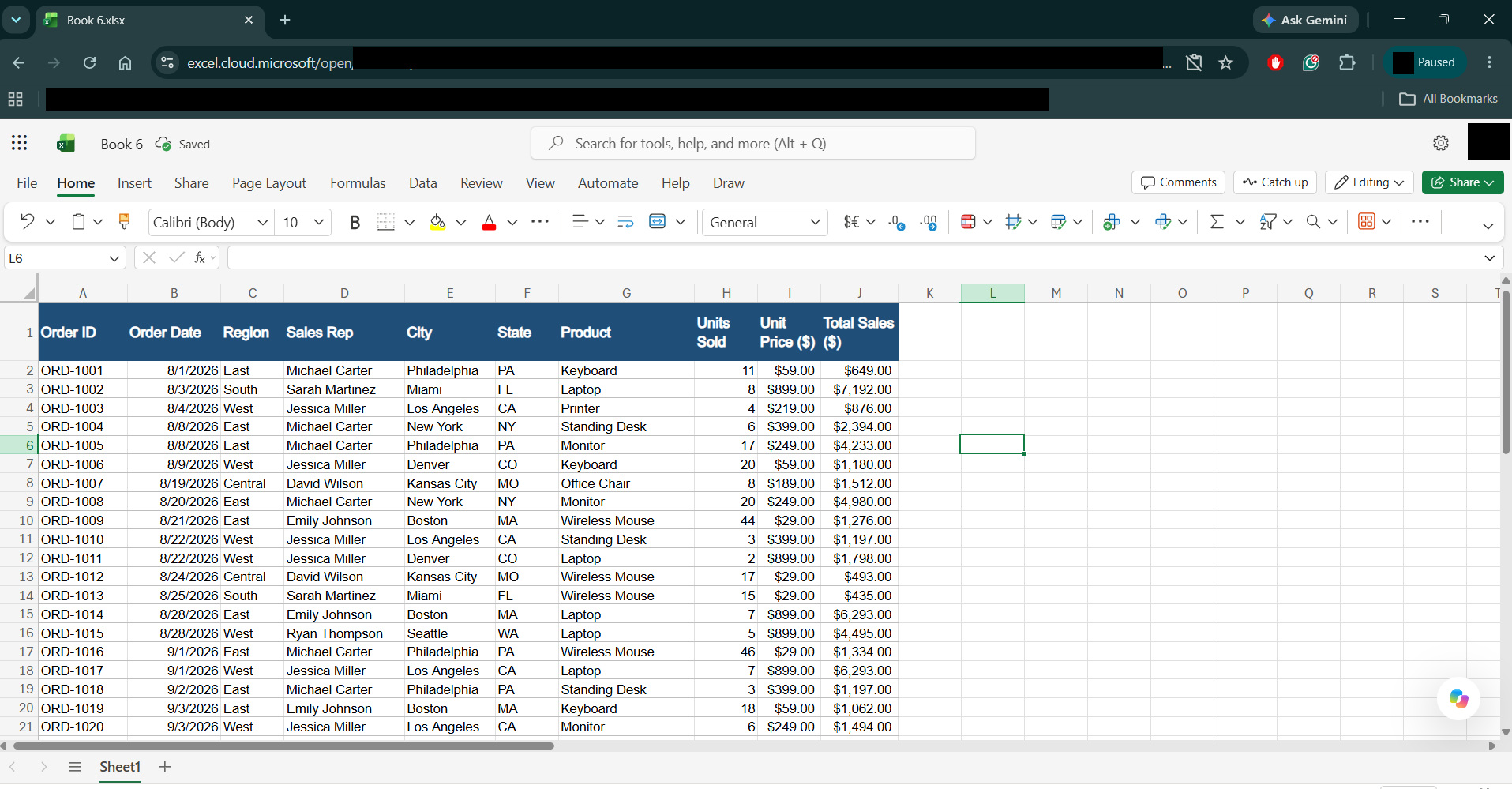
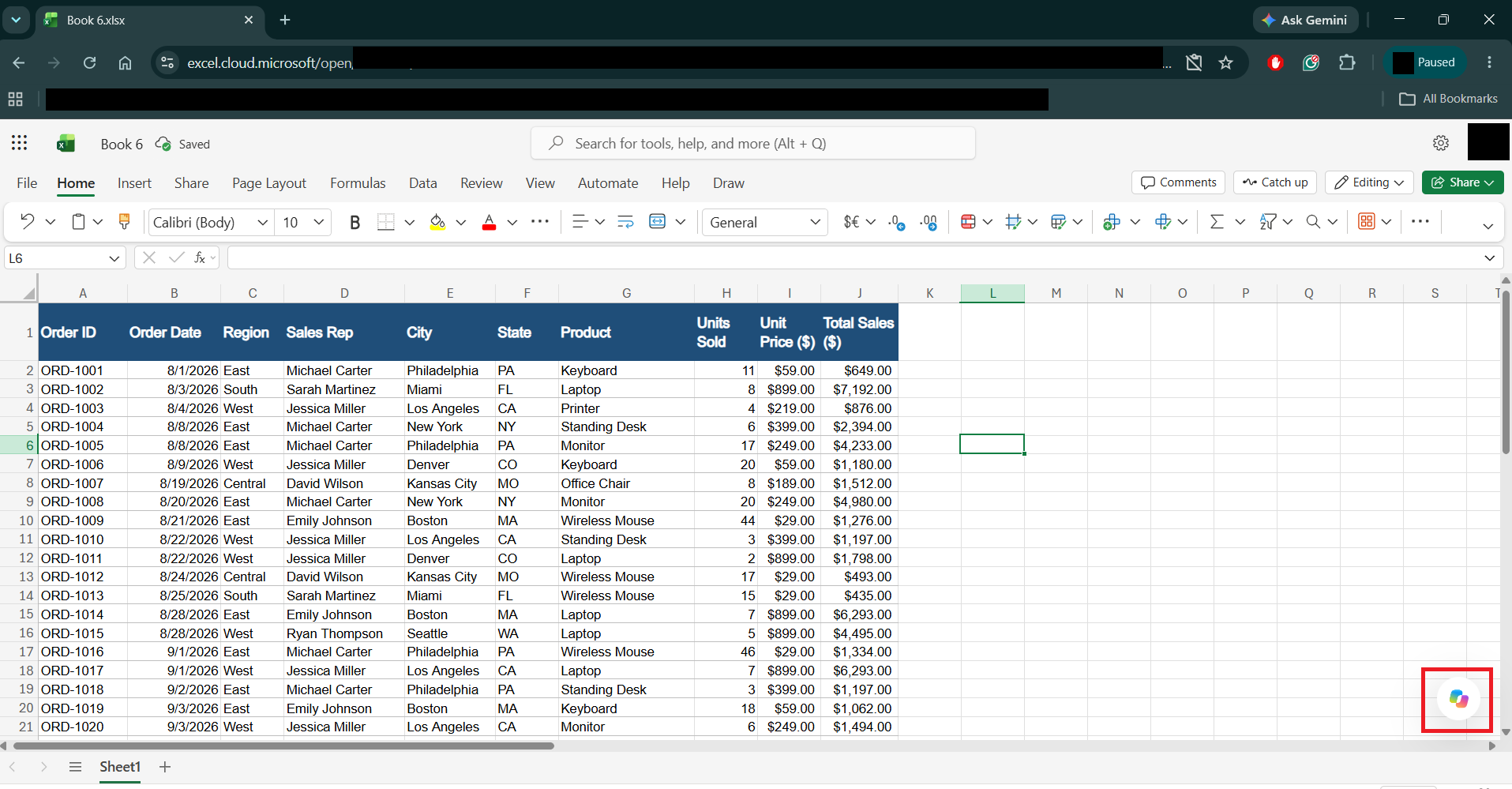
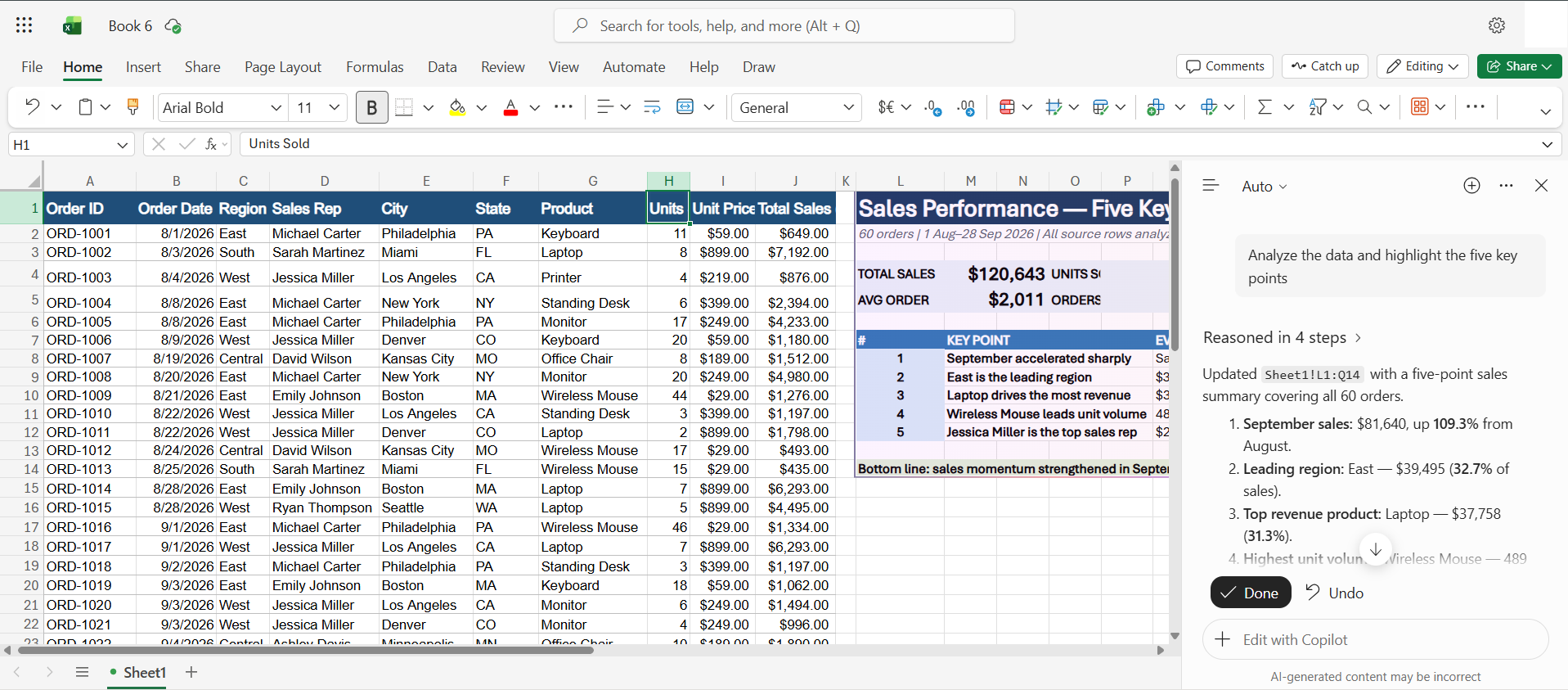
Excel for the web runs in a browser, so it does not require the installed Excel application. To start, open Excel in a browser, select Copilot, enter a prompt and press Enter. The workflow suits quick access from different devices and collaboration on files stored in OneDrive or SharePoint.
For workbooks already stored online, browser access can make it simpler for several people to work with the same file. It also avoids requiring the Excel desktop application on every device used to open the workbook. That convenience has a boundary: local file access is listed as browser upload or supported file access, rather than direct access to files on the device.
When desktop Excel is the better fit
Excel Desktop provides Copilot within the installed application for Windows and Mac. It supports direct access to local files and is the relevant choice when a workbook depends on VBA macros or desktop add-ins. Those differences matter even when the Copilot tasks themselves are similar across the two applications.
Copilot can help write or explain VBA code, but it does not run VBA macros. Running those macros requires desktop Excel. Teams should account for that distinction before moving a macro-enabled workflow into the browser: Copilot assistance with code does not replace the desktop application’s ability to execute it.
Add-in support also depends on the application. Excel for the web supports web-compatible add-ins, while desktop Excel supports desktop add-ins. If a workbook process relies on a particular add-in, confirm that it is supported in the version your users will open before standardizing on browser access.
Feature comparison
| Feature | Excel for the web | Excel Desktop |
|---|---|---|
| Copilot availability | Yes | Yes |
| Edit, Chat and Plan modes | Yes | Yes |
| Generate formulas, analyze data and create charts | Yes | Yes |
| Create PivotTables and apply conditional formatting | Yes | Yes |
| Work with OneDrive and SharePoint files | Yes | Yes |
| Local file support | Browser upload or supported file access | Direct local file access |
| Run VBA macros | No | Yes |
| Add-ins | Web-supported add-ins | Desktop-supported add-ins |
| Installation required | No | Yes |
Choose by workbook requirements
For shared OneDrive or SharePoint workbooks and routine Copilot-assisted analysis, Excel for the web offers access without an installation. For local files, VBA execution, or workflows that rely on desktop add-ins, use Excel Desktop. Both versions provide the same listed Copilot modes and spreadsheet tasks, so the deciding check is whether the workbook’s storage and supporting features match the application.
Excel for the web is available through a supported browser with an eligible Microsoft 365 or Copilot license. Before settling on a version for a team, check where its workbooks live and whether any macro or add-in dependencies require desktop Excel.


