Automate Teams Transcripts and Meeting Summaries with Power Automate
A 15-minute Power Automate flow saves Teams transcripts and structured Word summaries to OneDrive. Setup requires Premium actions and AI capacity.
A Teams meeting transcript is useful as a record, but it can take extra work to find and organize after a call. This Power Automate setup handles that step automatically: every 15 minutes, it checks for recent transcripts, saves each as a timestamped VTT file in OneDrive, and creates a structured Word summary from the transcript.
The flow is designed for meetings organized by the person who set it up. It needs a transcript to process, so the meeting must be recorded or transcribed. Once configured, it checks whether a transcript has already been saved, which prevents later runs from creating duplicate files.
Two sample Word files show the result: a meeting summary and a monthly meeting example.
What the flow needs
The setup relies on Microsoft Graph to find and retrieve meeting transcripts, Power Automate to run the workflow, and OneDrive for Business to store the output. It also uses a Word template and an AI prompt to turn the transcript into a shorter, sectioned summary.
- Microsoft Entra: used briefly to configure access.
- Windows PowerShell: run as an administrator, with the MicrosoftTeams module.
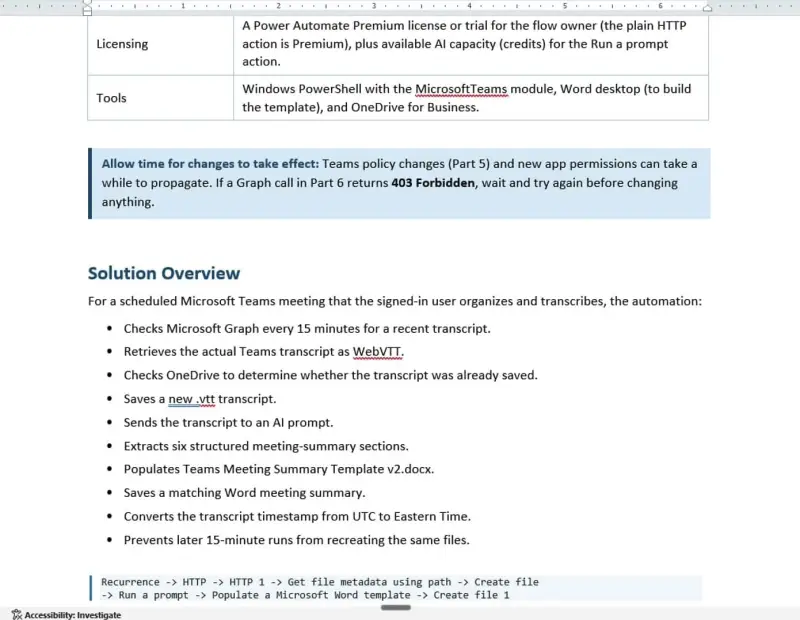
- Power Automate Premium: required because the plain HTTP action is a Premium action. The Run a prompt action also needs AI capacity, or credits.
- Word desktop: used to create the summary template.
- OneDrive for Business: stores the template, transcript files, and summaries.
The author says Power Automate Premium was not included in their business licence, so the additional licence was a direct cost of this setup. Teams considering the same approach should check both the Power Automate entitlement and available AI capacity before building the flow.
A 15-page reproduction guide documents the configuration. The author built the automation with Microsoft Copilot chat under a Premium licence, without using Cowork or Code. The guide is available as a PDF setup document.
How the workflow runs
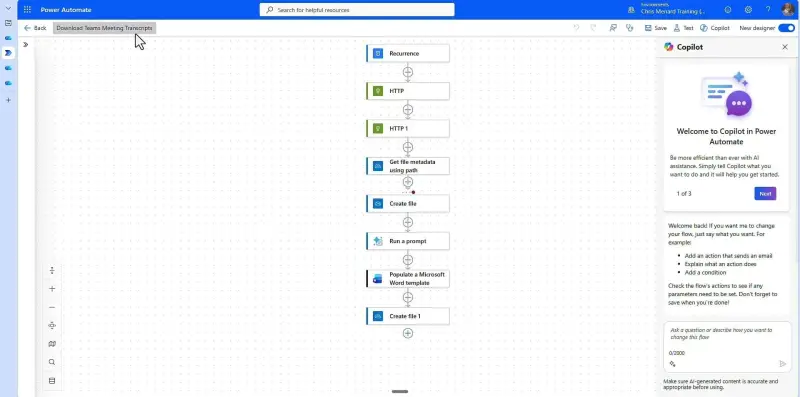
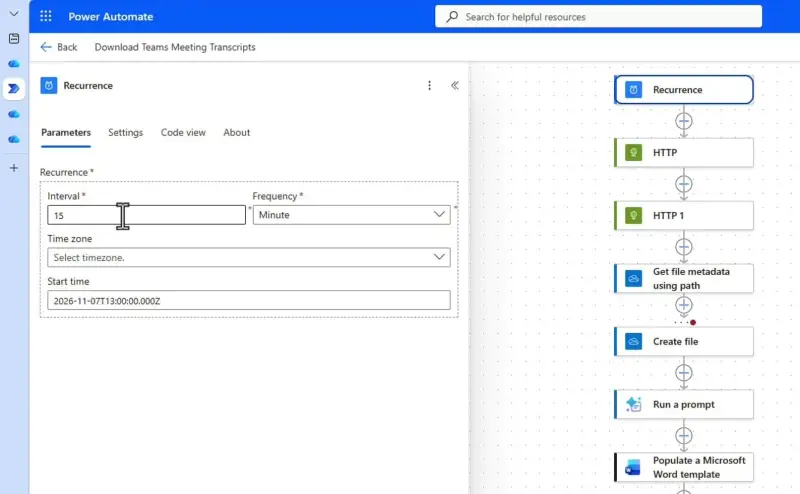
The flow is named Download Teams Meeting Transcripts. Its actions run in this order:
- Recurrence starts the flow every 15 minutes.
- HTTP and HTTP 1 make the requests needed to find and retrieve a transcript through Microsoft Graph.
- Get file metadata using path checks OneDrive for an existing file.
- Create file saves the transcript as a .vtt file.
- Run a prompt sends the transcript for AI summarization.
- Populate a Microsoft Word template places the prompt output in the template's fields.
- Create file 1 saves the completed Word summary beside the transcript.
The flow converts the meeting timestamp from UTC to Eastern Time for the filenames. Its existing-file check means a later scheduled run won't create the same transcript and summary again.
The initial build took the author three to four hours, in part because it involved PowerShell and Entra setup they don't usually do. They report that the flow was still working more than two weeks later. That experience is a useful planning guide: expect time for access setup and troubleshooting, especially if those tools aren't part of your usual workflow.
Start transcription in the meeting
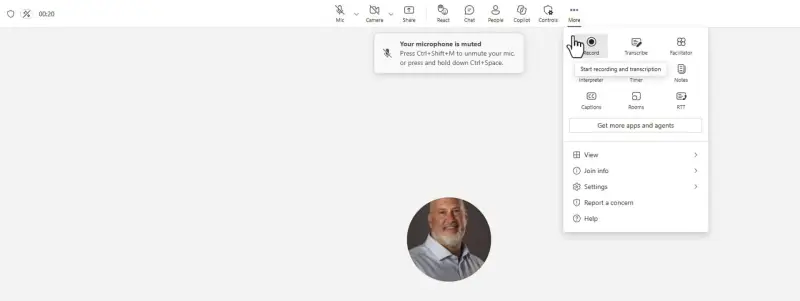
The flow only has something to process after a meeting transcript exists. The author tested it with a meeting they organized, joining from the Teams calendar. In the meeting, open More and choose Record—whose tooltip says “Start recording and transcription”—or choose Transcribe. If neither is enabled, the flow has no transcript to retrieve.
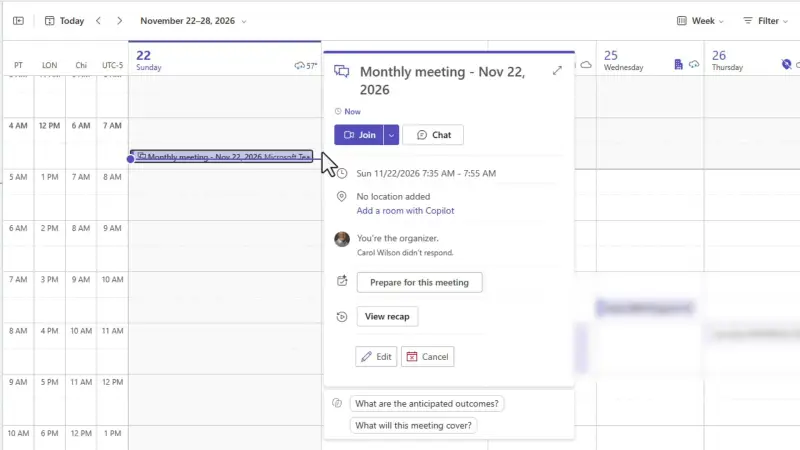
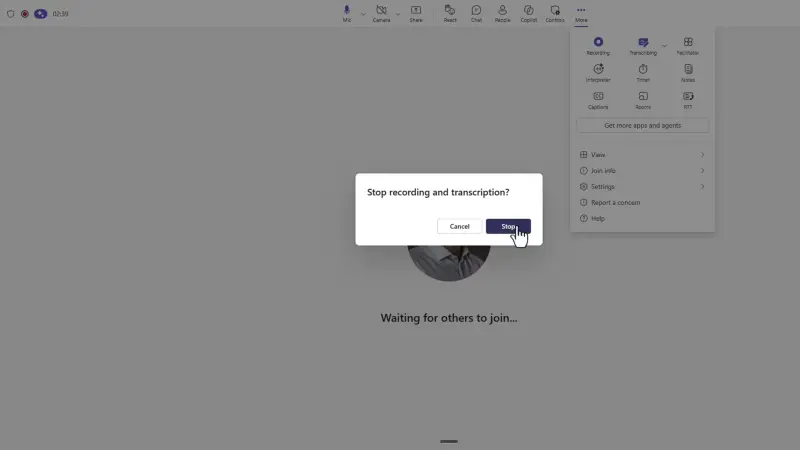
The test meeting covered budget planning, hiring in several offices, candidates for a chief information officer role, a finance update, training, and possible locations for an annual retreat. The author then stopped the recording before the meeting ended. The transcript became available while the meeting continued, and restarting the recording produced a second transcript. The flow can pick up each transcript on a subsequent 15-minute run, even if the meeting is still underway.
Keep the template available
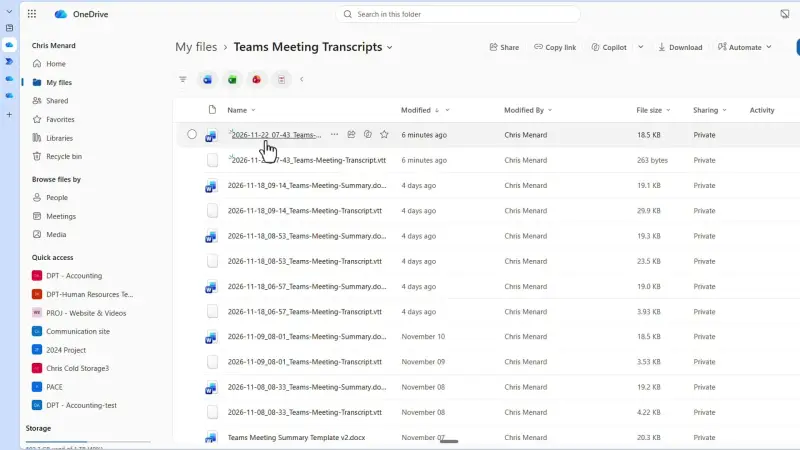
The files are saved to a OneDrive folder called Teams Meeting Transcripts. Each processed transcript produces two files with the meeting date and time in the name: Teams-Meeting-Transcript.vtt and Teams-Meeting-Summary.docx.
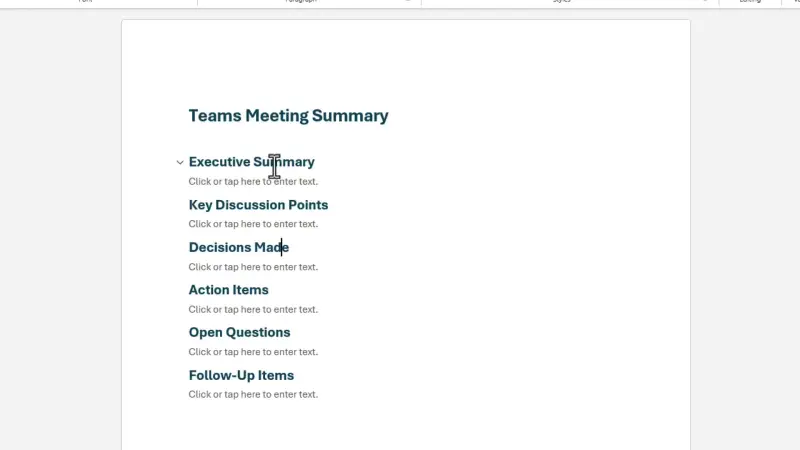
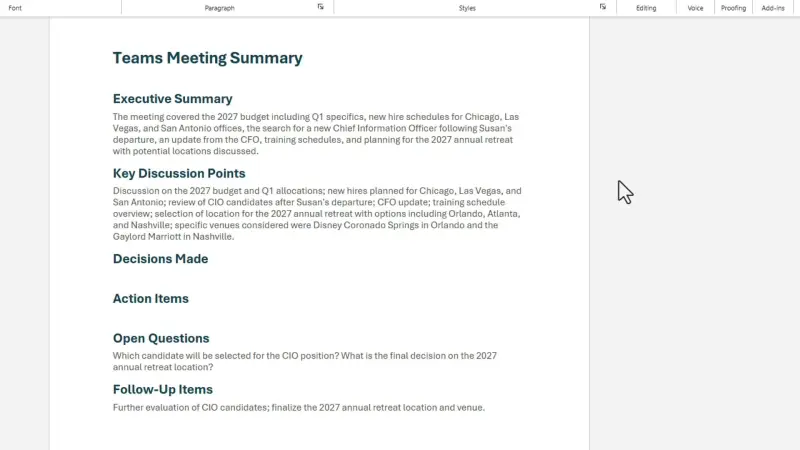
The Word template, named Teams Meeting Summary Template v2, has six sections, each formatted as Heading 2: Executive Summary, Key Discussion Points, Decisions Made, Action Items, Open Questions, and Follow-Up Items. Beneath each heading is a placeholder that Power Automate fills with the corresponding output from the AI prompt.
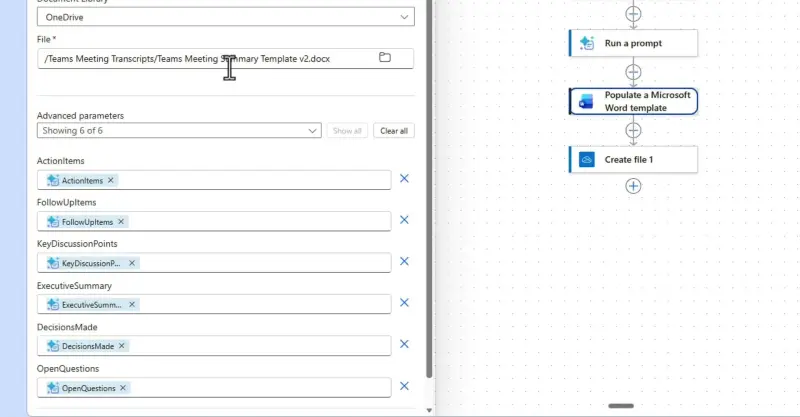
In the Populate a Microsoft Word template action, select the file in OneDrive. The example path is /Teams Meeting Transcripts/Teams Meeting Summary Template v2.docx. Power Automate then displays the six template fields, which are mapped to the prompt's output. The template must stay available at that path for the flow to use it; the author recommends keeping it in the transcript folder. Older transcript and summary files can be removed, but deleting the template would break this step until the file is restored or the action is updated.
What the output contains
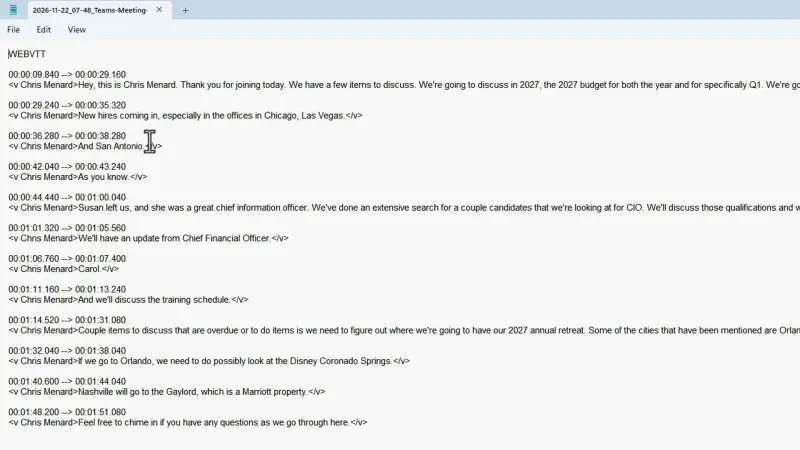
After recording a test meeting, the author waited for the next scheduled run at 8:00, refreshed OneDrive, and found both files in the folder. The VTT file includes timestamps alongside the spoken words, making it useful for locating a point in the conversation or retaining a detailed record.
The Word document follows the six-section template. In the test, the Executive Summary, Key Discussion Points, Open Questions, and Follow-Up Items contained text. Decisions Made and Action Items were blank because the meeting had no decisions or assigned actions. That result reflects the intended format: empty sections can remain empty when the meeting doesn't provide content for them.
Teams also creates a Word document containing the full transcript, which the author says must currently be retrieved manually. This flow saves the VTT transcript and a concise summary instead. Together, those files provide both a detailed record and a shorter account for people who need the meeting's main points. The practical checks before relying on it are straightforward: confirm that the meeting is organized by the configured user, transcription is enabled, the Premium and AI requirements are covered, and the template remains in the expected OneDrive location.


