Excel Copilot Keyboard Shortcuts for Windows and Mac: Seven Ways to Work Faster
Use keyboard shortcuts to open Copilot, send prompts, manage responses and switch modes in Excel on Windows and Mac.
Keep Excel Copilot work moving from the keyboard
Copilot in Excel can help analyze workbook data, generate formulas, change worksheets, create charts and PivotTables, and identify trends or outliers. Keyboard shortcuts put common controls within reach while you work: opening the Copilot pane, sending a request, moving between modes, and applying a reviewed suggestion.
The Windows shortcuts cover seven common actions. Excel for Mac has a separate set, with some key combinations differing between platforms. That distinction matters when documenting a workflow for a team that uses both Windows and Mac: the same Copilot action may require a different shortcut.
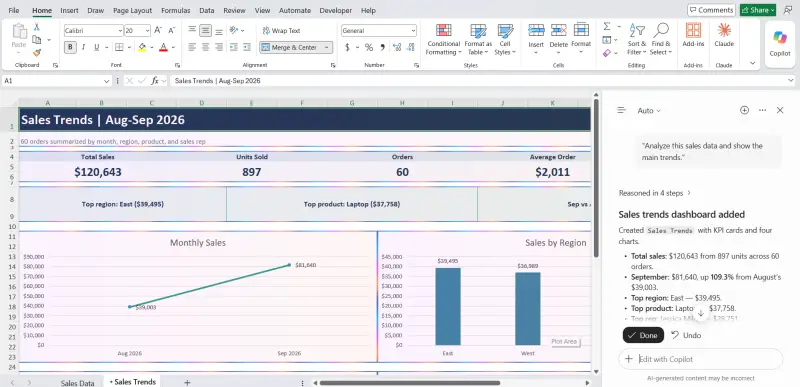
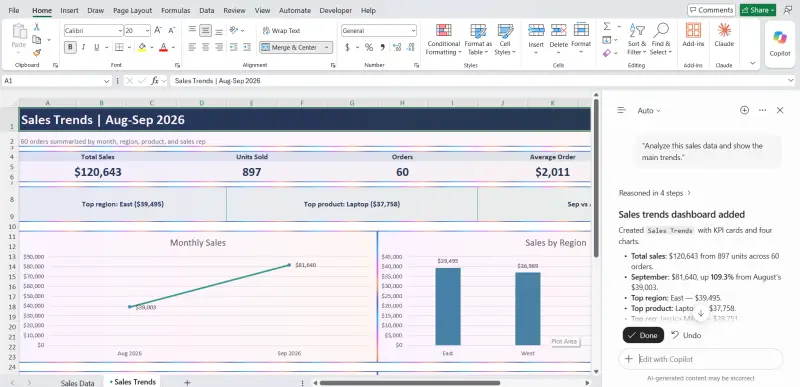
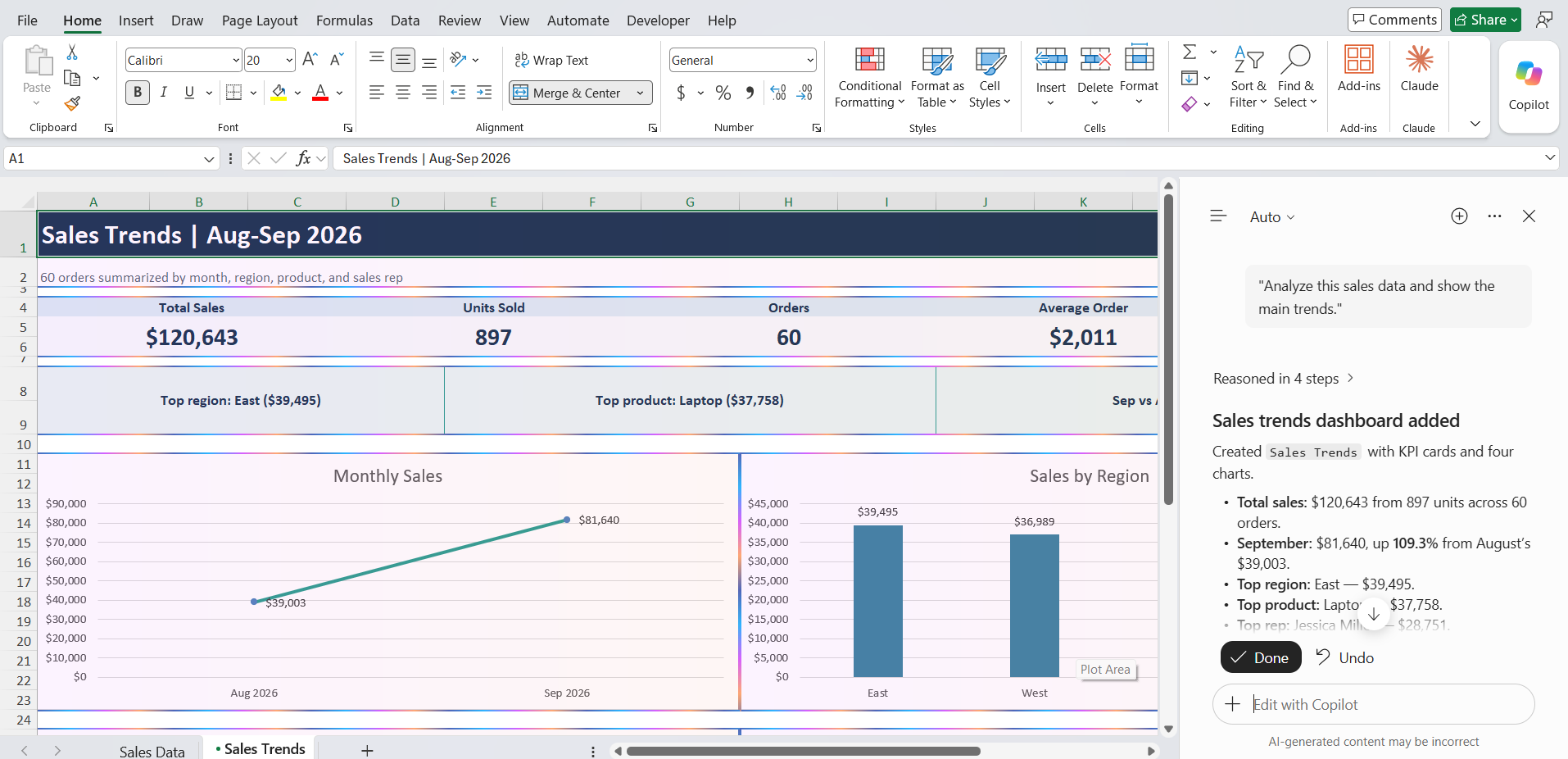
A natural-language request could be, “Analyze this sales data and show the main trends.” Copilot’s response depends on the workbook and the request, so review proposed changes before applying them.
Windows: seven shortcuts for common Copilot tasks
Open Copilot with Alt + C
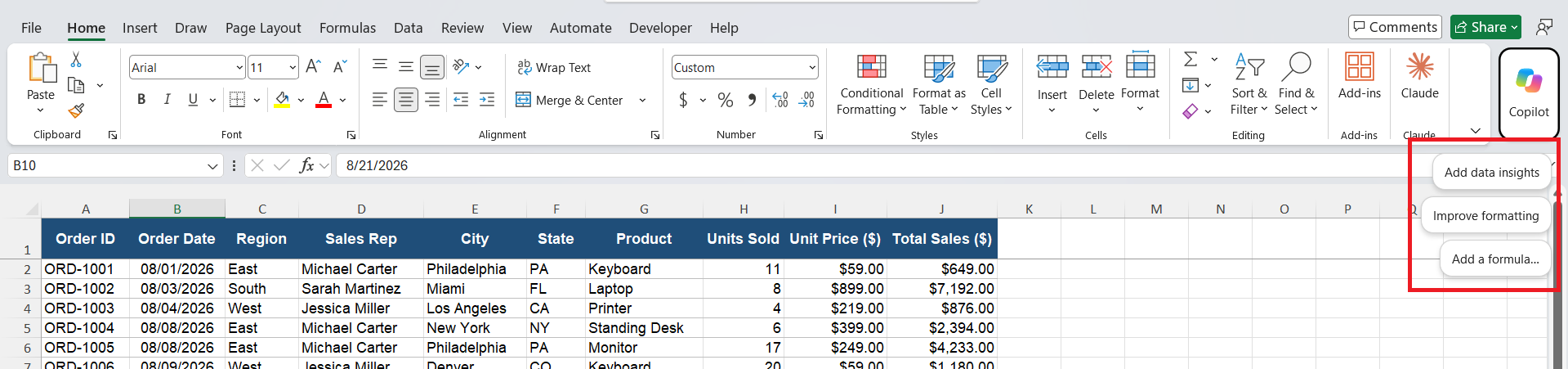
Select data in the worksheet, then press Alt + C to open Copilot. The pane provides options for working with the selected data, including analysis, formatting improvements, and formula creation. This gives you a direct route from a selection in the grid to a Copilot request.
Submit a prompt with Enter
In the Copilot pane, type a request in the prompt box and press Enter to submit it. For repeat work, the practical advantage is that you can move from writing a request to sending it without switching to the mouse.
Cancel a request with Esc
Press Esc to stop or cancel a Copilot request that you no longer need. This is useful when you want to abandon a request and move on to another task.

Apply reviewed changes with Ctrl + Enter
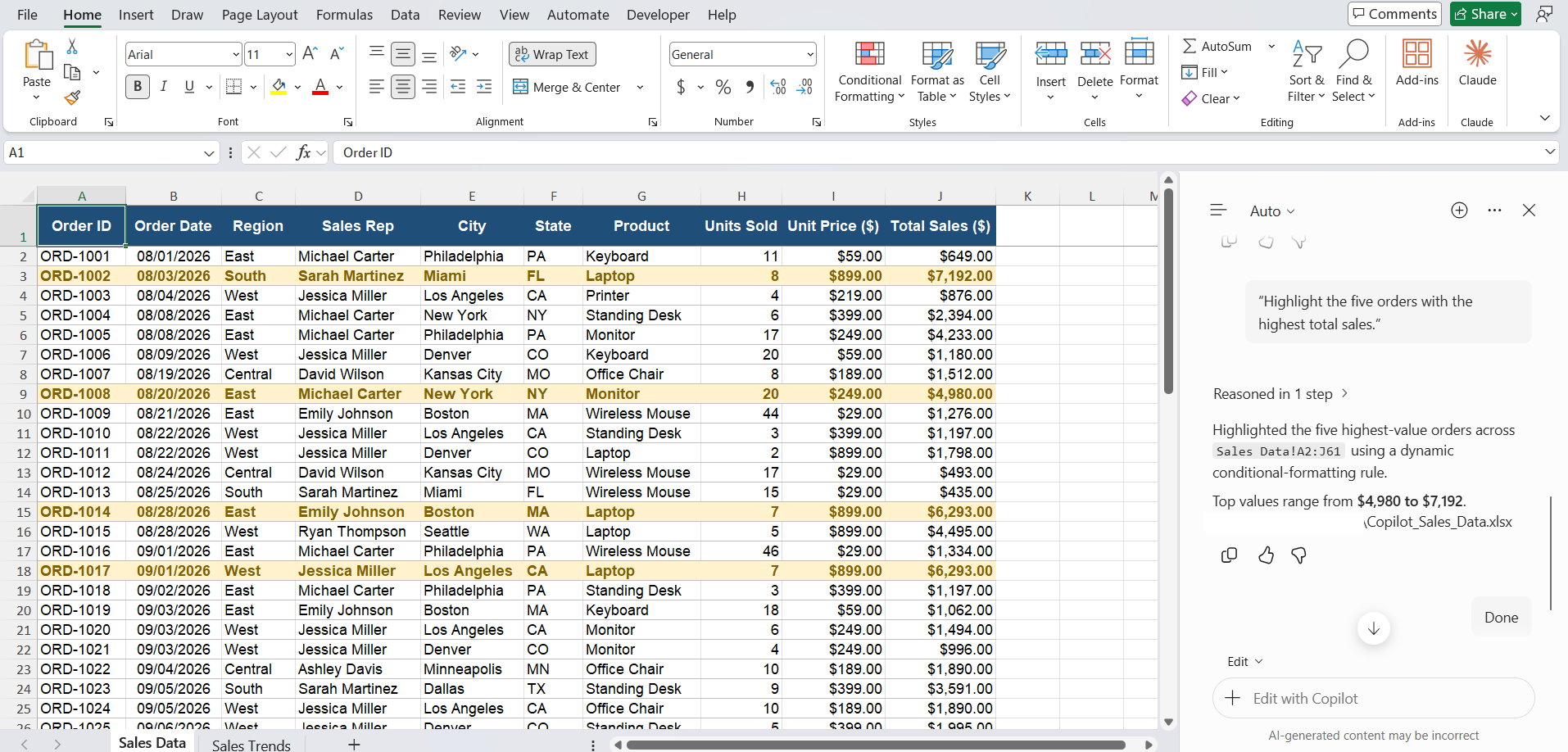
When Copilot suggests changes, Ctrl + Enter applies them to the spreadsheet. Treat this as the commit step in the interaction: check the suggestion first, then use the shortcut when you’re ready to proceed.
Cycle through modes with Ctrl + Shift + M
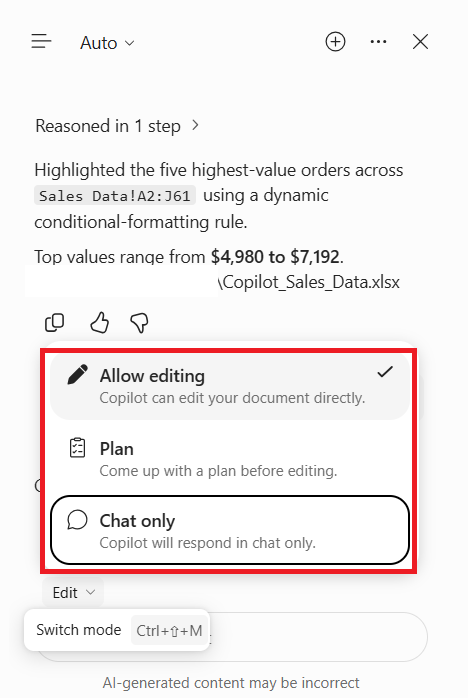
Excel Copilot has three modes. Edit Mode is for making workbook changes, Chat Mode is for asking questions about data, and Plan Mode is for planning more complex Excel tasks. Press Ctrl + Shift + M to switch between them. Choosing the mode that matches the request helps set the context for what you want Copilot to do.
Move focus between the grid and pane with F6
Press F6 to move focus between the Excel grid and Copilot task pane. This keeps worksheet navigation and Copilot interaction within the keyboard workflow, so you can move between the data and the conversation as needed.
Start dictation with Alt + Shift + H
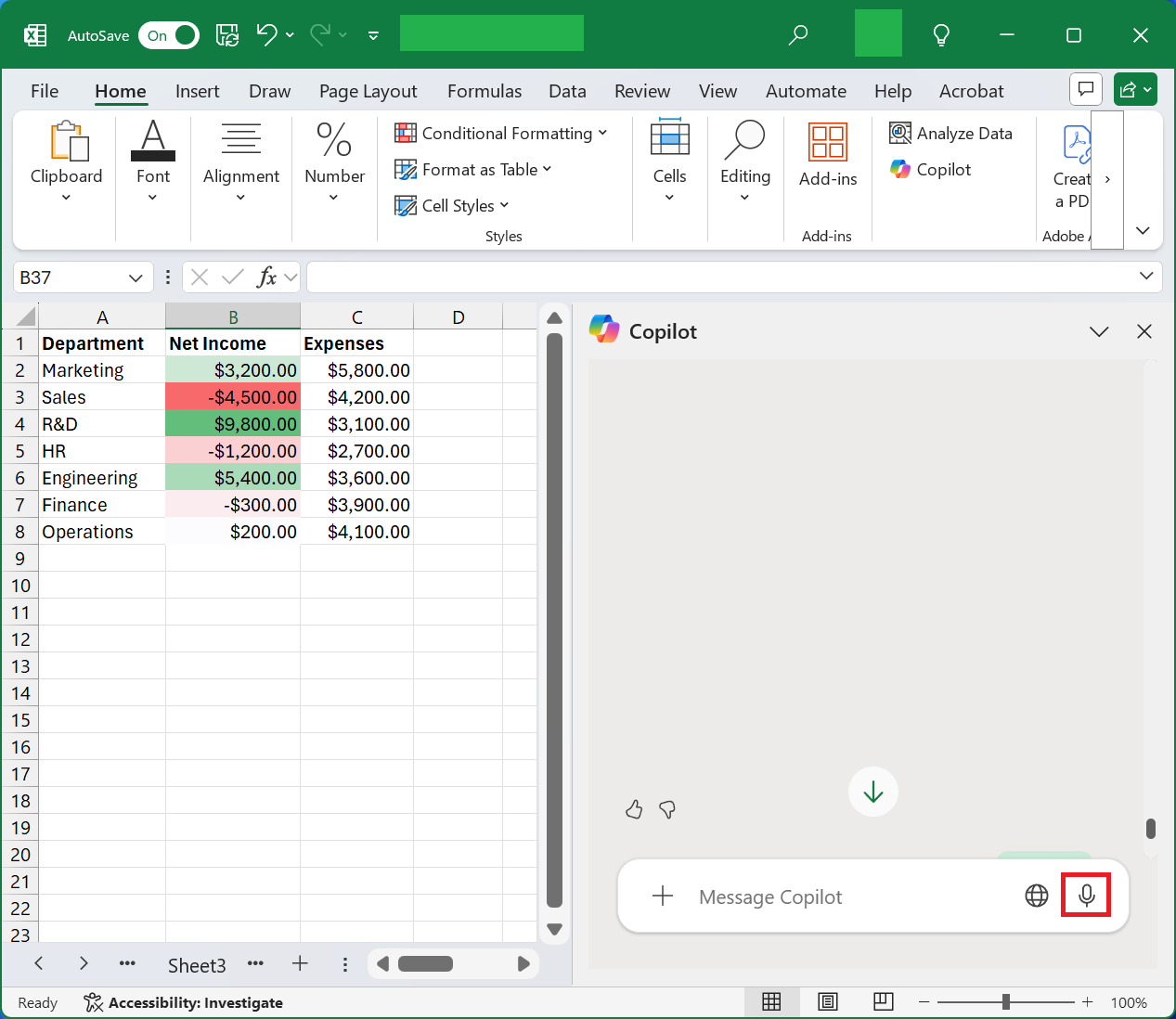
Use Alt + Shift + H to start dictation in the Copilot pane when you want to speak a prompt rather than type it.
Excel for Mac: shortcut reference
On Mac, use these combinations for the corresponding Copilot actions. Several differ from their Windows equivalents, including the keys for opening the pane, applying changes, switching modes, dictation, and moving focus.
| Action | Mac shortcut |
|---|---|
| Open the Copilot task pane | Cmd + Ctrl + I |
| Send a prompt to Copilot | Return |
| Stop or cancel a request | Esc |
| Accept changes made by Copilot | Cmd + Return |
| Switch between Edit, Chat, and Plan modes | Cmd + Shift + M |
| Navigate between chat responses | Option + C |
| Confirm the use of selected files | Cmd + J |
| Start dictation in Copilot | Option + Shift + H |
| Move focus between Excel and Copilot | Shift + F6 |
Put the shortcuts into practice
For a straightforward Windows sequence, select worksheet data, open Copilot with Alt + C, enter a prompt, and submit it with Enter. Use Esc if you need to cancel. If Copilot proposes a workbook change, review it before applying it with Ctrl + Enter. Use Ctrl + Shift + M to change modes and F6 to return focus to the grid or pane.
On Mac, the matching actions use the combinations in the table, such as Cmd + Ctrl + I to open Copilot and Cmd + Return to apply changes. Keep the platform-specific list close when sharing shortcuts with colleagues; the key combinations are not interchangeable across Windows and Mac.


