Turn Off Copilot in Excel: Windows, Mac and Ribbon Settings
Disable Copilot through Excel’s settings on Windows or Mac, or hide its ribbon group. The ribbon change only removes the button; it doesn’t disable Copilot.

Excel gives you two different ways to change how Copilot appears: disable its features in the app settings, or remove its ribbon button. That distinction matters. Hiding the button cleans up the interface, but Copilot can remain available elsewhere in Excel. If your aim is to stop using it, use the app’s Copilot or privacy settings and check the result after restarting Excel.

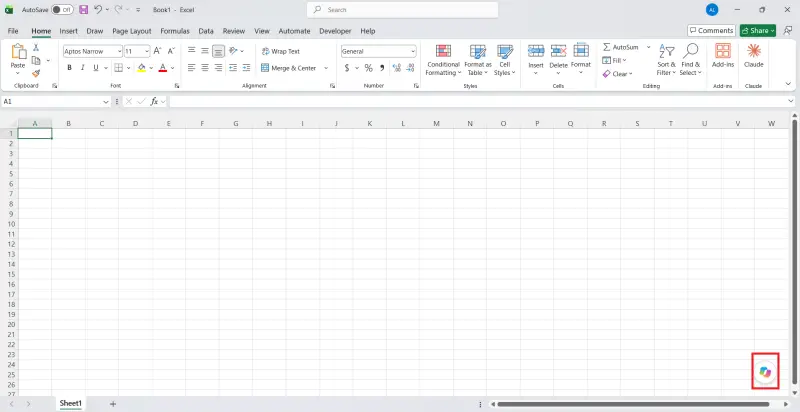
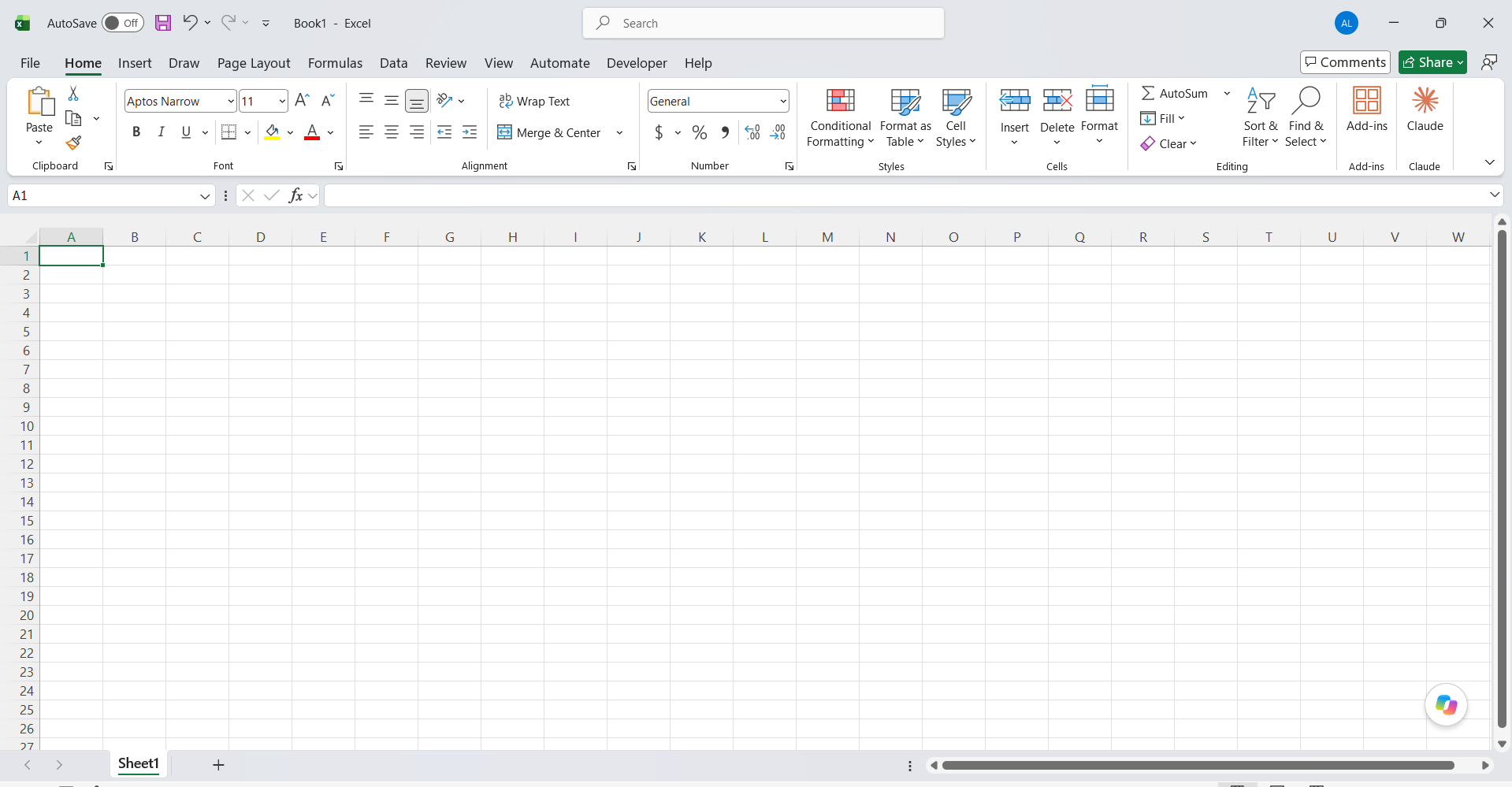
Copilot can help analyze data, create formulas, identify trends and summarize information. It may appear as a button on the Home tab or as a floating button near the lower right of a worksheet. The available controls vary by Excel version, so a setting described below may be missing from some installations.
Disable Copilot in Excel for Windows
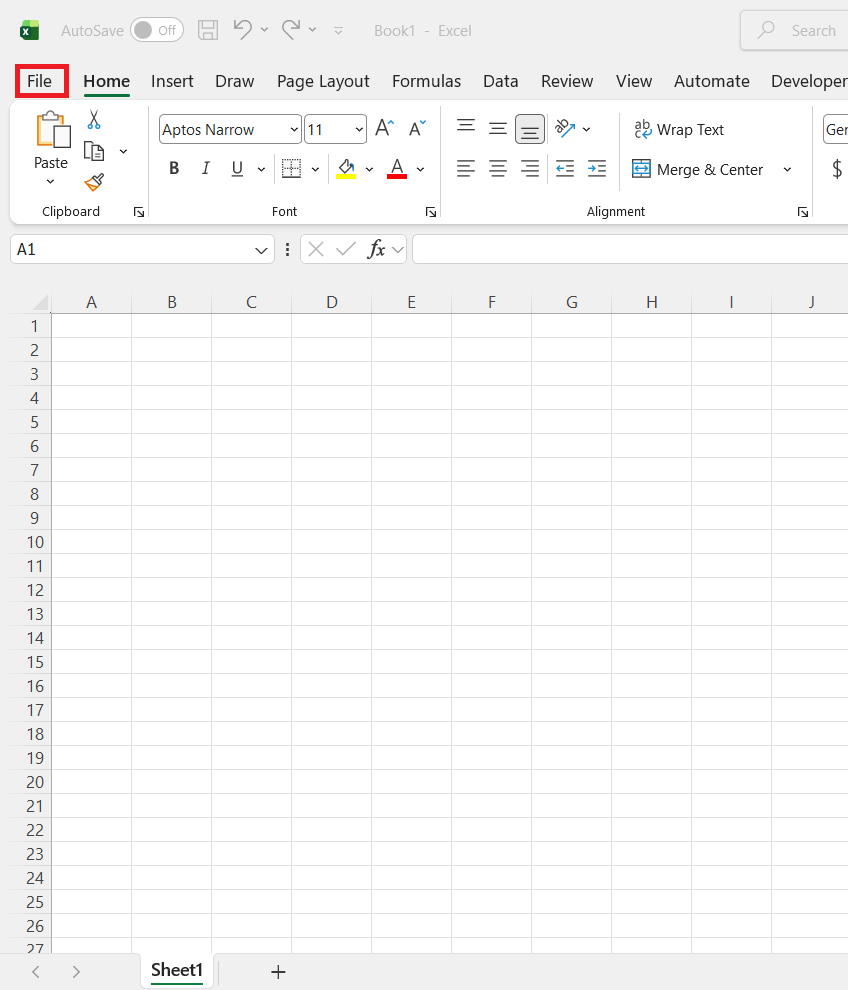
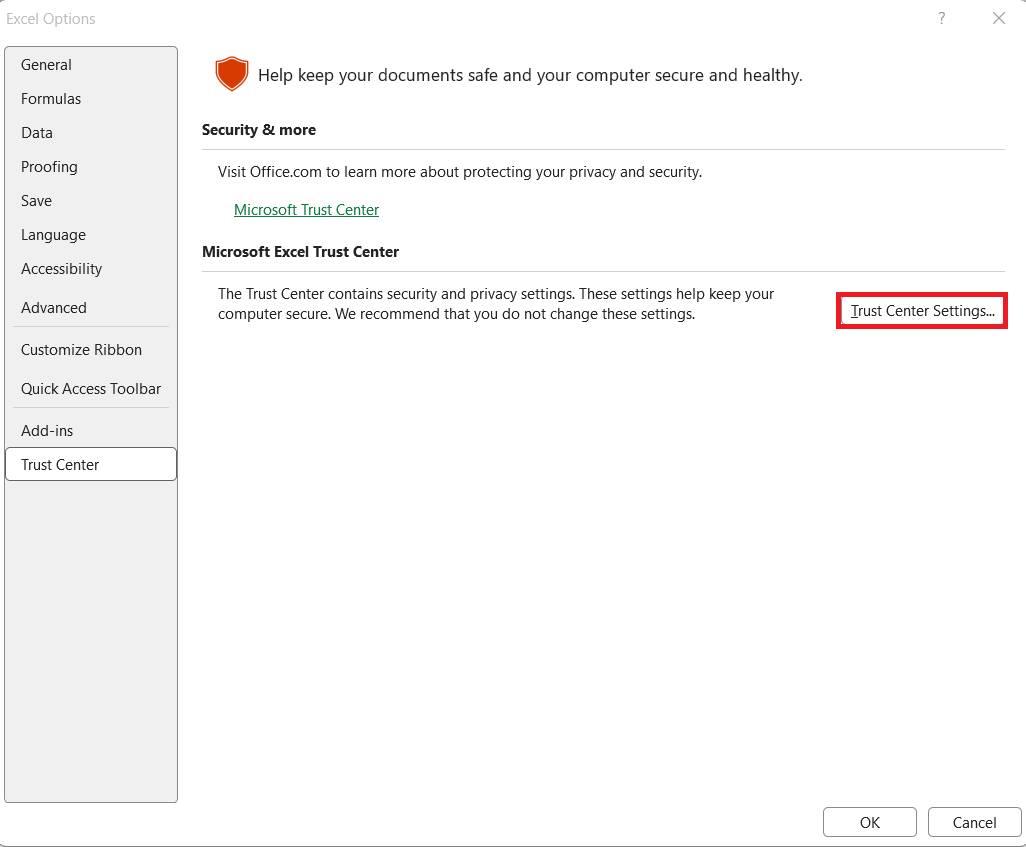
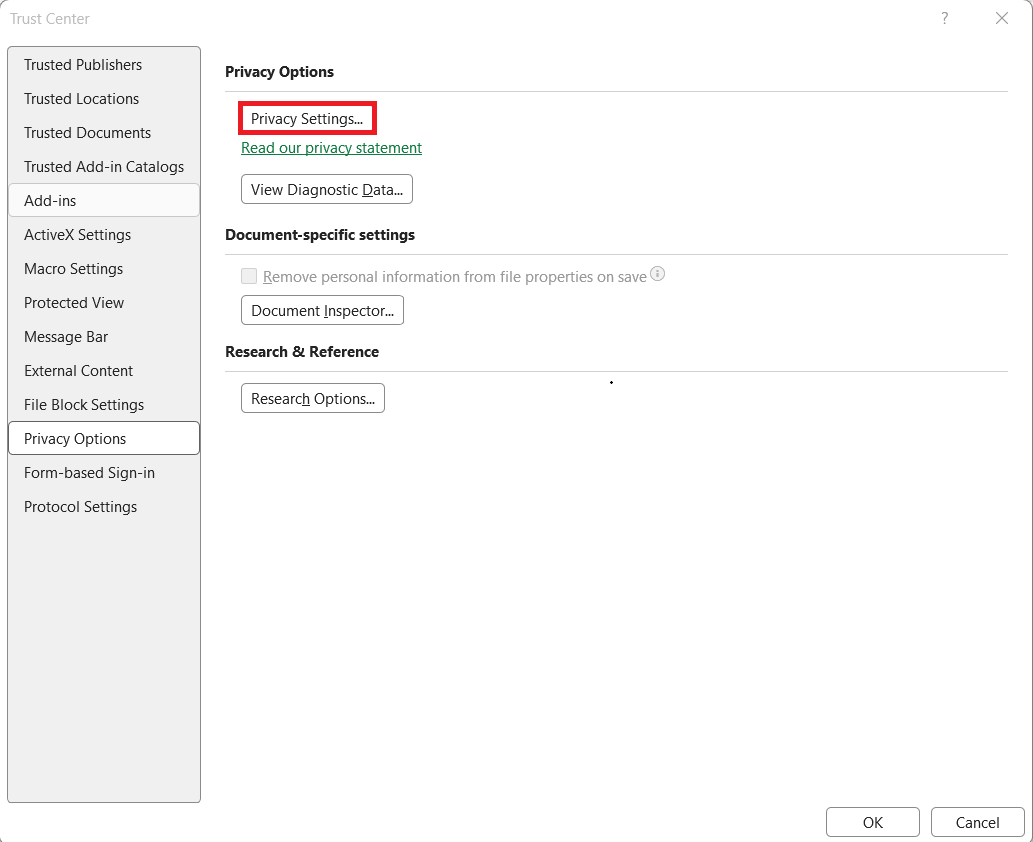
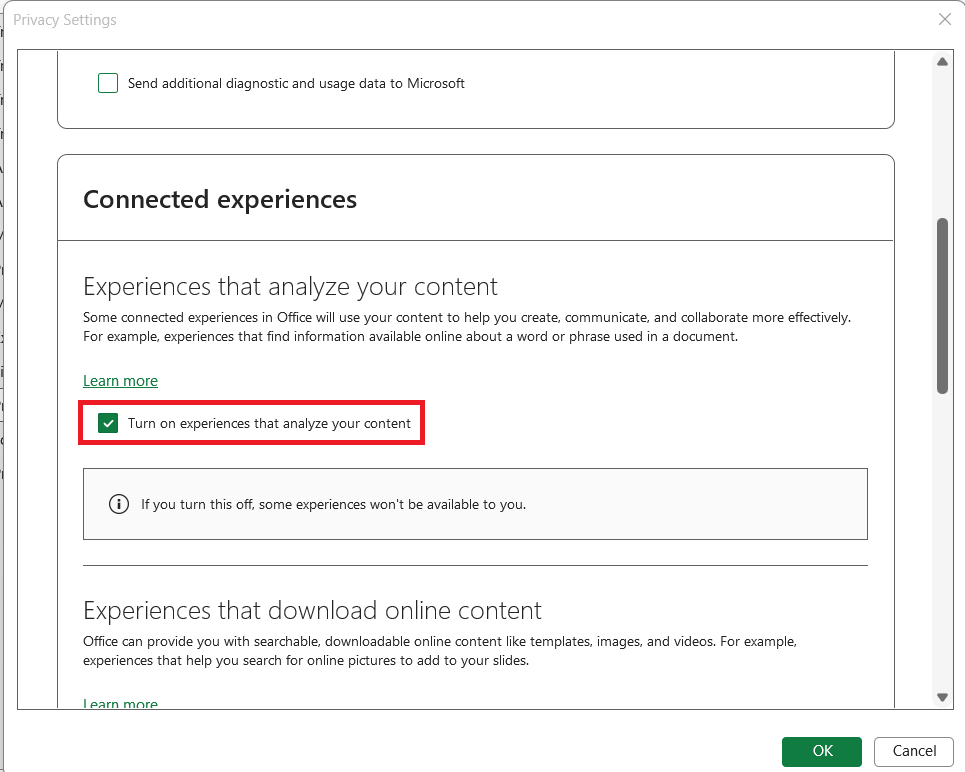
In some Windows versions, the control is available through Excel’s privacy settings. Open Excel and go to File > Options. In the Excel Options window, select Trust Center, then choose Trust Center Settings. Open Privacy Options > Privacy Settings.
Under Connected Experiences, enable the checkbox described in the privacy settings, then select OK to save the change. Close Excel and start it again. The Copilot ribbon button should be disabled, and its features should no longer be available in that Excel app.

Other versions may show a direct Copilot control. Where available, check File > Options > Copilot and clear Enable Copilot. Use the control that appears in your installation; the names and locations can differ. Restart Excel after changing the setting so you can confirm whether Copilot is disabled.

Disable Copilot in Excel for Mac
On a Mac, open Excel and choose Excel from the menu bar, then select Preferences. Open Authoring and Proofing Tools, select Copilot, and clear Enable Copilot. Close and restart Excel to apply the change.
If the Copilot preference is absent, the steps may not match your installed version. Check whether Excel offers an update through its available update controls, then look again for the Copilot preference. The steps for Windows do not apply to the Mac menu structure.
Hide the Copilot button without disabling its features
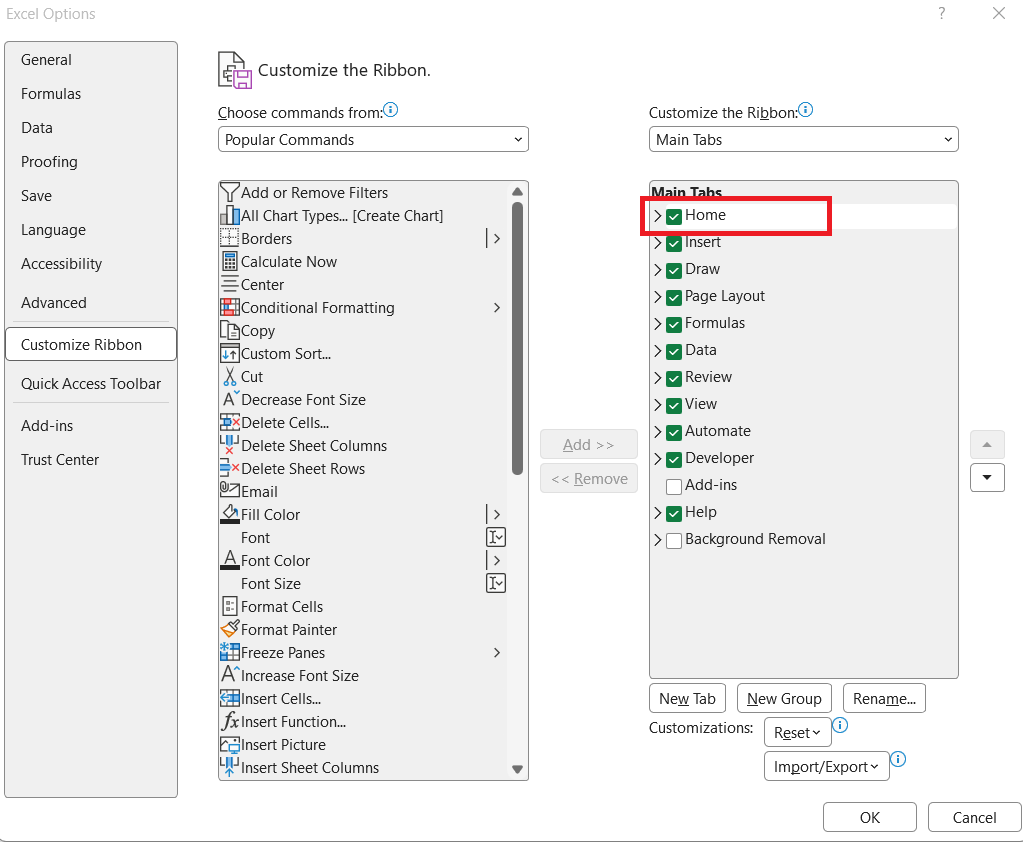
If the goal is to remove the button from the ribbon, Excel for Windows lets you customize that area. Right-click the ribbon and select Customize the Ribbon. In the panel on the right, expand Home under Main Tabs, select Assistance, and choose Remove. Select OK to save the layout.

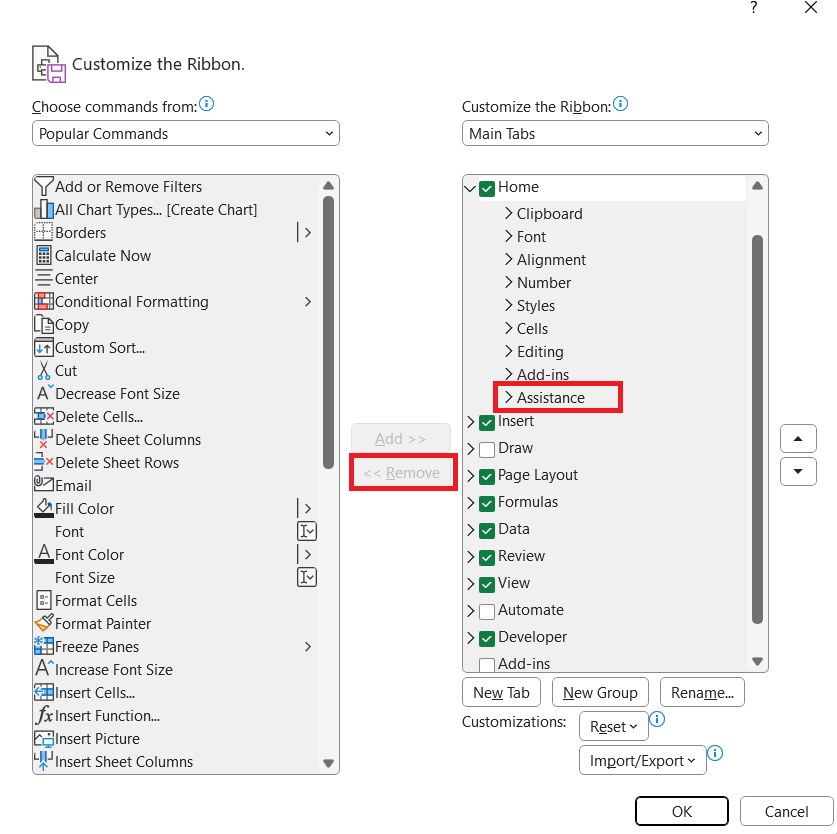
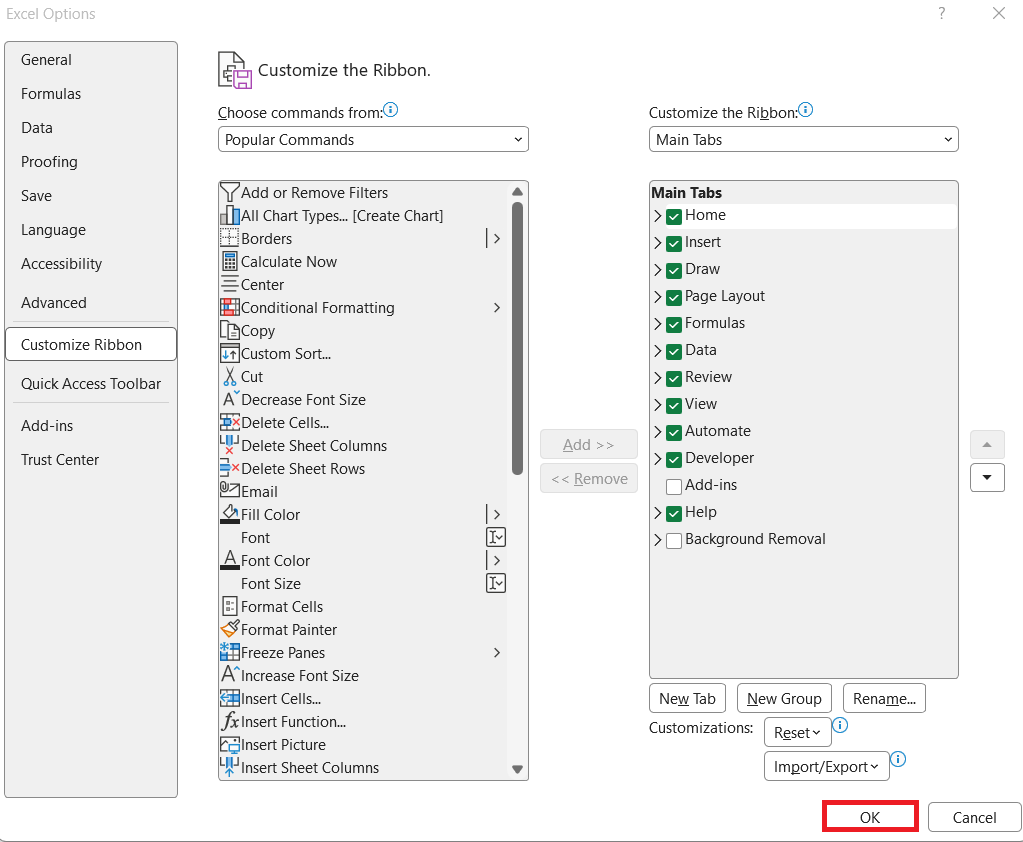
This changes the ribbon layout, not Copilot’s availability. Copilot may still open from another entry point, including a context menu. For teams that need the feature disabled, removing the button alone does not achieve that result.
What to check if Copilot remains available
The setting is missing: The Copilot control may depend on the Excel version. The supplied guidance recommends checking for updates through File > Account > Update Options > Update Now on Windows. If the control still does not appear, use the settings available in that installation.
It is still enabled on another computer: The setting applies to the computer where you change it and does not sync through your Microsoft account. Repeat the steps on each computer where you use Excel.
It appears in another Microsoft app: Changing Excel’s setting does not disable Copilot in Word, PowerPoint, Teams or Outlook. Check the relevant controls in each app separately.
The ribbon button disappeared, but Copilot still opens: That points to a ribbon customization rather than a feature setting. Look for the Copilot enable control in Excel’s settings.
What remains available
Turning off Copilot does not remove existing formulas or Excel functions from a workbook. Formula suggestions in Excel for the web can be controlled through Copilot Settings, where supported. You can also turn Copilot back on through the relevant Excel setting if your needs change.
For a quick reference to Microsoft’s guidance, see Microsoft’s instructions for turning off Copilot in Microsoft 365 apps. After changing settings, verify the result in each Excel installation you use and distinguish a hidden button from a disabled feature.


