Manage Copilot Chat History in Excel: View, Reuse and Delete Conversations
Open past Excel Copilot chats, reuse prompts, or clear activity history across Microsoft 365 apps. Deleting history does not remove workbook data.
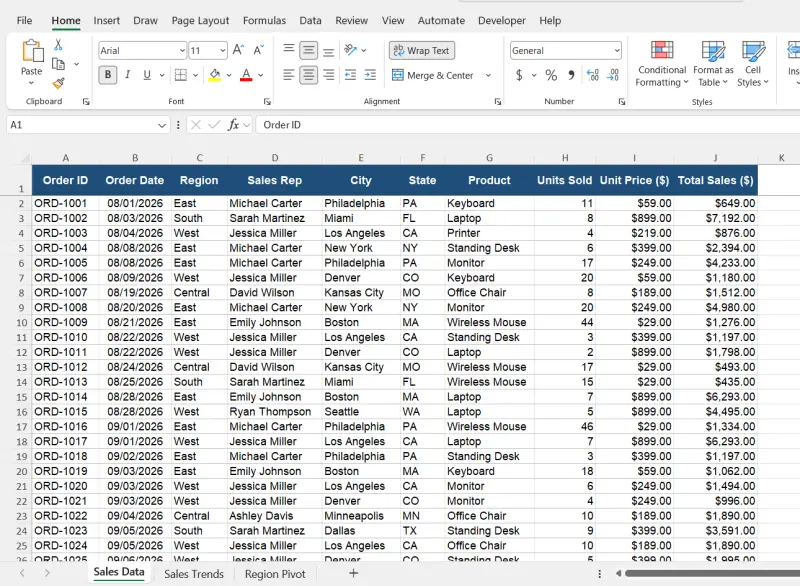
How Excel Copilot chat history works
Copilot chat history gives Excel users a way to return to earlier conversations, continue a discussion, and reuse prompts. The practical choice is whether to keep a conversation for later work or remove it from the history list. Deleting a chat won’t change the workbook’s data, but clearing Copilot activity history through a Microsoft account affects multiple Microsoft 365 apps.
That distinction matters because chat history and workbook contents serve different purposes. A conversation can preserve the instructions and responses that helped you work through a task, while the workbook holds the data and changes made there. If you’re deciding what to delete, check the scope of the action first; the label “history” can refer to a single conversation or activity across apps.
Use the Excel Copilot pane to find and work with individual conversations. For a broader cleanup, the account portal provides an option to delete Copilot activity history. The scope differs, so check which action you’re taking before you confirm a deletion.
Open and continue an earlier conversation
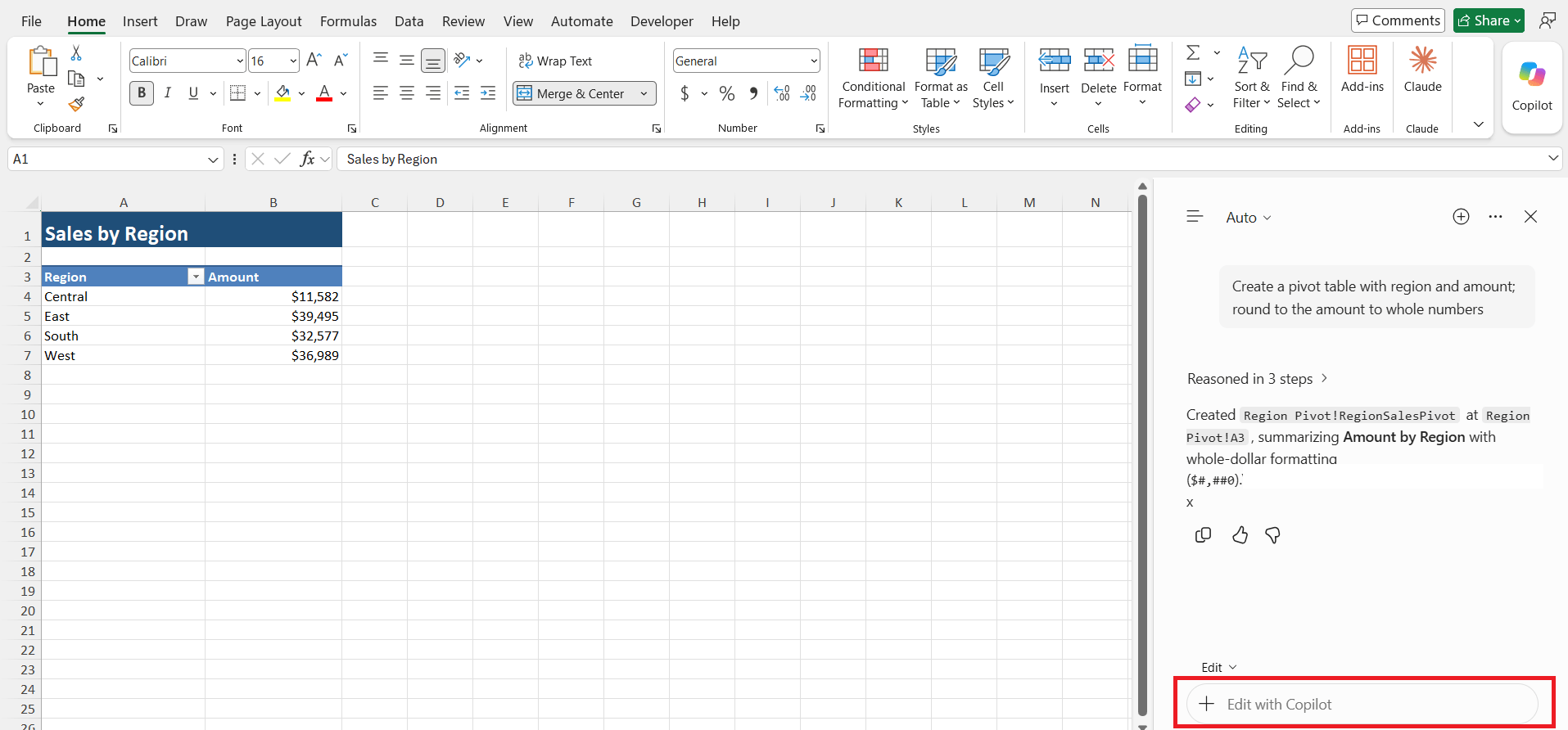
To find a previous chat, open the workbook associated with the conversation. On Excel’s Home tab, select Copilot to open the pane. Use the menu icon at the top left to display the conversation list, then choose the chat you want to revisit.
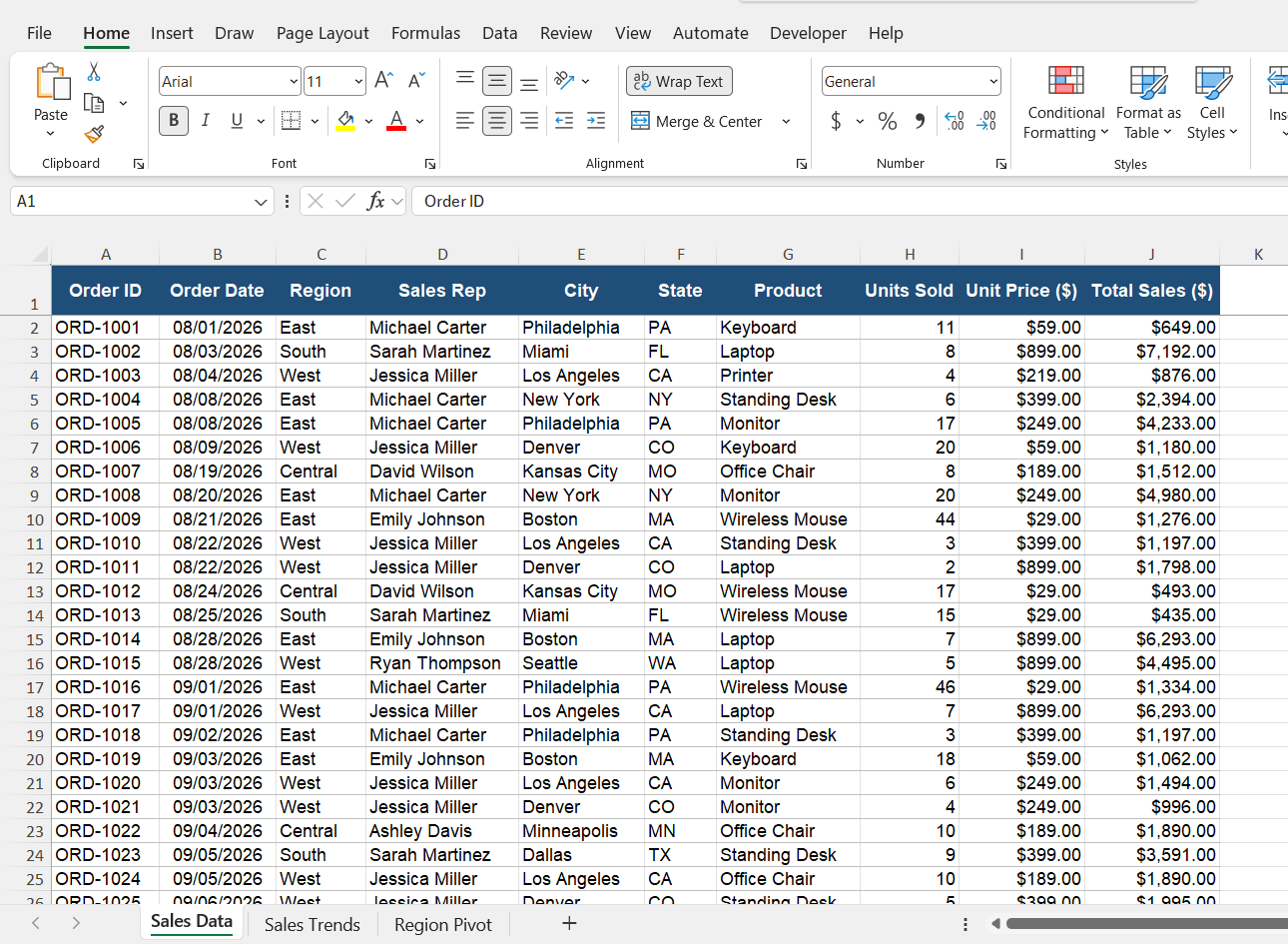

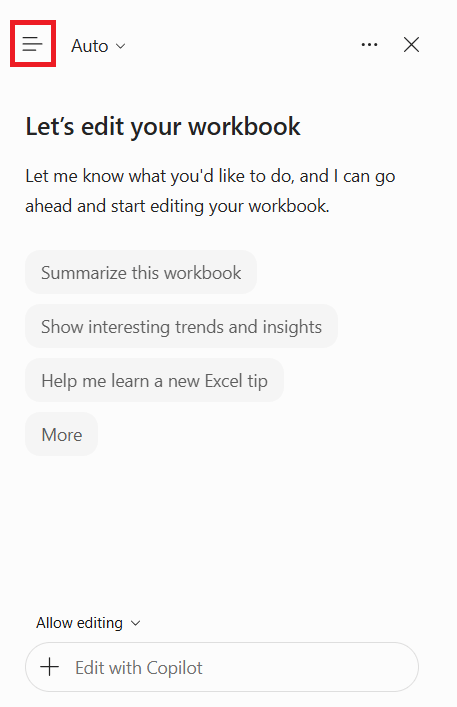
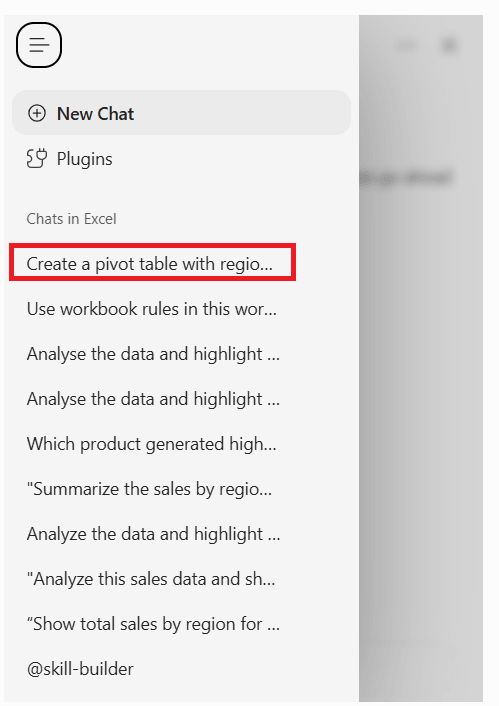
Once the conversation opens, you can review earlier prompts and responses and enter a follow-up in the same chat. That can save time when the discussion contains useful context or an unfinished task. It also gives you a chance to see how the original request was phrased before you ask Copilot to continue, which can help avoid repeating work.
Chat history is available when the feature is supported and enabled for the account; its presence shouldn’t be assumed for every user or tenant. If you don’t see the expected conversation list, availability and account settings are sensible first checks. A missing history view doesn’t, by itself, tell you whether a workbook or its data has changed.
Reuse a prompt in another chat or workbook
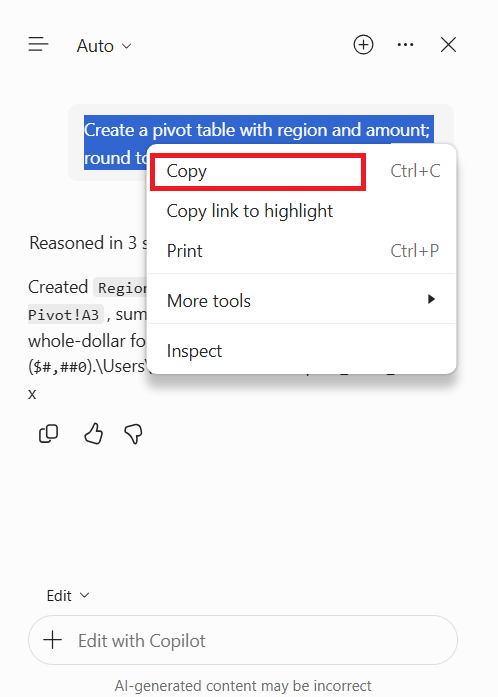
A previous prompt can serve as a starting point for a similar task. Open the Copilot menu and select the conversation that contains the prompt. Find the text you want, copy it, then open a new conversation or switch to another workbook. Paste the prompt and adjust its instructions to fit the current data and task.
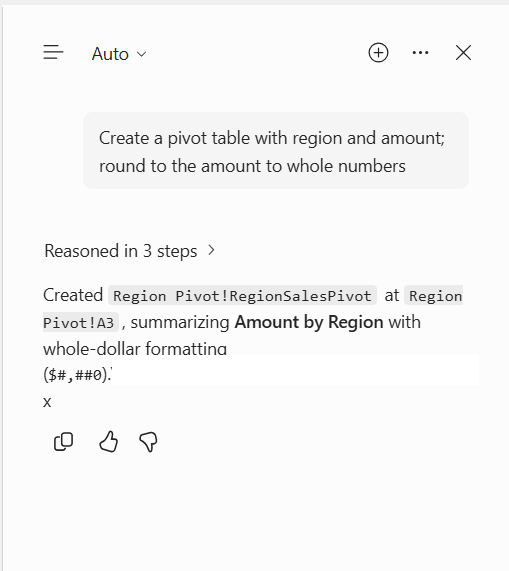
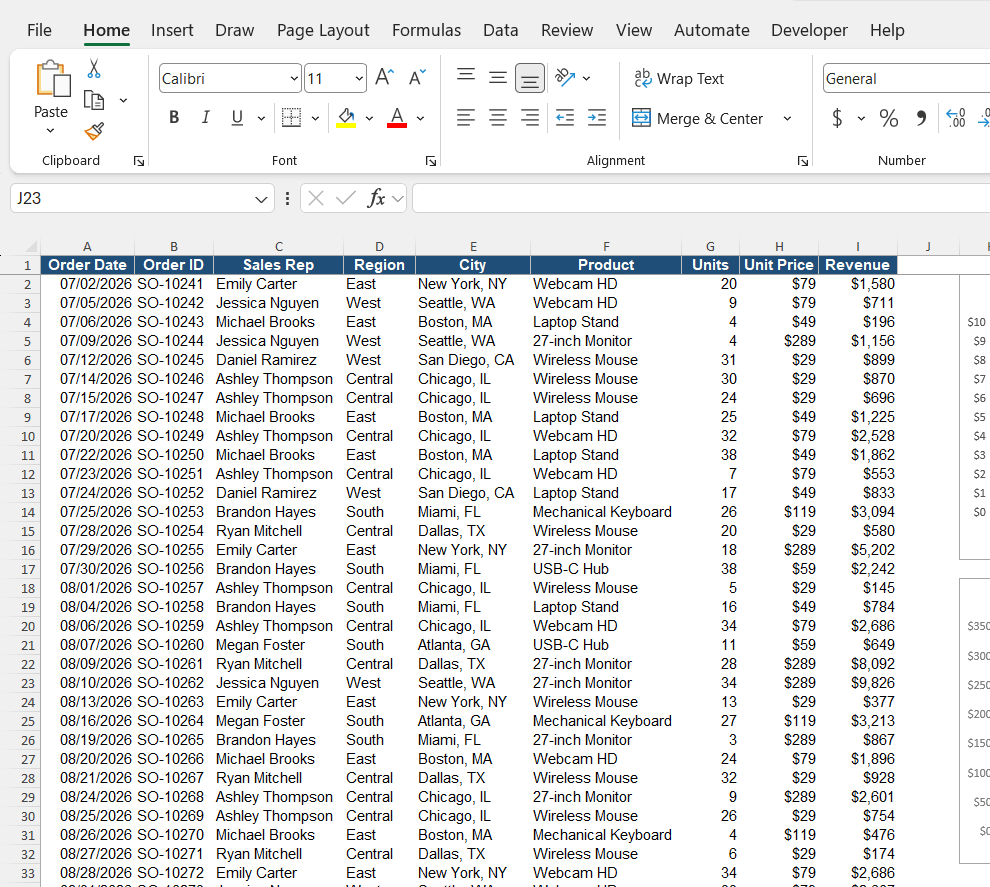
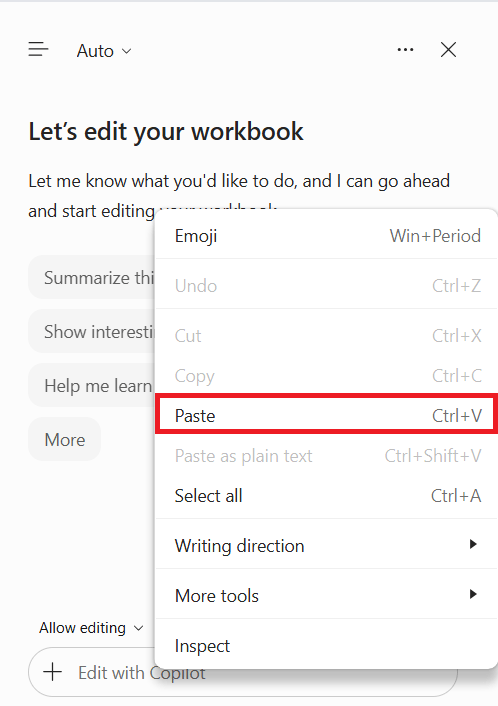
Reusing the wording doesn’t carry over the original workbook’s data. Treat the copied prompt as instructions to revise: check that references to tables, columns, or the intended result match the new workbook before sending it.
That review matters even when two workbooks look similar. A prompt that names a particular table or asks for a specific calculation may be unclear or unsuitable when the new file uses different labels, columns, or assumptions. The text is a reusable starting point, not proof that the new task has the same inputs.
Remove a conversation or clear activity history
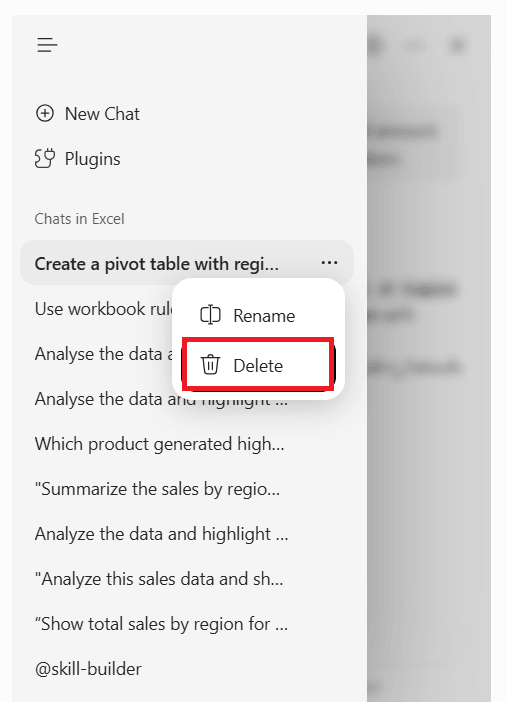
To remove one conversation, open Copilot in Excel, display the chat history from the menu icon, and locate the entry. Open its More Options menu and choose Delete.
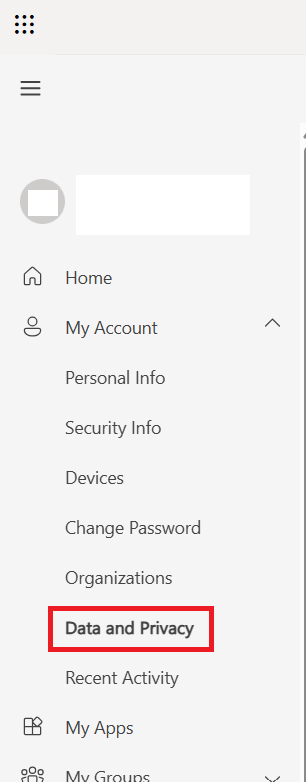
For a wider cleanup, sign in to the My Account portal. Go to My Account > Data and Privacy. Under Data Options, select Copilot activity history and then Delete. In the confirmation dialog, select the Microsoft Copilot checkbox and confirm Delete.
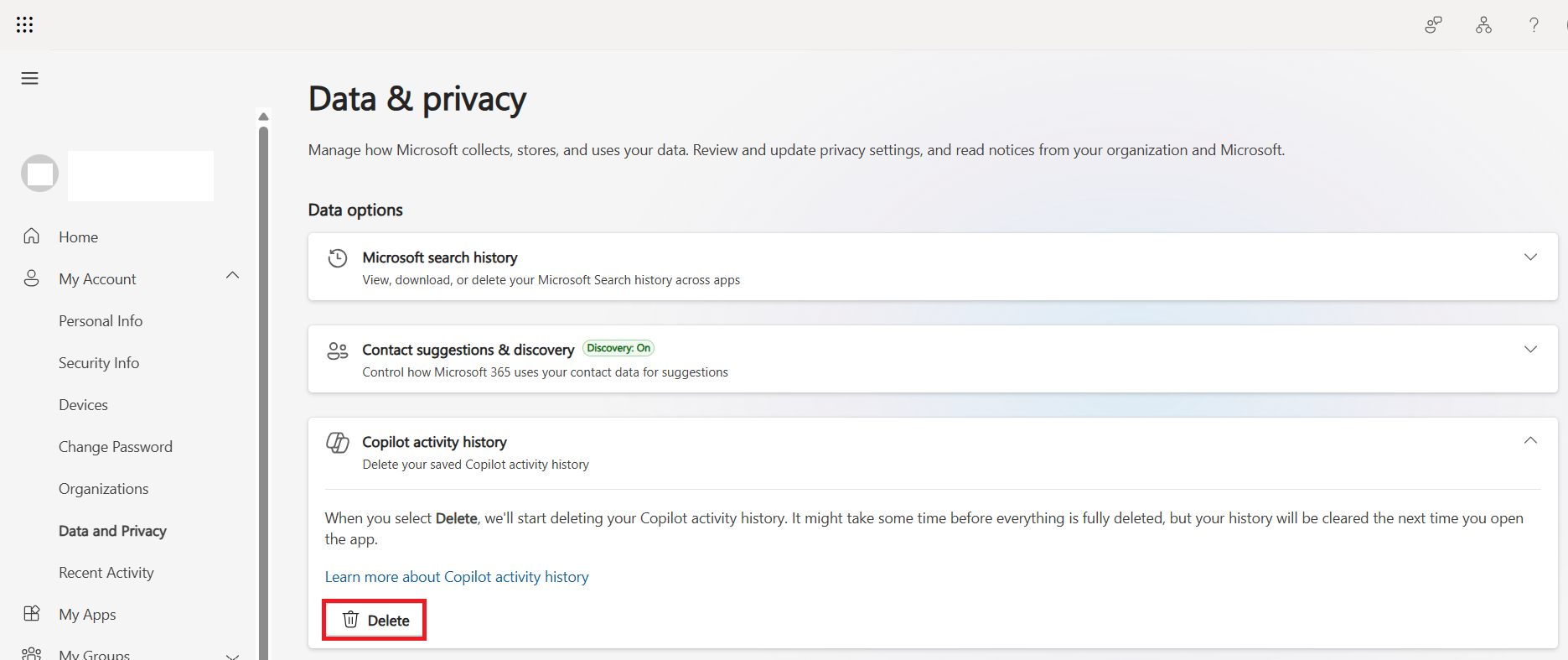
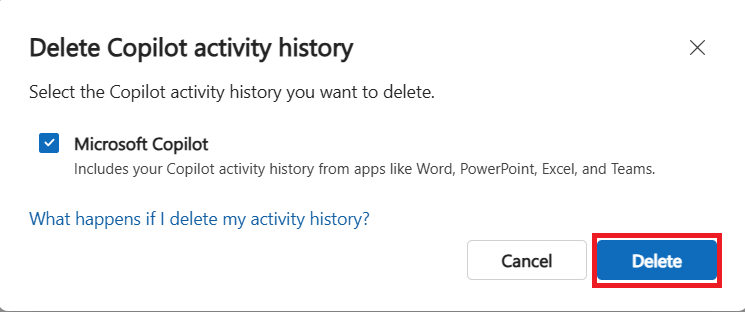
This account-level action affects Copilot history across Microsoft 365 apps, including Excel, Word, PowerPoint, and Outlook. Individual deleted chats can’t be recovered, and the account-level deletion removes Copilot chat history. Neither action changes the workbook data itself. Organizations may also have policies requiring chats to be retained, so check the applicable company policy before clearing history.
Here’s the thing: the scope is the decision. Removing a single entry is a narrower change than using the portal option, which applies across the named apps. The deletion can’t be treated as a way to edit or erase workbook contents, and anyone who needs a conversation later should preserve the useful prompt or response before deleting it. A tidy list may be convenient, but the consequences depend on which control you select.
Implications for everyday Excel work
Chat history can act as a working record of how you asked Copilot to help with a task. That can be useful when you need to resume a discussion or reconstruct an approach, though the conversation still needs to be checked against the workbook in front of you. This is more significant than it looks: the history can save repeated prompting, but it can also create confusion if users assume an old chat automatically reflects current data.
If you're working in this space, treat prompts as task-specific instructions and confirm their references before reuse. Keep a conversation when its context may help you continue; copy a prompt first if you want to preserve only the reusable wording. A small habit, with practical value.
What to check before changing history
Keep a conversation if you may need its prompts or responses again. If you want to reuse only the prompt, copy it before deleting the chat. For account-level deletion, consider that the action spans the named Microsoft 365 apps rather than just the workbook currently open.
Microsoft’s guidance on Copilot conversation history describes the feature’s availability. For day-to-day Excel work, the key checks are whether history is enabled for the account, whether the conversation is still useful, and whether workplace retention rules apply.


