Add Files, Images and Cloud Documents to Copilot in Excel
Excel’s Copilot pane can use uploaded images and files or attached cloud documents as context. Give a specific prompt, then review its response and workbook changes.
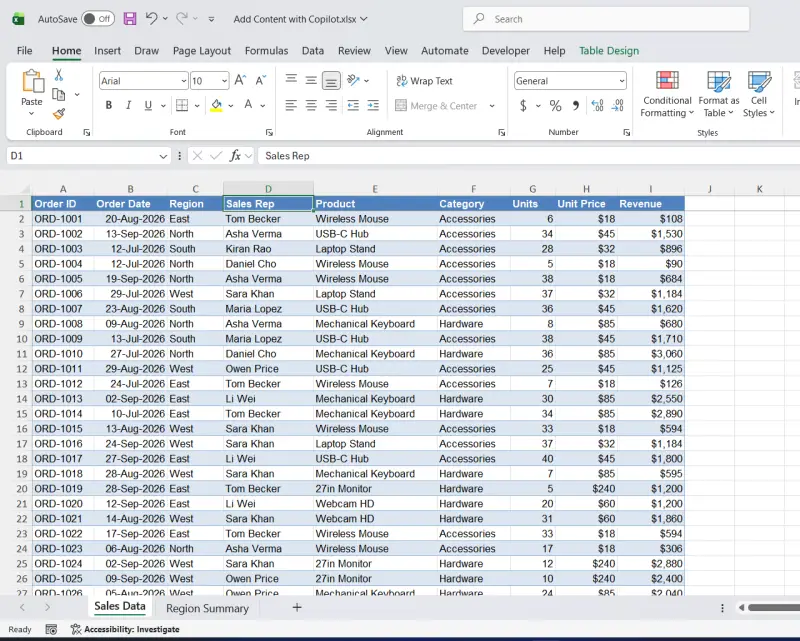
Copilot in Excel can work with supporting material beyond the open workbook. The Add content option lets you provide images, files or cloud documents in the Copilot pane, giving your request more context without requiring you to type all that information into the prompt. That can be useful when a spreadsheet task depends on material held elsewhere, such as details in a separate file or information captured in an image.
For IT teams and Excel users, the practical value depends on how clearly the task is described. Adding a document alone doesn’t tell Copilot what to do with it; the prompt still needs to connect the material to the workbook and identify the information you want found or used. Then check both the response and any worksheet changes before relying on them. More context can narrow a request, but it doesn’t remove the need to verify the result.
Where to find Add content
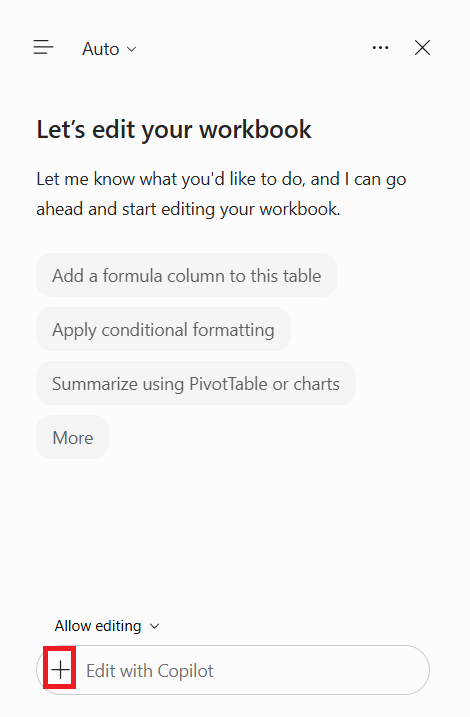
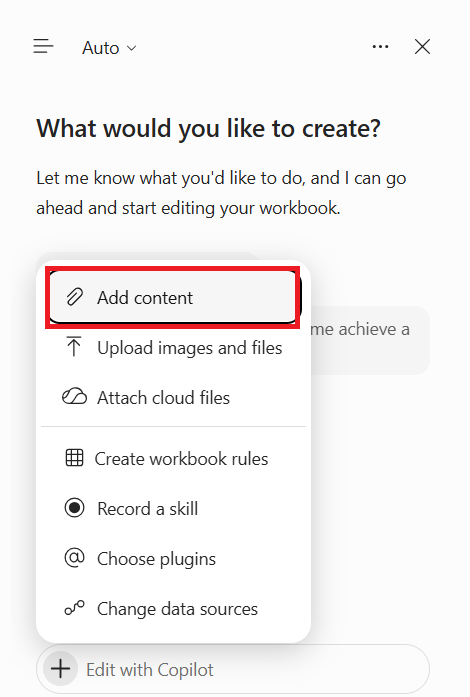
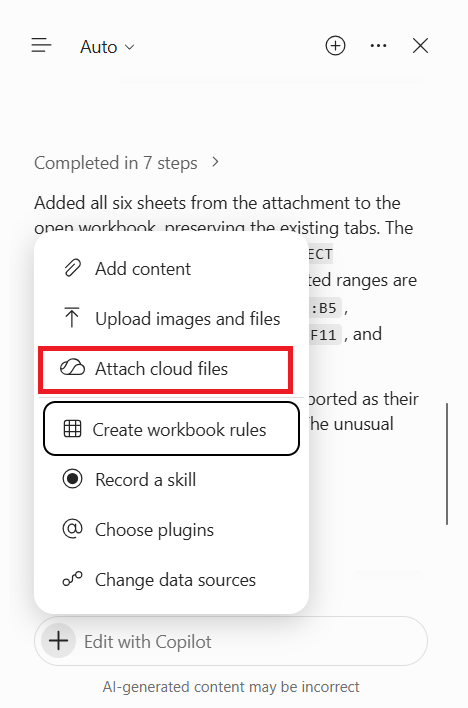
Start with a new or existing workbook in Microsoft Excel. From the Home tab, open Copilot. In the Copilot pane, select the Add (+) menu and choose Add content. The option sits in the prompt workflow, so you can supply supporting material before describing the task you want Copilot to perform.
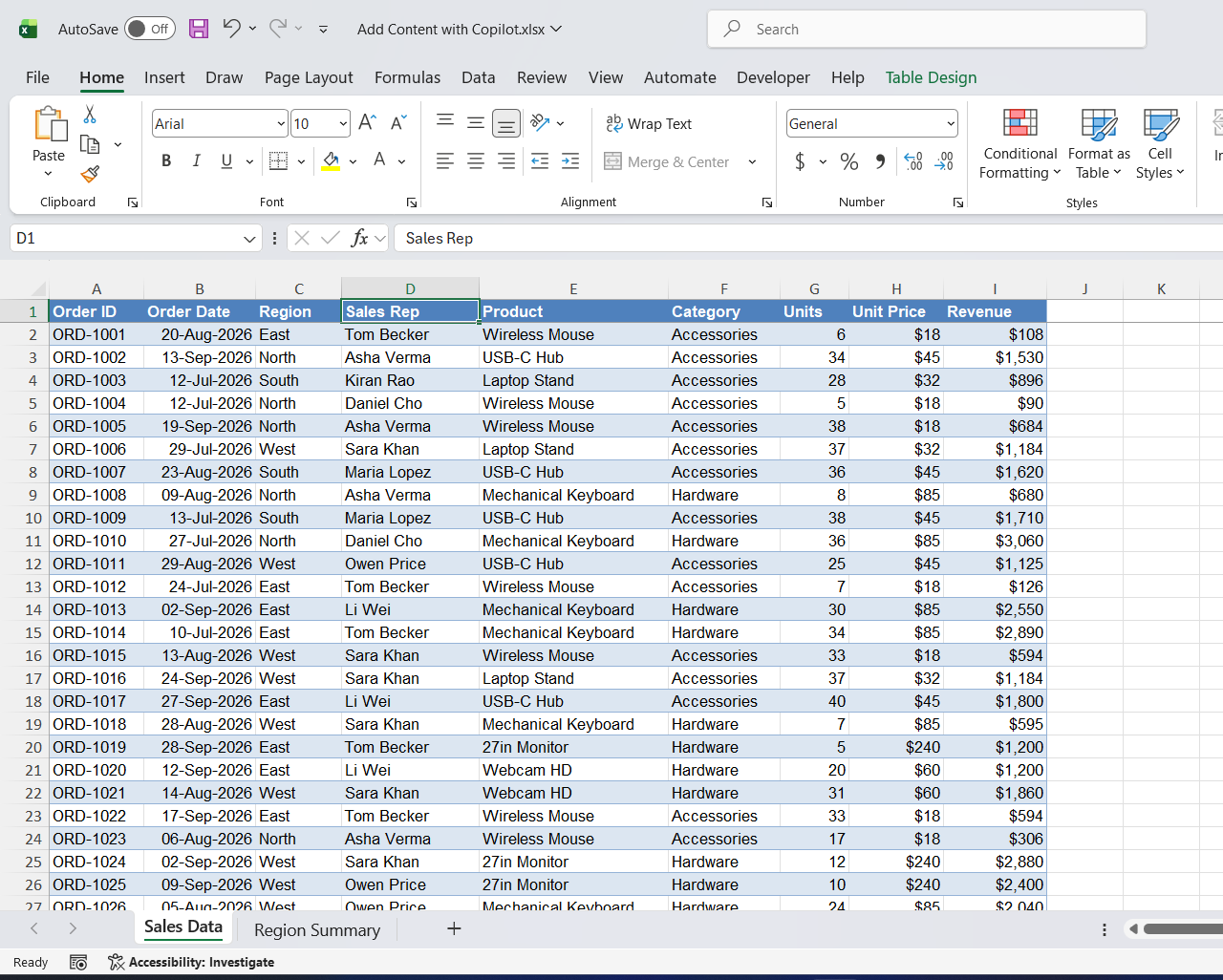

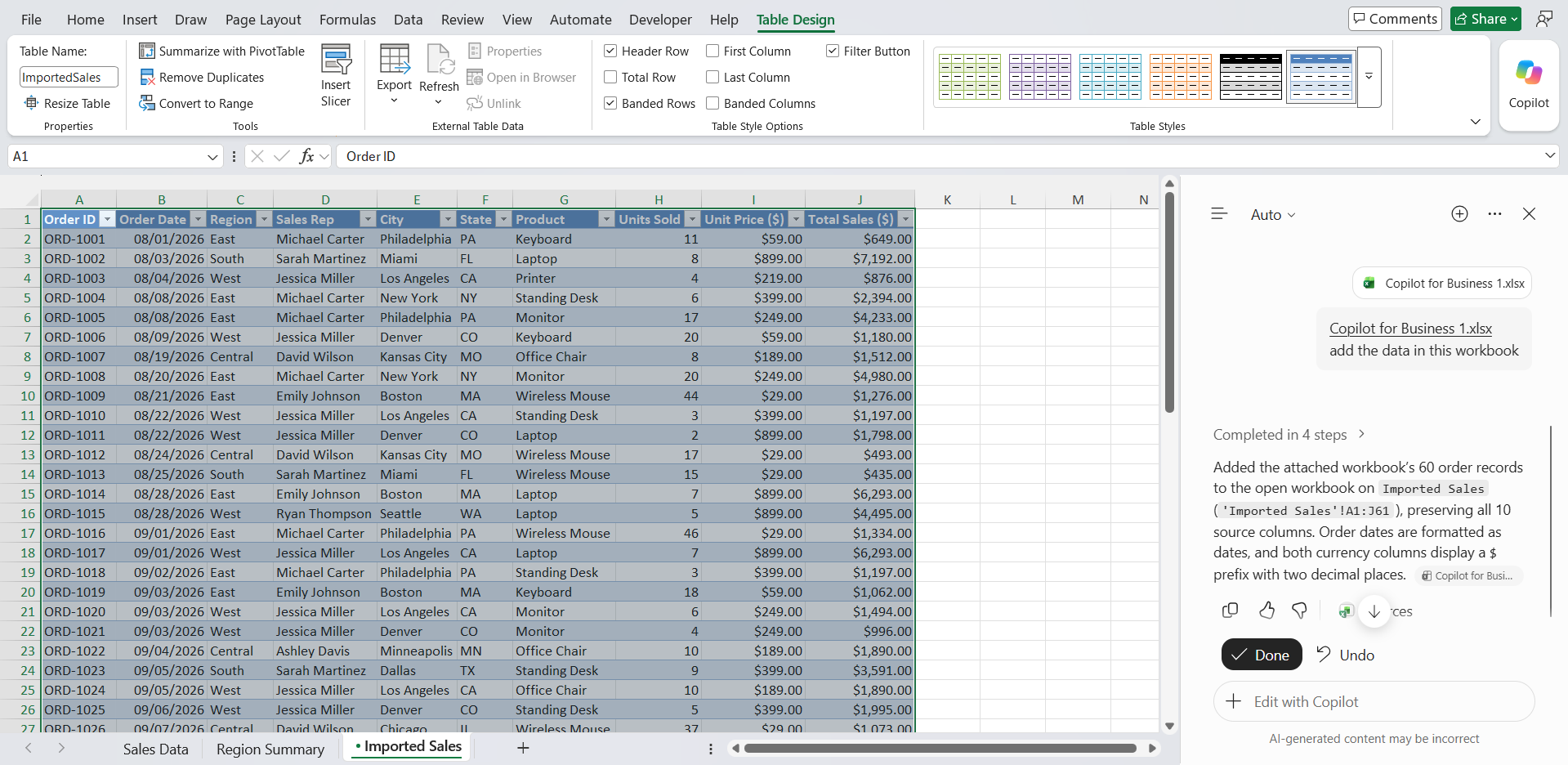
Once you’ve selected the option and supplied the material, Copilot searches it and inserts content into the worksheet. Treat that step as an initial result, not a completed spreadsheet task: check whether the information is relevant, whether it has been placed where you expect, and whether the changes make sense beside the existing data. This is more significant than it looks. A useful answer in the pane can still produce a worksheet result that needs adjustment.
Choose how to provide the supporting material
The Add content menu offers ways to provide material from outside the current workbook. Use Upload images and files when the information is on your device. This can help when a task depends on content held in an image or a separate file. After adding it, write a prompt that specifies what Copilot should do with the material, so the attachment has a clear role in the request.
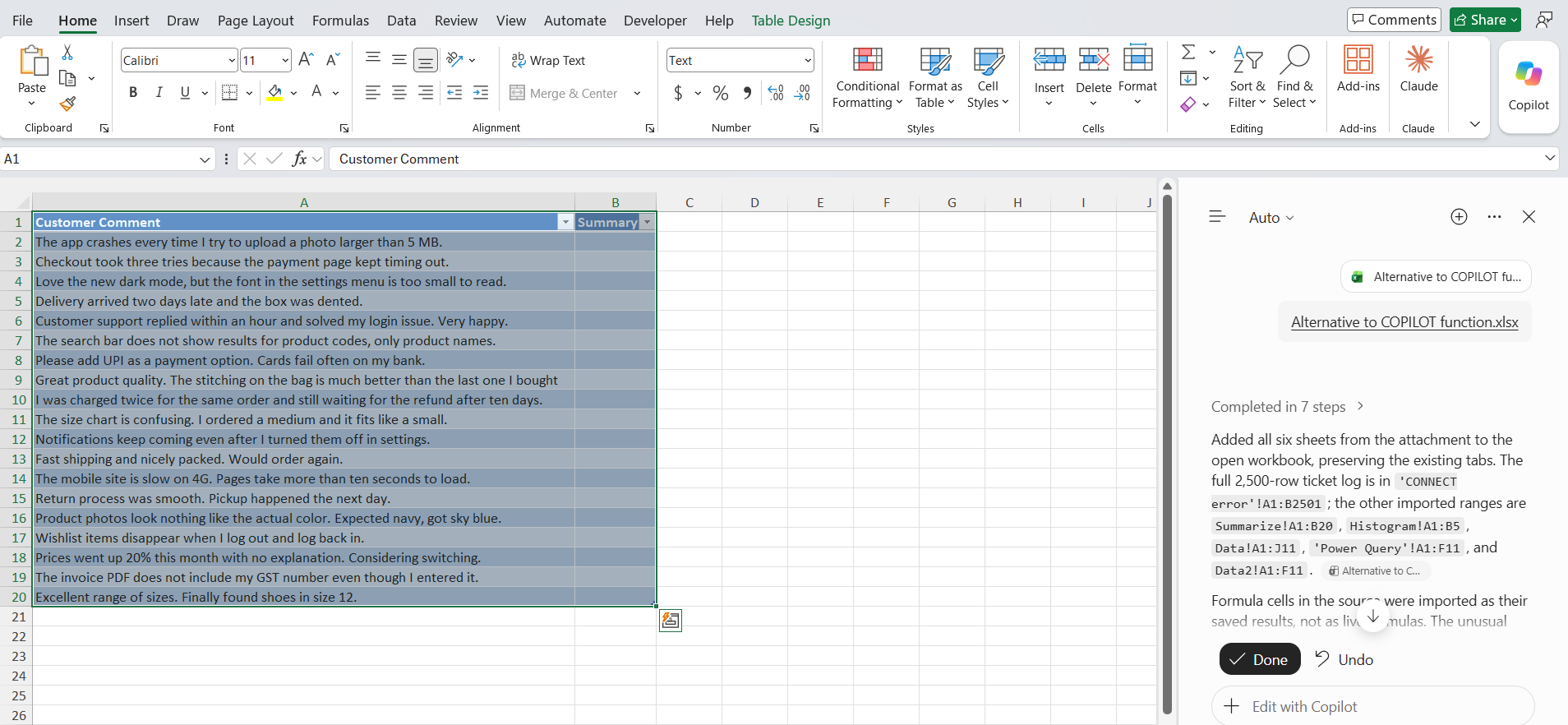
If the relevant material is stored as a cloud file, choose Attach cloud files instead. Once it’s attached, state how the file should inform the request. For example, identify the kind of information Copilot should locate or explain how it relates to the workbook task. The available guidance doesn’t specify file types, size limits or tenant requirements, so check your Excel experience for the options shown to you. Those details can affect what a user can attach in a particular environment, and shouldn’t be assumed from the menu label alone.
Write a prompt that connects the content to the workbook
Added material provides context; your prompt supplies the task. A broad instruction can leave Copilot guessing about which parts matter. Be direct about the information to find, summarize or organize, and describe the relationship between that information and the workbook. For example, say what kind of detail you need and where it should fit in the spreadsheet, rather than relying on the attachment to explain the goal by itself.
That distinction matters in day-to-day spreadsheet work. A file may contain more material than the workbook task needs, while the prompt can narrow the request to the relevant details. Keep the supplied content focused on the task, and review Copilot’s response against both the attachment and the worksheet before using the result. (And this is the part most people overlook.) The prompt shapes the work, but the source material and the resulting cells still need a human check.
Review the response and worksheet changes
After Copilot responds, check whether it used the intended supporting material and whether the inserted content fits the workbook. Verify important details against the material you supplied, and inspect changes before saving or relying on them. If you’re working in this space, you’ll recognize the practical issue: spreadsheet outputs often become inputs to later analysis, so an unnoticed mistake can travel beyond the original request. Copilot’s output is a starting point for your work; the user remains responsible for deciding whether it’s accurate and appropriate for the spreadsheet.
That review should cover both meaning and placement. Confirm that the information answers the task, then look at how it sits within the workbook’s structure. A correct extracted detail can still be unhelpful if it’s placed in the wrong area or doesn’t match the way the sheet is organized. A quick visual pass helps catch that.
What this means for Excel users
Add content gives Copilot a way to draw on material beyond the active workbook, which may reduce the amount of background a user has to restate in a prompt. Its usefulness still rests on a clear instruction and a careful review of the result. The feature doesn’t make the source material self-explanatory, and the workflow depends on users judging whether the response belongs in their spreadsheet.
For teams, that makes prompt quality and review habits part of ordinary spreadsheet work. Clear requests help define what Copilot should extract or organize; checking the worksheet helps catch errors before the result is reused. The feature’s practical value will depend on how well those steps fit into existing work. One more input route. One more result to verify.
Microsoft’s guidance for adding material to Copilot prompts is available in its Add content to Microsoft 365 Copilot Chat prompts documentation.


