Excel COPILOT Function Retired: Fix Existing Formulas and Switch to Copilot Pane
Excel’s COPILOT function retired on September 14, 2026. Check saved workbooks for formulas that may return #NAME? when recalculated.
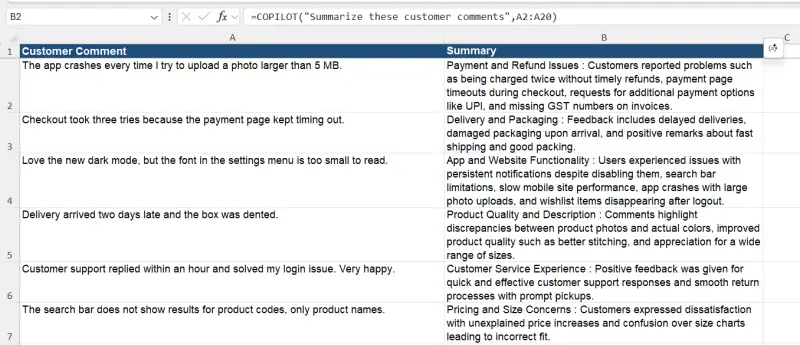
Excel workbooks that rely on the COPILOT function need attention: Microsoft retired it on September 14, 2026, and recalculating a workbook that contains the function may replace its output with a #NAME? error. Teams should review these formulas before refreshing or recalculating older files, then decide whether to preserve existing results, move the task to the Copilot pane, or use standard Excel functions.
What the COPILOT function did
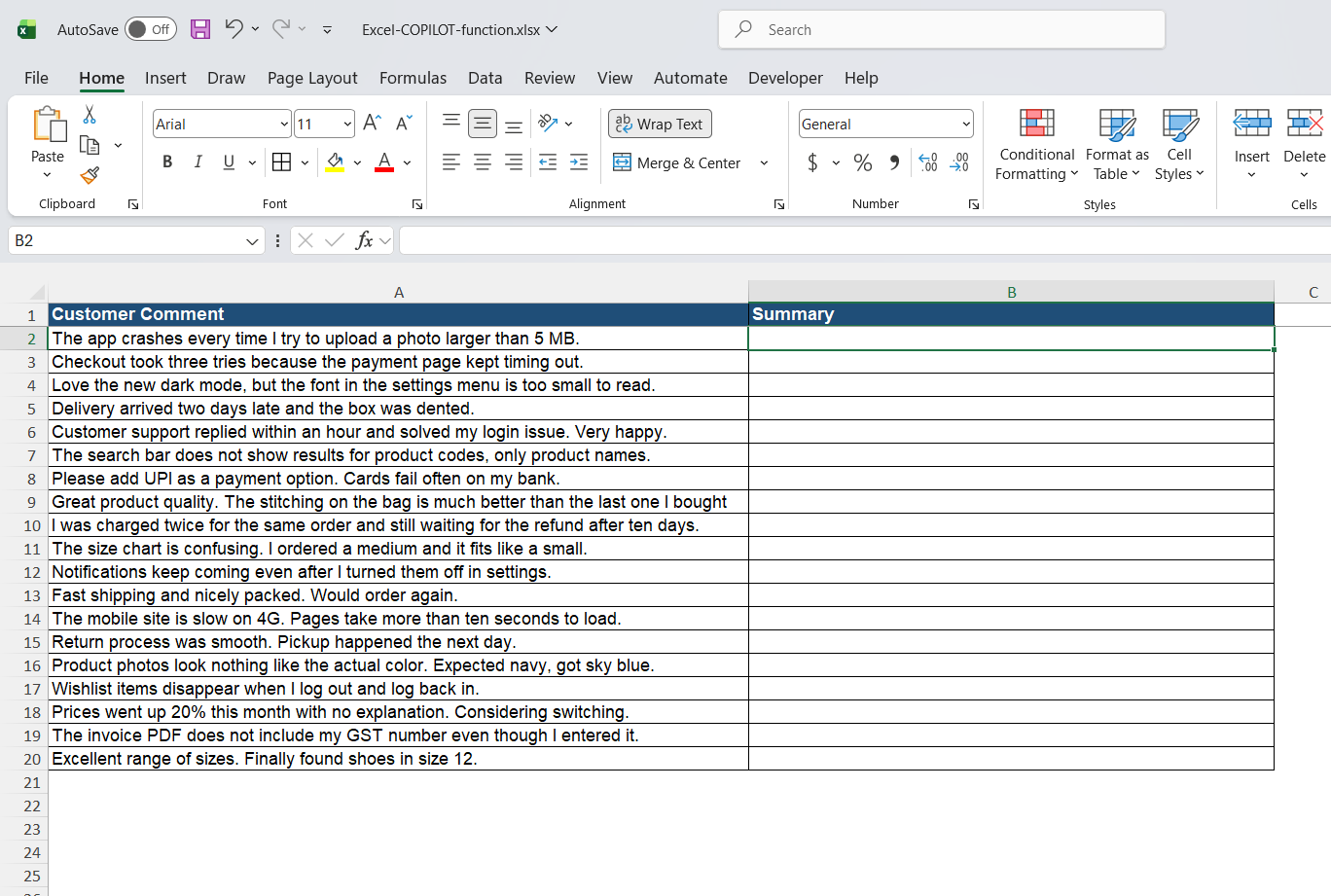
Microsoft introduced COPILOT as a preview function for Excel Insider users. It accepted an instruction and a cell range as inputs, then returned AI-generated text in a worksheet cell. For example:
=COPILOT("Summarize these comments", A2:A20)
In this formula, the quoted text tells the model what to do, while A2:A20 supplies the content to consider. The function could summarize text, categorize entries, identify information, or generate lists from the selected data.
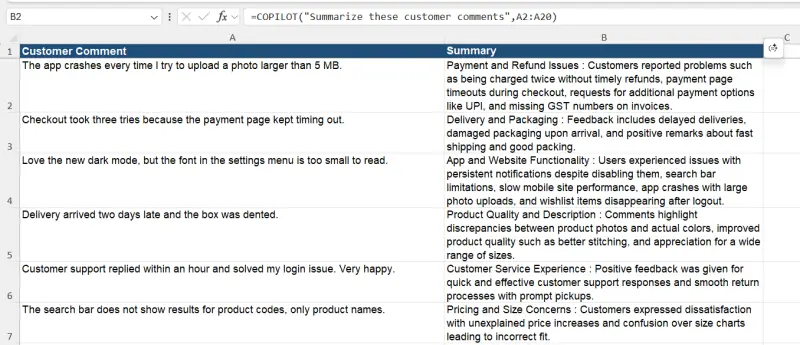
Putting a prompt in a cell made the feature look like a regular worksheet function, but the result depended on an AI model. That distinction matters for workbooks used in repeatable reporting: a formula can recalculate, while an AI response may vary even when the instruction and input range appear unchanged.
Why Microsoft retired it
The function had several limits. The same prompt could produce different answers, and model updates could change the result returned by a formula. It also could not read the web or company documents. Microsoft’s stated alternative is the Copilot pane in Excel, which supports similar tasks and is described as producing better results.
Usage was capped at 100 runs every 10 minutes and 300 runs per hour. For teams working through large ranges or repeated batches, those limits could interrupt a workflow. Taken together, variable output, limited context, and request caps made the function a poor fit for predictable spreadsheet processes.
Microsoft’s support page for the feature is available here. For workbook owners, the immediate concern is simpler: formulas that call a retired function may no longer recalculate successfully.
Check older workbooks before refreshing
An existing workbook may still display a previously calculated result if it has not been refreshed. That displayed text may be a cached value rather than a fresh response from the function. If Excel recalculates the formula after the function has been retired, the cell may instead show #NAME?, because Excel no longer recognizes COPILOT as an available function.
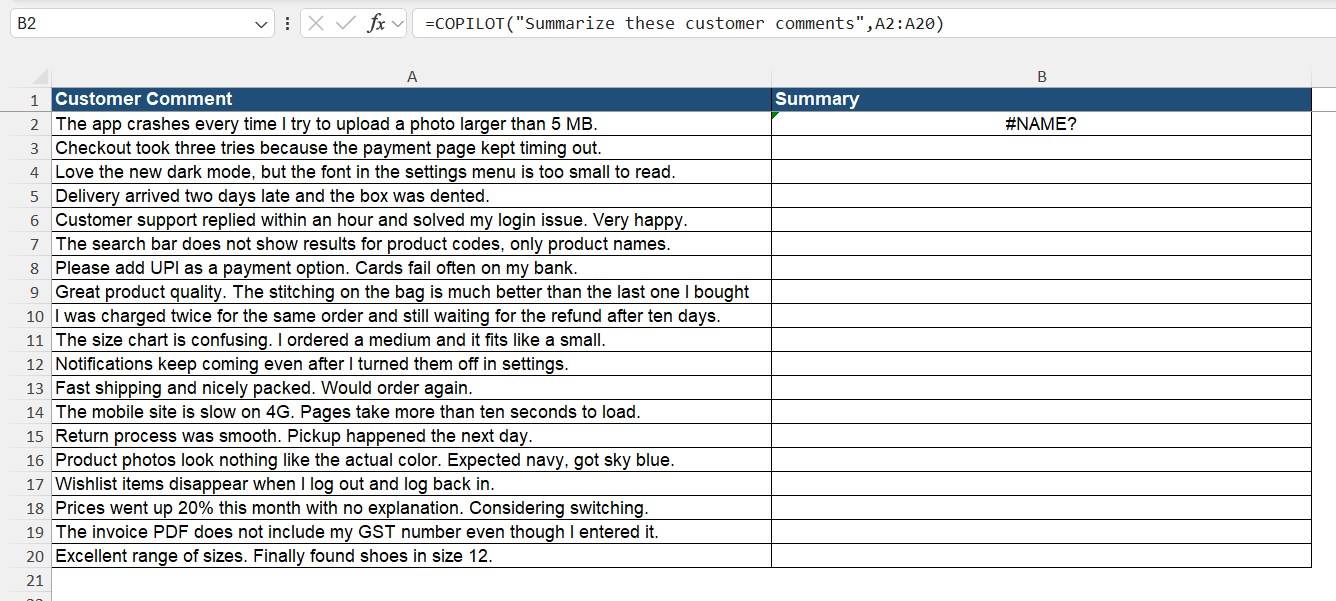
Before refreshing a workbook that contains COPILOT formulas, identify the affected cells and decide whether the current displayed outputs need to be retained. If they do, copy the results and save them as values before recalculation. This preserves the visible text in the workbook, though it also means those cells will no longer update from the original prompt and source range.
That distinction is worth making explicit for shared files. A saved response can remain useful as a historical snapshot, but it should not be mistaken for a live, recalculating analysis. If the underlying comments or records change, someone will need to run the task again through an available method and review the new output.
Use the Copilot pane for AI tasks
The Copilot pane moves the interaction out of the formula bar and into a chat prompt. Instead of entering a worksheet expression such as =COPILOT("Summarize this feedback", A2:A20), open the pane and ask for the analysis in natural language. For example: “Summarize the customer feedback in cells A2:A20 and highlight the three most common complaints.”
To use it, open the workbook, select the Copilot icon in Excel’s lower-right corner, and enter the task in the chat box. Review the response, then ask for a revision if the result needs a different focus or format.
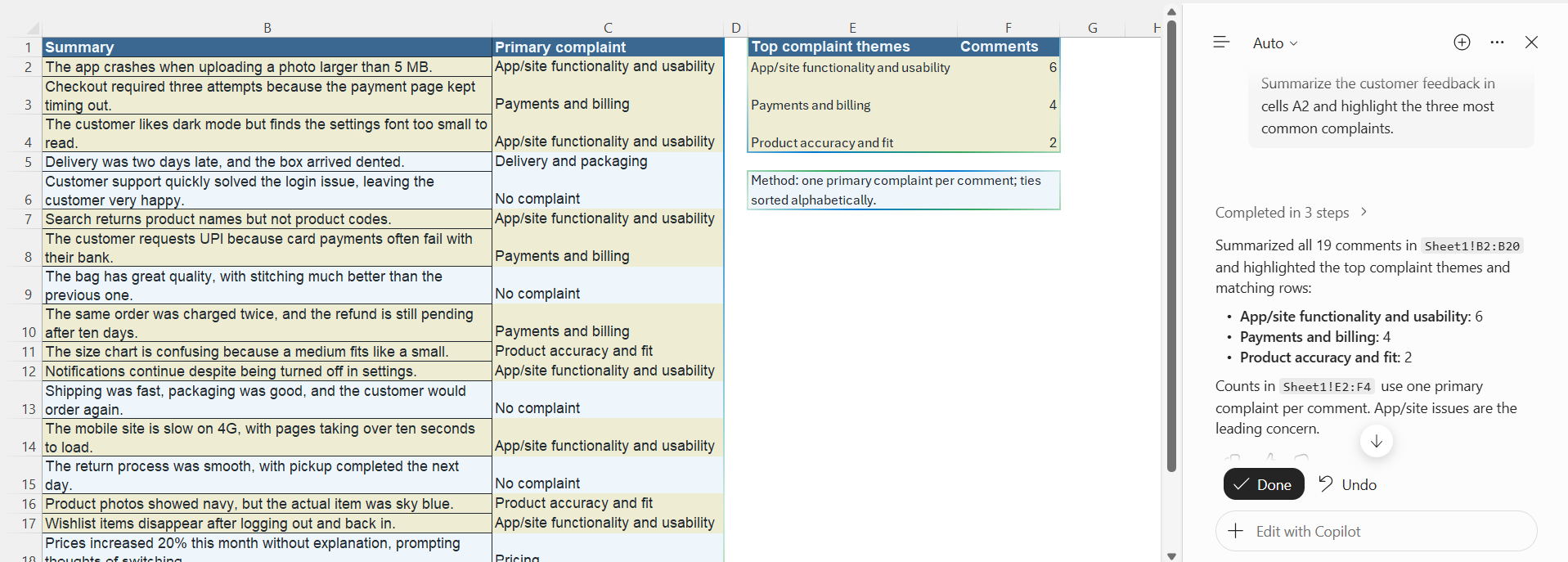
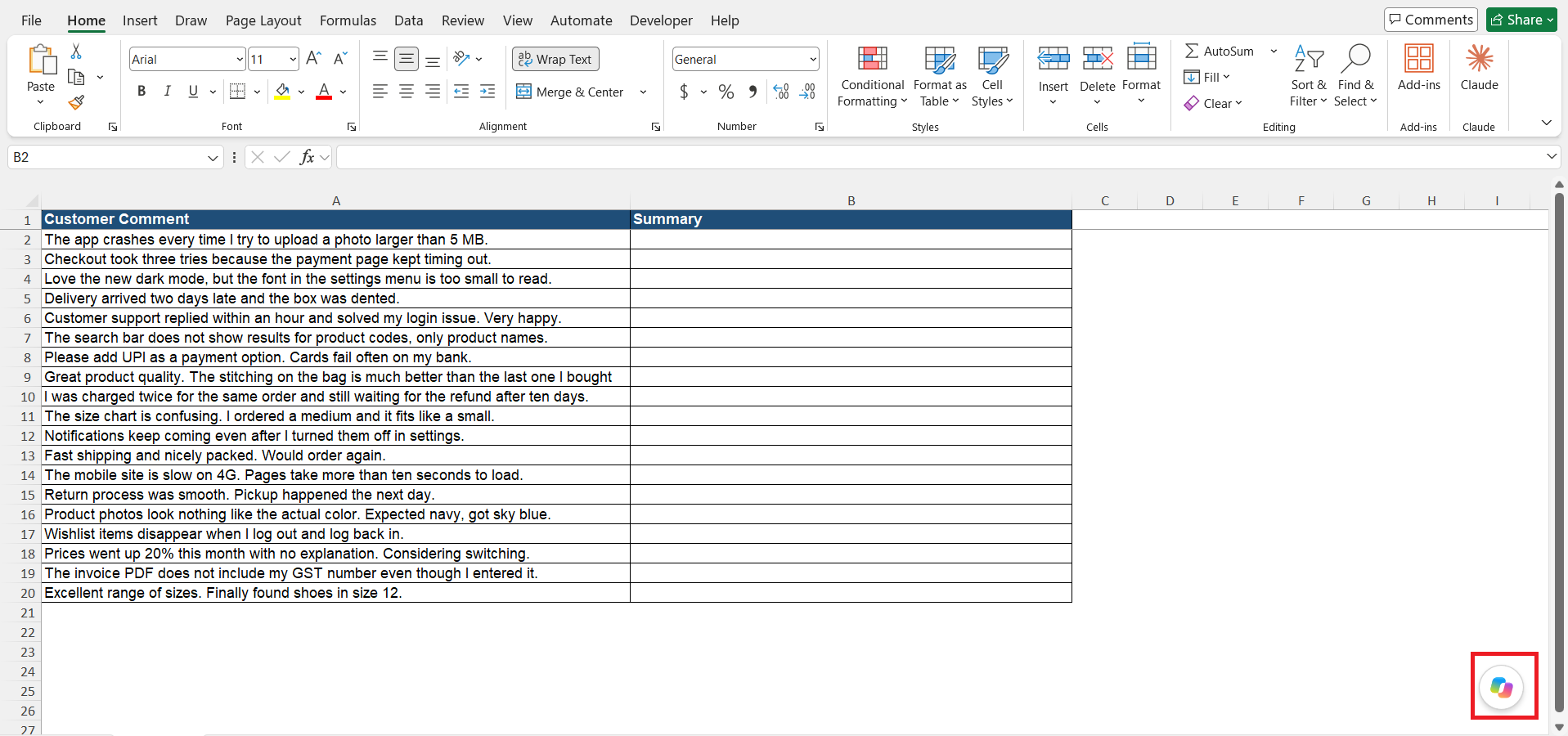

Because the pane is a conversational workflow, users can inspect and refine the response before using it elsewhere in the workbook. Keep a human review step for summaries, categories, or generated lists that will inform decisions or be shared with others; the interaction itself does not make the output a deterministic calculation.
Use formulas for repeatable spreadsheet work
For calculations and structured data handling, ordinary Excel functions remain the more direct choice. They won’t generate a natural-language summary, but they can apply explicit rules consistently as data changes.
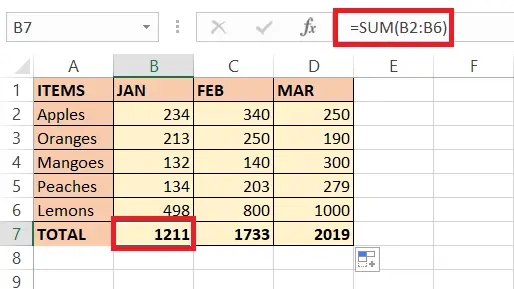
- SUM adds values across a range.
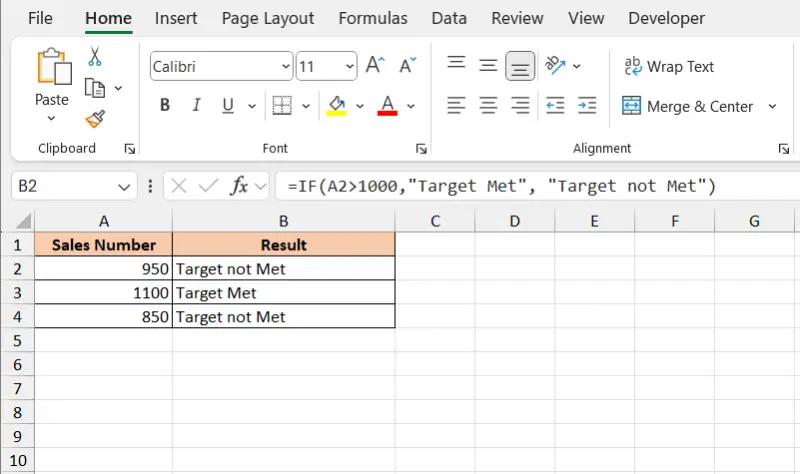
- IF returns a result based on whether a condition is met.
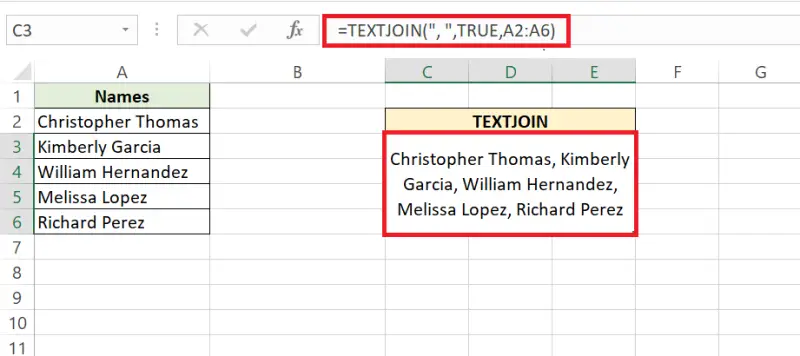
- TEXTJOIN combines text from multiple cells.
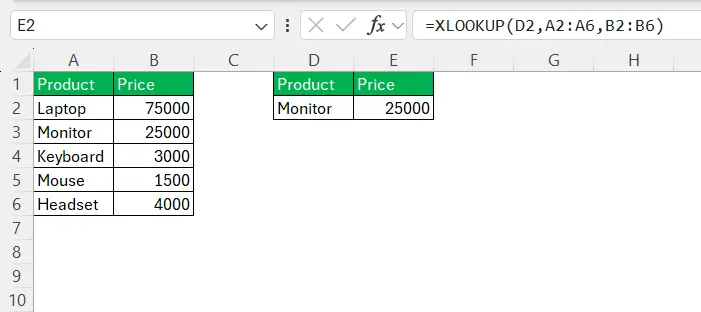
- XLOOKUP finds a value and returns related information.
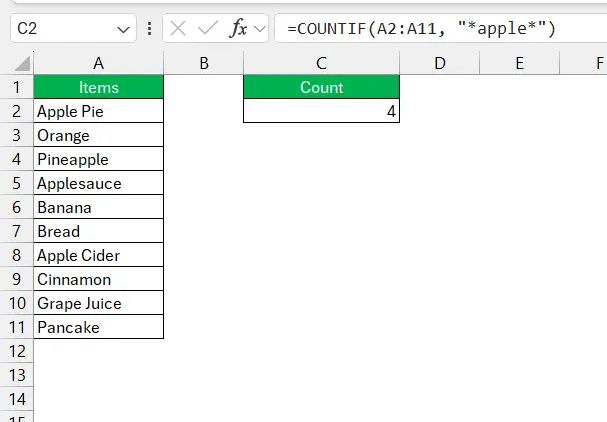
- COUNTIF counts cells that meet a specified condition.
Power Query is another option when the job is transforming or reshaping data. Choose the method based on the task: use formulas for defined calculations, Power Query for repeatable data preparation, and the Copilot pane when an AI-generated interpretation or summary is useful. Before relying on any replacement, check that it fits the workbook’s actual workflow and that a colleague can review the result.
The practical next step is to search older workbooks for COPILOT formulas and preserve any outputs that must remain available before recalculation. Then move each task to the pane or to a repeatable Excel feature, depending on whether it needs interpretation or consistent data processing.


