10 Microsoft Productivity Tools: What Each One Does for Work Teams
Excel, Teams, OneDrive, Planner and other Microsoft apps cover analysis, communication and task tracking. Choose tools around how your team works.
Microsoft’s productivity apps cover several distinct parts of day-to-day work: creating documents, analyzing information, coordinating with colleagues, storing files and automating repeated steps. For IT teams and business users, the practical question is how to fit those tools into existing workflows. The ten applications below serve different purposes, and using the right one for each job can make work easier to manage.
Documents, analysis and presentations
Excel: work with structured data
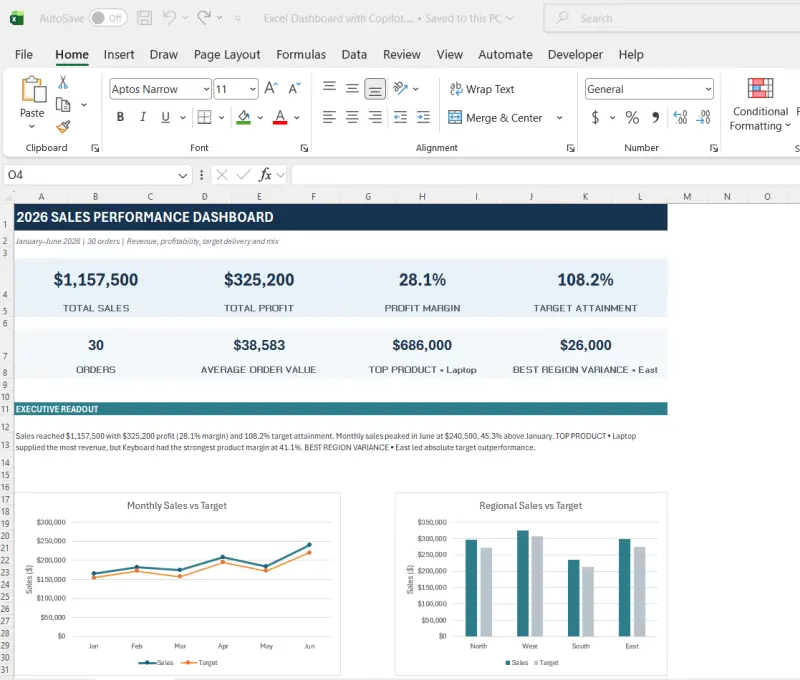
Excel is a spreadsheet application for organizing data, performing calculations and analyzing results. Teams use it for budgets, financial reports, sales analysis and inventory tracking, among other tasks. It can also be used to create dashboards that bring key figures together for review. A spreadsheet is most useful when its data and formulas are kept clear enough for colleagues to understand and check.
Word: prepare written material
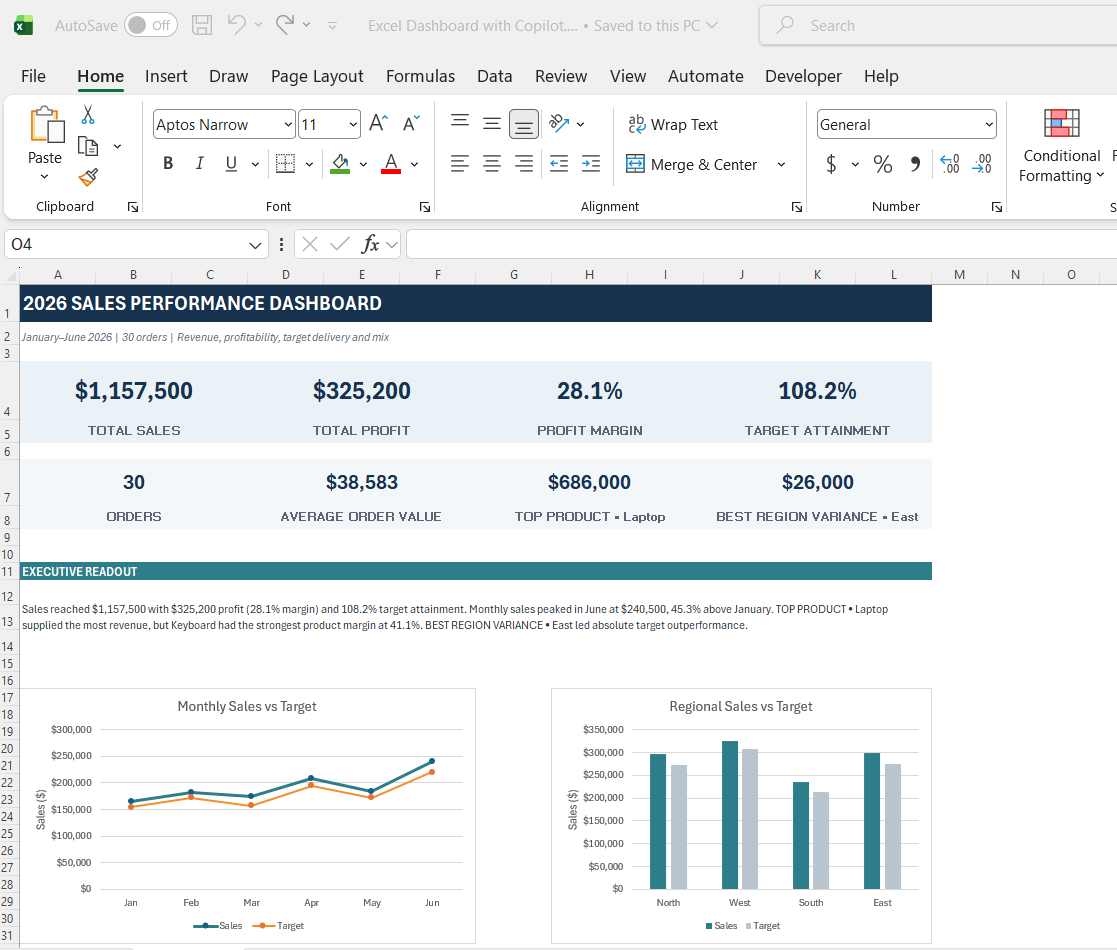
Word supports the creation and editing of documents such as reports, business proposals, meeting notes and letters. Teams can use document templates to give recurring reports or proposals a consistent starting point, saving time on routine formatting. Shared review also helps colleagues contribute to a document before it is finalized.
PowerPoint: present information
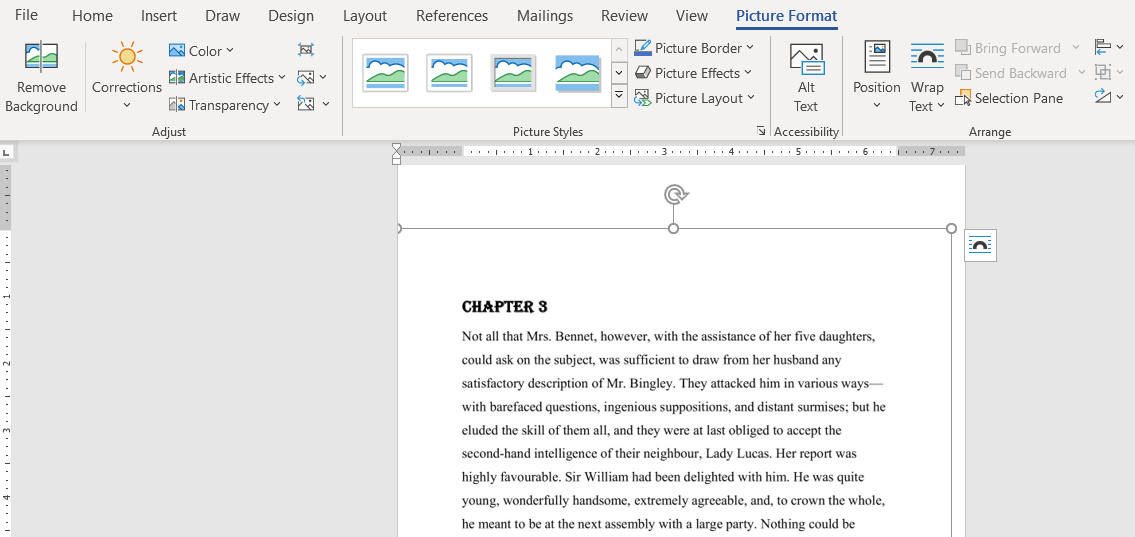
PowerPoint is used to create presentations for meetings, training sessions, business proposals and educational settings. It gives presenters a way to organize information into slides and prepare material for a live discussion or training session. Teams can also use shared presentation files to coordinate edits before a meeting.
Communication, files and notes
Outlook: manage email and calendars
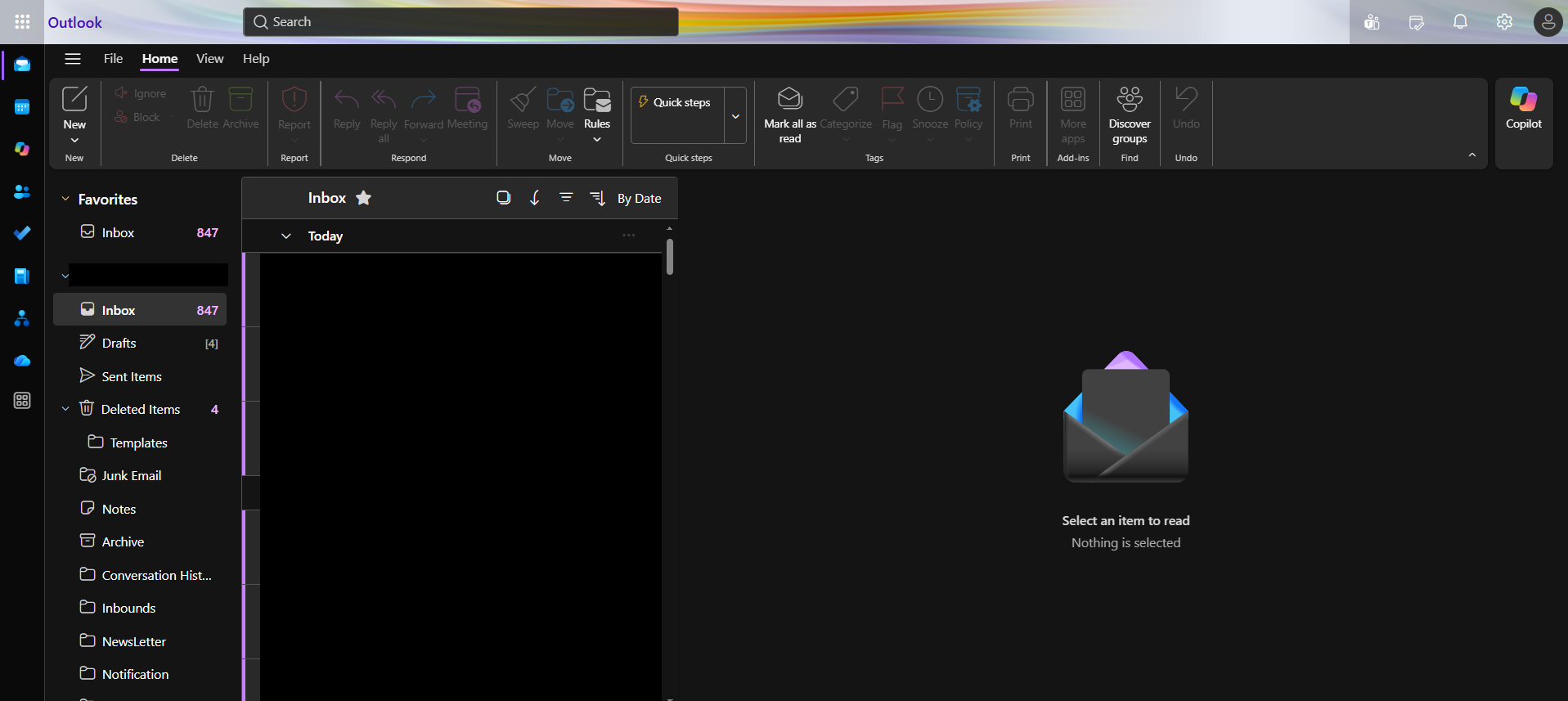
Outlook combines email and calendar functions. It helps professionals handle business conversations and appointments, especially when they have multiple email threads and meetings to keep track of. Keeping calendar entries and related correspondence in one application can make it easier to review what needs attention during a busy day.
Teams: bring collaboration into one place
Teams provides chat, meetings, calls and shared files in one platform for individuals and organizations. Colleagues can use it to discuss work and meet remotely, while channels can group conversations around a project. A useful team habit is to keep project discussions in the relevant channel so that information is easier for members to find later.

OneDrive: store and share files
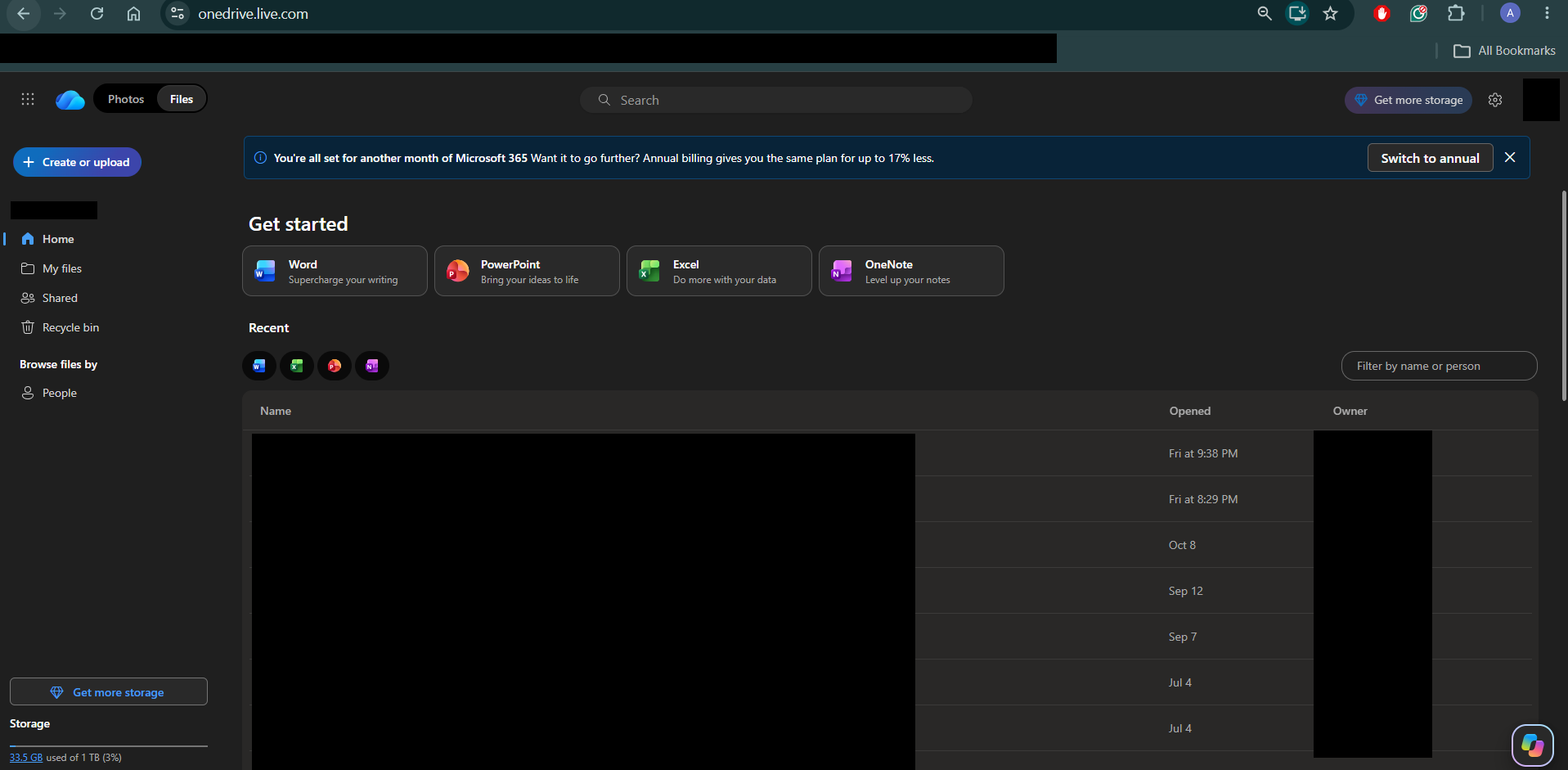
OneDrive is a cloud storage service that can synchronize data from a local folder to the cloud. It lets users share files with colleagues and access documents across devices. Teams can keep shared working files in OneDrive to support collaboration, while paying attention to where files are stored and who can access them.
OneNote: collect notes and reference material
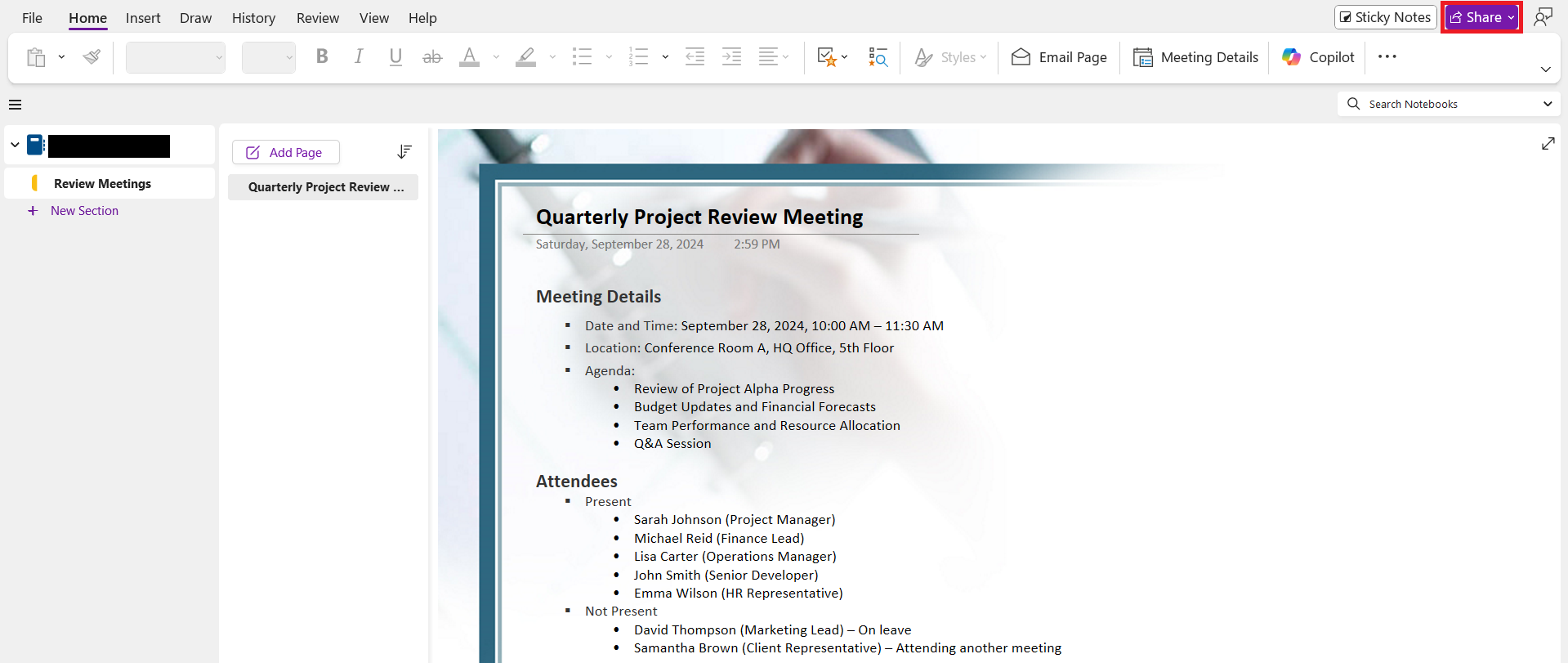
OneNote is a digital notebook for keeping notes together. It can hold text, images, hyperlinks, audio and video, and users can access it on a PC, laptop, tablet or phone. It suits information that people need to collect and revisit, such as meeting notes and reference material. Keeping notes in one place can make them easier to consult across devices.
Tasks and repeatable work
Planner: coordinate team tasks
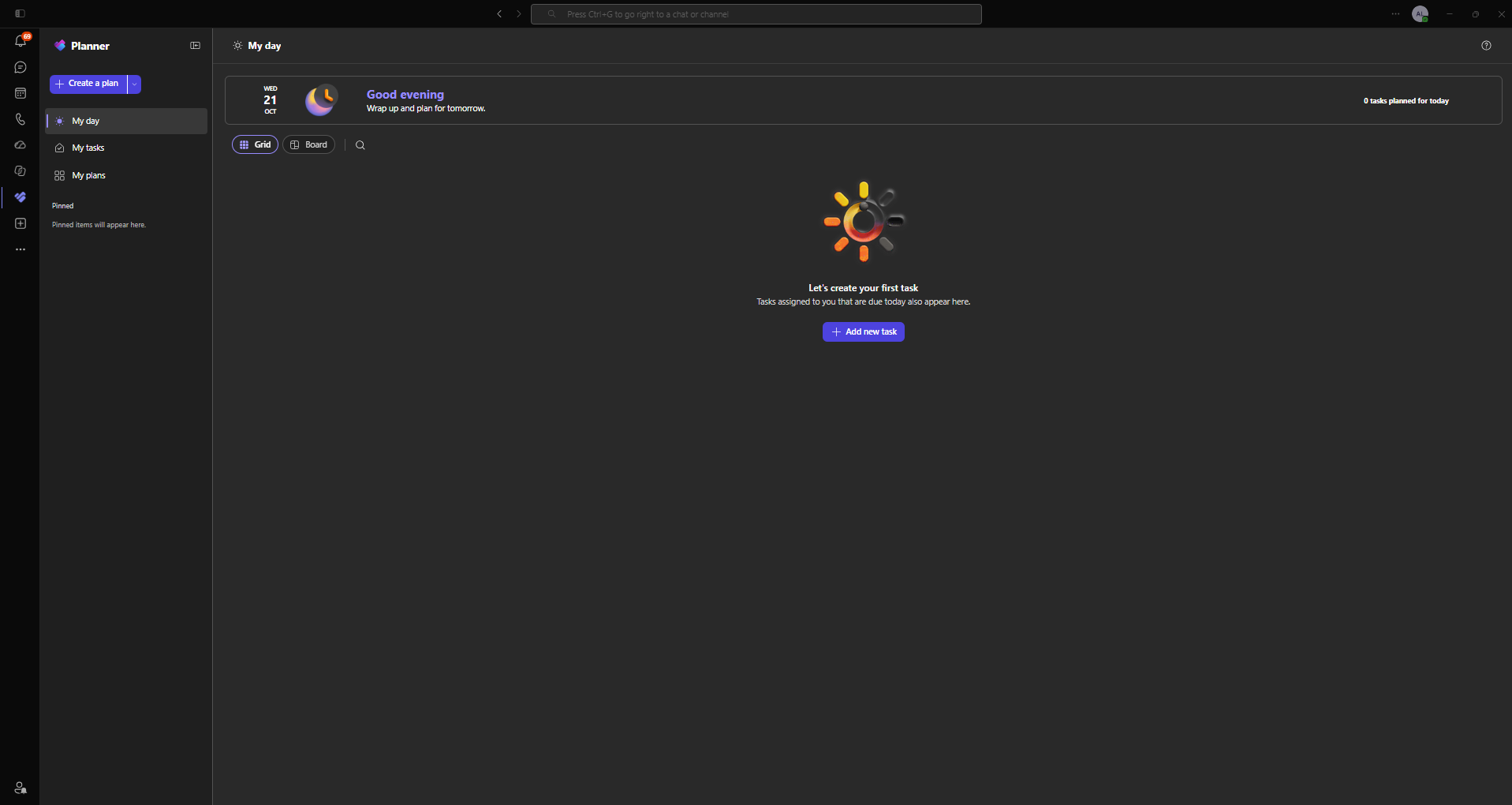
Planner is a task and project management tool for organizing team work and tracking progress. The source material identifies team projects, content calendars and recurring business activities as possible uses. Teams can use a shared plan to make tasks and progress visible, which helps members coordinate work across a project.
To Do: keep personal tasks visible
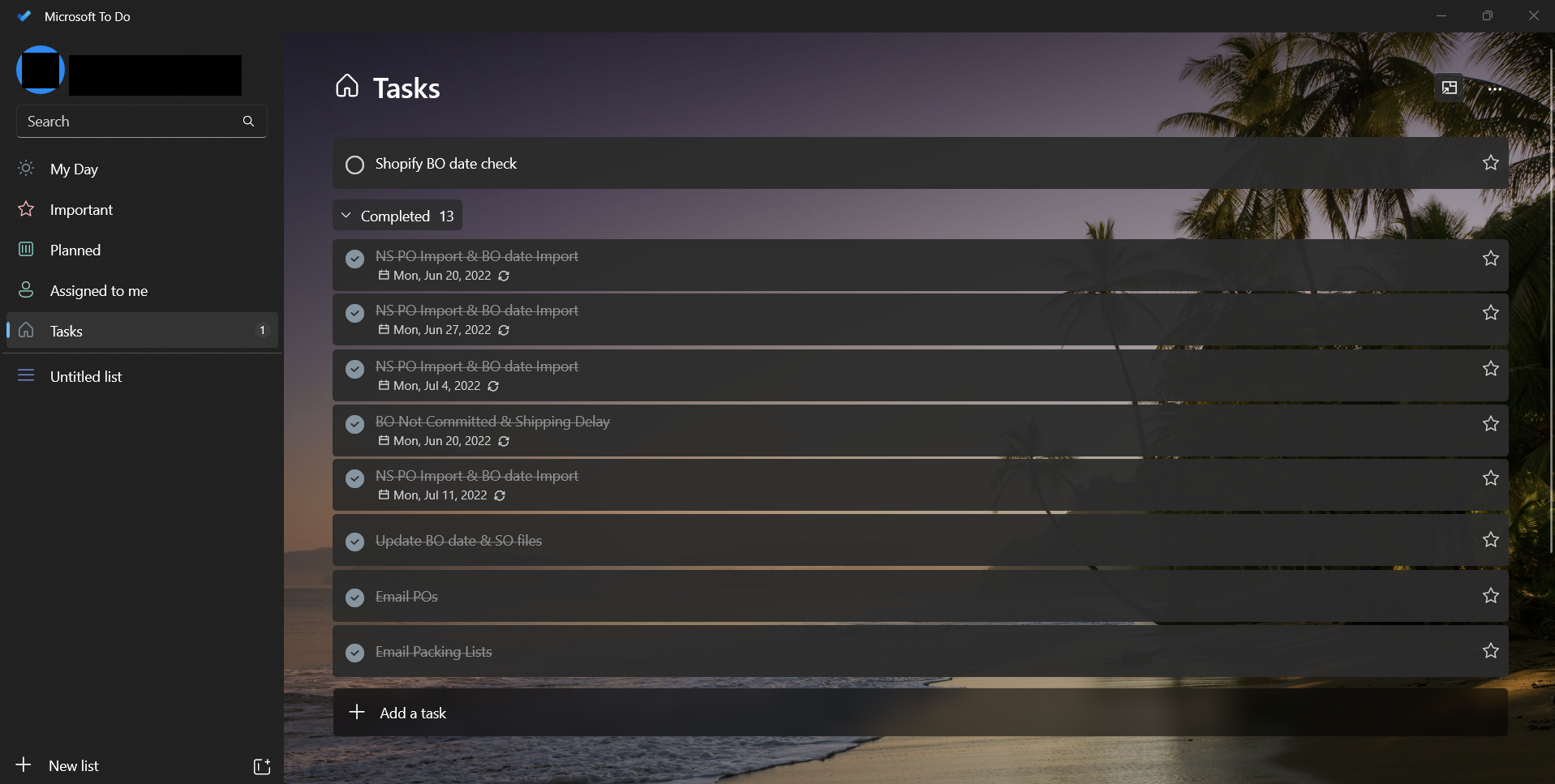
Microsoft To Do is a personal task management application for organizing daily activities and remembering deadlines. It can help individual users keep a list of work that needs attention. Regularly reviewing and updating task lists helps keep due dates and priorities in view.
Power Automate: automate repeated steps
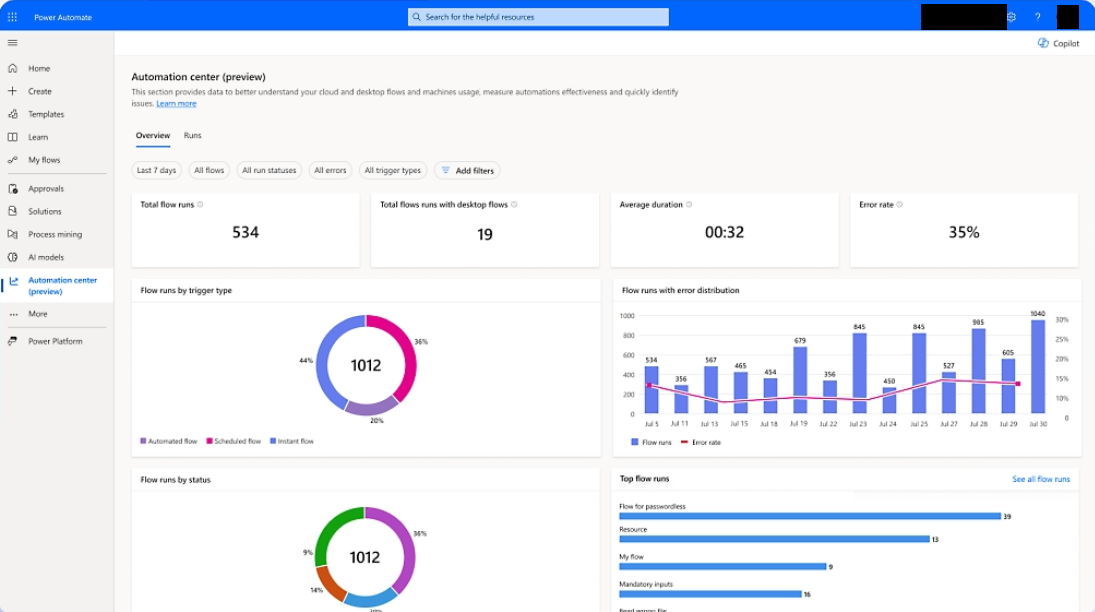
Power Automate is a workflow automation service that can automate repetitive tasks across supported applications and services. The practical starting point is to identify work that people regularly repeat, then consider whether it fits a supported workflow. Automation can reduce manual steps, but teams should review its results, particularly when the output affects important records or decisions.
Choosing and using the tools
These applications cover different needs, so the best fit depends on the work at hand. Excel, Word and PowerPoint support common office tasks; Outlook and Teams cover communication and collaboration; OneDrive and OneNote help manage files and notes; Planner and To Do handle team and personal tasks; and Power Automate can address repeatable work. Some Microsoft tools are available free of charge, while others require a Microsoft 365 subscription or a separate license. Check the licensing that applies to your organization before planning a rollout.
Templates can speed up recurring documents and reports, while keyboard shortcuts can save time in applications used frequently. Keep shared files in OneDrive when colleagues need access, and use Teams channels to keep project discussions together. Update task lists regularly so deadlines stay visible. Where AI helps create or summarize content, review its output and calculations before relying on them.
Copilot is described as assisting with tasks such as creating documents, summarizing email, analyzing data and preparing presentations. Its usefulness will depend on the work and the result it produces, so users should check generated material before sharing or using it. For project coordination, Planner offers shared task tracking; for an individual’s daily workload, To Do provides a personal list. Matching the tool to the task is the clearest way to keep Microsoft’s app set manageable.
Microsoft provides an overview of its Microsoft 365 products and services. For teams assessing these tools, the next step is to map current work to the applications, confirm which licenses are available and agree where shared information should live.


