Microsoft 365 “Stay signed in?” Prompt: Keep Your Choice in Edge, Chrome and Firefox
The checkbox is stored in browser cookies for one account. Keep Microsoft sign-in cookies to reduce repeat prompts, or manage the setting in Entra.
Repeated “Stay signed in?” questions usually point to a browser cookie that has been cleared, blocked or kept in a different browser profile. Microsoft doesn’t save the “Don’t show this again” choice to your account: the choice applies in one browser, on one device, for the account being used. That distinction explains why the prompt returns after a cleanup, a browser change or a switch between work and personal accounts.
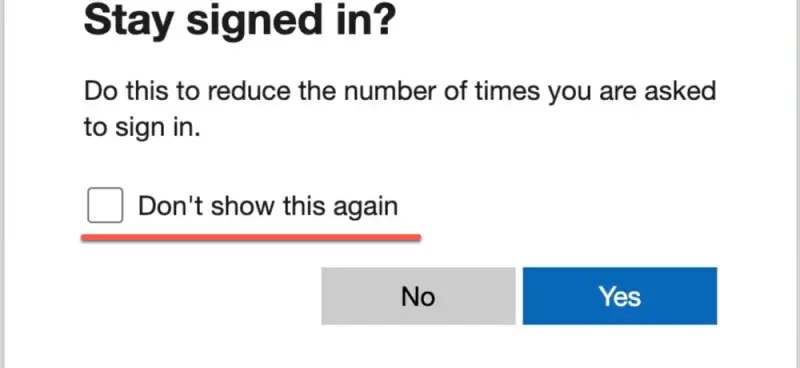
For a computer you control, the practical fix is to choose Yes, tick the box and make sure your browser keeps Microsoft’s sign-in cookies. On a shared computer, choose No. IT teams can hide the prompt for users through Microsoft Entra settings, but that changes the sign-in experience across the affected users and can mean more frequent sign-ins.
What the checkbox changes
The dialog puts two separate decisions together. The checkbox controls whether Microsoft asks the question again in that browser. The Yes or No button controls the sign-in session. As Microsoft’s Entra documentation explains, the checkbox operates separately from the main “Stay signed in?” process. Microsoft 365 expert Tony Redmond describes it as controlling whether the prompt appears again on that device.
- Yes: creates a sign-in cookie that can last up to 90 days, including across browser restarts.
- No: uses a temporary cookie that expires after 24 hours or when you close the browser.
- Don’t show this again: suppresses the question in the browser while its relevant cookies remain available.
So it’s possible to tick the box and select No. The prompt may stop appearing, but you’ll still have to sign in again when the temporary cookie expires. The checkbox also won’t carry over from Edge to Chrome, from one browser profile to another, or from one computer to the next.
The wording could be clearer. “Don’t show this again” sounds like an account preference, while the saved choice is tied to browser data and the Microsoft account currently signing in. For now, treat it as a local browser setting.
Why the prompt returns
The most common cause is cookie cleanup. A browser setting that clears cookies when the browser closes can remove the stored choice. Cleanup tools such as CCleaner and privacy features in some security software can have the same effect. If your organization manages browser settings, those controls may also be enforced centrally.
Different browser contexts keep separate data. Edge, Chrome and Firefox each have their own cookies, as do separate profiles within a browser. InPrivate and Incognito windows discard their cookies when closed, so the question can appear again at the next private session. A choice made in a regular Edge window won’t be remembered in an Edge InPrivate window.
Account type matters, too. Work and school accounts sign in through login.microsoftonline.com, while personal accounts such as Outlook.com and Hotmail typically use login.live.com. Microsoft also uses login.microsoft.com for work and school sign-ins. Each address can have separate cookies, so answering for one account type doesn’t set the choice for the other.
Microsoft can also ask again when it wants to recheck a session for security reasons. That can happen even when the browser is retaining cookies correctly. Outlook has no setting that permanently disables the prompt.
Separate profiles help with multiple accounts
When several people or accounts use the same browser, Microsoft may decide that it’s being used on a shared device and hide the prompt. Microsoft doesn’t describe exactly how it makes that decision. Users have reported the behavior since 2017, and Microsoft’s current documentation says the question can be suppressed when a sign-in comes from a shared device.
Without the prompt, there’s no opportunity to choose Yes. The session may use temporary cookies, requiring another sign-in after the browser closes. The prompt can return after cookies are cleared or after a period when only one account is used, but the behavior can vary.
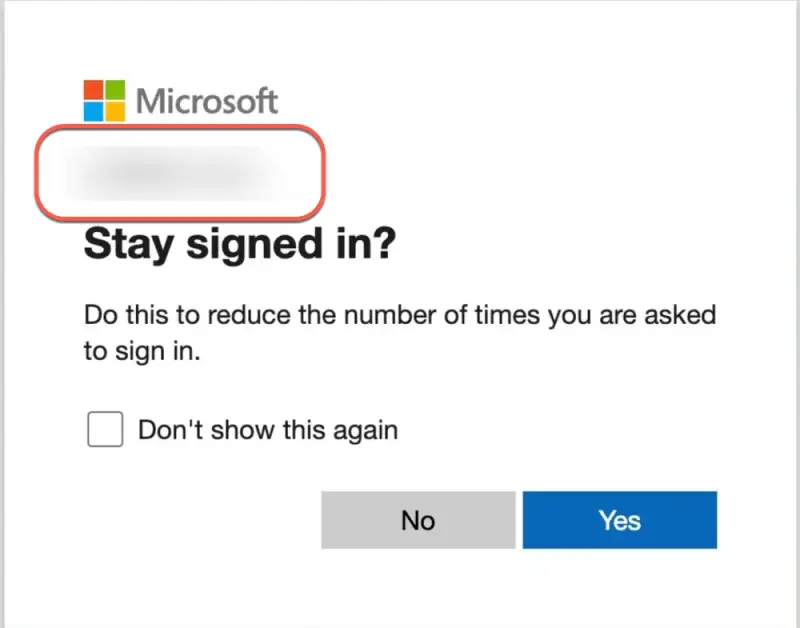
Check the email address shown in small gray text beneath the Microsoft logo before answering. That address identifies which account the prompt concerns. This is easy to overlook on a family computer or a device used for both personal and work accounts.
For people who regularly use several Microsoft accounts, a separate browser profile for each account keeps the sign-in cookies apart. It also reduces the chance that Microsoft treats one browser context as shared.
- Edge: select the profile picture at the top left, create a profile and sign in with the other account. Profiles keep separate tabs, favorites and logins. Edge’s Automatic profile switching setting is at edge://settings/profiles/multiProfileSettings; it can offer to open work links in the work profile.
- Chrome: select the profile picture at the top right, add a profile, then sign in to Microsoft 365 within that profile.
- Firefox: use the toolbar account icon and choose Profiles, then + New profile. If that option isn’t visible, enter about:profiles in the address bar. Mozilla’s free Firefox Multi-Account Containers extension is another option.
Cookie exceptions are profile-specific. If you use multiple profiles, add Microsoft’s sign-in addresses to the keep list in each one.
Keep the sign-in cookies in your browser
On a personal computer, select Yes and tick Don’t show this again, then check whether a browser or cleanup tool is deleting the relevant cookies. Add these addresses to the browser’s allowed or excluded list:
- login.microsoftonline.com — work and school accounts
- login.microsoft.com — another work and school sign-in address
- login.live.com — usually personal Microsoft accounts
Use the steps for your browser below. Menu labels can change between versions. On a company-managed device, a setting may be unavailable because your IT team controls it; ask them if the relevant option is grayed out.
Microsoft Edge
- Open Settings | Privacy, search, and services, then find the option for choosing what to clear every time Edge closes.
- Check Cookies and other site data. If its switch is off, Edge isn’t clearing cookies through this setting.
- If the switch is on, select Add next to Don’t clear.
- Add login.microsoftonline.com, login.live.com and login.microsoft.com separately.
- Close Edge, reopen it and sign in. Tick Don’t show this again and select Yes.
Google Chrome
Chrome’s site-data controls are under Site settings. To open them directly, enter chrome://settings/content/siteData in the address bar. The menu route is Settings | Privacy and security | Site settings | Additional content settings, then the site-data entry near the bottom.
- Check Default behavior. If it allows sites to save data on your device, this setting isn’t clearing the cookies.
- If Chrome is set to delete saved site data when all windows close, or prevents sites from saving data, go to Customized behaviors.
- Under Allowed to save data on your device, select Add.
- Add each of the three sign-in addresses: login.microsoftonline.com, login.live.com and login.microsoft.com.
- Close every Chrome window, reopen Chrome and sign in. Tick the checkbox and select Yes.
Mozilla Firefox
- Enter about:preferences#privacy in the address bar, or open Settings | Privacy & Security.
- Under Cookies and Site Data, select Manage Exceptions.
- Enter https://login.microsoftonline.com and select Allow. Include https:// in the address.
- Repeat for https://login.live.com and https://login.microsoft.com, then select Save Changes.
Review Firefox’s History settings as well. Never remember history keeps Firefox in private browsing mode, so cookies don’t persist between sessions. Set Firefox will to Remember history or Use custom settings for history. If Clear history when Firefox closes is enabled, open its Settings and clear the selection for Site settings, where Firefox stores the exceptions. Restart Firefox, sign in, tick the checkbox and choose Yes.
Teams for the web follows the answer
From late June 2026, Microsoft Teams for the web follows the user’s “Stay signed in?” choice. Selecting No, or leaving the prompt unanswered, means Teams clears its saved sign-in data when the browser closes. The next browser session requires another sign-in. For a personally used computer, choosing Yes can therefore reduce repeat sign-ins to Teams as well.
Options for Entra administrators
Admins can suppress the prompt for users in the Microsoft Entra admin center. Go to Entra ID | Users | User settings and set Show keep user signed in to No. Microsoft documents the control in its Entra guidance.
This setting has a broad effect: users receive temporary cookies, which can mean more sign-ins. Microsoft also warns that some SharePoint Online features rely on users staying signed in, so suppressing the prompt may lead to other unexpected questions. Admins should weigh that effect against the benefit of removing the dialog.
Organizations with Entra ID P1 or P2 can instead use Conditional Access persistent browser session controls to set the behavior for selected groups. Microsoft describes that approach in its session lifetime guidance. Group targeting gives admins a way to change the browser session experience for particular users while leaving other users’ sign-in behavior alone.
For end users, the first checks are straightforward: confirm the account shown in the prompt, use the right browser profile, and make sure the three Microsoft sign-in addresses survive browser cleanup. For admins, the key decision is whether to manage browser sessions for specific groups or accept the wider sign-in impact of disabling the prompt for everyone.


