Microsoft 365 Outage Preparation: Keep Email, Files and Customer Contacts Available
Prepare for Microsoft 365 outages with offline mail and files, a separate email account and a customer contact page hosted outside Microsoft.
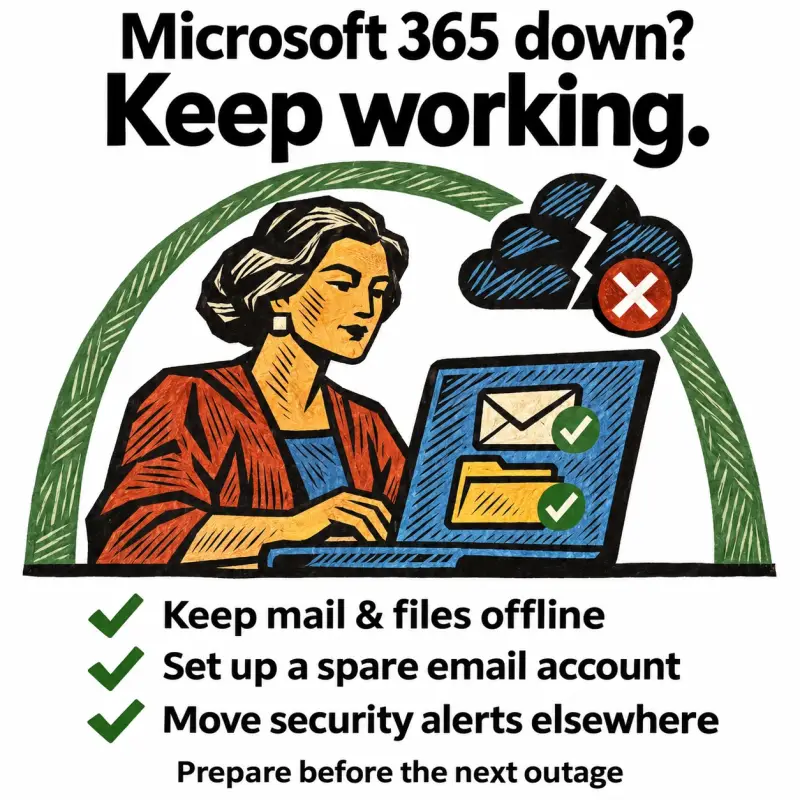
When Microsoft 365 is unavailable, the disruption can reach beyond Outlook. Teams, OneDrive, SharePoint and Copilot may also be out of reach, while alerts and account recovery messages sent to a Microsoft mailbox can block access to other services. The November 12–13, 2026 outage reportedly affected customers worldwide for 24 hours; the source also describes three other major service problems during 2026.
For IT teams, the practical response is to prepare alternate routes before a service failure: keep local copies of essential data, maintain an email account with another provider, and check where critical notifications are delivered. The same planning applies to organizations that depend on other cloud providers or their own hosted services.
Move critical alerts off Microsoft-hosted mail
A recovery address or alert inbox doesn’t help if it depends on the service that’s unavailable. If a bank sends security codes, password resets or fraud alerts to Outlook.com or a Microsoft 365 mailbox, access to those messages may disappear during an outage. Other accounts can then become difficult to recover, even if they aren’t connected to Microsoft.
Set a secondary address with a separate provider, such as Gmail, Proton, Yahoo or Fastmail. Add it to important accounts, including banking, domain registration, web hosting, payroll and password management services. Use an address outside Microsoft as the recovery contact for the Microsoft account itself. Where possible, use an authenticator app or SMS for two factor codes instead of email.
Review automated messages as well. Monitoring tools, backup reports, server warnings and renewal notices need a destination that remains reachable during a mail outage. The source describes a case in which a chlorine gas detector’s email alert went to an unavailable Microsoft mailbox. That example highlights why alert routing needs to account for failures in the organization’s primary mail system.
Make email useful offline
Classic Outlook for Windows can store a complete mailbox on the computer, although its default setting keeps only recent messages. To retain the full mailbox, open File, choose Account Settings, select the account, choose Change and set the Mail to keep offline slider to All.
With messages stored locally, users can read and search older mail during a connection failure. Messages they write remain in the Outbox until service returns. This depends on the mailbox having finished syncing before the outage, so administrators and users should check that the local copy is present.
New Outlook for Windows has more limited offline features than classic Outlook. People who rely on it should test what remains available by disconnecting WiFi and trying their usual tasks. That simple check can expose gaps before staff need to work through them under pressure.
A separate mailbox provides another way to communicate. Set up an account with a different provider in advance, add key contacts to its address book and bookmark its web access page. It can also be configured in Outlook, whether on Windows or Mac. Keep track of which address is used for which purpose; an old, forgotten spare account can cause messages to be missed.
Try both the desktop app and Outlook on the web when one connection path fails. Either may work while the other is unavailable. Microsoft’s email service level agreement measures availability using Outlook on the web, according to the source. During the November 2026 incident, however, all mailbox connections were affected, including the browser version. A second access method can help with some failures, but it isn’t a substitute for independent email.
Keep OneDrive, SharePoint and Teams files on devices
Files On Demand can make cloud files appear in File Explorer even when their contents aren’t stored on the computer. A cloud icon marks a placeholder. For folders needed during an outage, right click and choose Always keep on this device, then verify that files have downloaded.
- On Windows, review selected folders in the OneDrive app under Settings | Account | Choose folders.
- SharePoint and Teams documents can be synced through the OneDrive app.
- Edits made locally can sync back after the cloud service returns.
A synced folder is useful for access, but a separate backup can protect against accidental deletion or unwanted changes. Windows users can include OneDrive folders in File History; Mac users can use Time Machine. If a file must be shared while Microsoft services are down, attach the local copy to a message sent from the alternate mailbox, or use a messaging service such as WhatsApp or Signal. Another option is to keep a small account with a separate cloud storage provider for emergencies.
Plan for Copilot downtime
Copilot has no offline mode, so it won’t be available when its cloud service is unreachable. Teams that depend on AI assistance can set up another service, such as ChatGPT, Claude or Gemini, and check company rules before entering confidential information. Keep frequently used prompts in a local text file rather than relying on Copilot history. Staff should also retain the manual processes they used before AI tools were available.
Give customers a separate contact route
When company email fails, customers may receive bounce messages or no reply. Prepare a short contact page that can be published quickly and lists alternative ways to reach the organization. It should state that email is disrupted and messages may be delayed, provide a monitored address with another provider, and include phone numbers. If office calling runs through Teams, include mobile numbers as well. Messaging options and a contact form can help, and a “last updated” time tells visitors whether the details are current.
The page needs to remain accessible when Microsoft services are down. Check where the site is hosted: a page on SharePoint or Azure could be affected by the same disruption, so a separate web host may provide an independent route. Make sure staff can sign in to manage the page without Microsoft sign-in, and that at least two people know how to publish it.
Check the contact form’s destination, too. Forms often send submissions to a company mailbox, where they may sit unseen during an outage. Route messages to the alternate address or configure the form to store entries on the site. Prepare the page as an unpublished draft, choose a short address such as example.com/status, and have a home page notice ready to link to it. Staff can also share the page through the organization’s social accounts and update the phone greeting. Outlook automatic replies won’t help if the mail system needed to send them is unavailable.
Tell customers in advance where emergency contact information will appear, so they can recognize an unexpected address as suspicious. After preparing the page, publish it briefly during a quiet period and test every listed contact method. Review the details twice a year. Once service is restored, remove the page and notice, then respond to messages received through the alternate channel.
Check service status independently
During an incident, check status.cloud.microsoft or Microsoft 365 Status on Twitter/X for updates. More broadly, keep outage communications on a service that doesn’t rely on the affected provider. The key preparation is to verify that mail, files, alerts and customer contact details have a working path outside the Microsoft 365 tenant.


