Find Halloween Icons and Images in Word, PowerPoint and Outlook
Microsoft 365 has Halloween icons, stock images, stickers and illustrations. Here’s where to find them and what Office 2024, 2021 and 2019 include.
Microsoft 365 has enough Halloween artwork for documents, slides and emails, but the best results depend on choosing the right search term. The built-in Icons collection includes pumpkins, ghosts, bats, skulls and more; stock images add a wider range of pictures, while stickers and illustrations offer a smaller set of choices. Office 2024, Office 2021 and Office 2019 for Windows and Mac include some icons, though their selection is more limited.
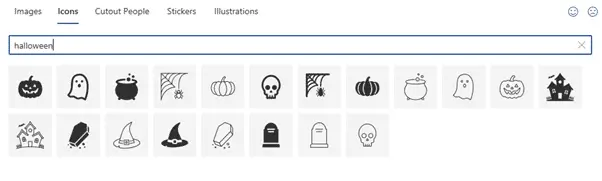
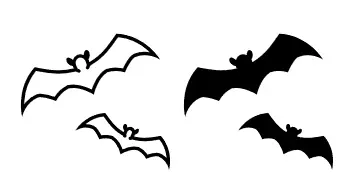
For most Halloween designs, start with Insert > Illustrations > Icons in Word or PowerPoint. Search for “Halloween” to find many of the themed options. The collection includes pumpkins, ghosts, witches’ hats and skulls, among other images. Some icons come in both filled black and white outline styles, giving you a choice that can suit either a bold slide or a simpler document.
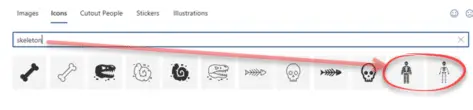
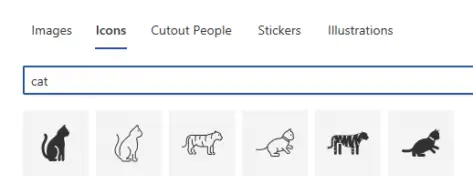
A single search won’t surface every relevant graphic. Search for “skeleton” to find a set of bones and a dinosaur skull, “Bat” for bat icons, and “Black Cat” for cat designs. This matters when you’re assembling a consistent set: try a few specific terms before assuming the collection has nothing suitable.
Check which Office version you’re using
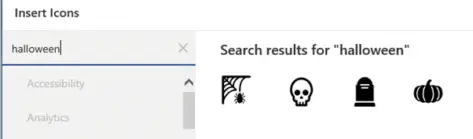
Microsoft 365 for Windows and Mac offers Icons, Stock Images, Stickers and Illustrations. Office 2024, Office 2021 and Office 2019 also have an Icons feature, but with a smaller range. The available set includes four icons: a web, a skull, a headstone and a pumpkin.
Skeleton and bones
The skeleton search turns up a complete set of bones as well as a dinosaur skull. These can work as individual accents or as a group, depending on the layout. For a clean result, place the graphics where they won’t compete with the main text or labels.
Bats and black cats
Bat icons have their own search results, and black cats need a separate search as well. Searching by object is a useful habit in Office: a broad theme search finds much of the collection, while a specific noun can uncover graphics that the theme search misses.
Recolor icons and set a pumpkin shade
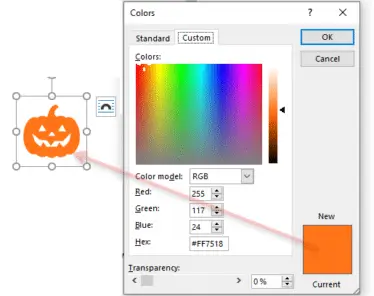
After inserting an icon, you can change its color through Graphics Format > Graphics Styles > Graphics Fill. That gives you a way to match a graphic to a document or slide palette without looking for a new version of the icon. Office also supports editing icon and SVG artwork; see this guide to editing icons, illustrations and SVGs in Office.
For a bright orange pumpkin, use Hex #FF7518, equivalent to RGB 255, 117, 24. Adjust the vertical color slider to choose a lighter or darker shade. A consistent color can help several icons feel like parts of the same design. More options appear in this collection of pumpkin colors for Microsoft Office.
Look beyond the Icons collection
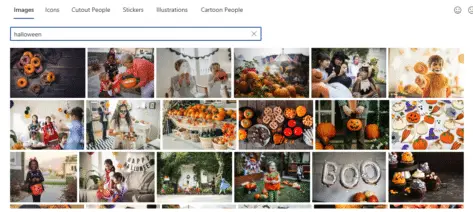
Microsoft 365’s Stock Images are under Insert > Illustrations > Pictures > Stock Images. The Halloween selection has grown from the small set that was once available, so it’s worth checking this collection when an icon feels too simple for a slide or document.
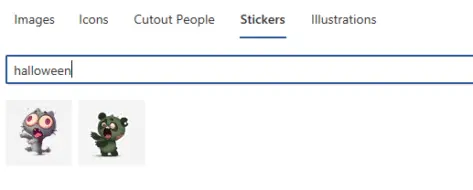
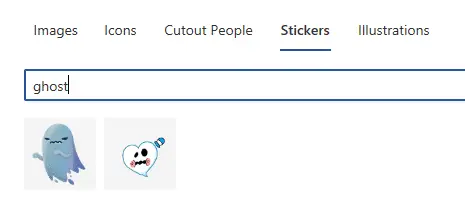
Stickers provide another option, though the Halloween search returns only two. The designs include an evil ghost and a heart shaped character. That’s a narrow selection, so stickers are better treated as small decorative elements than as a full set of themed artwork.
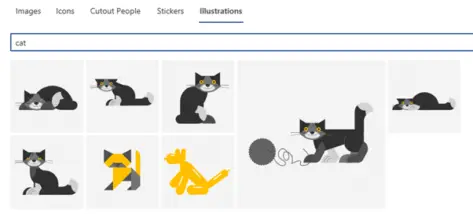
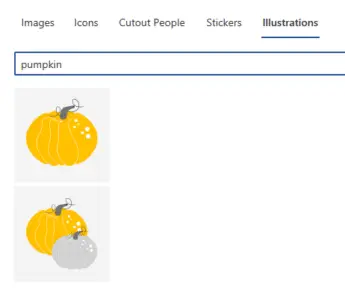
Illustrations have fewer direct Halloween choices. There are cats, but none are black, and they have smiling expressions. The collection also has two uncarved pumpkin illustrations. These can suit a lighter seasonal design, though they won’t provide the spooky look of a skull, ghost or bat icon.
Using graphics from the web
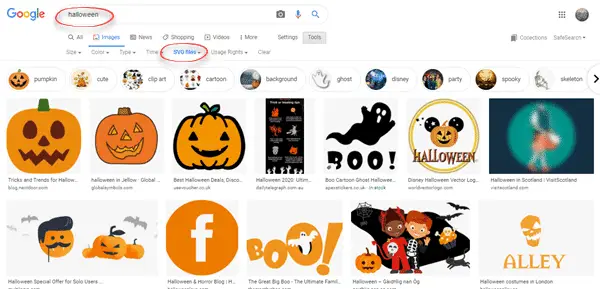
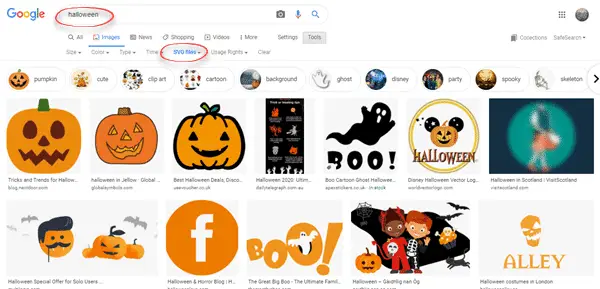
If the built-in selection doesn’t fit, look for SVG graphics online using terms such as Halloween, bat or skeleton. SVG files can be inserted as scalable graphics in compatible Office versions and recolored in some cases. For Office 2016 and earlier, use JPG or PNG images instead. The file format matters: a picture format supported by an older Office release is more likely to work than relying on newer vector editing features. See guidance on finding SVGs and icons for Office.
For a quick accent in an email or chat, emoji may be simpler than inserting a full image. A searchable list of more than 30 Halloween emoji is available in this Halloween emoji reference.
Microsoft Designer offers another route for creating Halloween graphics, including animated designs and edits to personal photos. The available options range from built-in Office artwork to web graphics and Designer creations, so the practical choice depends on the Office version and the level of customization you need. For a fast, editable design, search Icons by both theme and object, then check Stock Images if the built-in symbols don’t provide the right look.


