Microsoft Word Gridlines: Show, Adjust Spacing and Work Around Color Limits
Word’s drawing grid is a nonprinting alignment aid. Learn where to control its spacing, how to hide vertical lines and which alternatives support colored or printable rules.
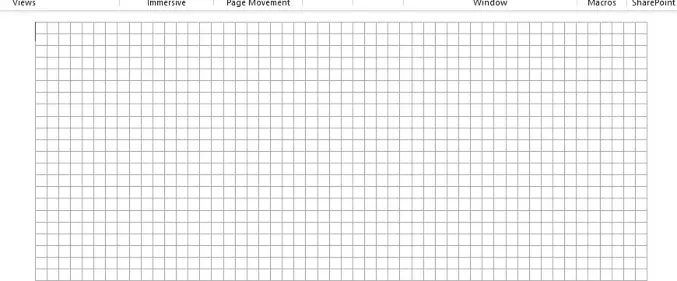
Word’s drawing grid can help position pictures, shapes and text boxes, but its default display may be too dense for practical use. The controls for the grid’s appearance are separate from the View tab switch, and Word still offers no setting to change the gridline color. For layout work, that means administrators and document creators need to know which options affect the on-screen guide and which create lines that will print.
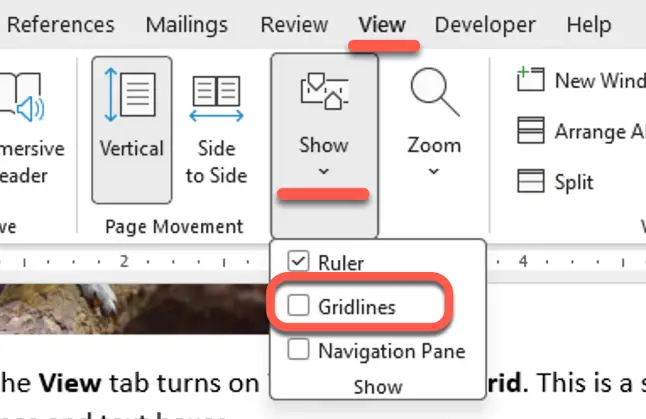
On the View tab, select Gridlines to show or hide the drawing grid. These lines are visual guides only: they don’t print, and turning the display on doesn’t alter document content. You can experiment with the settings without adding lines to the finished page.
Show horizontal lines without the vertical grid
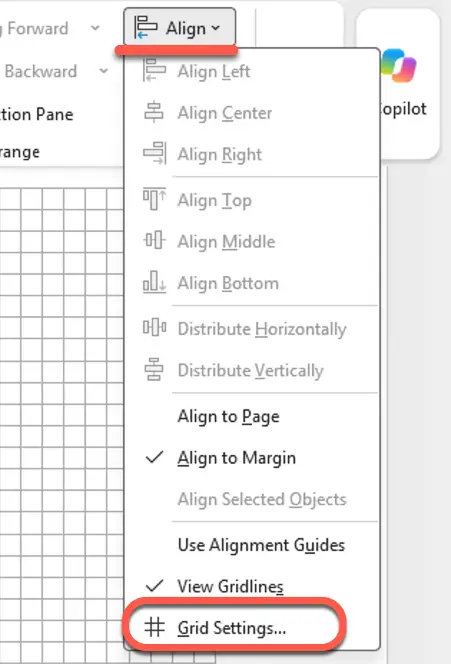
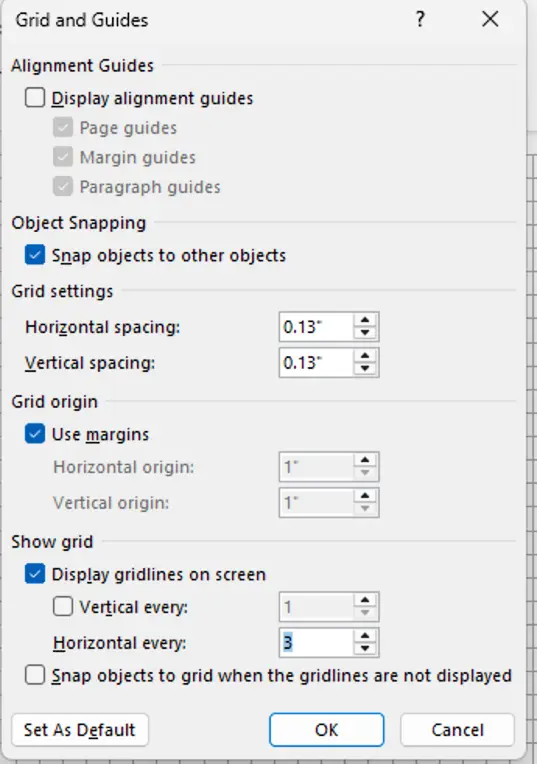
To simplify the grid, open the Grid and Guides settings. In Word for Windows, go to Layout | Align | Grid Settings. When a picture or shape is selected, the Align control is also available on the Picture Format or Shape Format tab. In the dialog, select Display gridlines on screen under Show grid, then clear Vertical every. That setting controls whether vertical lines appear.
The number beside Vertical every specifies how many grid intervals fall between displayed vertical lines. To show horizontal rules at each interval, leave Horizontal every set to 1. Set it to 2 or 3 to display every second or third line instead.
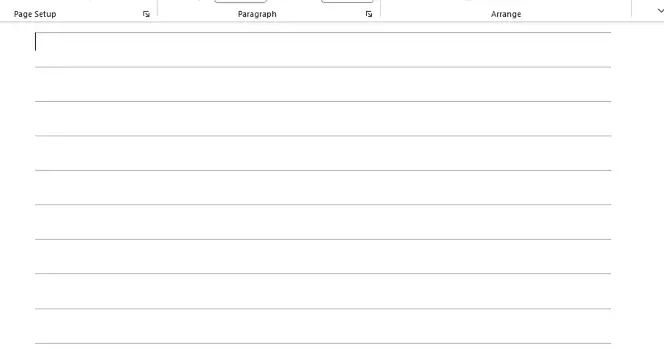
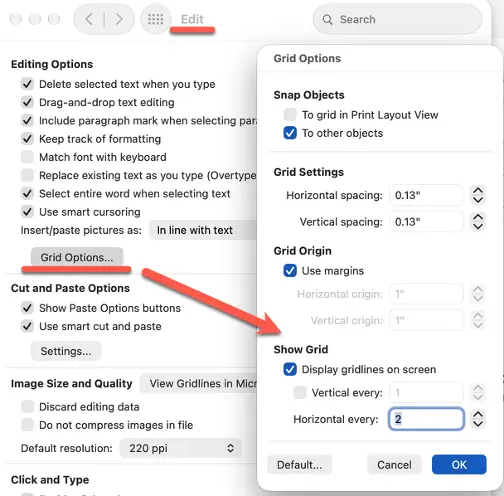
In Word for Mac, open the Word menu, choose Preferences, select Edit, then click Grid Options. Turn on Display gridlines on screen and clear Vertical every. Once configured, use Gridlines on the View tab to switch the display on or off.
Set the interval and manage snapping
The setting names can be confusing: Vertical spacing controls the distance between horizontal lines. It works with Horizontal every under Show grid, which determines how many intervals separate the visible lines. For a ruled-paper effect, the source suggests a Vertical spacing value of 0.28″ for a gap close to college ruling, or 0.34″ for a gap close to wide ruling.
Grid settings belong to the current document. To carry them into new documents, select Set As Default and confirm. Keep snapping in mind as you move objects: pictures and shapes may jump toward the nearest gridline. Hold Alt while dragging in Windows or Command on Mac to position an object freely.
Word doesn’t let you recolor drawing gridlines
Word has no control for changing the drawing grid’s color on Windows or Mac. Excel provides a worksheet gridline color setting under File | Options | Advanced | Gridline color, but Word’s grid settings cover visibility and spacing. Word macros don’t add a color control either.
If the gray on-screen guide doesn’t meet the need, use lines that are part of the document. Those can be colored and printed, though they require a different setup.
Alternatives for ruled pages and printed lines
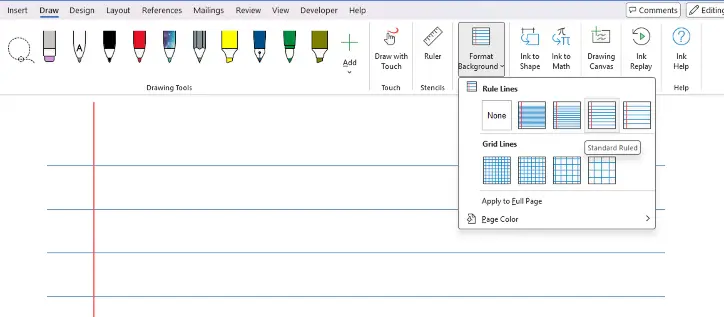
On Windows, Word’s Draw | Format Background menu offers Rule Lines and Grid Lines. Rule Lines provide a quick horizontal-lined page. They don’t print, and Word for Mac doesn’t support the feature. The Draw tab is also absent from Word 2016; it’s available in newer versions such as Microsoft 365, 2021 and 2024.
For colored lines that appear in print, paragraph borders are one option. Enter a series of empty paragraphs, select them, then open Home | Borders | Borders and Shading. Choose a color and width, and use the Preview to apply the bottom border and the border between paragraphs.
A one-column table offers more control over row spacing. Add the rows you need, set the border color on Table Design, and apply Inside Horizontal and Bottom borders. Use Layout | Height to set an exact row height. Unlike the drawing grid, these borders are document content and will print.
Keep document and table gridlines separate
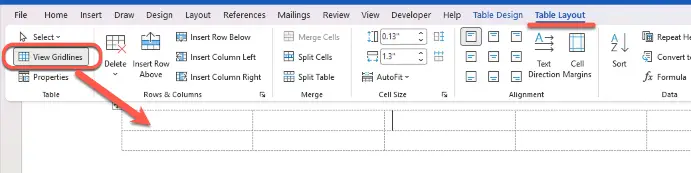
Word also has table gridlines, a separate feature that displays dashed outlines around cells without borders. Toggle them with View Gridlines on the Table Layout tab. This control is independent of the drawing grid switch on the View tab. Table gridlines stay gray; applying actual table borders adds visible lines that print.
Consider guides and object snapping
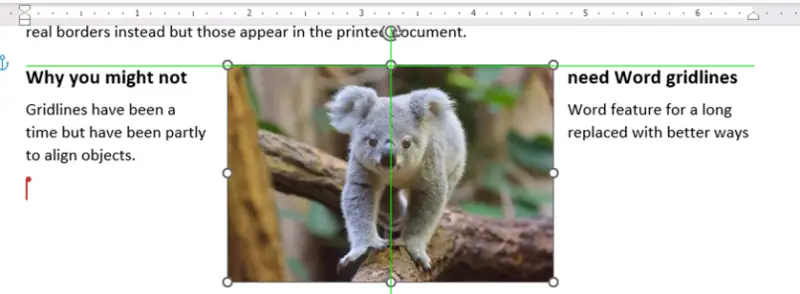
For aligning objects, Word’s other positioning aids may be easier than a persistent grid. In Windows, Alignment Guides show green lines as you drag an image or other object. They indicate alignment with page edges, margins, paragraphs, or the left, center and right positions. Control these options at Align | Grid Settings.
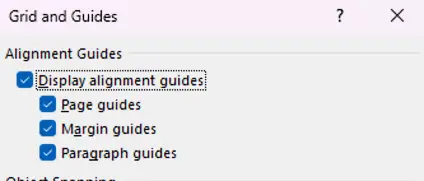
The same dialog includes Snap objects to other objects, which helps line up pictures, shapes and text boxes as they approach one another. Another option, Snap objects to grid when the gridlines are not displayed, aligns objects to the underlying grid even while its lines are hidden.
For routine placement, guides and object snapping can provide the alignment cues a document needs without leaving a dense grid on screen. When the requirement is a visible, printable or colored rule, paragraph borders or a table are the better fit.


