Word Compatibility Mode: Convert Older Files Before Layout Changes Begin
Word is removing legacy layout settings from files last saved in Word 2010 or earlier. Check important documents and keep originals before converting.
Older Word files may change appearance as Microsoft removes some legacy layout settings: the update reaches Word for Windows in early December 2026 and Word for Mac in early 2027. Documents created or last saved in Word 2010 or earlier could reflow, gain or lose pages, or show pictures and shapes in different positions. Compatibility Mode itself will remain, and Microsoft says the change won’t delete document data.
For administrators and anyone responsible for long lived templates, forms or contracts, this is a good time to identify the files that matter and compare a converted copy with its original. Converting clears the document’s old compatibility settings, but it can also change line breaks and pagination. Keeping a backup gives you a reference if a layout needs attention.
What Compatibility Mode means
Word opens older files in Compatibility Mode to preserve behavior tied to earlier versions. Word has used the same compatibility level since Word 2013, so a document made in Word 2013 generally opens without Compatibility Mode in Word 2016, 2019, 2021, 2024 and Microsoft 365.
The file extension alone doesn’t tell you whether a document uses the current format. A .docx file saved in Word 2007 or Word 2010 can still open in Compatibility Mode. Older files may be marked as Word 2010 Compatibility Mode or Word 2007 Compatibility Mode. Files in the older .doc format, used by Word 97 through Word 2003, always open in Compatibility Mode.
The features restricted depend on the document’s compatibility level. Word 2010 mode blocks Office add-ins, formerly called Apps for Office, and embedded online video because those features require Word 2013 or later. In Word 2007 mode and older, some Word 2010 features are reduced: newer numbering can become standard 1, 2, 3 numbering, tables can lose alt text, and OpenType font features can be removed. Newer inline equation features are also unavailable. Resolving comments requires the current format supported by Word 2013 and later.
Decide whether to convert
For most working documents, converting to the current Word format makes sense. Support for Word 2010 ended in October 2020, Word 2013 in April 2023, Word 2016 and Word 2019 in October 2025, and Word 2021 in October 2026. Word 2007 and Word 2010 can open .docx files created with Word 2013, though people using those older versions may not be able to edit newer features as intended.
There are reasons to preserve an older-format copy. If someone still needs to edit the document in Word 2010 or earlier, conversion may limit how they can work with newer features. And if the exact page layout matters for a contractual or other formal purpose, keep the original and compare it with a converted copy. A PDF of the original can provide a visual reference.
Before converting an important file, note its page count and inspect pages with complex formatting. Export the original to PDF, then convert a copy so the source file remains available. Long documents and files with extensive formatting are more likely to show noticeable changes in line breaks, page breaks or page count.
Convert a document in Word for Windows
The following options apply to Word for Microsoft 365, Word 2024, Word 2021, Word 2019 and Word 2016.
Save a converted copy
- Choose File | Save As. In Microsoft 365, when AutoSave is on, choose Save a Copy.
- Select a folder and give the copy a new name.
- Under Save as type, select Word Document (*.docx).
- Clear Maintain compatibility with previous versions of Word. If this box stays checked, the saved copy remains in Compatibility Mode.
- Select Save.
Convert the open file
To convert the document you have open, go to File | Info, choose Convert, confirm the warning and save. This changes the open file directly, so use a backup if you need to preserve the original. When converting an older .doc file, Word may show the Save As dialog again; select Word Document (*.docx).
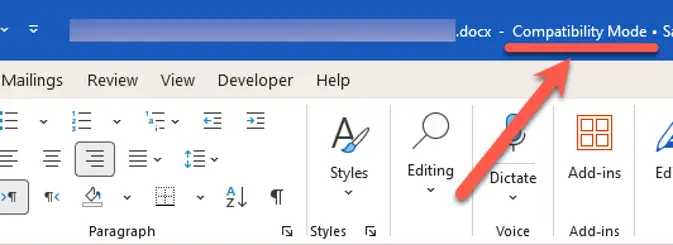
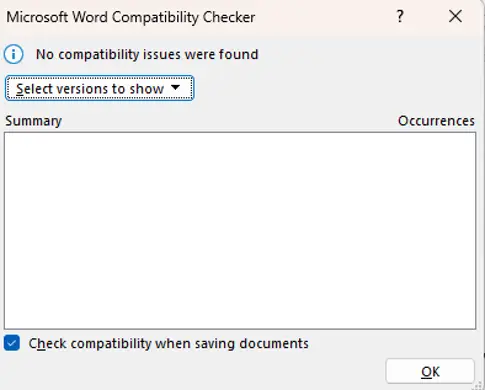
To check a document’s mode, open File | Info and choose Check for Issues | Check Compatibility under Inspect Document. Select Select versions to show; a check mark indicates the document’s current mode. A compatibility check may report no issues even when the title bar still displays Compatibility Mode.
Convert a document in Word for Mac
Word for Mac doesn’t have the same File | Info screen. To make a separate current-format copy, choose File | Save As, enter a new name and select Word Document (.docx) from the File Format list, then save.
To convert the open document, choose File | Convert Document from the menu bar, confirm and save. That command appears only when the file uses an older format. If the file is a .doc, conversion also upgrades it to .docx.
Editing in Word for the web
Word for the web supports most editing in .docx files that are in Compatibility Mode. Tasks involving inserting or resizing pictures, or editing alt text, require desktop Word: open the file there, convert it and save it.
Older .doc files open for viewing in Word for the web. When you choose to edit one, the service offers to convert it and saves a new .docx copy. For a .docx file in Compatibility Mode, select Editing | Open in Desktop App, then use the Windows or Mac conversion steps.
If new documents also show Compatibility Mode
When even blank documents open in Compatibility Mode, check Word’s default save format and its Normal.dotm template. On Windows, go to File | Options | Save | Save files in this format and choose Word Document (.docx).
You can convert Normal.dotm to retain its customizations. In Word, open the template through File | Open, convert it and save it. On Windows, press Windows key + R, enter %appdata%\Microsoft\Templates and press Enter to reach the template folder. On Mac, open Finder, press Shift + Command + G and enter ~/Library/Group Containers/UBF8T346G9.Office/User Content/Templates.
Another option is to quit Word, rename Normal.dotm, for example to NormalOld.dotm, and restart Word. Word will create a fresh template. Custom styles, default fonts and macros stored in the old template won’t transfer automatically, so consider saving or documenting them before taking this route.
Check macros and features before saving
- Macros: .docx files can’t store macros. If you need macros in an older document, use Save As and choose Word Macro-Enabled Document (*.docm). For templates, use .dotx without macros or .dotm when macros are needed.
- Features changed in an older format: some changes can be permanent. For example, citations and bibliographies may become static text that no longer updates; converting later won’t restore their editing functions.
- Many files: Word for Windows and Word for Mac don’t provide a built-in command to convert a folder of documents in one operation. Files must be handled individually or processed with a macro or third-party tool.
Check high value documents and templates before the layout-setting change reaches your Word installation. For each one, preserve the original, convert a copy and compare the pages most likely to expose formatting shifts.


