SharePoint Online Can Apply Default Sensitivity Labels to Existing Files
A new Purview policy can label older SharePoint files across up to 10 sites, subject to file, access and licensing limits.
SharePoint Online can now extend a document library’s default sensitivity label to eligible files already stored there, including files that haven’t been edited since the default was configured. That closes a gap in the existing feature: previously, an older file generally received the default label only after someone changed it.
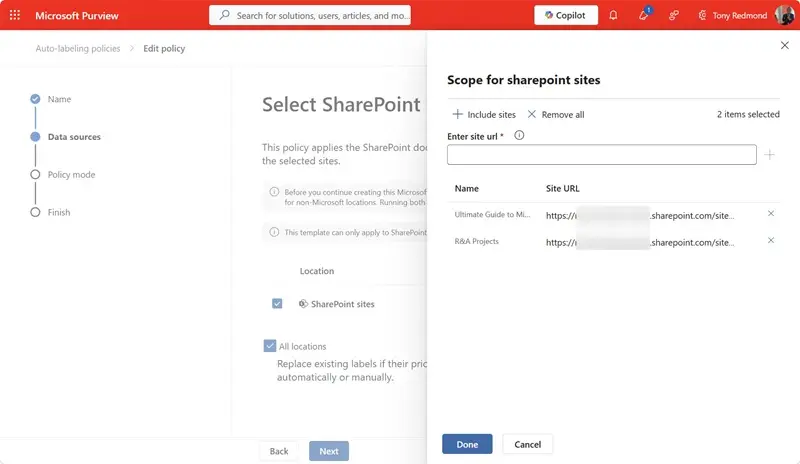
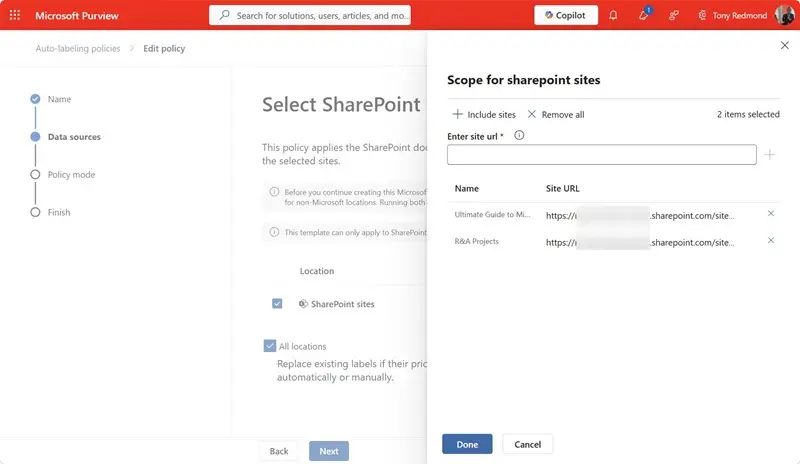
The new capability is a special auto-label policy in Microsoft Purview. It scans selected SharePoint Online sites and applies the label configured for each document library to matching files that lack it. Administrators can also choose to replace an existing label when it has lower priority than the library’s default.
Why older files need a separate pass
SharePoint Online’s default sensitivity label feature, added in 2022, assigns a library’s label to files added to that library and to files modified afterward. The service can also apply the default to an existing file when it is edited, including when the file has no label or carries one with lower priority.
That approach leaves a blind spot: files already in a library may remain untouched for a long time. If they predate the default label and nobody edits them, they can stay without the protection administrators intended. The new policy is designed to find those files through background processing, without waiting for a user to open and save each one.
That matters when labels are part of an organization’s controls for limiting access to sensitive content. For example, Microsoft 365 Copilot Chat and other AI tools may be subject to data protection rules that depend on the content’s classification. Labels that apply encryption can also prevent third-party tools from processing protected content. The policy therefore gives administrators a way to bring eligible older files into the same labeling approach as newer or recently edited documents.
Default sensitivity labels are a premium capability. Organizations need licensing that includes the required Information Protection features, such as Microsoft 365 E5 or equivalent compliance and protection add-ons.
Scope and setup constraints
Microsoft’s Message Center notification MC1477181, dated 22 September 2026, describes the special policy. A tenant can have only one of these policies, and it can target no more than ten SharePoint Online sites at a time. The account configuring it must have either the Compliance administrator or SharePoint administrator role.
Every site added to the policy needs at least one document library with a default sensitivity label configured. Purview checks that requirement during setup; if it cannot verify a qualifying library for a selected site, it reports an error and the site cannot be added.
Once configured, a Purview Information Protection background job scans the selected sites for libraries with default labels. SharePoint Online then labels eligible files that are missing the relevant library default. Processing is limited to file types that support sensitivity labels: Office files and PDFs.
Administrators can optionally configure the policy to replace lower-priority labels already applied to files. That includes labels assigned manually as well as those assigned automatically. Teams should review this setting against their existing label hierarchy before enabling replacement, since the operation can change the classification already present on a file.
Files the scan may not reach
Background processing cannot label every file on its first pass. A file may be unavailable when the job reaches it, including because it is open, locked, or checked out. Files protected with double-key encryption or user-defined permissions are also listed as inaccessible cases.
Microsoft’s description indicates that repeated processing passes should catch many files that were temporarily unavailable. Administrators should still treat the scan as a gradual process rather than assume every eligible file will be labeled immediately. The documentation for applying default labels to existing files is [available here](https://learn.microsoft.com/en-gb/purview/apply-sensitivity-label-automatically?tabs=apply-label&WT.mc_id=M365-MVP-9501#apply-default-sensitivity-labels-from-sharepoint-document-libraries-to-existing-files).
Planning around the ten-site limit
The policy is generally available, but its tenant-wide limit shapes how administrators can use it. Organizations with more than ten priority sites will need to decide which locations to process first. A sensible starting point is to identify sites with highly confidential material where older files could remain outside existing protections, then confirm that the relevant libraries have default labels configured.
Microsoft describes a way to process additional sites over time: configure the policy for one group of up to ten sites, let Purview process them, then update the targets to another group. Administrators can repeat that cycle until all eligible sites have been covered. The trade-off is operational overhead, and the elapsed time depends on Purview’s background processing.
Before starting, check the site list, library defaults, label priority settings and required administrator role. After processing, review whether files remain unlabeled because they were unsupported or inaccessible during a scan. The new policy can close the gap for many older documents, but the ten-site cap and file access conditions make monitoring part of the rollout.


