Microsoft 365 Copilot DLP Rules Can Now Link Users to Custom Guidance
Microsoft 365 tenants can direct users blocked by Copilot DLP rules to internal guidance. The setting is in public preview, with general availability scheduled for December 2026.
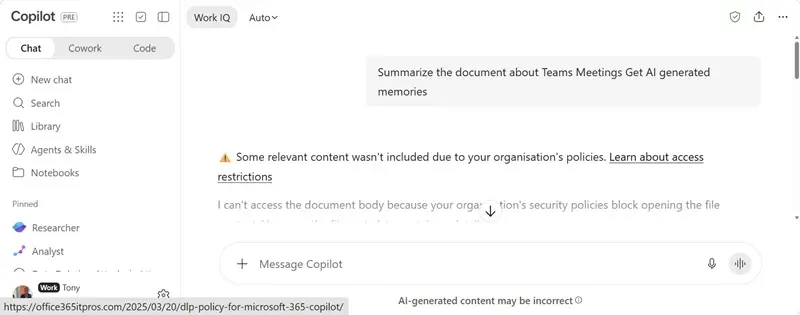
When a data loss prevention (DLP) rule blocks Microsoft 365 Copilot from using a file, the message users see can now point them to guidance written for their organization. The change gives administrators control over the destination link in Copilot’s blocked-content message, helping users find the right explanation or support route without changing Microsoft’s wording.
Microsoft described the update in message center notification MC1478467 on 24 September 2026. The capability is available in tenants worldwide. It applies wherever a Copilot integration or app displays a message about content blocked by a DLP policy, rather than only in Copilot Chat.
What users see when a rule blocks content
Copilot may use Microsoft 365 content to provide context for a prompt. If a DLP rule prevents access to a document, Copilot leaves that content out and tells the user that organizational policy restricted access. The message includes a link for learning more about the restriction.
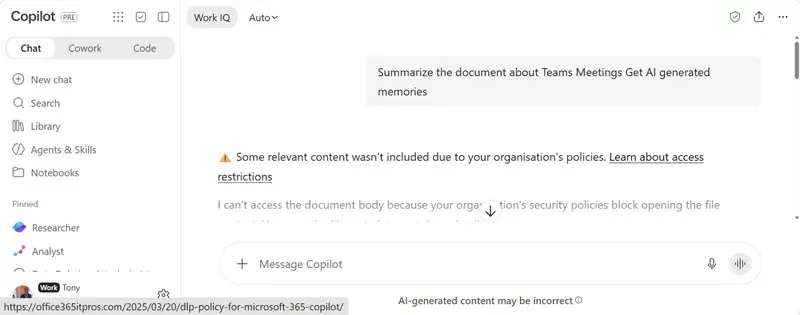
Before this update, tenants couldn’t customize that destination: users were sent to Microsoft’s DLP documentation. Administrators can now set a compliance URL that leads to an organization’s own explanation, data governance resources, or support information. The message text itself remains controlled by Microsoft, so the change affects where the link takes users, not what Copilot says around it.
That distinction matters for IT teams. A general explanation of DLP may not tell an employee which internal team handles access questions or where to find the organization’s rules for using a protected document. A tailored link can close that gap and give the user a next step that matches the organization’s process. It can also make the guidance more recognizable to employees who are accustomed to using internal help or compliance resources.
Configure the link in the DLP rule
The setting is part of the DLP rule’s policy tips configuration. The rule must be set to display policy tips; administrators can then enable the option to show a custom compliance URL and enter the destination.
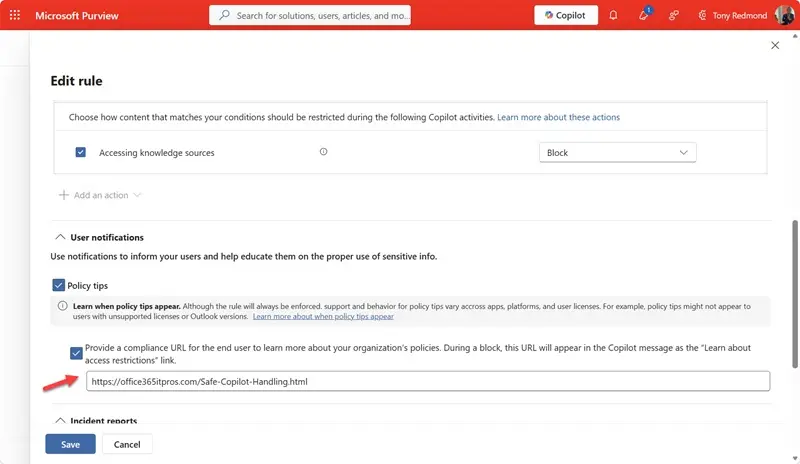
After saving the rule, Microsoft says the updated link should take effect within about 30 minutes. That timing reflects a reduction in DLP synchronization times within a tenant, from roughly two hours to about 30 minutes, described in MC1317834. The faster synchronization is in public preview and is scheduled for general availability in December 2026. Administrators should treat the 30-minute interval as the expected activation window described for the update, then check the resulting user message after the rule has propagated.
Once the revised rule is active, a Copilot attempt to access content that the rule blocks should produce an error message containing the custom link. The setting can help make that message more useful, but it doesn’t grant access to the blocked file or alter the underlying DLP decision. The policy still determines whether Copilot can use the content.
Keep links consistent across rules
A single Copilot action can match more than one DLP policy or rule. When that happens, Copilot displays the link associated with the “winning rule.” Users could therefore see different destinations depending on which rule takes precedence. To avoid sending them to conflicting explanations or support routes, Microsoft 365 administrators should consider using the same compliance information across their DLP rules for Copilot.
The customization is optional. Organizations can leave their rules as they are and continue sending users to Microsoft’s documentation. Teams that already maintain internal guidance can instead use the custom destination to connect a blocked-content message with the instructions and support channels employees are expected to use.
The update fits into a wider expansion of DLP coverage for Copilot. A recent change extended the policy beyond Microsoft 365 storage locations to Office files stored elsewhere. As rules cover more content and Copilot experiences, clear messages can help users understand why material wasn’t used and where to ask what they can do next.
For administrators, the practical check is straightforward: review the policy tip settings on Copilot DLP rules, choose a destination that gives users actionable internal guidance, and keep that destination consistent across rules where possible. The custom link won’t change Microsoft’s message or the policy outcome, but it gives organizations a more direct way to explain that outcome to the people who encounter it.


