Entra ID Hard Deletion Protection Adds a Seven-Day Recovery Window
Entra ID can block permanent deletion of selected directory objects for seven days after soft deletion, but the setting is irreversible and auditing is limited.
Entra ID’s Hard Deletion Protection gives selected directory objects a seven-day buffer against permanent deletion. That can help limit damage from an administrator’s mistake or an account being used to remove critical objects. The trade-off is significant: protection cannot be turned off after it’s enabled, and the audit record doesn’t clearly identify the property change.
What the seven-day window changes
When an administrator deletes an object through the Entra admin center or Microsoft Graph, it is soft-deleted and placed in the deleted items area. Entra ID normally retains soft-deleted objects for 30 days, during which they can be restored. An administrator can also permanently delete one before that retention period ends. Hard deletion removes the object irreversibly.
Hard Deletion Protection blocks that permanent removal for seven days after a protected object is soft-deleted. An attempt to hard-delete it during the window fails. Once the seven days have elapsed, the object can be permanently deleted as usual.
Protection is set on an active object by enabling its isHardDeleteProtectionEnabled property. The setting is permanent: administrators cannot reverse it after enabling it. Teams should therefore decide which objects warrant this safeguard before applying it broadly.
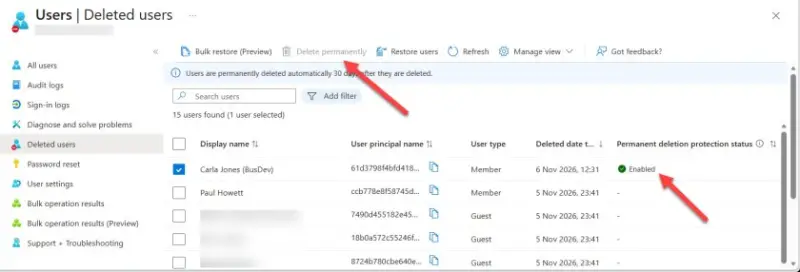
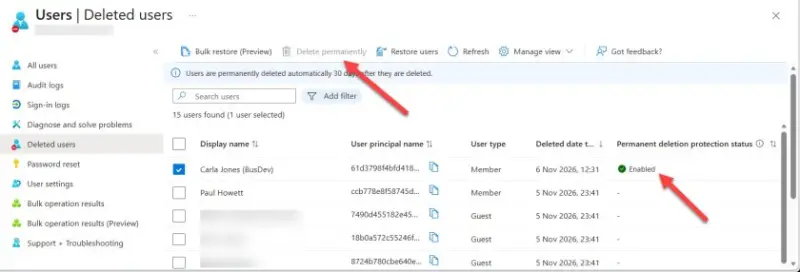
Restoring a protected object doesn’t remove its protection. If it is later soft-deleted again, a fresh seven-day window begins. In the Entra admin center, the permanent deletion option is disabled for protected objects in the deleted users view, and the protection status appears in its own column.
Which objects can be protected
The documented scope covers cloud-only user accounts, including guests; cloud-only Microsoft 365 and security groups; tenant-owned app registrations; and service principals. It excludes synchronized user accounts, whose lifecycle is controlled through on-premises Active Directory. Mail-enabled security groups and distribution groups are also outside the supported group types.
Service principals for enterprise applications can be protected, including those associated with Microsoft Graph PowerShell command-line tools. The service principals created for Azure Automation accounts aren’t supported, despite the value those objects may have to a tenant.
The practical aim is to make it harder to erase important directory objects during a destructive mistake or a compromised account incident. For example, the seven-day delay may prevent the permanent removal of administrator accounts while teams respond. It doesn’t stop an object from being soft-deleted, so administrators still need to monitor deletions and restore objects when appropriate.
Setting protection with the admin center or Graph
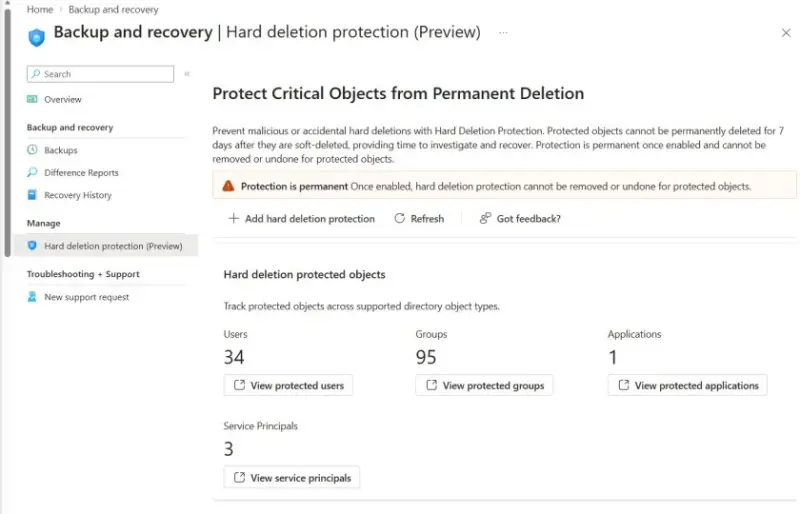
Administrators can enable protection in the Backup area of the Entra admin center, or update the object’s property programmatically. The admin center is suitable for a small number of objects; Graph-based updates can cover larger sets.
The Microsoft Graph PowerShell SDK version 2.41.2 doesn’t fully expose Hard Deletion Protection in its metadata. The examples below therefore use beta SDK cmdlets and direct Graph requests. This command enables protection for one user:
$Params = @{
isHardDeleteProtectionEnabled = $true
}
Update-MgBetaUser -UserId [email protected] -BodyParameter $Params
A loop can apply the setting to enabled, licensed member accounts:
[array]$Users = Get-MgUser -Filter "assignedLicenses/`$count ne 0 and userType eq 'Member' and accountEnabled ne false" -ConsistencyLevel eventual -CountVariable UsersFound
ForEach ($User in $Users) {
Update-MgBetaUser -UserId $User.Id -BodyParameter $Params
}
This sample doesn’t check whether the signed-in account can manage members of restricted management administrative units. Updates to objects outside its permissions can return errors. A similar loop applies protection to teams by updating their associated groups:
[array]$Teams = Get-MgTeam -All
ForEach ($Team in $Teams) {
Update-MgBetaGroup -GroupId $Team.Id -BodyParameter $Params
}
Checking status and handling failed deletions
To confirm the setting, query the object and inspect isHardDeleteProtectionEnabled. The Get-MgBetaUser cmdlet doesn’t yet return this property, so the example uses a beta Graph request:
$Uri = "https://graph.microsoft.com/beta/users/[email protected]"
$Data = Invoke-MgGraphRequest -Uri $Uri -Method GET -OutputType PsObject
$data.isHardDeleteProtectionEnabled
To find protected, enabled member accounts, use a Graph filter:
$Uri = "https://graph.microsoft.com/beta/users?`$filter=isHardDeleteProtectionEnabled eq true and accountEnabled eq true and userType eq 'Member'"
$Data = Invoke-MgGraphRequest -Uri $Uri -Method GET -OutputType PsObject | Select-Object -ExpandProperty Value
$Data | Format-Table DisplayName, userPrincipalName
Invoke-MgGraphRequest doesn’t automatically follow @odata.nextLink. If results span more than one page, the script needs to handle Graph pagination to retrieve the remaining objects.
A blocked deletion returns a 403 Forbidden response. In one example, the error identified the end of the lockdown window as 13 November 2026 at 12:31 UTC. That timestamp is specific to the object and attempt; administrators should read the returned error to determine when a blocked deletion can be retried.
Remove-MgDirectoryDeletedItem -DirectoryObjectId 61d3798f-4bfd-418e-8845-d3c889bdb594
Audit records need more detail
The feature adds a useful delay around permanent deletion, but its audit trail has a visibility gap. Enabling protection creates an audit event that records an object update, yet that entry doesn’t make it easy to tell which property changed. That can slow down reviews when administrators need to establish whether an object was protected and when.
Before applying the setting, teams should identify which supported objects merit permanent protection, confirm their Graph permissions, and plan how they’ll verify the property. The seven-day window offers time to respond to a deletion; clear status checks and useful audit detail remain necessary for operating that safeguard well.


