Microsoft Purview Adds Audit Events for Portal Access Checks
Purview now records role and scope checks for portal access. Admins can query the events through the AuditLogQuery Graph API and report on access decisions.
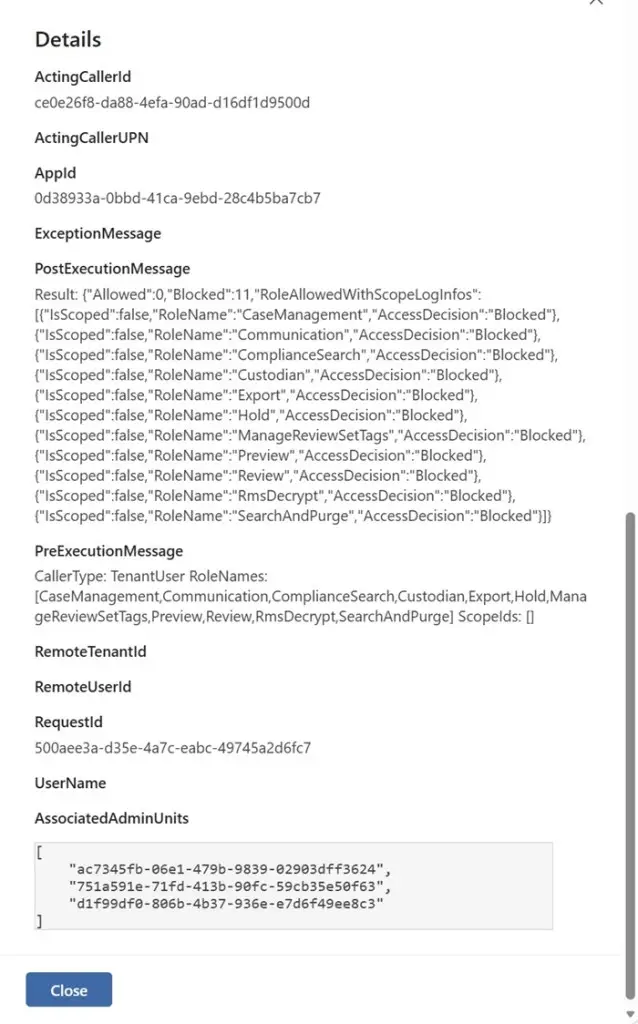
Microsoft Purview now records the role and scope checks it performs when users try to open solutions in the Purview portal. For administrators, the change adds evidence about why access was granted or blocked, including cases where permissions are limited to particular resources.
The new events are useful when investigating access problems and when reviewing who can reach tools that handle sensitive information. They don't replace role configuration or scope review; they show the result of Purview's access evaluation. To make them useful for ongoing administration, teams will need to retrieve and interpret the records rather than relying on occasional manual searches.
Two event types describe access decisions
Purview access can depend on Microsoft Entra ID roles, which apply across the tenant, and Purview role-based access control (RBAC) roles. RBAC assignments can be scoped so that a user has permission for only selected resources. For example, an eDiscovery manager assignment might be limited to specific eDiscovery cases. Entra ID roles take precedence over RBAC roles, as described in Microsoft's documentation on Purview permissions.
When Purview checks whether someone can access a solution, it now creates one of two audit operations. CheckUsersInRoles records a role membership check. CheckUserInRolesWithScopes records a check that also evaluates scope. Both are logged under the SecurityComplianceRBAC workload. The records are generated after the change is enabled in the tenant.
The distinction helps explain what Purview evaluated. A role check can establish whether a required role is present; a scoped check can also account for the resources covered by an assignment. That detail gives administrators more to work with when a user reports that a solution is unavailable, especially where access depends on a case or other resource boundary.
What the records show
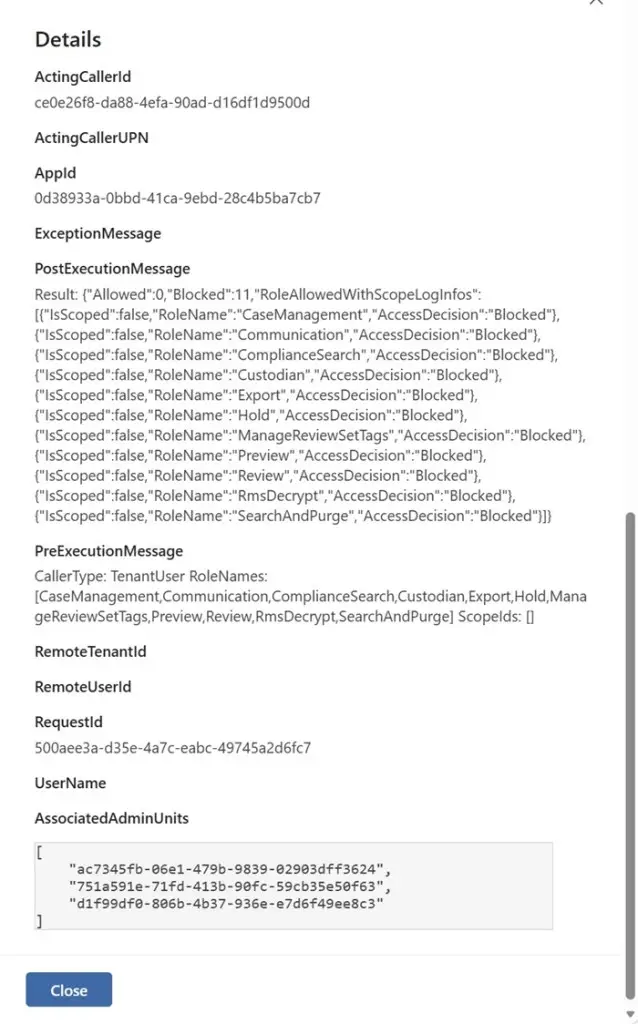
A failed check can include role decisions in the PostExecution property. In the example provided, a user tried to open eDiscovery without a required Entra ID or RBAC role, and Purview blocked access for several roles needed by the solution.
Successful decisions can appear in PostExecutionMessage. One example reports two allowed roles, no blocked roles, and marks both RoleManagement and ViewOnlyRoleManagement as granted. The entries also identify whether a role was scoped. That makes the result more informative than a simple success or failure when administrators are tracing how a particular permission was evaluated.
These events describe access checks, so they can help answer questions such as which roles Purview considered and whether scope affected the decision. They don't, by themselves, explain how a role was assigned or whether the assignment matches an organization's intended access model. Admins investigating a denial still need to compare the recorded decision with the user's role assignments and the scope configured for those roles.
Querying the audit data
For recurring analysis, the events can be retrieved with the AuditLogQuery Graph API. The example below uses the Microsoft Graph PowerShell SDK cmdlet New-MgSecurityAuditLogQuery to request the two operations across a seven-day period ending one hour after the query is created:
$AuditJobName = ("Purview Access audit job created at {0}" -f (Get-Date -format 'dd-MMM-yyyy HH:mm'))
$AuditQueryStart = ((Get-Date).AddDays(-7).toUniversalTime().toString('yyyy-MM-ddTHH:mm:ss'))
$AuditQueryEnd = ((Get-Date).AddHours(1).toUniversalTime().toString('yyyy-MM-ddTHH:mm:ss'))
[array]$AuditOperationFilters = "CheckUsersInRoles", "CheckUserInRolesWithScopes"
$AuditJob = New-MgSecurityAuditLogQuery -DisplayName $AuditJobName -OperationFilters $AuditOperationFilters -FilterStartDateTime $AuditQueryStart -FilterEndDateTime $AuditQueryEnd
The query returns a job; records become available for download after processing. Output formatting differs between Graph API requests and Microsoft Graph PowerShell SDK cmdlets, so scripts need to account for the format used to retrieve the data. The example below is for records returned by Get-MgSecurityAuditLogQueryRecord.
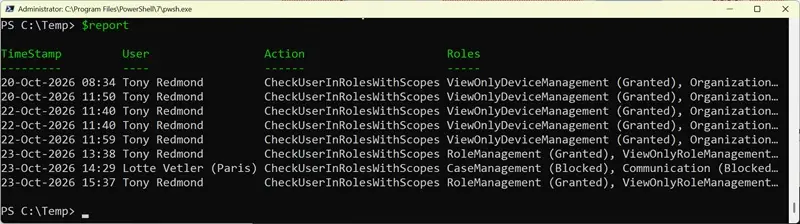
The audit record contains the user's object identifier, rather than a display name or user principal name. The reporting example therefore looks up the user separately and also matches the application ID to a service principal to obtain an app name. It parses the result message, collects role decisions and sorts the resulting report by timestamp:
$Report = [System.Collections.Generic.List[Object]]::new()
# Get service principals to interpret app names
$SP = Get-MgServicePrincipal -All
ForEach ($Rec in $AuditRecords) {
    $AuditData = $Rec.AuditData.additionalProperties
    $Result = ($AuditData.PostExecutionMessage -replace '^Result:\s*') | ConvertFrom-Json
    $User = Get-MgUser -UserId $Rec.UserId
    $AppName = $SP | Where-Object {$_.AppId -eq $AppId} | Select-Object -ExpandProperty DisplayName
    If ($null -eq $AppName) { $AppName = "Unknown app" }
    [array]$RoleInfo = $null
    ForEach ($Role in $Result.RoleAllowedWithScopeLogInfos) {
        [string]$RoleOutput = ("{0} ({1})" -f $Role.RoleName, $Role.AccessDecision)
        $RoleInfo += $RoleOutput
    }
    $ReportLine = [PSCustomObject]@{
        TimeStamp = Get-Date $Rec.CreatedDateTime -format 'dd-MMM-yyyy HH:mm'
        User = $User.displayName
        Action = $Rec.Operation
        Roles = $RoleInfo -join ", "
        AppName = $AppName
    }
    $Report.Add($ReportLine)
}
$Report = $Report | Sort-Object {$_.TimeStamp -as [datetime]}
In the reported results, the application name appeared as “Protection Center,” the former name of the Purview portal. The observed sample contained no CheckUsersInRoles events; every captured access check used CheckUserInRolesWithScopes. That may change as more data accumulates. Worldwide deployment was scheduled to finish by the end of October.
What administrators should take from the change
The records add visibility into a part of portal access that administrators previously had to infer from permissions and user reports. Their value will depend on collecting them in a repeatable way and understanding the fields returned by the chosen query method. Teams should also account for the separate user lookup when building reports, since the audit record itself identifies the account by object ID.
Microsoft is retiring the Search-UnifiedAuditLog cmdlet next year, according to coverage of the planned retirement, making the Graph query path relevant to teams that currently depend on that cmdlet. Details on interpreting Graph query output are available in this guide to AuditLogQuery conversion.
For now, the practical step is to confirm that the events are enabled in the tenant, then decide whether access reviews or troubleshooting workflows need a scheduled query and report. As usage builds, administrators can see whether standalone role checks appear alongside scoped checks and use the recorded decisions to focus follow-up on the roles and resource boundaries that matter.


