Intelligent Terminal 0.3 Adds Agent Session Search and Headless Tabs
Intelligent Terminal 0.3 adds a sidebar for agent sessions, configurable tab details, global search and headless mode for Windows terminal work.
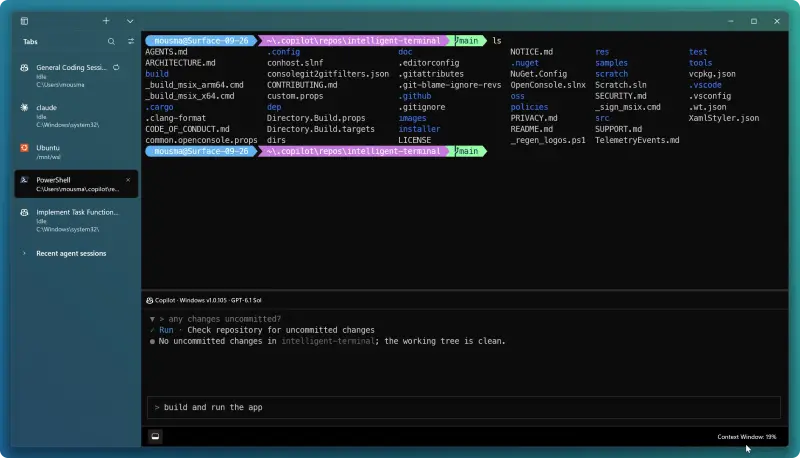
Intelligent Terminal 0.3 gives Windows users a single place to track terminal tabs and agent sessions, including work running in other terminal windows. Its new sidebar adds live status, search and recent session access, while headless mode lets selected tabs keep running after the terminal window closes. For administrators and developers juggling shells, builds and agent driven tasks, the update makes it easier to see what is active and return to work without opening every tab.
The changes are available through the Microsoft Store and on the GitHub release page. The sidebar is enabled by default, but users can switch back to horizontal tabs. The most useful change may be the combination of current tab details and recent agent sessions: those views help answer both “what is running?” and “where did that earlier task go?”
One sidebar for shells and agents
The new vertical layout gives each tab more room to show its title and working context. Shells and agent CLI sessions appear together, and split panes sit beneath their parent tab so users can inspect pane activity or select a specific pane directly. Basic tab actions remain familiar: select a tab, close it with the × control, drag it to reorder, or right-click for its menu.
Agent tabs show live activity in the sidebar. A status indicator can reveal whether an agent is working, waiting for input or asking to run a tool; an attention dot marks a tab that needs the user's attention. Pinning a tab from its right-click menu keeps it at the top of the list, which can help keep a long running task easy to find.

Users can collapse the sidebar with its button or the Ctrl+Shift+S shortcut, and resize it when they need more room for tab names or details. To restore the horizontal layout, right-click a tab and choose Switch to horizontal tabs, or go to Settings > Appearance > Tab Layout. The sidebar uses acrylic material by default. Teams or individuals who prefer a solid background can turn off Use acrylic material in the tab row under Settings > Appearance.
Choose the details that matter
Each tab displays its current working directory and status by default. When a tab runs an agent CLI, the shell icon changes to the agent's icon, and the status shows what the agent is doing. That gives users a quick read on activity without switching into the session.
The sidebar's filter menu lets users choose which details to display. Options include agent status, the current working directory, and Git details such as repository, branch or changes. Up to two fields can be shown at once; enabling a field replaces another so the row stays readable. For teams moving among several repositories or agent tasks, the choice lets the tab list serve as a quick operational view rather than just a set of window titles.

Search open work and session history
Global search looks across the tabs open in the current window and agent sessions from other windows, including sessions that have been closed. That puts active and recent agent work in one search flow, rather than requiring users to remember which terminal window held a task. Search is useful when a session's title or working directory is easier to recall than its location.

For a narrower view, turn on Agents only in the filter menu. The sidebar then shows tabs running an agent CLI; switching the filter off restores the full set of terminal tabs. A separate Recent agent sessions option adds a collapsible section beneath open tabs. It lists prior sessions and agents running in other terminal windows, with a title, working directory and relative timestamp. Selecting a closed session reopens the work in a new tab, while selecting an agent already running elsewhere moves focus to that session.


Launch detected agents and keep tabs running
Intelligent Terminal detects supported agent command line tools installed on the machine and creates profiles for them automatically. Users can start GitHub Copilot CLI, Claude or another detected agent from the new tab menu, alongside profiles such as PowerShell. That makes the installed tools easier to launch from the same interface used for ordinary shells.

Headless mode addresses a different problem: work that should continue after its terminal window closes. Right-click a tab and choose Turn on headless mode to keep that session running in the background. A long agent task or build can continue until the machine stops, rather than ending when the user closes the terminal window.
Headless tabs remain discoverable. They appear in the sidebar while running and in the system tray when no terminal windows are active. Agent CLI sessions running headlessly also appear in Recent agent sessions after their window closes, providing a route back to the work. Teams considering this mode should account for the machine's own availability: closing the terminal does not stop the task, but stopping the machine does.


Intelligent Terminal remains experimental, and its developers say they will continue addressing bugs and feature requests. Administrators evaluating 0.3 can start by checking the tab layout, the details shown for their common workflows, and whether headless tasks are visible and recoverable as expected. The GitHub release notes provide further release details, while issues and feature requests can be submitted through the GitHub issue tracker.


