vRO PackLens Brings Orchestrator Package Browsing and Small Edits into VS Code
The free VS Code extension opens vRO packages as browsable trees and saves script or configuration edits to a new, version-bumped package.
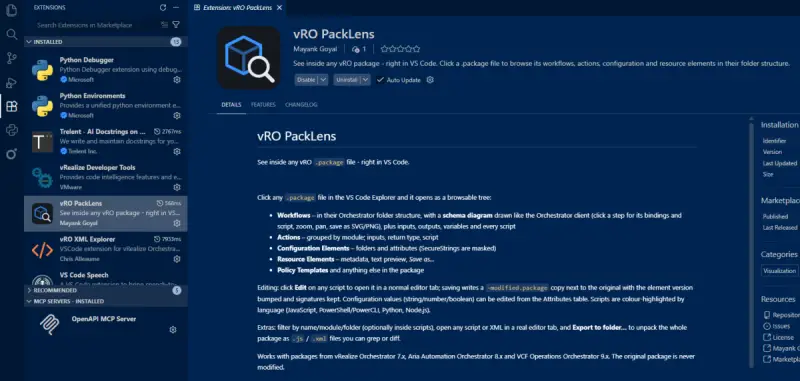
For teams working with VMware Aria Orchestrator packages, vRO PackLens puts inspection and small edits in the same VS Code workspace as scripts, Build Tools projects and Git repositories. The free extension opens a .package file as a tree of its contents, then lets you change scripts or supported configuration values and save a separate package for import.
PackLens is listed as version 2026.3.1. It was tested in VS Code on macOS with packages exported from Aria Automation Orchestrator 8.18.1. It reads packages from vRealize Orchestrator 7.x, Aria Automation Orchestrator 8.x and VCF Operations Orchestrator 9.x. The extension does not require configuration after installation.
Browse package contents in the workspace
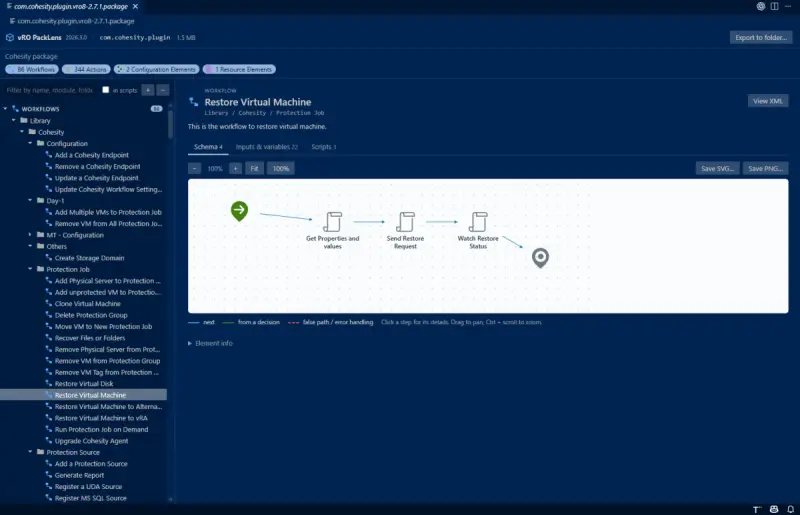
Open a folder in VS Code and select a .package file. PackLens displays the package name, file size and a count of its contents, with items grouped into a navigable tree. Workflows appear in their folders; actions are grouped by module, such as com.vmware.library.vc.vm. Configuration elements, resource elements, policy templates and other included items are also shown.
A filter searches item names, modules and folders. Enable the option to search inside scripts as well, which can help locate references to a REST host or a hard-coded value across the package. For teams using Build Tools for VMware Aria, this can also make it easier to inspect packages produced in a project’s target folder or included as pulled dependencies, without importing them into Orchestrator.

Install the extension by searching for vRO PackLens in VS Code’s Extensions view. From a terminal, the documented command is:
code --install-extension imtrinity94.vro-packlensThe expected output identifies extension version 2026.3.1 as successfully installed. Once installed, clicking a .package file opens it in PackLens.
Inspect workflows, actions and configuration
A workflow opens on its Schema tab. PackLens draws the diagram using the positions saved in the package, with Orchestrator icons and paths. Selecting a step shows its type, the action or workflow it calls, its next step and error path, input and output bindings, and any script. Users can pan the diagram by dragging and zoom with Ctrl or Cmd plus the scroll wheel. The view can also be saved as SVG or PNG for technical documentation or handovers.
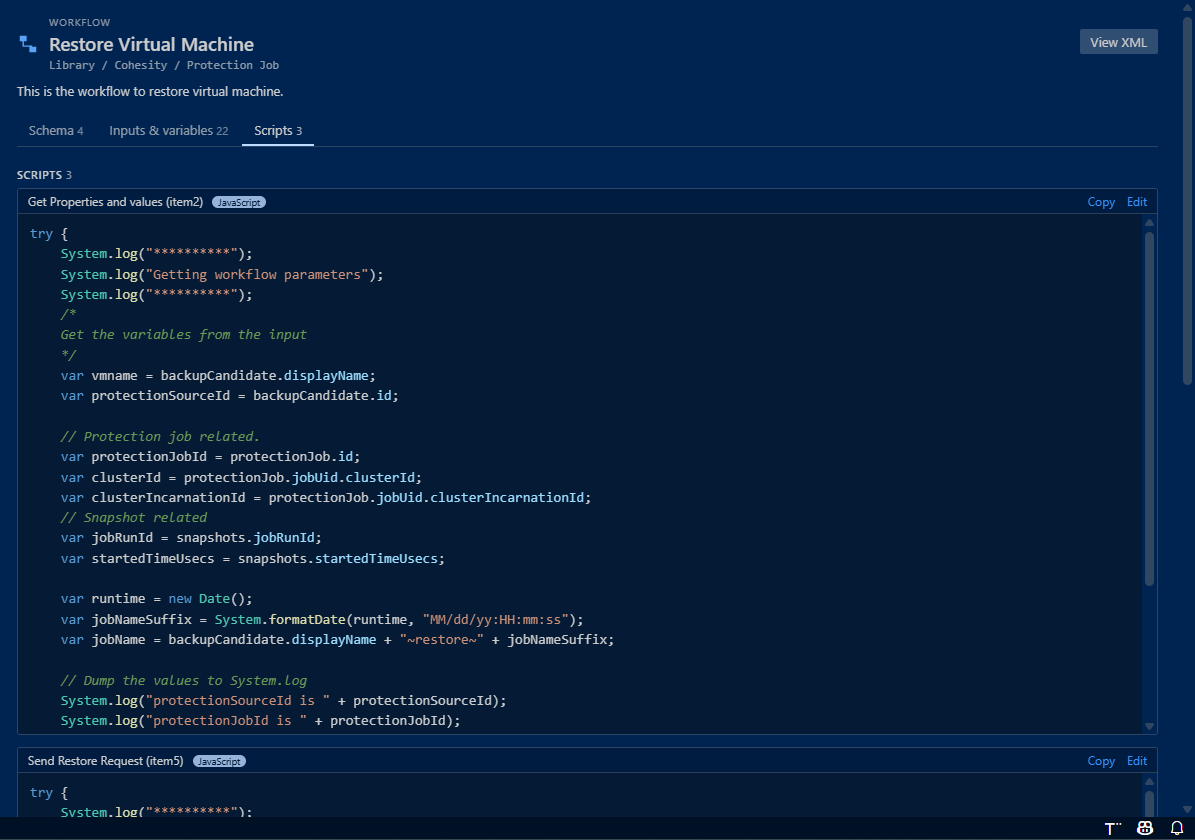
The workflow view also has an Inputs & variables tab, listing inputs, outputs, variables and schema bindings, and a Scripts tab that brings scriptable tasks together. An action view shows its module, version, return type, runtime, inputs and script. PackLens highlights JavaScript, PowerShell or PowerCLI, Python and Node.js according to the action runtime. For actions using an action environment, it uses that environment’s language information; if the environment was not exported with the package, it infers the language from the script.

Configuration element views list each attribute’s type, value and description. SecureString values remain masked, which helps prevent them from appearing during a shared-screen review. PackLens allows edits to String, Text, number and boolean values; SecureStrings are read-only.

Save edits as a separate package
For a small correction to a script or configuration value, PackLens can avoid the cycle of importing a package into a lab, changing it in the Orchestrator client and exporting it again. Select Edit on an action script or a scriptable workflow task. The code opens in a normal VS Code tab as a .js, .ps1 or .py file, where the usual editor features and extensions are available. Save with Ctrl+S on Windows or Linux, or Cmd+S on macOS.
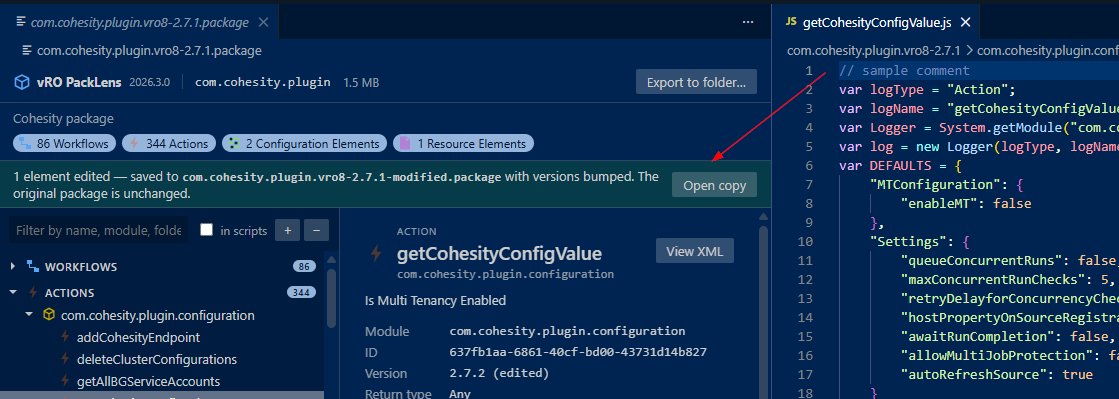
When saved, PackLens writes a copy alongside the original, named <name>-modified.package. The original file is left untouched. Each edited element’s version is raised once, for example from 1.0.0 to 1.0.1. That matters because Orchestrator replaces an element during import only when the incoming version is higher. Repeated saves do not keep incrementing the version for the same element.
PackLens replaces only the text that was edited; other package contents, including signatures and certificates, stay as exported. Edited items are marked with an M and an edited badge in the tree, and a banner shows where the copy was saved. Use Open copy to review it before importing. After import, the changed elements arrive with their higher versions.
Know the editing limits
PackLens is intended for small adjustments. Workflow structure, bindings and inputs remain read-only, and the extension does not replace the Orchestrator client or Build Tools for VMware Aria for broader development. JavaScript suggestions in VS Code may also include syntax that the Orchestrator Rhino engine cannot run, so check compatibility with the Orchestrator version in use. The extension’s author provides a guide to Rhino differences between 8.x and 9.x here.
PackLens works locally inside VS Code, according to its description. Its source code is available on GitHub under the MIT licence, along with a sample package in the samples folder. The extension is available from the Visual Studio Marketplace, and a VSIX download is provided here.
PackLens and vRO Peekage serve different workflows: Peekage opens packages in a browser, while PackLens keeps browsing and supported edits beside the rest of a VS Code project. For a package already in the workspace, PackLens offers a direct way to inspect its contents and prepare a modified copy for Orchestrator.


