Entra Resource Policy Preview Adds Graph API Evaluation and Audit Tools
Entra Resource Policy can simulate policy decisions and log enforcement activity through Microsoft Graph, giving admins ways to test and investigate tenant controls.
Entra Resource Policy (ERP) gives administrators a way to inspect and deny supported Microsoft Graph requests before they reach the backend. Its practical value depends on two operational capabilities: testing how policies will respond and tracing what happened when a request was evaluated. Both are available through Microsoft Graph in the public preview, although neither has a dedicated interface in the Entra admin center.
Test policies before applying them
Microsoft provides two evaluation methods. The evaluatePolicy method tests a policy payload against a simulated request. The evaluateAssignedPolicies method checks how active policy assignments in the tenant affect a request. These API methods are useful when troubleshooting policy logic or checking for assignment overlap, but administrators must call them through the API.
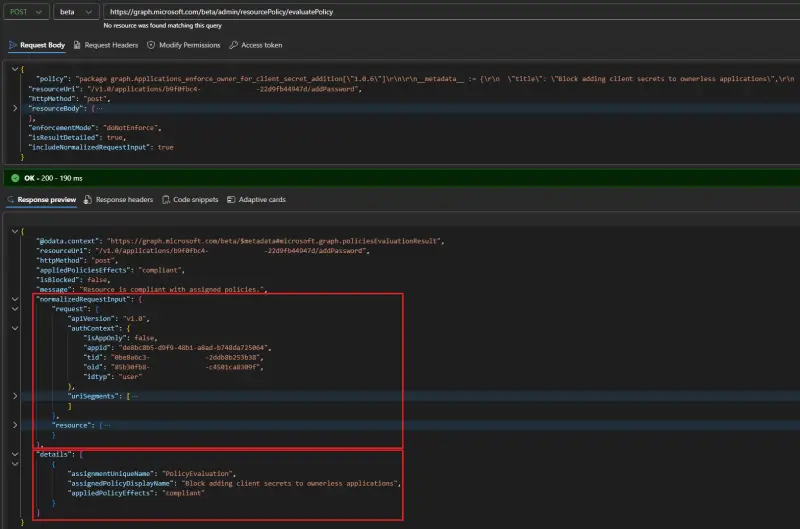
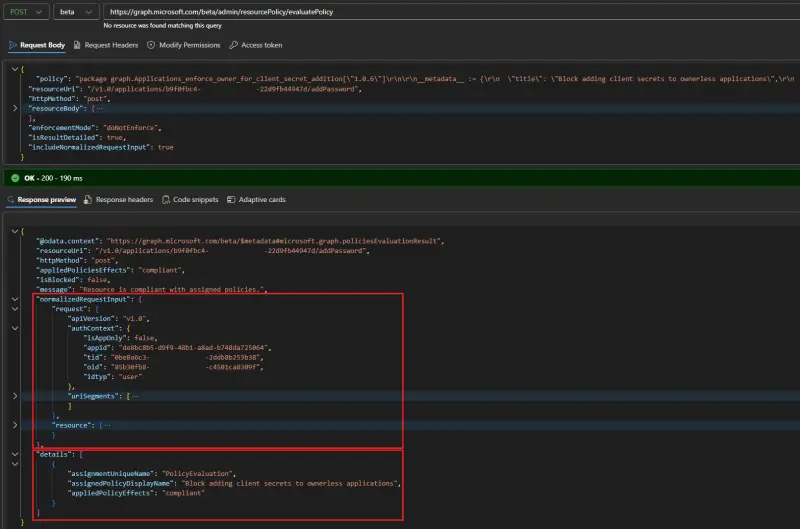
For a single-policy simulation, the request supplies the Rego policy as stringified JSON, along with the resource URI, HTTP method and request body. The example below tests an attempt to add a password credential to an application. It sets enforcement mode to doNotEnforce, so the request can be evaluated without applying the policy’s enforcement effect.
POST https://graph.microsoft.com/beta/admin/resourcePolicy/evaluatePolicy
{
  "policy": "...",
  "resourceUri": "/v1.0/applications/xxxxxxxx-xxxx-xxxx-xxxx-xxxxxxxxxxxx/addPassword",
  "httpMethod": "post",
  "resourceBody": {
    "passwordCredential": {
      "displayName": "Password friendly name"
    }
  },
  "enforcementMode": "doNotEnforce",
  "isResultDetailed": true,
  "includeNormalizedRequestInput": true
}
The simulation needs the ResourcePolicyEvaluation.Read.All permission scope. Two optional flags make the returned data more useful. Set isResultDetailed to true to see evaluation details for requests that comply with the policy as well as those that fail. Set includeNormalizedRequestInput to inspect the request as the policy engine processes it.
That normalized input can include claims from the access token, such as the user ID, tenant ID and caller application ID. It also exposes the request’s URI segments. In the password example, those segments identify the application targeted by the addPassword operation. A policy can use that ID to perform an additional read, such as checking the application’s owners, and then decide whether the request complies. When a request fails, the response includes a reason for each policy violation.
Policies that depend on additional reads can use the optional fetchResponses parameter. If it is omitted, the simulation performs required reads live. If administrators want to avoid those reads during the simulated run, they can provide the expected values in fetchResponses. Turning off isResultDetailed hides results for compliant requests, which can reduce output when the goal is to focus on failures.

Check the combined effect of assignments
A policy can be evaluated by itself even when it has no active assignment. That makes evaluatePolicy useful during policy development, but it does not show what the tenant’s deployed configuration will do. For that, administrators can call evaluateAssignedPolicies, which evaluates all active assignments that match the request.
A request may match more than one assignment, so checking the combined result is a valuable validation step. This method does not require a Rego payload because it uses policies already assigned in the tenant. It only evaluates policies with active assignments, and it does not support fetchResponses; any additional reads are performed live.
The response’s details property lists each matching assignment and its individual result. The appliedPoliciesEffects property gives the aggregate verdict. Admins should review both: the aggregate explains the final outcome, while the per-assignment detail helps identify which controls contributed to it. Microsoft documents the methods and their behavior in its resource policy testing and troubleshooting guidance.
Track administrative changes and evaluations
Testing helps prevent policy mistakes; audit records help explain changes and enforcement after deployment. Entra Audit logs include a Resource Policy category for administrative activity such as creating, updating or deleting policy definitions and assignments, as well as ERP configuration changes.
Administrators can query the directory audit log through Microsoft Graph or the Graph SDK for PowerShell. The following examples filter records to the Resource Policy category:

GET https://graph.microsoft.com/beta/auditLogs/directoryAudits?$filter=category eq 'Resource Policy'

Get-MgBetaAuditLogDirectoryAudit -Filter "category eq 'Resource Policy'"
One application ID that may appear in these records is a2c39f51-d388-4a34-a666-a115a3fae156, which belongs to the first-party Microsoft_Entra_TenantManagement application.
ERP also records evaluations of Graph API requests in a separate resource, available under the /auditLogs node. These evaluation logs capture requests handled by ERP and details about their processing. They are not directly shown in the Entra user interface, but can be queried through Graph or sent to an external system using Microsoft’s log export guidance.
A query can filter evaluation records by their evaluatedDateTime. This example returns records from the specified UTC interval:
GET https://graph.microsoft.com/beta/auditLogs/resourcePolicy?$filter=evaluatedDateTime ge 2026-11-16T09:00:00Z and evaluatedDateTime le 2026-11-19T18:00:00Z
Without a time filter, the query returns records from the past 24 hours. The standard 30-day retention period applies, and access requires AuditLog.Read.All.
The evaluation record can show when a request occurred, its identifiers and how many policy assignments acted on it. One example involved an attempted admin role assignment that ERP blocked. Latency-related properties are present but were not populated in the observed records.
To see which assignments processed a request, administrators must explicitly select the policyDetails property. It is not returned by default or by $select=*. For example, the property can be requested for one record or across the available evaluation entries:
GET https://graph.microsoft.com/beta/auditLogs/resourcePolicy/c8118cef-020f-483b-9ac4-699f0d538db6?$select=Id,policyDetails

GET https://graph.microsoft.com/beta/auditLogs/resourcePolicy?$select=Id,policyDetails
policyDetails can identify the policy and assignment names, show their effects and include a policyMessage explaining a denial. A well-designed message can make the audit record more informative, including details about the principal targeted by a request. The fetchDetails property is intended to show additional reads, but it was not populated in the observed output. Microsoft lists the available fields in its resource policy evaluation event documentation.
What ERP could mean for tenant controls
ERP sits between a caller and the Microsoft Graph backend, inspecting supported requests and applying policy decisions. That creates room for controls that may be difficult to express through existing features. Built-in policies can cover areas such as group and application naming or guest invitation controls; custom policies can address scenarios such as preventing deletion of critical objects or mirroring application management controls.
The feature sits within Tenant Governance, a fit for organizations that want to enforce governance and security rules through Graph requests. Its potential could grow as support expands to more Entra ID and Microsoft 365 resources. The preview also leaves areas to watch: richer authentication context properties, support for additional resources, better policy authoring, headers for Graph reads, and clearer documentation and audit behavior.
ERP is in public preview, so its available resources and behavior may change. Still, Microsoft has provided Graph API support for both delegated and application permissions during the preview. For administrators, the immediate work is concrete: simulate individual policy behavior, evaluate the combined effect of active assignments, and make sure audit queries capture the details needed to investigate denials. Those checks will show where ERP can fit into tenant controls as the service develops.


