Microsoft 365 Outage: Six Infrastructure Lessons from the Exchange Online Failure
A Windows bug, added Teams traffic and reduced gateway capacity combined to disrupt Microsoft 365. The incident shows where IT teams can strengthen monitoring and recovery.

Microsoft’s November outage shows how a fault that sits quietly for months can become a service-wide problem when traffic shifts and capacity is already reduced. A Windows code issue affected the shared networking gateway in front of Exchange Online and other Microsoft 365 services. A routine Teams failover added traffic to that gateway, while nearly 14% of its servers were already out of service.

Microsoft’s preliminary report, published on November 15, describes a chain of failures rather than a sudden jump in demand. Traffic management moved users away from stalled servers, concentrating the same overall load on fewer machines. More than 80% of the servers became unresponsive in under two hours, and a separate issue with regional isolation allowed the impact to spread globally.
For IT teams, the useful lessons are operational: test changes against production conditions, treat automated traffic shifts as meaningful events, monitor server health beyond simple availability, and plan recovery for a large share of capacity being unavailable at once.
Why a gateway fault affected so many services
Exchange Online provides the cloud email and calendar service used by Outlook. Connections to Exchange Online first pass through a shared front-end layer that Microsoft calls the networking gateway. The gateway also sits in front of other Microsoft 365 services.
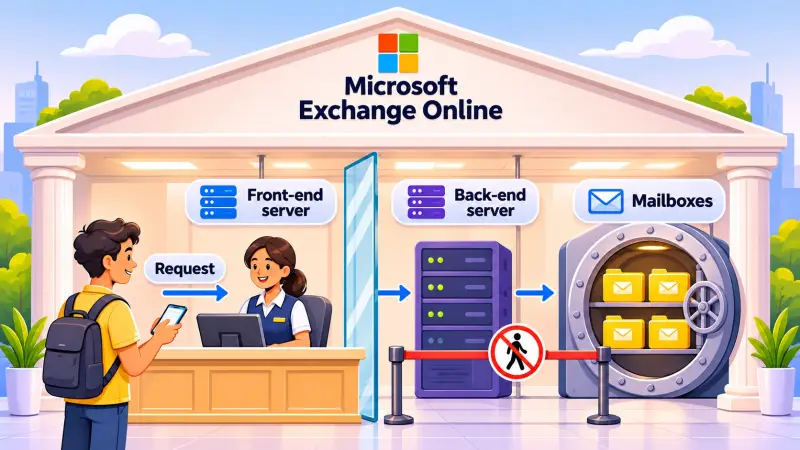
The distinction between the gateway and the mailbox matters during an outage. Exchange Online’s back-end servers hold the mailboxes, but users and apps need the front end to establish a connection before they can reach them. A mailbox can remain intact while the service is inaccessible because the gateway cannot handle the connection.
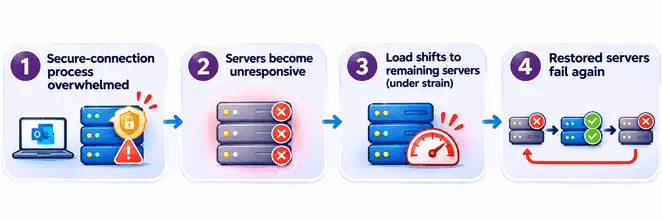
Before an app such as Outlook can exchange mail with Microsoft’s servers, the app and server negotiate a connection. Microsoft identified this connection negotiation as the main area behind the access failures. Its preliminary report says competing processes prevented connections from being handled, but it does not provide further technical detail on that mechanism.
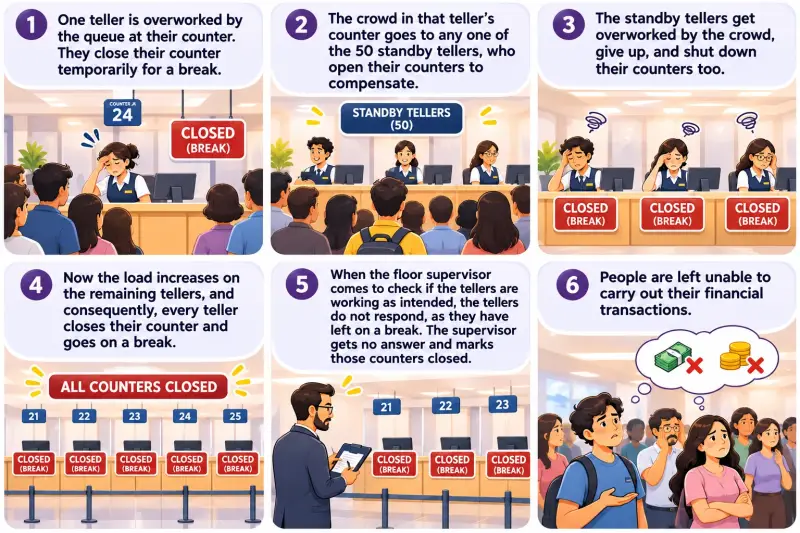
The gateway also had standby capacity, comparable to spare tellers at a busy bank. That reserve is useful only while enough servers remain healthy to take on redirected traffic. When servers stall and traffic management shifts their users elsewhere, the remaining machines face a greater load.
Three conditions combined to trigger the failure
Microsoft traced the incident to three conditions that overlapped. Each could be tolerated on its own, but together they left the gateway vulnerable.
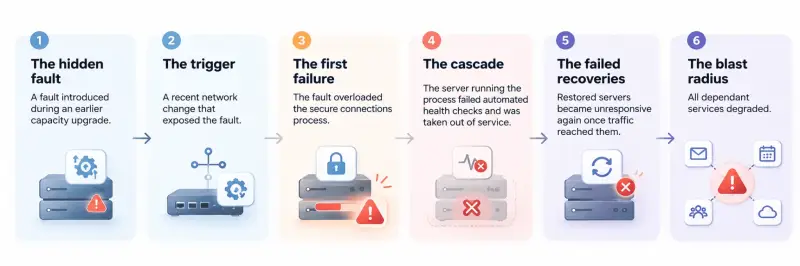
- A Windows bug: Microsoft began deploying a Windows fix built for its gateway servers in July. It ran for more than three months without an impact. Under certain load conditions, however, it caused lock contention inside an internal Windows process. Tasks waited on one another, exhausting CPU and memory on affected servers.
- A change in traffic: About 15 hours before the outage, an automated failover moved Teams traffic onto the same gateway used by Exchange Online. The shift changed the traffic pattern and added load to the gateway.
- Reduced capacity: Nearly 14% of the gateway’s servers were already unavailable because of an unrelated issue from the previous day. Microsoft says this reduction had no impact by itself.
Microsoft’s lab tests did not expose the bug. The tests used a different traffic mix and less capable hardware with fewer cores. The issue was more severe on newer, high-core machines, so passing tests on smaller systems did not predict how the fix would behave in production.
Automated health checks and traffic management normally help contain server failures by probing machines and redirecting users away from those that stop responding. During this incident, the redirection created a feedback loop: traffic left struggling servers, landed on the remaining servers, and added pressure there too.
The incident timeline and recovery
All times below are UTC, as given in Microsoft’s preliminary report. The report describes a gradual deterioration before the main service disruption.
- Thursday, November 12, at 1:07am: Automated failover moved Teams traffic onto the gateway. Load increased through the day, and isolated server failures appeared in some regions. Automated mitigation handled those early failures.
- 4:20pm: During peak business hours in the United States, requests accumulated on gateway servers until they stopped responding. Microsoft logged incident EX1550543.
- Within two hours: Traffic management moved users from stalled servers to healthy ones, which then stalled under the extra load. Microsoft found that total traffic had not increased; the same demand was being carried by fewer servers. More than 80% of the servers became unresponsive.
- Global impact: Regional partitions that were intended to contain failures did not hold. Microsoft has not yet explained the separate issue that prevented that isolation from working.
- Recovery attempts: Servers brought back online were overwhelmed by waiting traffic and became unresponsive again. Microsoft’s rollback tools and feature flags could not quickly reverse a change that had been in place for months.
- Friday, November 13, from 7:20am: Microsoft began rolling out an update that returned Windows to an earlier, known-good code path. Teams of servers were taken out of service, updated, restarted and returned to service.
- 4:10pm: Microsoft declared the incident over, about 24 hours after it began.
Microsoft reported effects on Exchange, Copilot, Teams, SharePoint, OneDrive, Defender, Purview, Fabric, Intune, Planner, Power Apps, To Do, Power BI and Universal Print. The impact was concentrated in features that relied on Exchange Online. Teams chats and meetings continued to work for most of the outage because Teams could move away from the faulty gateway. Microsoft says Exchange Online could not do the same for scale reasons.
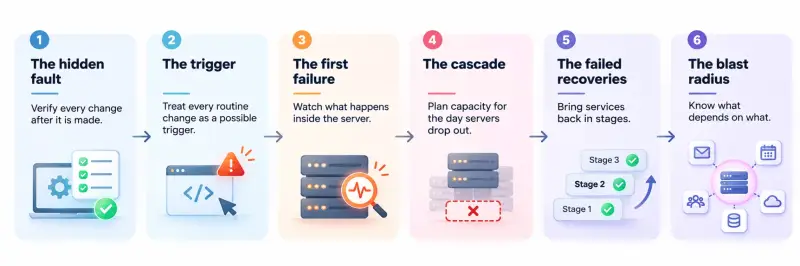
Six practices to reduce the impact of a similar failure
1. Keep configuration history that reaches back beyond the last release
The gateway fix passed staged deployment and ran for months before the right conditions exposed the fault. That makes a short change history a weak safety net: the cause may be older than the recent changes an operations team first checks.
- Back up configurations before and after changes so you can return to a known-good version.
- Compare new configurations with established baselines and check that the running state matches the saved state.
- Audit configuration changes for drift, mismatches, compliance issues and vulnerabilities.
- Test changes with hardware and traffic that resemble production. A test on a smaller machine may miss behavior that appears on a larger system.
- Retain known-good baselines and change records well beyond the latest release.
2. Treat automated failovers as changes worth tracking
No risky manual change had to occur during the incident. A routine, automated failover moved Teams traffic onto the gateway and exposed a fault already present there. An automatic action can alter load and traffic patterns as significantly as a person’s configuration change.
- Record who changed what and when, and put network changes through the organization’s normal review process.
- Log automated failovers and traffic shifts as change events, then monitor their effect.
- Roll out changes to a limited part of the environment first and check the results before expanding them.
- Prepare and test the rollback before a change begins.
- Keep change records and performance data together so teams can identify what changed before an incident.
3. Monitor server behavior, not just whether a machine responds
A server can remain switched on while it fails to process requests. A simple ping can therefore report that a machine is reachable without showing that users’ connections are backing up or critical processes are stalled. Microsoft’s timeline also points to warning signs: load was rising and isolated server failures were occurring for about 15 hours before the major alert.
- Monitor the critical processes and services on each server.
- Track CPU and memory usage, and alert on unusual patterns as well as fixed thresholds.
- Establish what normal usage looks like so monitoring can flag a gradual shift.
- Correlate small, automatically mitigated failures. Repeated events across a day can signal a developing problem even when each one appears to clear.
4. Check whether the remaining capacity can carry peak demand
When stalled servers left rotation, the same workload moved onto fewer machines. The gateway had also begun the day with nearly 14% of its servers unavailable. That capacity reduction had been harmless alone, but it reduced the margin available once the other conditions appeared.
- Size systems for peak demand when some servers are unavailable.
- Model overlapping problems, such as reduced capacity alongside added traffic and a software fault.
- Track CPU, memory and disk headroom over time as well as in live dashboards.
- Set limits on how much capacity automatic health checks can remove at once.
- Provide a way to pause automated failover or remediation if it is worsening the incident.
- Map dependencies so related alerts can be understood as one developing failure.
5. Return capacity in stages and confirm it can handle traffic
Bringing a server back online does not guarantee that it can stay online. In this incident, waiting traffic overwhelmed restored servers. Microsoft’s automated recovery was not designed for so many servers to be unresponsive at once, and its usual rollback tools could not quickly undo the months-old change.
Microsoft restored service by updating, restarting and returning servers in groups. Its report says groups could include more than half of a region at a time, with regions entering business hours given priority. Asia Pacific recovered first, followed by Europe.
- Write and rehearse recovery steps before an outage.
- Restore capacity in stages, checking that each stage is stable before adding more traffic.
- Make automatic fixes conditional. Restarting a service will not resolve a persistent cause.
- Test recovery with most of the environment unavailable, not only with a single-server failure.
6. Map dependencies and test whether regional boundaries hold
The failure began in the gateway in front of Exchange Online, yet Microsoft listed services across Microsoft 365 as affected. The intended regional partitions also failed to contain the impact. Together, those points show why dependency maps and isolation tests need to cover shared infrastructure, cloud services and the applications that rely on them.
- Record what each critical service depends on and which applications depend on it.
- Test regularly that isolation boundaries contain a failure within their intended scope.
- Plan how teams will communicate if email and other everyday channels are unavailable.
- Monitor cloud services alongside the infrastructure your organization runs, so teams can distinguish a provider-side issue from a local one.
What IT teams can check during a provider outage
Teams cannot repair a cloud provider’s servers, but they can protect their own delivery paths and confirm what happens when service returns. During this incident, Microsoft handled the cloud-side backlog and extended the delivery window so delayed messages would not be returned as undeliverable.
- Watch mail queues on hybrid and on-premises servers. Messages that cannot be delivered may wait there and then move in a surge when the provider recovers.
- After service returns, check for delayed or failed mail and confirm that important messages arrived.
- Track provider service health through a channel outside the provider, rather than relying only on its own status page.
- Keep a fallback communication channel ready for an email outage.
Microsoft said it planned to publish a final report by November 20, including longer-term repair items. Until those details are available, the preliminary findings point to practical checks for any team operating shared services: validate changes under production-like conditions, watch for gradual deterioration, preserve capacity during failover, and rehearse recovery when many servers are down at once.


