Entra ID Password Changes Without the Current Password: Tenant Setup and Licensing
Entra ID’s preview lets licensed users change passwords after a strong sign-in; admins must enable a Microsoft Graph setting as rollout reaches tenants.
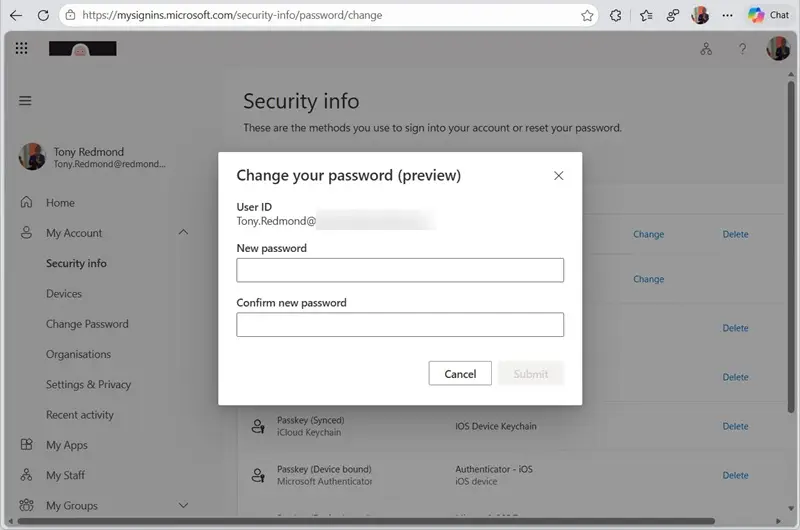
Entra ID is adding a way for users to change a forgotten password after signing in with a supported strong authentication method. For IT teams, the practical value is fewer password-related help desk requests when someone needs access to an older application that still requires a password. The feature is in preview and rolling out to tenants; Microsoft’s stated target is availability everywhere by the end of November 2026.
The tenant setting is already available, but it is disabled by default. An administrator can enable it through Microsoft Graph before the feature reaches their tenant, though that change will have no user-facing effect until Microsoft deploys the feature there. The user also needs an Entra P1 or P2 license to use this password-change flow.
When users can leave the old password behind
Users can already visit the My Sign-Ins page and select Change password. With the existing behavior, that form asks for the current password. Someone who has forgotten it must use self-service password reset (SSPR) or contact the help desk.
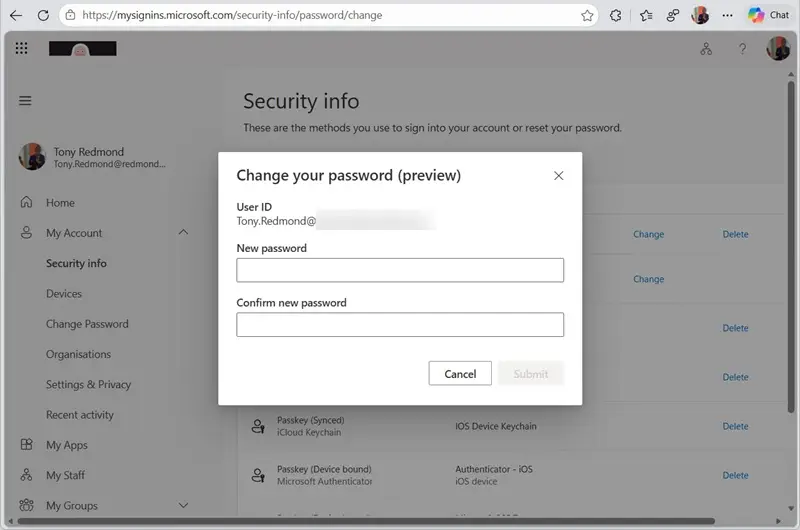
With the new option enabled, Entra can accept a supported strong sign-in as the basis for changing the password. The user signs in, opens My Sign-Ins, and selects Change password. Entra then presents a form that asks for the new password without requiring the old one. That gives users a direct route back to a password they can use with legacy services, without sending them through SSPR just to replace a forgotten password.
This addresses a gap that remains even as organizations adopt passwordless sign-in. Modern applications may support methods such as Microsoft Authenticator, FIDO2 passkeys, or Windows Hello for Business, but older applications and services can still depend on passwords. Replacing those systems may take time and effort, while users may still need passwords for access in the meantime.
Enable the password authentication setting
The control is part of the Entra authentication methods policy for the password method. The setting is named allowPasswordChangeAfterSecureSignIn. It is a beta implementation, the Entra admin center does not yet provide a user interface for managing it, and the current Microsoft Graph API documentation does not cover the password configuration.
To update the policy, connect using the Microsoft Graph PowerShell SDK with the delegated Policy.ReadWrite.AuthenticationMethod permission. The signed-in administrator also needs an Entra role that can update authentication policies, such as Authentication Policy Administrator. The request body uses an additional property to set the feature to $true:
Connect-MgGraph -Scopes "Policy.ReadWrite.AuthenticationMethod" -Nowelcome
$PolicyUpdate = @{}
$PolicyUpdate.Add("allowPasswordChangeAfterSecureSignIn", $true)
$PolicyUpdate.Add("@odata.type", "#microsoft.graph.passwordAuthenticationMethodConfiguration")
Update-MgBetaPolicyAuthenticationMethodPolicyAuthenticationMethodConfiguration -AuthenticationMethodConfigurationId "Password" -AdditionalProperties $PolicyUpdate
This cmdlet sends the equivalent of a PATCH request to the password configuration endpoint: https://graph.microsoft.com/beta/policies/authenticationMethodsPolicy/authenticationMethodConfigurations/Password.
After the update, administrators can read the configuration to confirm the value. The Microsoft Graph PowerShell SDK currently returns this setting under AdditionalProperties, because its model does not expose allowPasswordChangeAfterSecureSignIn as a strongly typed property.
$Configuration = Get-MgBetaPolicyAuthenticationMethodPolicyAuthenticationMethodConfiguration -AuthenticationMethodConfigurationId "Password"
$Configuration.additionalProperties
Key Value
--- -----
@odata.context https://graph.microsoft.com/beta/$metadata#authenticationMethodConfigurations/$entity
@odata.type #microsoft.graph.passwordAuthenticationMethodConfiguration
allowPasswordChangeAfterSecureSignIn True
The setting change takes effect almost immediately in the configuration. That does not mean the new user experience is available immediately: Microsoft must also deploy the feature to the tenant. Administrators should therefore distinguish between confirming that the policy is enabled and confirming that users can actually use the new flow.
What to check during rollout
For a tenant that wants to use the feature, the practical checklist is short: confirm the appropriate administrator role and Graph permission, enable the password configuration setting, and verify its value under AdditionalProperties. Then account for the tenant rollout and the Entra P1 or P2 license requirement when assessing who can use it.
There is also a reported user experience glitch to keep in mind. If a password change was started but left to time out, Teams later had trouble switching from another tenant back to the user’s home tenant. Completing the password change and signing out and back in resolved that case, though the exact cause was unclear. Users should finish the change once they start it, and administrators can watch for similar sign-in complaints as the preview reaches their tenants.
For support teams, the change gives users a simpler path when they know how to complete a strong sign-in but have forgotten the password needed by a legacy service. The useful next step is to enable the setting where appropriate, verify the tenant has received the feature, and make sure help desk guidance reflects the license requirement and the new Change password flow.


