Microsoft Copilot Cowork Matches 96 PDFs to 48 Recipients for Outlook Mail Merge
A test matched 96 PDFs to 48 recipients and prepared individual Outlook messages. Review Cowork’s recipient and attachment list before approving a send.

Microsoft Copilot Cowork handled the part of an Outlook mail merge that usually takes the most setup: matching different files to different people. In a small test, it sorted six PDFs for three recipients, found work email addresses, prepared individual messages and paused for review before sending. A larger test matched 96 PDFs to 48 recipients using only their names and email addresses.

That result makes Cowork worth considering for file-heavy mailings, but the review step remains central. The test showed that Cowork could identify the intended recipients and attachments; the user checked its proposed matches and approved the messages before they went out.
Starting with a OneDrive folder
The first test used a OneDrive folder named _Conf_Files_cowork. It contained three conference schedules and three expense guidelines documents, with one of each for Carol, Chris and Cristian. All six PDFs were fictitious.
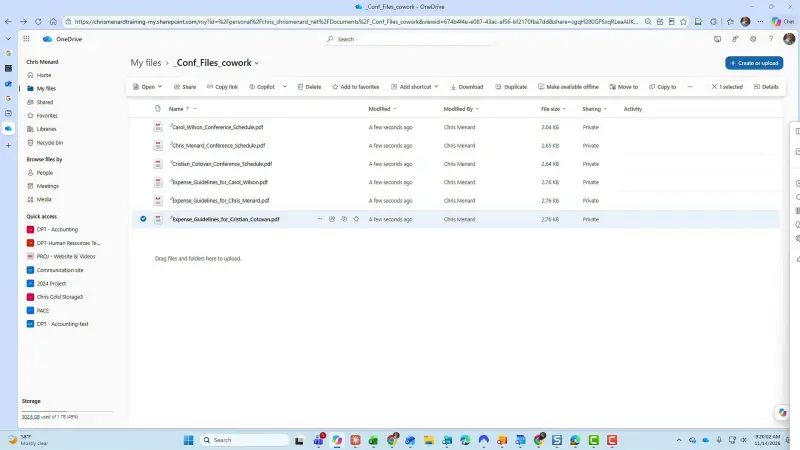
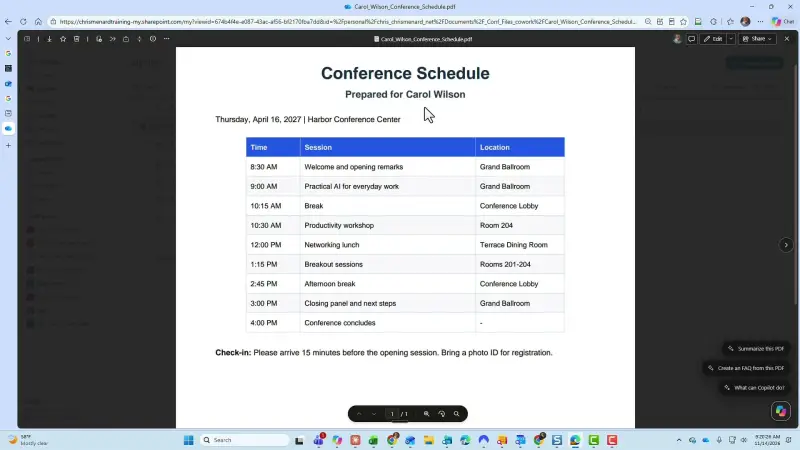
The documents included each person’s name in the filename and inside the PDF, such as “Prepared for Carol Wilson.” They did not include email addresses, so Cowork had to connect the document names to people in the organization directory.
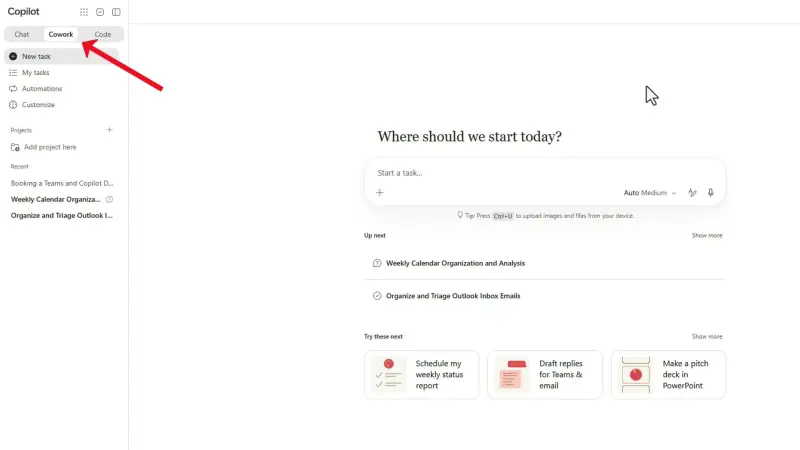
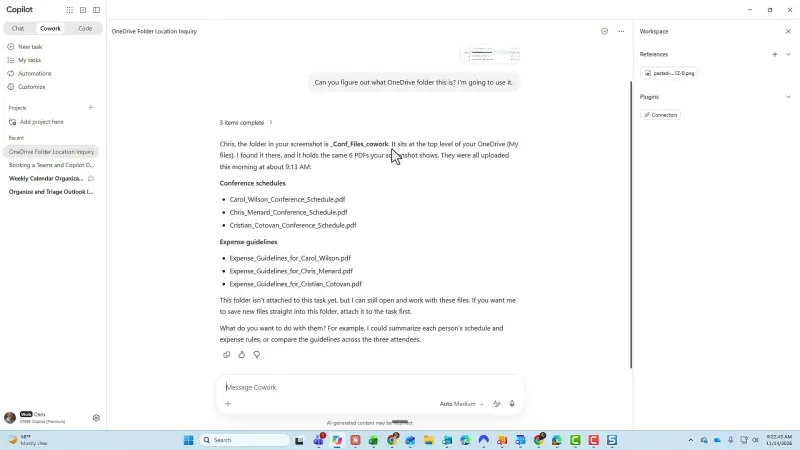
The test also began with a screenshot of the OneDrive folder rather than a copied folder link. In Microsoft Copilot, Cowork is a separate tab beside Chat and Code. After receiving the screenshot and a question about the folder’s location, Cowork returned the folder name, its location in OneDrive and a list of the six PDFs. It also grouped the documents into conference schedules and expense guidelines without being asked to sort them that way.
There is a billing detail to check before trying the workflow: Cowork uses usage-based billing (UBB), which costs extra on top of a Copilot licence. A user who cannot run Cowork may need credits requested and assigned by an administrator. The article’s description of the billing model is available here.
Tell Cowork what to match and what to show
The request asked Cowork to inspect every PDF, use the filenames and document contents to identify who each file belonged to, and prepare one separate email per recipient. Each message was to include only that person’s PDFs. For the sender’s own address, the prompt said to use that address; for other recipients, Cowork was to find the matching work address in the organization. If more than one person matched, it was to stop and ask.
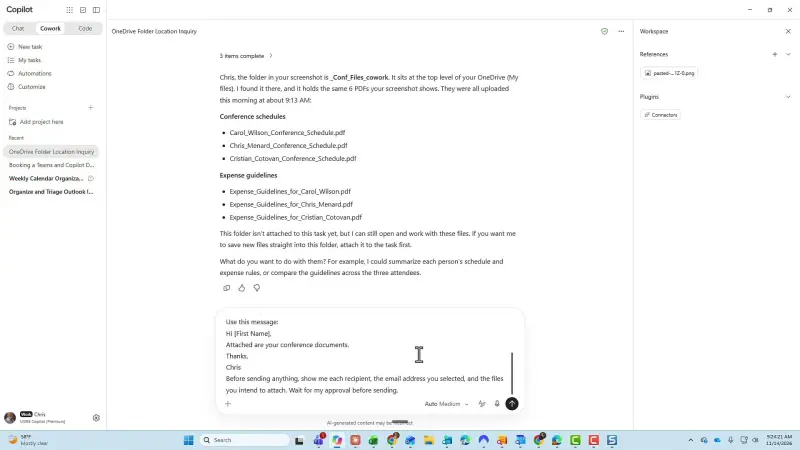
The requested subject was “Your Conference Documents.” The message body greeted each recipient by first name and said the conference documents were attached, followed by a sign-off from Chris.
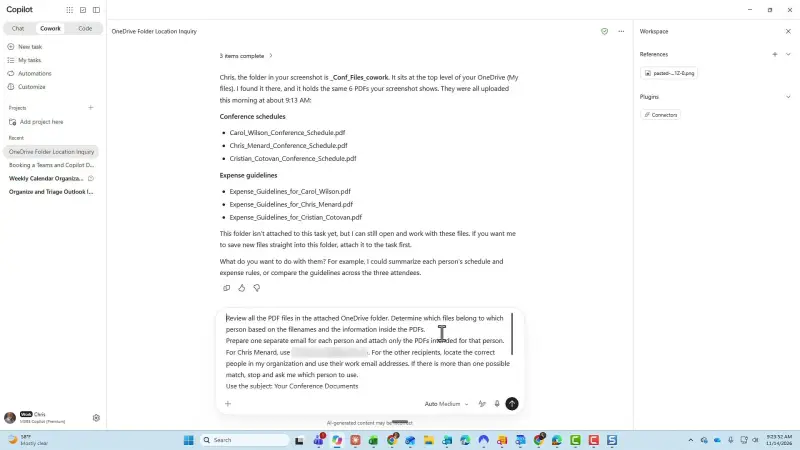
One instruction set the review boundary: before sending, Cowork had to display each recipient, the selected email address and the files planned for attachment, then wait for approval. That gave the user a chance to inspect the whole mapping before any message left the drafts stage.
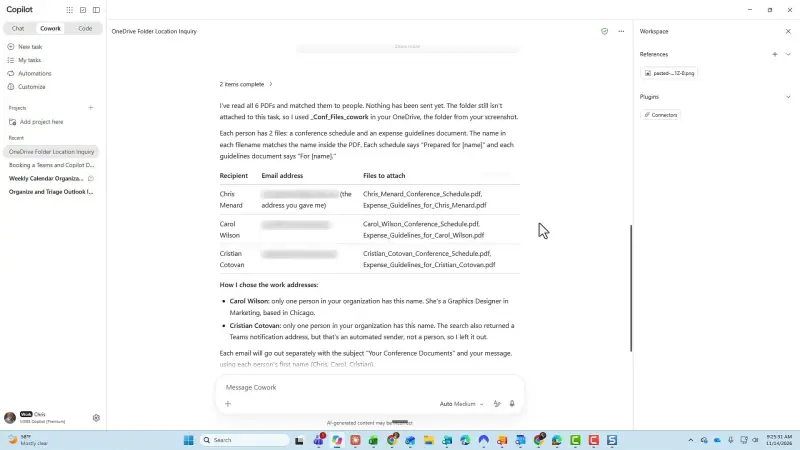
All addresses in this first test belonged to the tester, so the messages stayed within that person’s own mailbox context. Cowork returned a table showing the recipients, the addresses it had selected and the files it planned to attach. It also explained its address choices; for example, it found only one Carol Wilson in the organization. No messages had been sent at that point.
Drafts, approval and the credit cost
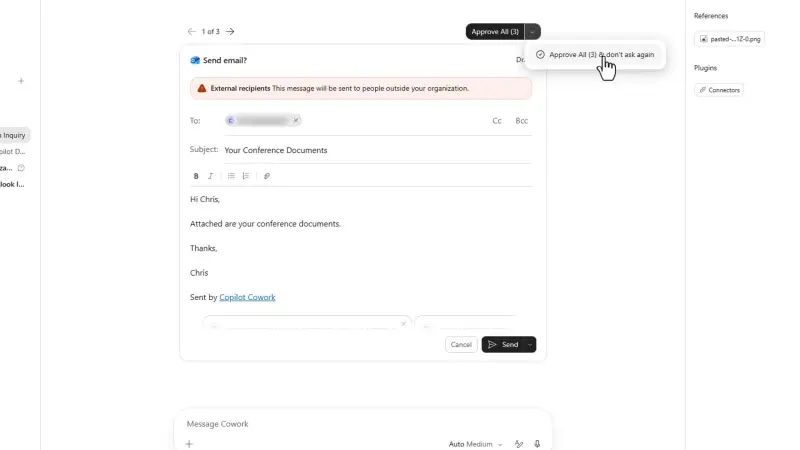
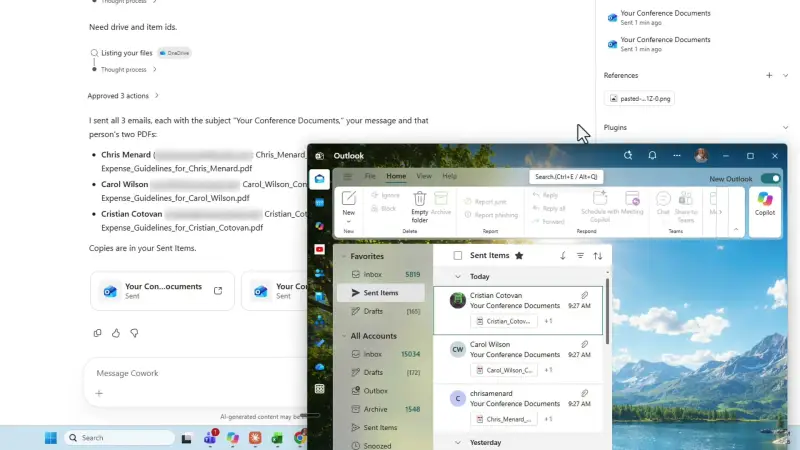
After the tester replied “approved,” Cowork presented three draft cards with the requested subject and personalized greeting. Each message included a “Sent by Copilot Cowork” line at the end. The tester asked whether Cowork could remove it and was told it could not.
An “External recipients” warning also appeared. In this test, the address triggering the warning belonged to the tester, so it did not indicate a message going to an outside person. Cowork offered several ways to proceed: send each message individually, choose “Approve All (3),” or select “Approve All (3) & don’t ask again” from the dropdown. The tester sent the messages one at a time to check each one.
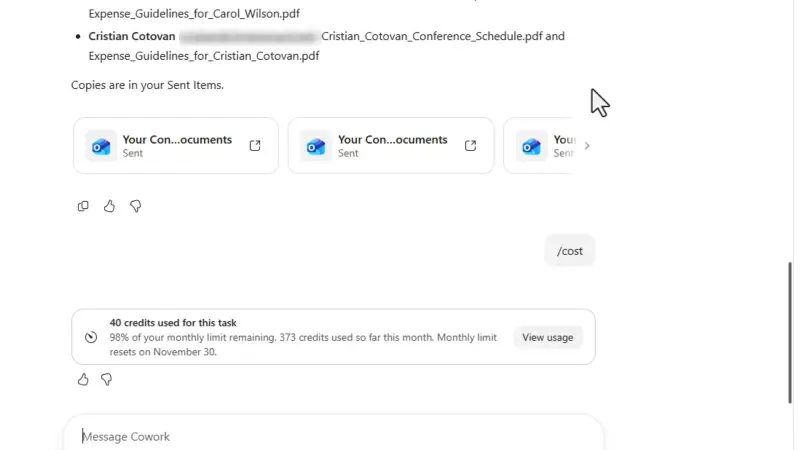
Outlook’s Sent Items then showed messages to Cristian, Carol and Chris, with two PDFs attached to each. To check usage, the tester entered /cost in Cowork. The task used 40 credits. The tester stated that 100 credits cost $1, putting the cost of this mail merge below one dollar.
How the larger matching test worked
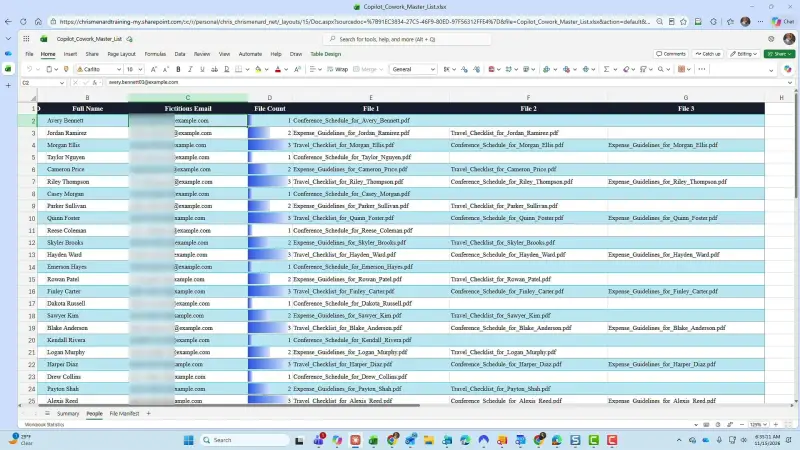
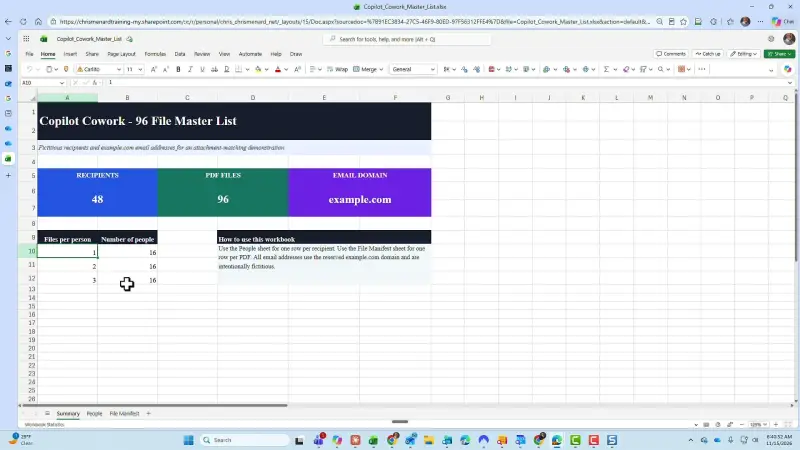
Three recipients and six files made a manageable demonstration, but not a demanding one. The tester expanded the task to 48 fictitious recipients and 96 PDFs. A separate Excel workbook recorded each person’s email address and which files they should receive. Cowork did not receive that workbook; it was given only the 48 names and email addresses. Every address used example.com, a domain reserved for documentation by the Internet Assigned Numbers Authority (IANA).
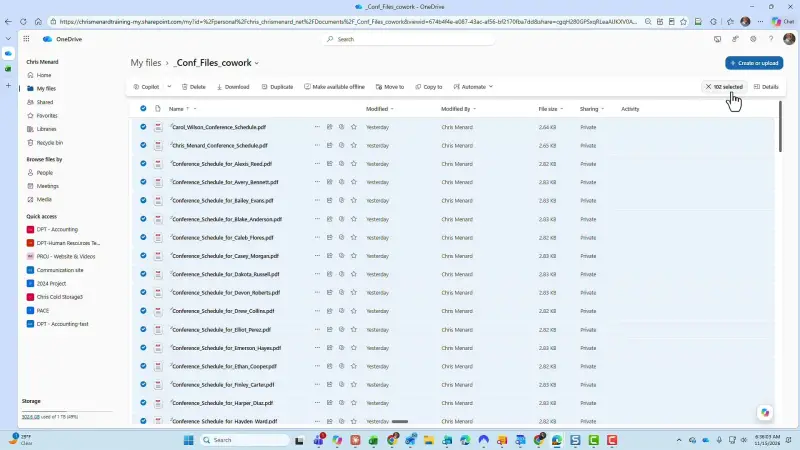
The 96 new PDFs went into the same OneDrive folder as the original six, bringing its total to 102 files. The tester returned to the Cowork task and explained that 96 files had been added. The prompt supplied the names and email addresses and asked Cowork to match the recipients to the files, show the matches first and raise any questions.
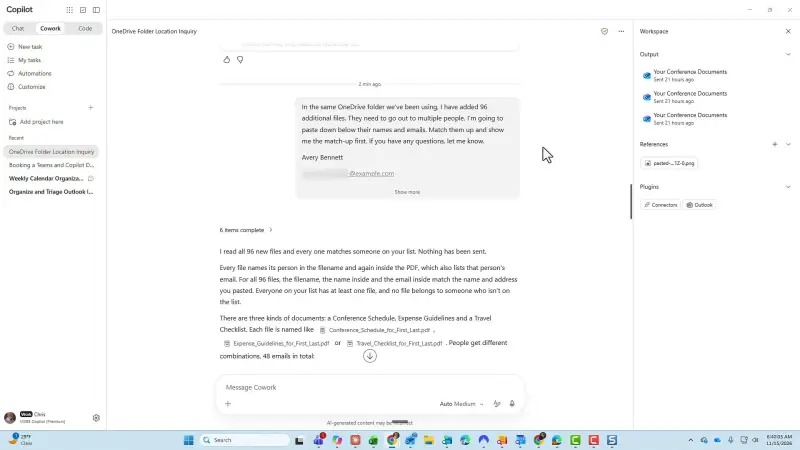
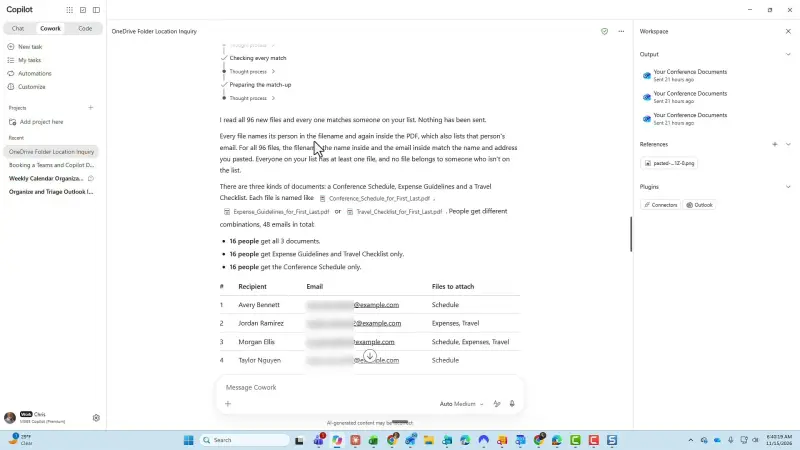
Cowork read all 96 new files without sending anything. It identified three document types: conference schedules, expense guidelines and travel checklists. Its proposed distribution had three groups of 16 people: one group received all three documents, another received expense guidelines and a travel checklist, and the third received only a conference schedule.
The tester checked the result against the Excel workbook. It also grouped the recipients into three sets of 16, based on whether each person was assigned one, two or three PDFs. The counts matched the workbook, which Cowork had not seen.
Cowork displayed all 48 recipients with their addresses and proposed attachments. It noticed that three recipients shared the surname Bennett and kept their names, addresses and files distinct. It also left the first six PDFs alone because they had already been sent. Cowork then asked whether to reuse the subject and message from the smaller test.
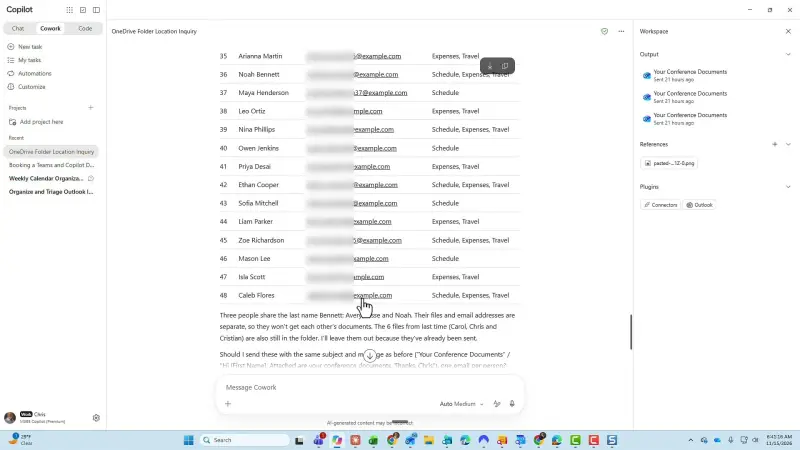
The tester did not send the 48 messages because the addresses were fictitious. So the larger run verified the matching and attachment assignment, while the smaller run verified sending through Outlook.
What administrators should take from the test
Cowork reduced the manual preparation described for a comparable Power Automate workflow. That earlier approach required an Excel list of email addresses and a separate line for each file URL assigned to a person. Here, Cowork worked from a OneDrive folder and a prompt, then produced a reviewable recipient and attachment list. A traditional Excel, Word and Outlook mail merge remains an option for personalized messages, but the tester’s described process does not handle different attachments for each recipient. Details of that method are available here.
The practical checks are clear: confirm that Cowork credits are available, spell out how it should identify recipients, require a full match review before sending, and inspect the draft cards and any recipient warnings. For larger batches, compare the proposed assignments with an independent record when one is available. In these tests, Cowork handled both the six-file run and the 96-file matching exercise; only the smaller batch was actually sent.


