Extract Names, Emails and Addresses from Excel with Copilot
Copilot can split customer details into Excel columns with prompts. Review names, contact details and addresses for row mix-ups and missing data.
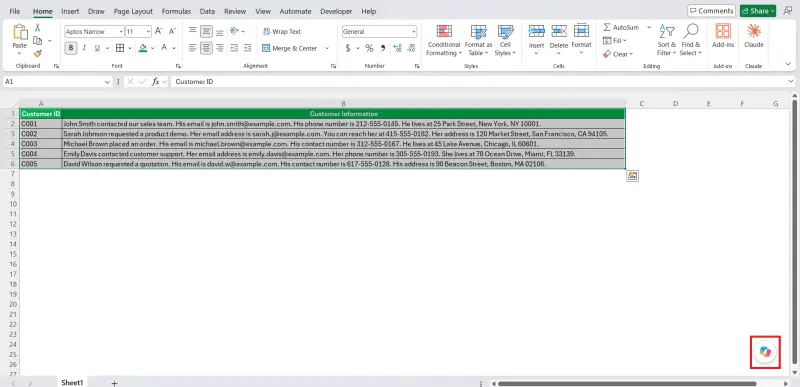
When names, email addresses, phone numbers and mailing details share one Excel cell, separating them by hand can slow down customer list cleanup. Copilot can identify those details and place them in separate columns from a natural language prompt. The practical value is faster organization; the tradeoff is that results still need a row by row check.
For example, a cell might contain: “John Smith contacted our sales team. His email address is [email protected]. He lives at 25 Park Street, New York, NY 10001.” Copilot can be asked to return the name, email address and physical address as separate fields. You can extract one kind of information at a time, or request several fields in one prompt.
Prepare the column and choose the fields
Start with the worksheet data that contains the combined customer information. Select a cell in the data and click the Copilot button to open its pane. Make the prompt specific about the source column, the output column names and what to do when a value is missing. Clear instructions give you a result that is easier to review against the original text.
For a name-only column, ask Copilot: “Extract the full names of all customers from the Customer Information column. Add the extracted names to a new column named Customer Name. Do not include any other information.”
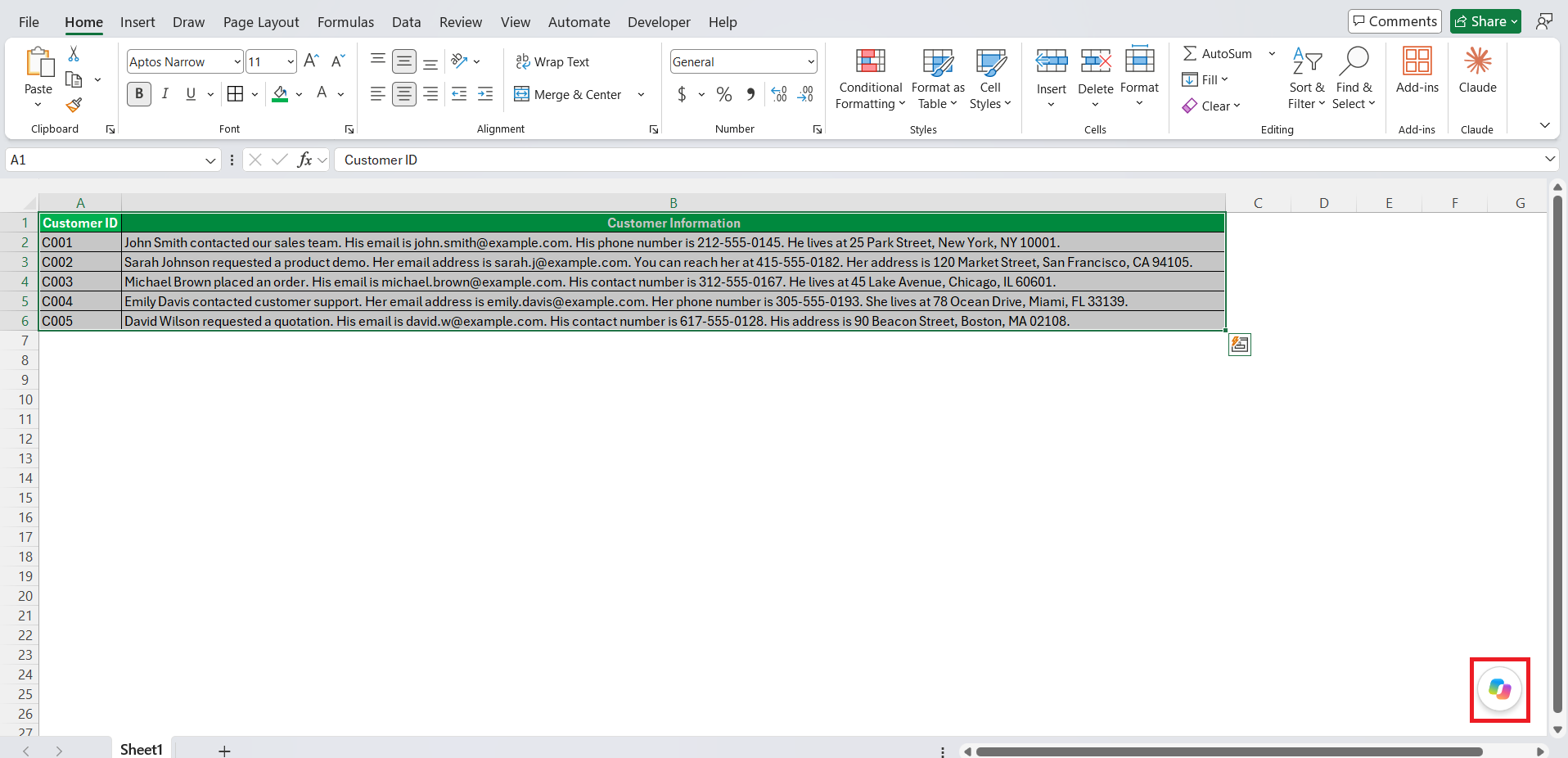
After entering the prompt in the Copilot pane, Copilot checks the Customer Information column and returns names in a new column. Compare the output with the source cells before relying on it. A person’s name can be confused with a company or another piece of text, especially when the entries use inconsistent wording.

Extract email addresses and mailing addresses
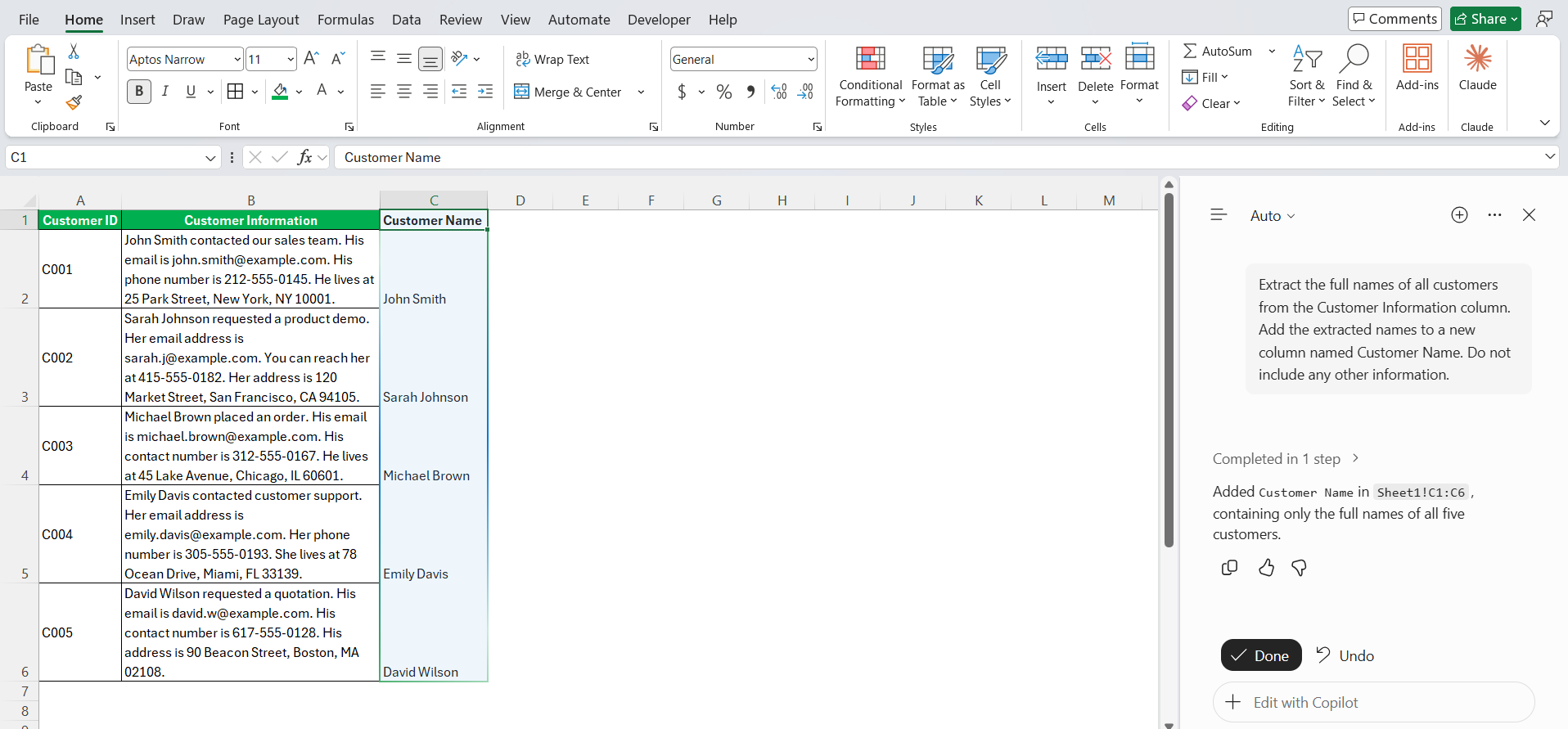
For email addresses, specify the destination column and tell Copilot how to handle entries without an address. For example: “Extract all email addresses from the Customer Information column. Add them to a new column named Email Address. If an email address is missing, leave the cell blank.” Leaving missing values blank makes gaps visible during review instead of suggesting that every customer record had an address.
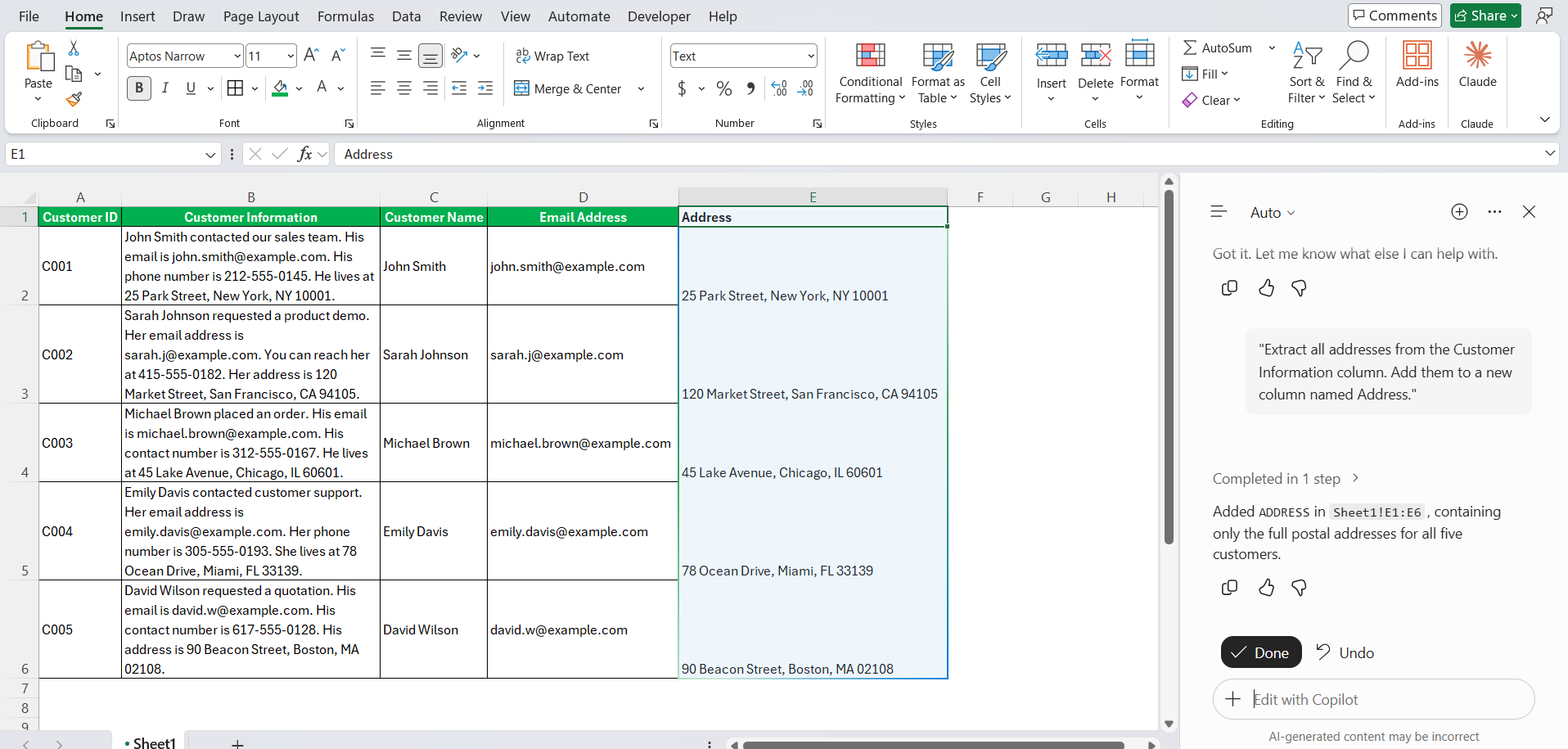
For mailing details, ask: “Extract all addresses from the Customer Information column. Add them to a new column named Address.” Then check that each result includes the parts present in the source, such as street, city, state and ZIP code. Address formats vary, so a result that looks plausible may still be incomplete or may have absorbed nearby text.
Request several fields in one prompt
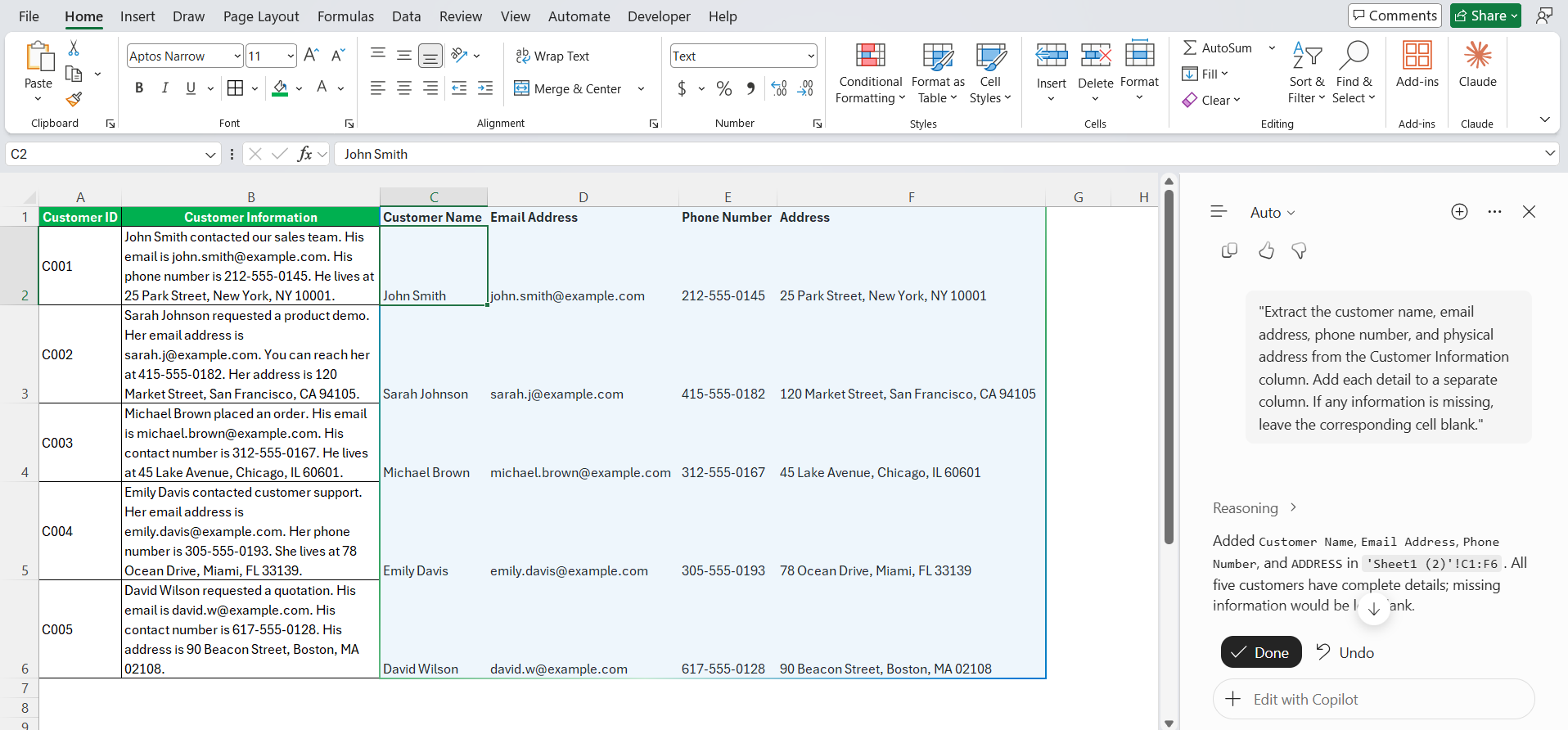
When a single cell combines several customer details, one prompt can request multiple output columns. For example: “Extract the customer name, email address, phone number, and physical address from the Customer Information column. Add each detail to a separate column. If any information is missing, leave the corresponding cell blank.”
This approach reduces the need to issue separate prompts for each field. It also makes the output easier to scan as a set: each row should represent one customer, with the requested details in their own columns. Check that Copilot has kept each value with the correct customer and has not shifted information between rows.
Review before using the extracted data
Copilot’s output can contain mistakes. Names may be mistaken for company names, and differences in how people write addresses or email details can affect what gets identified. If the original text lacks a value, the extracted result may also be wrong. Treat the new columns as a draft that needs checking against the customer information.
- Confirm each name belongs to the customer in the same row.
- Check that email addresses are complete and spelled correctly.
- Verify street, city, state and ZIP code details against the original text.
- Look for missing or duplicate values.
- Check that information from one customer has not been mixed with another row.
Prompt wording helps define what Copilot should return, but it cannot resolve information that is absent or unclear in the cell. If an entry is ambiguous, review it directly rather than assuming the extracted value is correct. Microsoft’s Copilot in Excel guidance provides further information on getting started.
For a one-off cleanup, extracting one field at a time can make errors easier to spot. When the same records need several fields, a multi-field prompt can save repeated prompting, provided each output column gets the same careful review. The key check is whether every value matches its source cell and stays with the right customer.


